Swap, add or remove exercises mid-workout, train without a program, turn an ad-hoc workout into a program day, or edit the program day from the workout.
Pick which day to do
Tap Workout in the footer when no workout is ongoing. The New Workout sheet shows the next day of your program with its exercises, and a Start button. Tap Select next workout to do another day instead. The picker lists every day of the program. Tap one, and it becomes the next day, so the program continues from there. Ad-Hoc Workout on the same sheet starts an empty workout, see below.
Swap an exercise
Tap the cog on the exercise card and pick Swap Exercise. The picker has two tabs: Ad-hoc Exercise and From Program. Pick one exercise and tap Swap Exercise at the bottom.
On the Ad-hoc Exercise tab, the weights change with the exercise. For each set, the app looks at your history for the new exercise. It takes the completed set closest in reps to the target, and converts its weight to the target reps and RPE. Same reps and RPE give you the weight you lifted last time.
If you never did the new exercise, the app uses your 1RM for it, or the exercise's default starting weight. Percentage weights use the new exercise's 1RM. Sets you already completed keep their numbers.
Warmups are rebuilt for the new exercise, from your program if it defines warmups for it on any day, otherwise from the exercise's defaults.
The From Program tab lists every exercise of your current program, by exercise and day. Pick one, and it comes with its sets. Its progression runs when you finish the workout. Exercises already in this workout are greyed out.
A swap changes this workout only. The program stays as it was.
Repeat a swap
The app remembers the last 5 exercises you swapped to, per exercise. Next time you swap the same exercise, they are in a Recent section at the top of the picker. Recent shows while the search field is empty and no filter is on.
Add an exercise
Tap + at the end of the exercise strip at the top. The picker opens as Add Exercises. You can select several at once. The button at the bottom says Add to this workout (2) with your count.
An ad-hoc exercise arrives with no sets. Tap Add Set on its card. Its sets carry an Ad-hoc label. An exercise from the From Program tab arrives with its sets and runs its progression when you finish.
Added exercises land at the end of the workout. Long-tap a thumbnail in the strip and drag it to move it.
Remove an exercise
Tap the cog on the card and pick Remove Exercise. The app asks "Do you want to remove this exercise in this workout only?". Tap OK. The program does not change. If the exercise was in a superset, its partner leaves the superset too.
Work out without a program
Finish or delete the ongoing workout. Tap Workout in the footer. The New Workout sheet opens. Tap Ad-Hoc Workout.
The workout starts empty, and the Add Exercises picker opens on its own. Pick exercises, tap Add to this workout, then Add Set on each card. You set the reps and weight yourself.
You can also skip programs from the start. The program choice screen has Go without program, and the Change Next Workout sheet has Go without a program.
Save an ad-hoc workout as a program day
Tap Finish. When the workout came from no program of yours, the Congratulations! screen shows Create Program Day. Tap it. The sheet Program day from Adhoc workout opens.
Create a new program with this workout starts a new program with this day.
Or pick a program and tap a day. The app inserts a new day named Day N right after it, with the exercises, sets and weights you did. It confirms with "Added to program 'Name', at Day N".
The same Create Program Day is in the kebab menu of a past workout, when that workout is not from one of your programs.
Edit the program from the workout
Tap the cog on a program exercise and pick Edit Program Exercise. A Liftoscript editor sheet opens with that exercise's line, headed by its week and day. Change sets, weights, warmups or progression, and tap Save. The program is updated, and the ongoing workout picks up the change.
Tap the kebab at the top and pick Edit Program Day. The same editor opens with the whole day. Add, remove or reorder exercises, then tap Save. A new exercise appears in the ongoing workout after the exercise it follows in the text.
If you change an exercise that is set up separately on several days, the app asks: Change only this day or Change across whole program. If you already logged sets for the old exercise, it asks "You've already logged sets for Bench Press in this workout. Switch them to Incline Bench Press too?".
Edit Program Exercise is not in the menu of an ad-hoc or swapped exercise.
{"feature":{"id":"changing-a-workout","title":"Changing Today's Workout","shortDescription":"Swap, add or remove exercises mid-workout, train without a program, turn an ad-hoc workout into a program day, or edit the program day from the workout.","order":50,"category":"Workout","datePublished":"2026-09-27","dateModified":"2026-09-28","screenshots":["changing-a-workout-next-workout","changing-a-workout-pick-day"],"headerScreenshots":false},"content":"## Pick which day to do\n\n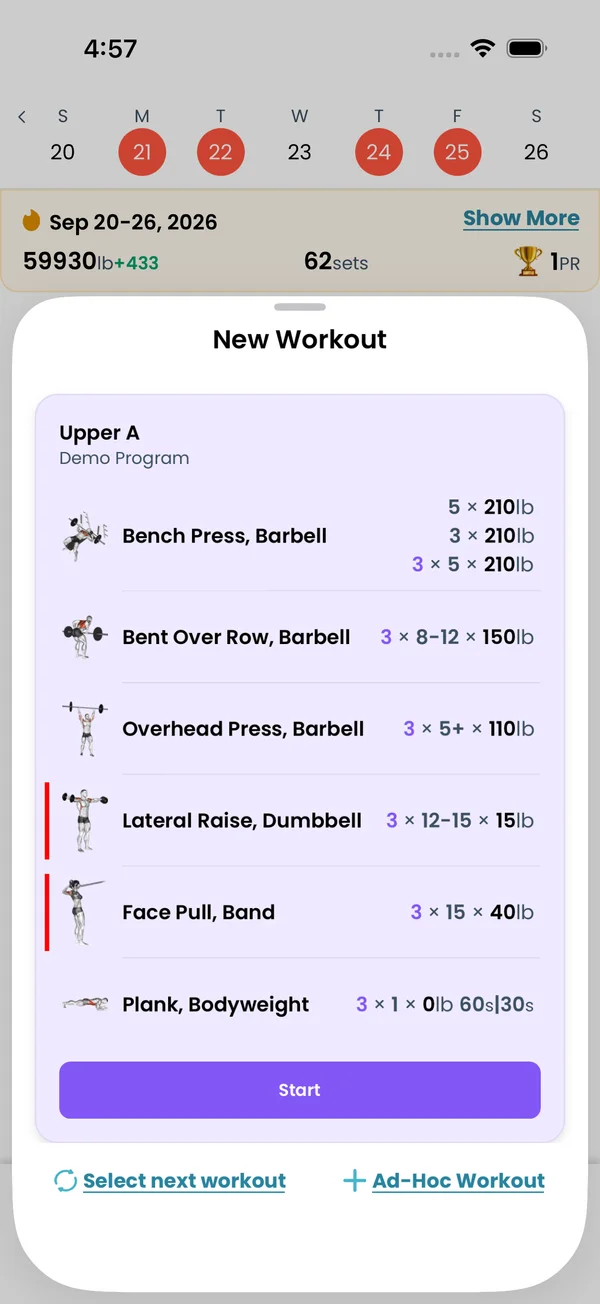 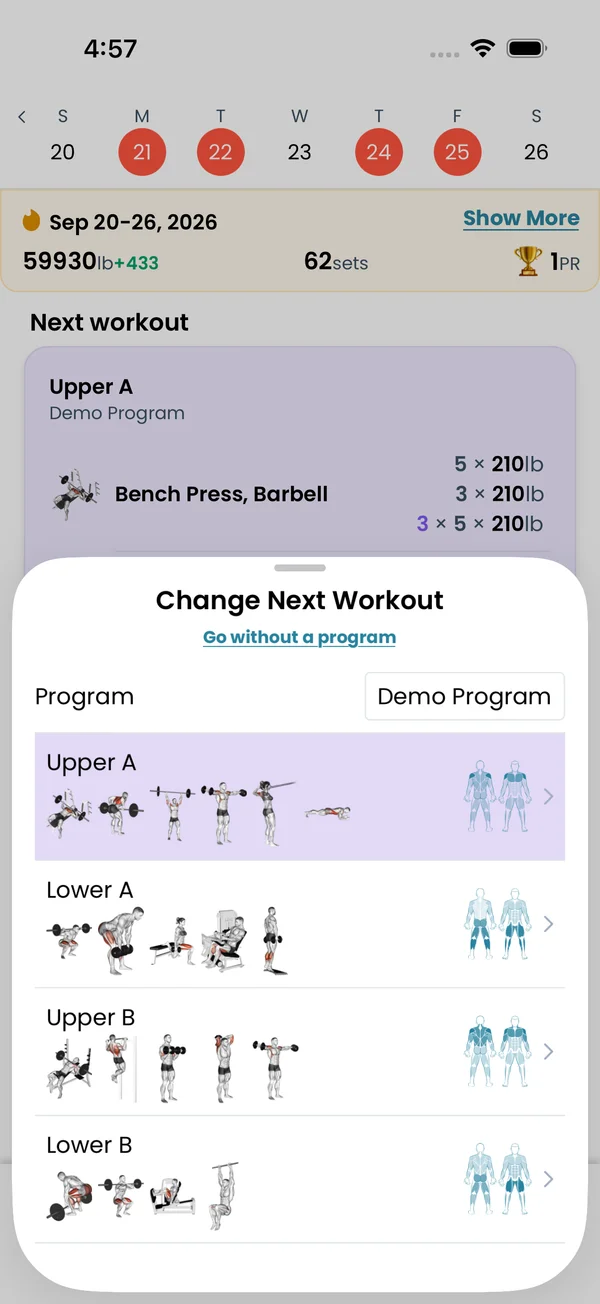\n\nTap **Workout** in the footer when no workout is ongoing. The **New Workout** sheet shows the next day of your program with its exercises, and a **Start** button. Tap **Select next workout** to do another day instead. The picker lists every day of the program. Tap one, and it becomes the next day, so the program continues from there. **Ad-Hoc Workout** on the same sheet starts an empty workout, see below.\n\n## Swap an exercise\n\n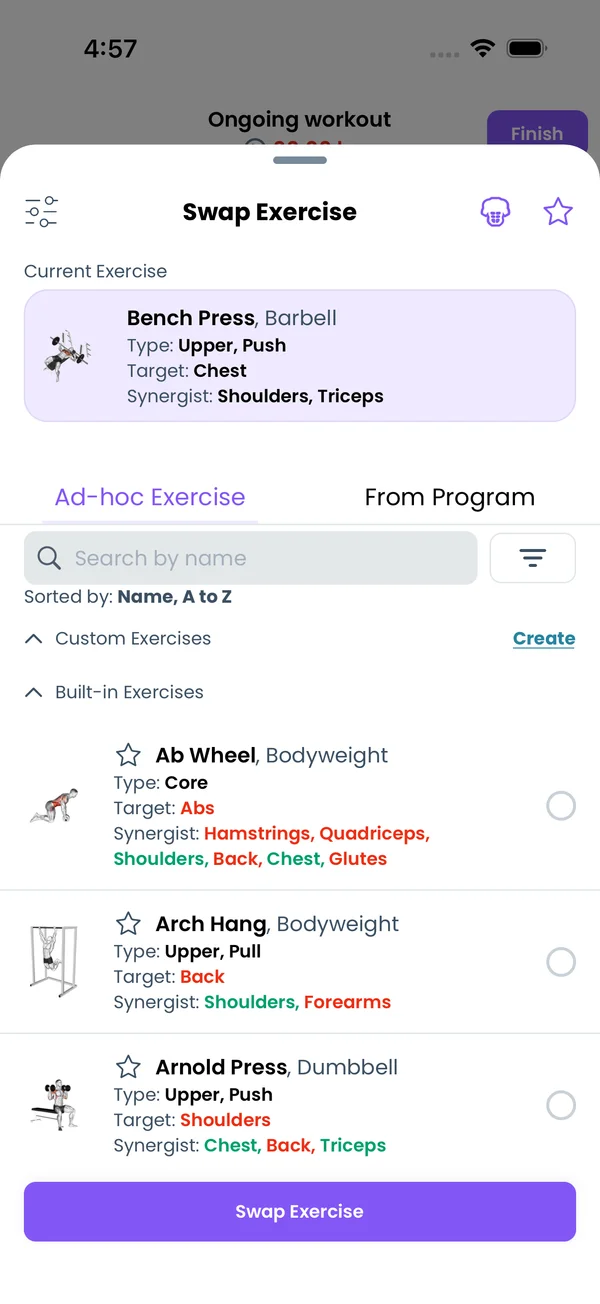 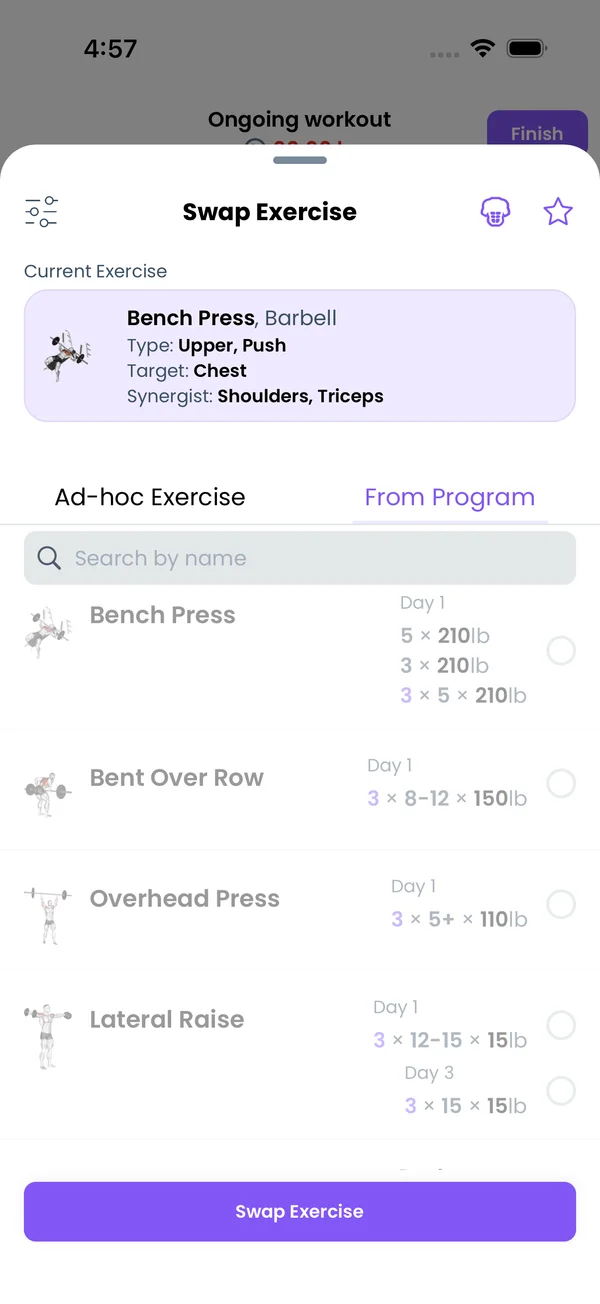\n\nTap the cog on the exercise card and pick **Swap Exercise**. The picker has two tabs: **Ad-hoc Exercise** and **From Program**. Pick one exercise and tap **Swap Exercise** at the bottom.\n\nOn the **Ad-hoc Exercise** tab, the weights change with the exercise. For each set, the app looks at your history for the new exercise. It takes the completed set closest in reps to the target, and converts its weight to the target reps and RPE. Same reps and RPE give you the weight you lifted last time.\n\nIf you never did the new exercise, the app uses your 1RM for it, or the exercise's default starting weight. Percentage weights use the new exercise's 1RM. Sets you already completed keep their numbers.\n\nWarmups are rebuilt for the new exercise, from your program if it defines warmups for it on any day, otherwise from the exercise's defaults.\n\nThe **From Program** tab lists every exercise of your current program, by exercise and day. Pick one, and it comes with its sets. Its progression runs when you finish the workout. Exercises already in this workout are greyed out.\n\nA swap changes this workout only. The program stays as it was.\n\n## Repeat a swap\n\n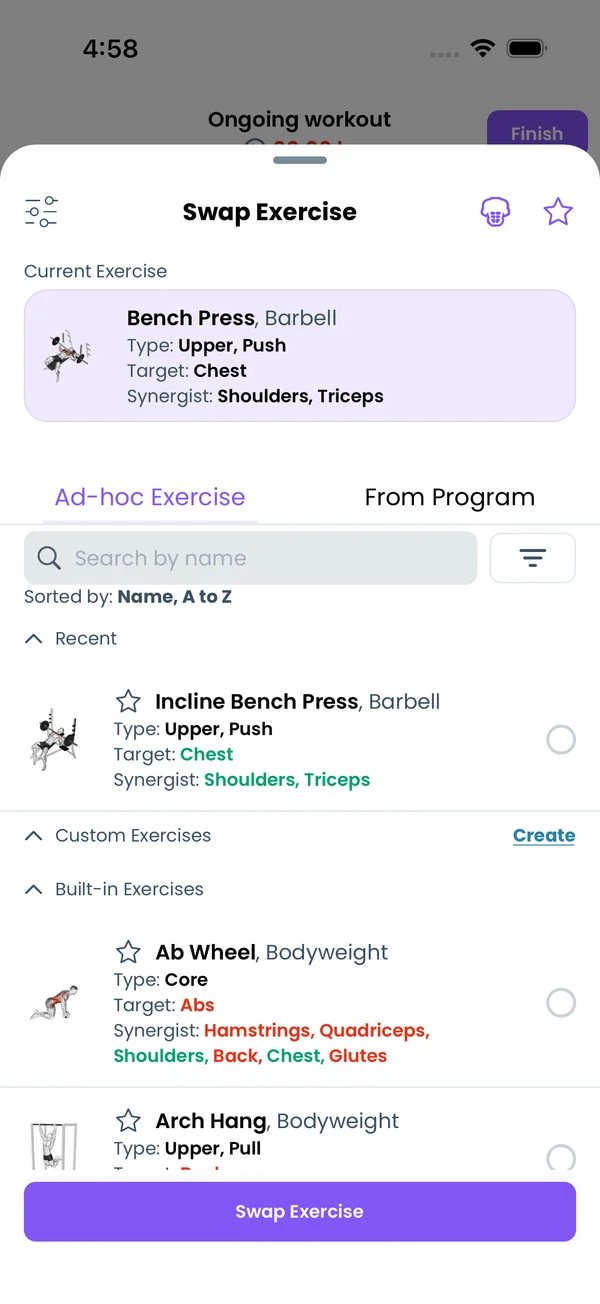\n\nThe app remembers the last 5 exercises you swapped to, per exercise. Next time you swap the same exercise, they are in a **Recent** section at the top of the picker. Recent shows while the search field is empty and no filter is on.\n\n## Add an exercise\n\nTap **+** at the end of the exercise strip at the top. The picker opens as **Add Exercises**. You can select several at once. The button at the bottom says **Add to this workout (2)** with your count.\n\nAn ad-hoc exercise arrives with no sets. Tap **Add Set** on its card. Its sets carry an **Ad-hoc** label. An exercise from the **From Program** tab arrives with its sets and runs its progression when you finish.\n\nAdded exercises land at the end of the workout. Long-tap a thumbnail in the strip and drag it to move it.\n\n## Remove an exercise\n\nTap the cog on the card and pick **Remove Exercise**. The app asks \"Do you want to remove this exercise in this workout only?\". Tap **OK**. The program does not change. If the exercise was in a superset, its partner leaves the superset too.\n\n## Work out without a program\n\n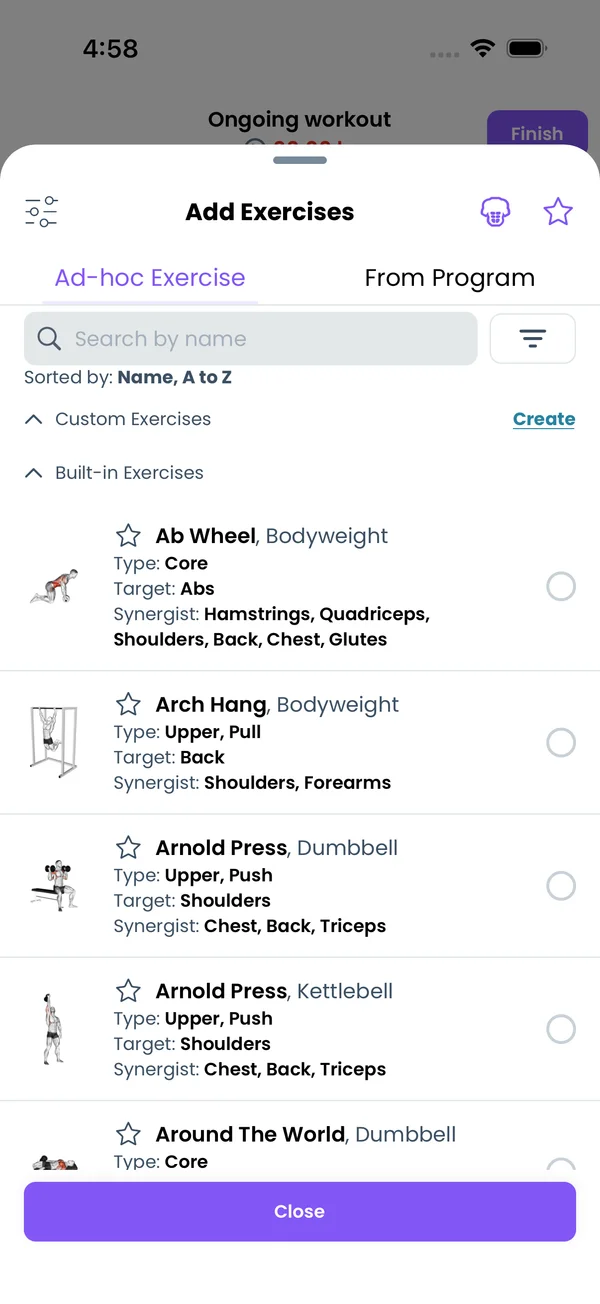 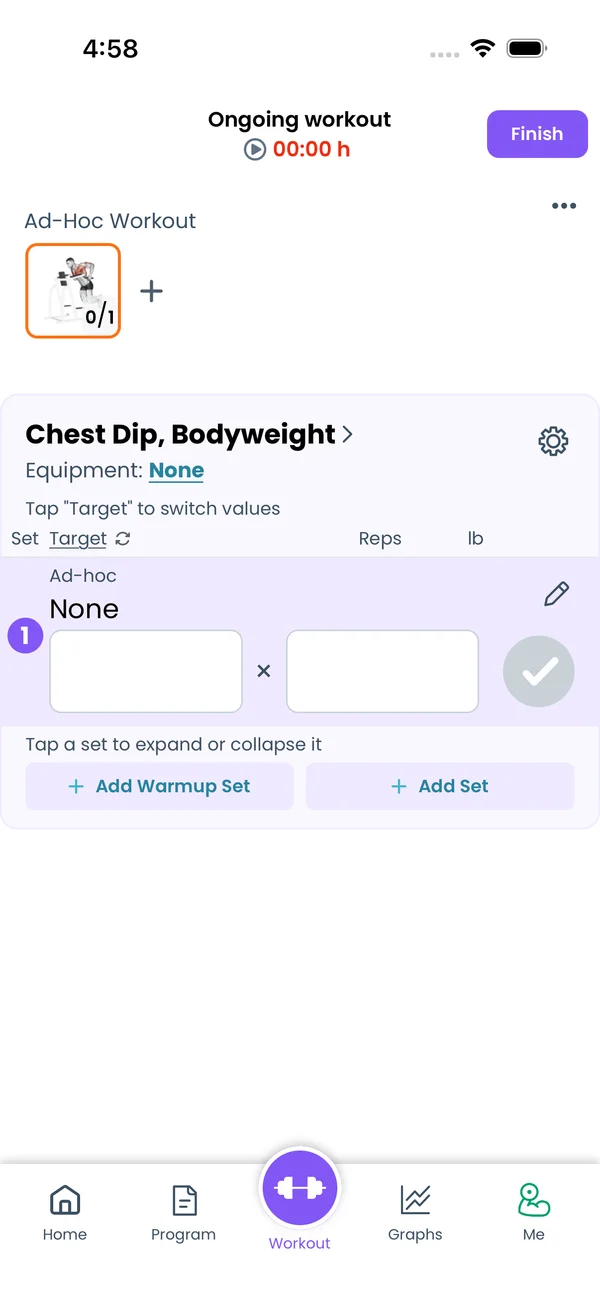\n\nFinish or delete the ongoing workout. Tap **Workout** in the footer. The **New Workout** sheet opens. Tap **Ad-Hoc Workout**.\n\nThe workout starts empty, and the **Add Exercises** picker opens on its own. Pick exercises, tap **Add to this workout**, then **Add Set** on each card. You set the reps and weight yourself.\n\nYou can also skip programs from the start. The program choice screen has **Go without program**, and the **Change Next Workout** sheet has **Go without a program**.\n\n## Save an ad-hoc workout as a program day\n\n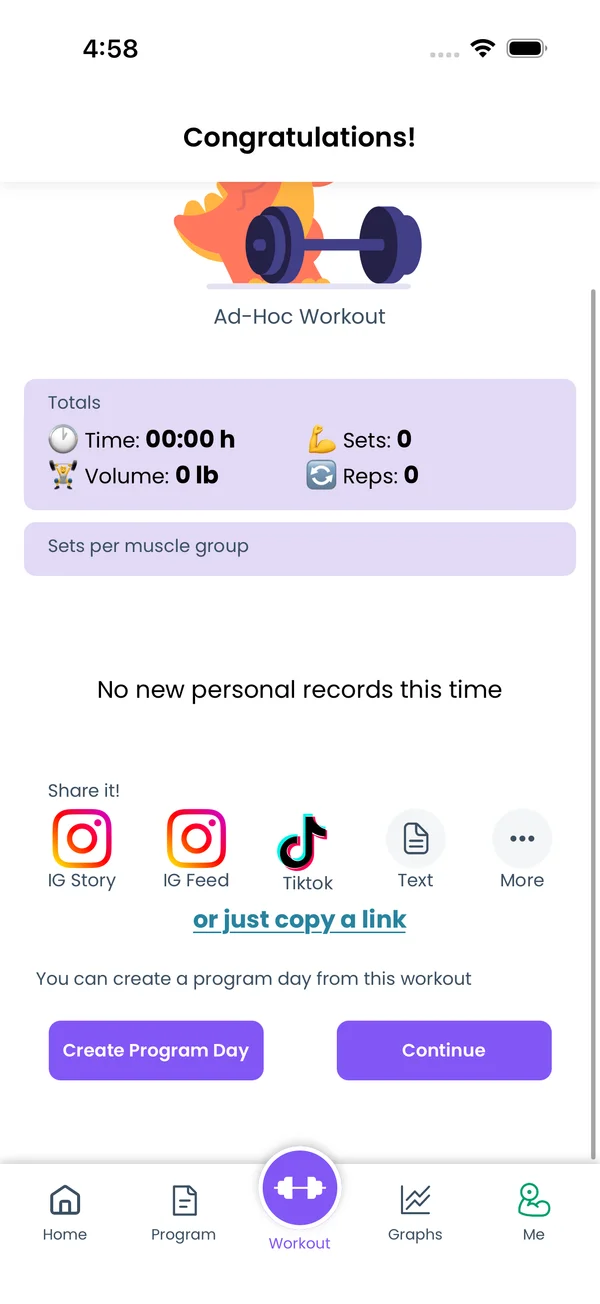 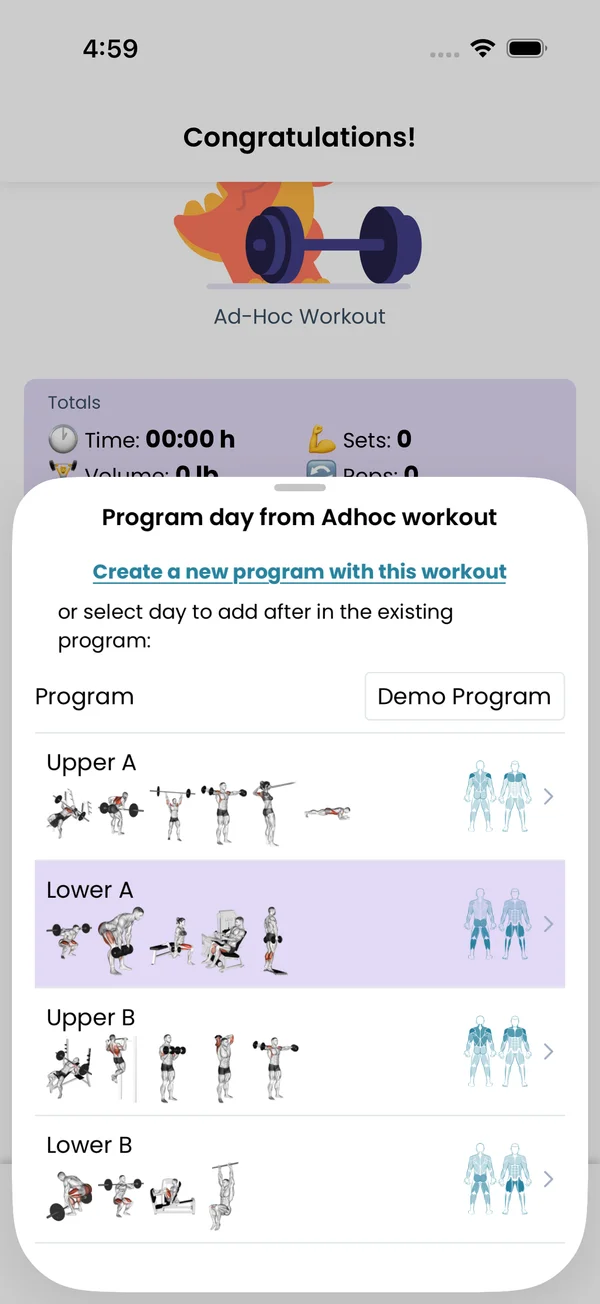\n\nTap **Finish**. When the workout came from no program of yours, the **Congratulations!** screen shows **Create Program Day**. Tap it. The sheet **Program day from Adhoc workout** opens.\n\n- **Create a new program with this workout** starts a new program with this day.\n- Or pick a program and tap a day. The app inserts a new day named **Day N** right after it, with the exercises, sets and weights you did. It confirms with \"Added to program 'Name', at Day N\".\n\nThe same **Create Program Day** is in the kebab menu of a past workout, when that workout is not from one of your programs.\n\n## Edit the program from the workout\n\n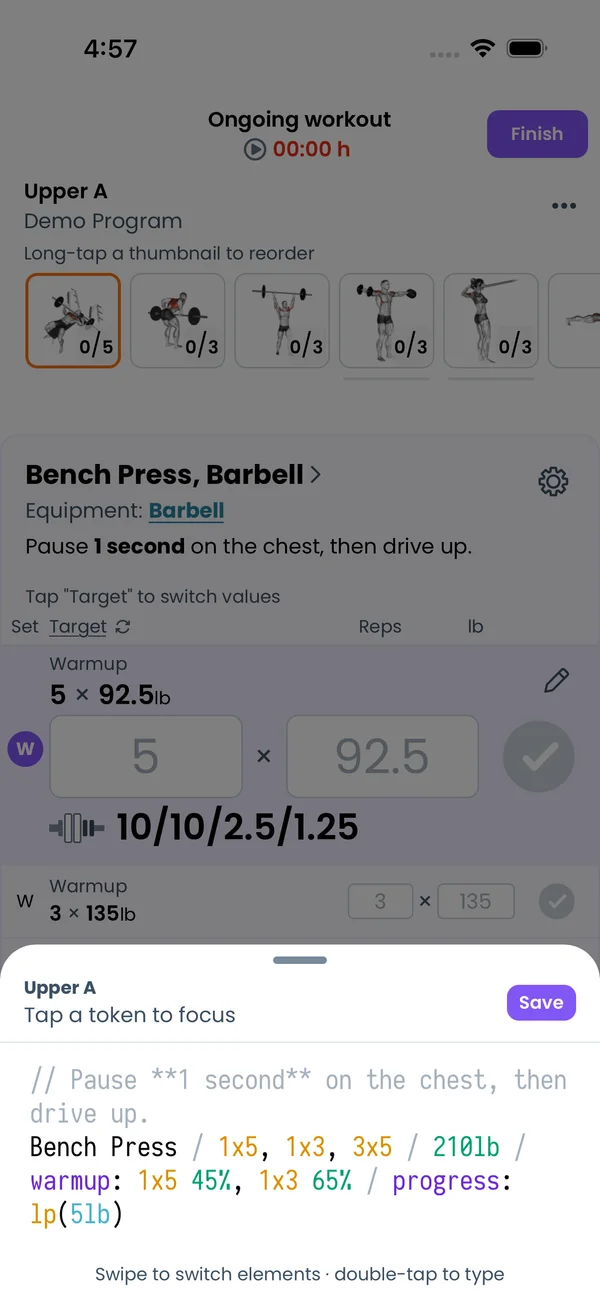 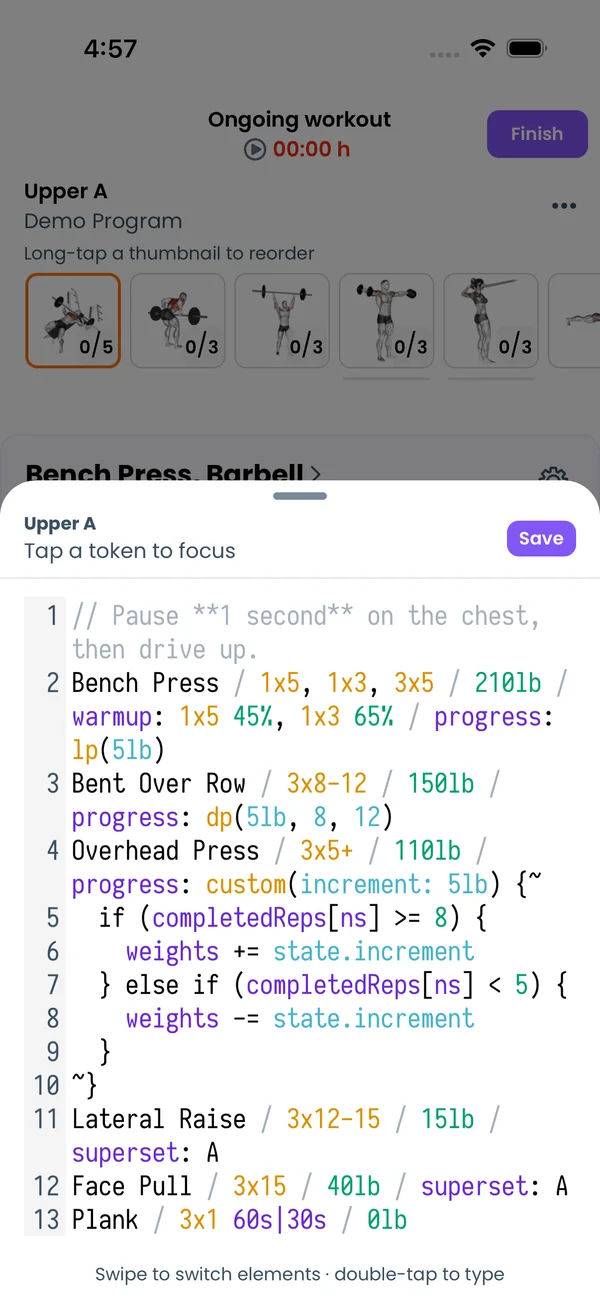\n\nTap the cog on a program exercise and pick **Edit Program Exercise**. A [Liftoscript](/doc/liftoscript) editor sheet opens with that exercise's line, headed by its week and day. Change sets, weights, warmups or progression, and tap **Save**. The program is updated, and the ongoing workout picks up the change.\n\nTap the kebab at the top and pick **Edit Program Day**. The same editor opens with the whole day. Add, remove or reorder exercises, then tap **Save**. A new exercise appears in the ongoing workout after the exercise it follows in the text.\n\nIf you change an exercise that is set up separately on several days, the app asks: **Change only this day** or **Change across whole program**. If you already logged sets for the old exercise, it asks \"You've already logged sets for Bench Press in this workout. Switch them to Incline Bench Press too?\".\n\n**Edit Program Exercise** is not in the menu of an ad-hoc or swapped exercise.","sizes":{"account/account-email-form":{"width":600,"height":1304},"account/account-forgot-password":{"width":600,"height":1304},"account/account-screen":{"width":600,"height":1304},"account/account-sign-in":{"width":600,"height":1304},"chatgpt-claude-and-ai/chatgpt-claude-and-ai-autofill":{"width":600,"height":1304},"api/api-key-created":{"width":600,"height":1304},"api/api-keys-empty":{"width":600,"height":1304},"api/api-me-row":{"width":600,"height":1304},"apple-watch/apple-watch-health-settings":{"width":600,"height":1304},"apple-watch/watch-apple-watch-amrap":{"width":416,"height":496},"apple-watch/watch-apple-watch-crown":{"width":416,"height":496},"apple-watch/watch-apple-watch-exercise":{"width":416,"height":496},"apple-watch/watch-apple-watch-get-ready":{"width":416,"height":496},"apple-watch/watch-apple-watch-home":{"width":416,"height":496},"apple-watch/watch-apple-watch-set-clock":{"width":416,"height":496},"apple-watch/watch-apple-watch-workout":{"width":416,"height":496},"built-in-programs/built-in-programs-import":{"width":600,"height":1304},"built-in-programs/built-in-programs-info":{"width":600,"height":1304},"built-in-programs/built-in-programs-library":{"width":600,"height":1304},"built-in-programs/built-in-programs-preview":{"width":600,"height":1304},"built-in-programs/built-in-programs-started":{"width":600,"height":1304},"changing-a-workout/changing-a-workout-adhoc":{"width":600,"height":1304},"changing-a-workout/changing-a-workout-adhoc-picker":{"width":600,"height":1304},"changing-a-workout/changing-a-workout-create-program-day":{"width":600,"height":1304},"changing-a-workout/changing-a-workout-edit-day":{"width":600,"height":1304},"changing-a-workout/changing-a-workout-edit-exercise":{"width":600,"height":1304},"changing-a-workout/changing-a-workout-next-workout":{"width":600,"height":1304},"changing-a-workout/changing-a-workout-pick-day":{"width":600,"height":1304},"changing-a-workout/changing-a-workout-program-day":{"width":600,"height":1304},"changing-a-workout/changing-a-workout-swap-adhoc":{"width":600,"height":1304},"changing-a-workout/changing-a-workout-swap-from-program":{"width":600,"height":1304},"changing-a-workout/changing-a-workout-swap-recent":{"width":600,"height":1304},"custom-exercises/custom-exercises-autofill":{"width":600,"height":1304},"custom-exercises/custom-exercises-clone-library":{"width":600,"height":1304},"custom-exercises/custom-exercises-cloned":{"width":600,"height":1304},"custom-exercises/custom-exercises-form":{"width":600,"height":1304},"custom-exercises/custom-exercises-hidden-group":{"width":600,"height":1304},"custom-exercises/custom-exercises-image-library":{"width":600,"height":1304},"custom-exercises/custom-exercises-image-source":{"width":600,"height":1304},"custom-exercises/custom-exercises-in-workout":{"width":600,"height":1304},"custom-exercises/custom-exercises-muscle-groups":{"width":600,"height":1304},"custom-exercises/custom-exercises-picker":{"width":600,"height":1304},"custom-exercises/custom-exercises-target-muscles":{"width":600,"height":1304},"equipment-and-gyms/equipment-and-gyms-barbell":{"width":600,"height":1304},"equipment-and-gyms/equipment-and-gyms-custom":{"width":600,"height":1304},"equipment-and-gyms/equipment-and-gyms-exercise":{"width":600,"height":1304},"equipment-and-gyms/equipment-and-gyms-fixed":{"width":600,"height":1304},"equipment-and-gyms/equipment-and-gyms-gyms":{"width":600,"height":1304},"equipment-and-gyms/equipment-and-gyms-hidden":{"width":600,"height":1304},"equipment-and-gyms/equipment-and-gyms-list":{"width":600,"height":1304},"exercise-library/exercise-library-calculator":{"width":600,"height":1304},"exercise-library/exercise-library-from-program":{"width":600,"height":1304},"exercise-library/exercise-library-list":{"width":600,"height":1304},"exercise-library/exercise-library-multi-add":{"width":600,"height":1304},"exercise-library/exercise-library-override-muscles":{"width":600,"height":1304},"exercise-library/exercise-library-picker":{"width":600,"height":1304},"exercise-library/exercise-library-prs":{"width":600,"height":1304},"exercise-library/exercise-library-search":{"width":600,"height":1304},"exercise-library/exercise-library-stats":{"width":600,"height":1304},"exercise-library/exercise-library-swap":{"width":600,"height":1304},"graphs/graphs-bodyweight":{"width":600,"height":1304},"graphs/graphs-choose":{"width":600,"height":1304},"graphs/graphs-exercise":{"width":600,"height":1304},"graphs/graphs-legend":{"width":600,"height":1304},"graphs/graphs-muscle-group":{"width":600,"height":1304},"graphs/graphs-personal-records":{"width":600,"height":1304},"graphs/graphs-settings":{"width":600,"height":1304},"health-sync/android-health-sync-measurements":{"width":600,"height":1339},"health-sync/android-health-sync-settings":{"width":600,"height":1339},"health-sync/android-health-sync-share":{"width":600,"height":1339},"health-sync/android-health-sync-sleep-nutrition":{"width":600,"height":1339},"health-sync/health-sync-measurements":{"width":600,"height":1304},"health-sync/health-sync-settings":{"width":600,"height":1304},"health-sync/health-sync-share":{"width":600,"height":1304},"health-sync/health-sync-sleep-nutrition":{"width":600,"height":1304},"import-export/import-export-export":{"width":600,"height":1304},"import-export/import-export-hevy":{"width":600,"height":1304},"import-export/import-export-import":{"width":600,"height":1304},"liftoscript/liftoscript-exercise-sheet":{"width":600,"height":1304},"liftoscript/liftoscript-full-program":{"width":600,"height":1304},"liftoscript/liftoscript-per-day":{"width":600,"height":1304},"liftoscript/liftoscript-playground":{"width":600,"height":1304},"lock-screen-and-notifications/android-lock-screen-and-notifications-live-update":{"width":600,"height":1339},"lock-screen-and-notifications/android-lock-screen-and-notifications-reminder":{"width":600,"height":1339},"lock-screen-and-notifications/android-lock-screen-and-notifications-sound":{"width":600,"height":1339},"lock-screen-and-notifications/lock-screen-and-notifications-dynamic-island":{"width":600,"height":1304},"lock-screen-and-notifications/lock-screen-and-notifications-live-activity":{"width":600,"height":1304},"lock-screen-and-notifications/lock-screen-and-notifications-reminder":{"width":600,"height":1304},"lock-screen-and-notifications/lock-screen-and-notifications-sound":{"width":600,"height":1304},"measurements/measurements-add":{"width":600,"height":1304},"measurements/measurements-bodyweight":{"width":600,"height":1304},"measurements/measurements-moving-average":{"width":600,"height":1304},"measurements/measurements-sleep-nutrition":{"width":600,"height":1304},"measurements/measurements-types":{"width":600,"height":1304},"first-run-and-settings/first-run-and-settings-appearance":{"width":600,"height":1304},"first-run-and-settings/first-run-and-settings-dark-mode":{"width":600,"height":1304},"first-run-and-settings/first-run-and-settings-equipment":{"width":600,"height":1304},"first-run-and-settings/first-run-and-settings-me":{"width":600,"height":1304},"first-run-and-settings/first-run-and-settings-units":{"width":600,"height":1304},"first-run-and-settings/first-run-and-settings-welcome":{"width":600,"height":1304},"playground/playground-completed":{"width":600,"height":1304},"playground/playground-day":{"width":600,"height":1304},"playground/playground-finished":{"width":600,"height":1304},"playground/playground-variables":{"width":600,"height":1304},"premium/premium-account":{"width":600,"height":1304},"premium/premium-feature-info":{"width":600,"height":1304},"premium/premium-plans":{"width":600,"height":1304},"program-editor/program-editor-create":{"width":600,"height":1304},"program-editor/program-editor-day-details":{"width":600,"height":1304},"program-editor/program-editor-exercise-sheet":{"width":600,"height":1304},"program-editor/program-editor-full-text":{"width":600,"height":1304},"program-editor/program-editor-grid":{"width":600,"height":1304},"program-editor/program-editor-perday-text":{"width":600,"height":1304},"program-editor/program-editor-ui-mode":{"width":600,"height":1304},"program-editor/program-editor-week-stats":{"width":600,"height":1304},"progressions/progressions-linear-settings":{"width":600,"height":1304},"progressions/progressions-preview":{"width":600,"height":1304},"progressions/progressions-state-variables":{"width":600,"height":1304},"progressions/progressions-suppressed":{"width":600,"height":1304},"rest-timer/rest-timer-collapsed":{"width":600,"height":1304},"rest-timer/rest-timer-dynamic-island":{"width":600,"height":1304},"rest-timer/rest-timer-expanded":{"width":600,"height":1304},"rest-timer/rest-timer-get-ready":{"width":600,"height":1304},"rest-timer/rest-timer-lock-screen":{"width":600,"height":1304},"rest-timer/rest-timer-settings":{"width":600,"height":1304},"rest-timer/rest-timer-sound":{"width":600,"height":1304},"rest-timer/watch-rest-timer":{"width":416,"height":496},"rest-timer/watch-rest-timer-exercise":{"width":416,"height":496},"set-types/set-types-amrap-popup":{"width":600,"height":1304},"set-types/set-types-per-side":{"width":600,"height":1304},"set-types/set-types-rpe-logged":{"width":600,"height":1304},"set-types/set-types-rpe-popup":{"width":600,"height":1304},"sharing-programs/sharing-programs-export-text":{"width":600,"height":1304},"sharing-programs/sharing-programs-image-preview":{"width":600,"height":1304},"sharing-programs/sharing-programs-image-settings":{"width":600,"height":1304},"sharing-programs/sharing-programs-import":{"width":600,"height":1304},"sharing-programs/sharing-programs-menu":{"width":600,"height":1304},"sharing-programs/sharing-programs-private-link":{"width":600,"height":1304},"sharing-programs/sharing-programs-public-link":{"width":600,"height":1304},"sharing-workouts/sharing-workouts-copied-text":{"width":600,"height":1304},"sharing-workouts/sharing-workouts-finish-screen":{"width":600,"height":1304},"sharing-workouts/sharing-workouts-profile-settings":{"width":600,"height":1304},"sharing-workouts/sharing-workouts-share-sheet":{"width":600,"height":1304},"sharing-workouts/sharing-workouts-story-preview":{"width":600,"height":1304},"supersets/supersets-liftoscript":{"width":600,"height":1304},"supersets/supersets-next-exercise":{"width":600,"height":1304},"supersets/supersets-picker":{"width":600,"height":1304},"supersets/supersets-program-editor":{"width":600,"height":1304},"supersets/supersets-timer":{"width":600,"height":1304},"supersets/supersets-workout":{"width":600,"height":1304},"sync-and-offline/sync-and-offline-account":{"width":600,"height":1304},"sync-and-offline/sync-and-offline-me-account":{"width":600,"height":1304},"sync-and-offline/sync-and-offline-sign-in":{"width":600,"height":1304},"timed-sets/timed-sets-count-up":{"width":600,"height":1304},"timed-sets/timed-sets-edit-time":{"width":600,"height":1304},"timed-sets/timed-sets-get-ready":{"width":600,"height":1304},"timed-sets/timed-sets-recorded":{"width":600,"height":1304},"timed-sets/timed-sets-running":{"width":600,"height":1304},"timed-sets/timed-sets-set-row":{"width":600,"height":1304},"timed-sets/timed-sets-timers":{"width":600,"height":1304},"week-insights/week-insights-details":{"width":600,"height":1304},"week-insights/week-insights-edit-muscle-groups":{"width":600,"height":1304},"week-insights/week-insights-exercises":{"width":600,"height":1304},"week-insights/week-insights-home":{"width":600,"height":1304},"week-insights/week-insights-muscle-groups":{"width":600,"height":1304},"week-insights/week-insights-settings":{"width":600,"height":1304},"workout-history/workout-history-change-date":{"width":600,"height":1304},"workout-history/workout-history-delete":{"width":600,"height":1304},"workout-history/workout-history-feed":{"width":600,"height":1304},"workout-history/workout-history-menu":{"width":600,"height":1304},"workout-history/workout-history-month-calendar":{"width":600,"height":1304},"workout-history/workout-history-note-on-card":{"width":600,"height":1304},"workout-history/workout-history-notes":{"width":600,"height":1304},"workout-history/workout-history-past-card":{"width":600,"height":1304},"workout-history/workout-history-past-workout":{"width":600,"height":1304},"workout-history/workout-history-week-insights":{"width":600,"height":1304},"workout-screen/workout-screen-e1rm":{"width":600,"height":1304},"workout-screen/workout-screen-edit-target":{"width":600,"height":1304},"workout-screen/workout-screen-exercise-menu":{"width":600,"height":1304},"workout-screen/workout-screen-exercise-notes":{"width":600,"height":1304},"workout-screen/workout-screen-history":{"width":600,"height":1304},"workout-screen/workout-screen-keypad":{"width":600,"height":1304},"workout-screen/workout-screen-next-set":{"width":600,"height":1304},"workout-screen/workout-screen-overview":{"width":600,"height":1304},"workout-screen/workout-screen-rounding":{"width":600,"height":1304},"workout-screen/workout-screen-summary":{"width":600,"height":1304}}}










