Import workout history from Hevy or a CSV file, with a preview and undo. Export everything as JSON, your history as CSV, or your programs as text.
Where to find it
Go to Me and scroll to the Import / Export section. It has three export rows and four import rows. On the phone, every export opens the system share sheet, so you can save the file to Files or send it to another app. In the browser, the file downloads.
Back up all your data
Tap Export data to JSON file. The app writes everything it stores about you into one file: history, programs, settings, measurements, and custom exercises. The file is named liftosaur-YYYYMMDD.json, with today's date.
Keep this file as a backup. It is the only export that you can load back into the app in full.
Export your history as a spreadsheet
Tap Export history to CSV file. The app writes one row per set into liftosaur_YYYYMMDD.csv. Warmup sets are rows too, with Is Warmup Set? set to 1.
The columns are: Workout DateTime, Program, Day Name, Exercise, Is Warmup Set?, Required Reps, Completed Reps, Is AMRAP?, Required RPE, Completed RPE, Log RPE?, Required Weight Value, Required Weight Unit, Completed Weight Value, Completed Weight Unit, Ask Weight?, Completed Reps Time, Target Muscles, Synergist Muscles, Notes.
Open it in Excel, Google Sheets, or any tool that reads CSV. The same file can be imported back.
Export your programs as text
Tap Export all programs to text file. The app writes every program as Liftoscript text into liftosaur_all_programs_YYYYMMDD.txt. Each program starts with a line like ======= Demo Program =======, followed by its full text.
You can paste that text back into the program editor to recreate a program. See Program Editor for the editor and Liftoscript for the syntax.
Import history from Hevy
Export your workouts from Hevy as a CSV file first. Then go to Me → Import history from other apps and tap Upload CSV file from Hevy. Pick the file.
The app maps Hevy exercise names to Liftosaur exercises, for example "Bench Press (Barbell)" becomes Bench Press with a barbell. A name it does not know becomes a custom exercise. Warmup sets, weights in kg or lb, and exercise notes come along.
If you pick a Liftosaur CSV here by mistake, the app tells you and points you to the right row.
Import history from a Liftosaur CSV
Tap Import history from CSV file and pick the file. The file must use the same columns as Export history to CSV file. The app checks the header row for Workout DateTime, Exercise and Is Warmup Set?. Tap the help icon next to the row for a link to an example file and formatting instructions.
Rows the app cannot read are skipped and listed on the preview. If more than half the rows fail, the import stops with an error instead.
Check the preview before you import
Both CSV imports open an Import Preview screen. Nothing is saved yet. The screen shows:
How many workouts will be imported and their date range.
Every workout, drawn the way it will look on the Home screen.
Which exercises will be created as custom. Tap Show to see the names.
Rows skipped because they could not be parsed, with the row number and the reason.
Values that look suspicious: a weight over 3000 lb, more than 1000 reps, a date before 2000 or more than a day in the future.
Workouts that look like duplicates of your existing history. A workout is a duplicate when it starts within one minute of one you already have. Duplicates are skipped by default. Tap Skipped - Include? to import them anyway.
Tap Import in the top right to save. The app returns to Home and shows "Successfully imported N workouts".
Undo an import
After your first import, a Recent imports row appears in the Import / Export section. It lists your last 5 imports, each with the source, the date, and the number of workouts and new exercises.
Tap Undo next to an import. The app asks to confirm, and warns you if you edited some of those workouts after the import. Undo removes the workouts from that import. It also removes the custom exercises that import created, unless a program or another workout uses them.
Restore from a JSON backup
Tap Import data from JSON file and pick a file made by Export data to JSON file. The app warns you first: "Importing new data will wipe out your current data." Tap OK to replace everything in the app with the contents of the file.
Old backups work too. The app runs its data migrations on the file before loading it.
Import a program from a JSON file
Tap Import program from JSON file to load a single program from a program JSON file. If a program with the same id already exists, the app overwrites it. Otherwise it creates a new one. The app asks you to confirm first.
{"feature":{"id":"import-export","title":"Import and Export","shortDescription":"Import workout history from Hevy or a CSV file, with a preview and undo. Export everything as JSON, your history as CSV, or your programs as text.","order":30,"category":"Sharing and data","datePublished":"2026-09-27","dateModified":"2026-09-28","screenshots":["import-export-export","import-export-import"]},"content":"## Where to find it\n\nGo to **Me** and scroll to the **Import / Export** section. It has three export rows and four import rows. On the phone, every export opens the system share sheet, so you can save the file to Files or send it to another app. In the browser, the file downloads.\n\n## Back up all your data\n\n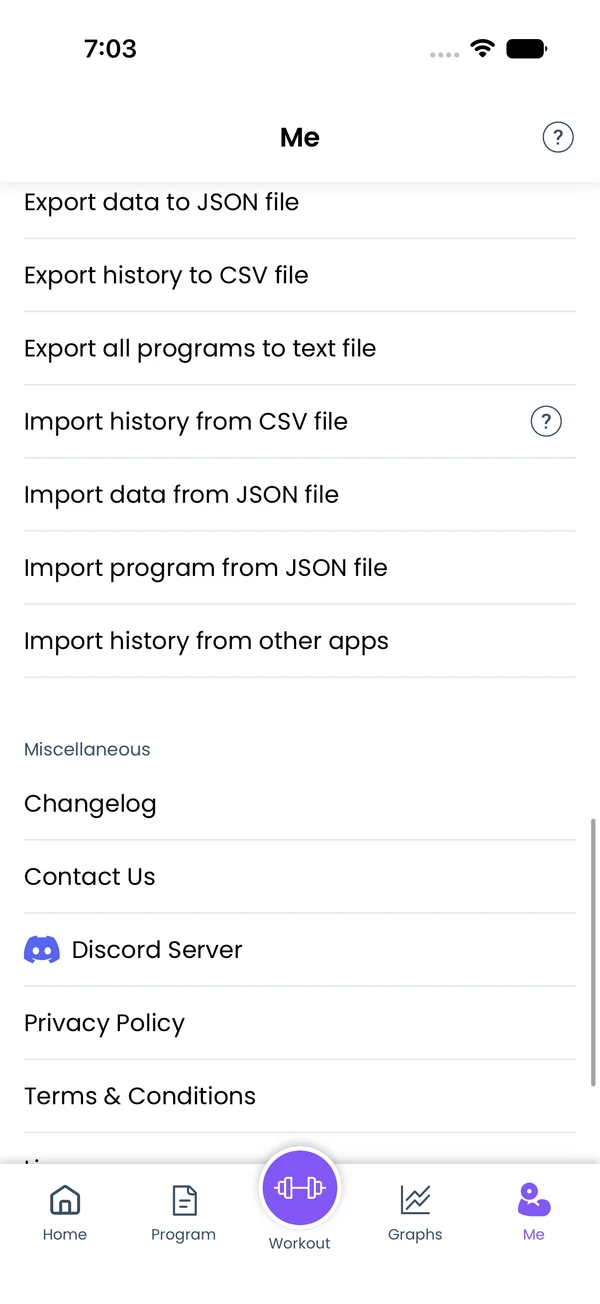\n\nTap **Export data to JSON file**. The app writes everything it stores about you into one file: history, programs, settings, measurements, and custom exercises. The file is named `liftosaur-YYYYMMDD.json`, with today's date.\n\nKeep this file as a backup. It is the only export that you can load back into the app in full.\n\n## Export your history as a spreadsheet\n\nTap **Export history to CSV file**. The app writes one row per set into `liftosaur_YYYYMMDD.csv`. Warmup sets are rows too, with **Is Warmup Set?** set to 1.\n\nThe columns are: Workout DateTime, Program, Day Name, Exercise, Is Warmup Set?, Required Reps, Completed Reps, Is AMRAP?, Required RPE, Completed RPE, Log RPE?, Required Weight Value, Required Weight Unit, Completed Weight Value, Completed Weight Unit, Ask Weight?, Completed Reps Time, Target Muscles, Synergist Muscles, Notes.\n\nOpen it in Excel, Google Sheets, or any tool that reads CSV. The same file can be imported back.\n\n## Export your programs as text\n\nTap **Export all programs to text file**. The app writes every program as Liftoscript text into `liftosaur_all_programs_YYYYMMDD.txt`. Each program starts with a line like `======= Demo Program =======`, followed by its full text.\n\nYou can paste that text back into the program editor to recreate a program. See [Program Editor](/features/program-editor) for the editor and [Liftoscript](/doc/liftoscript) for the syntax.\n\n## Import history from Hevy\n\n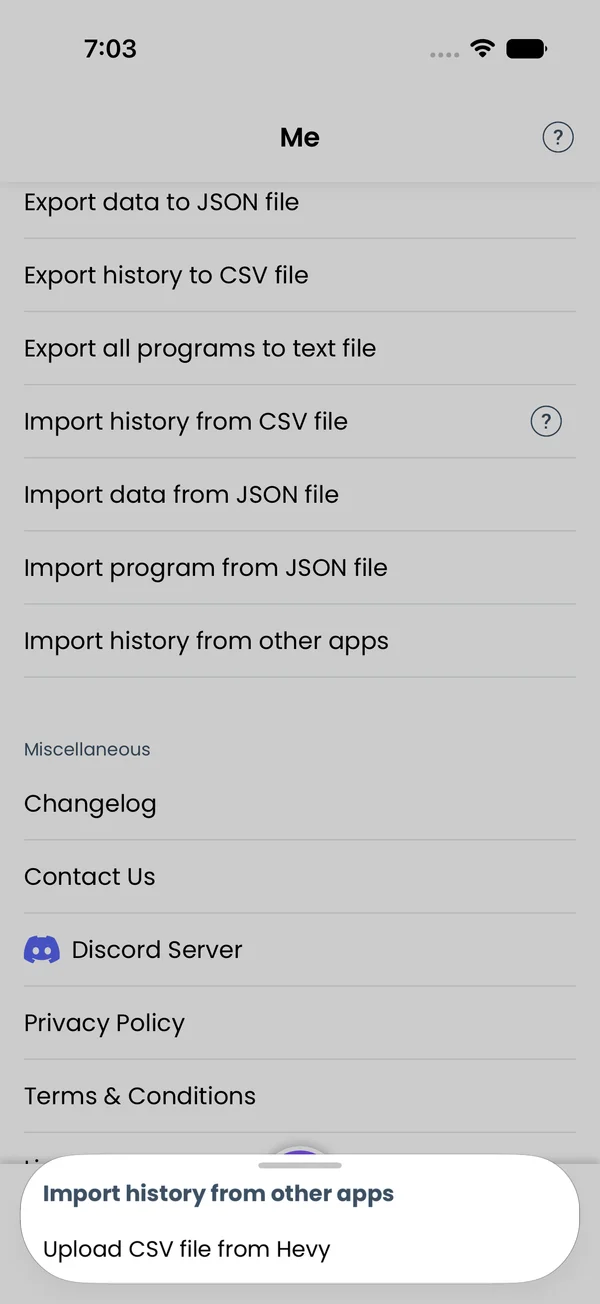\n\nExport your workouts from Hevy as a CSV file first. Then go to **Me → Import history from other apps** and tap **Upload CSV file from Hevy**. Pick the file.\n\nThe app maps Hevy exercise names to Liftosaur exercises, for example \"Bench Press (Barbell)\" becomes Bench Press with a barbell. A name it does not know becomes a custom exercise. Warmup sets, weights in kg or lb, and exercise notes come along.\n\nIf you pick a Liftosaur CSV here by mistake, the app tells you and points you to the right row.\n\n## Import history from a Liftosaur CSV\n\n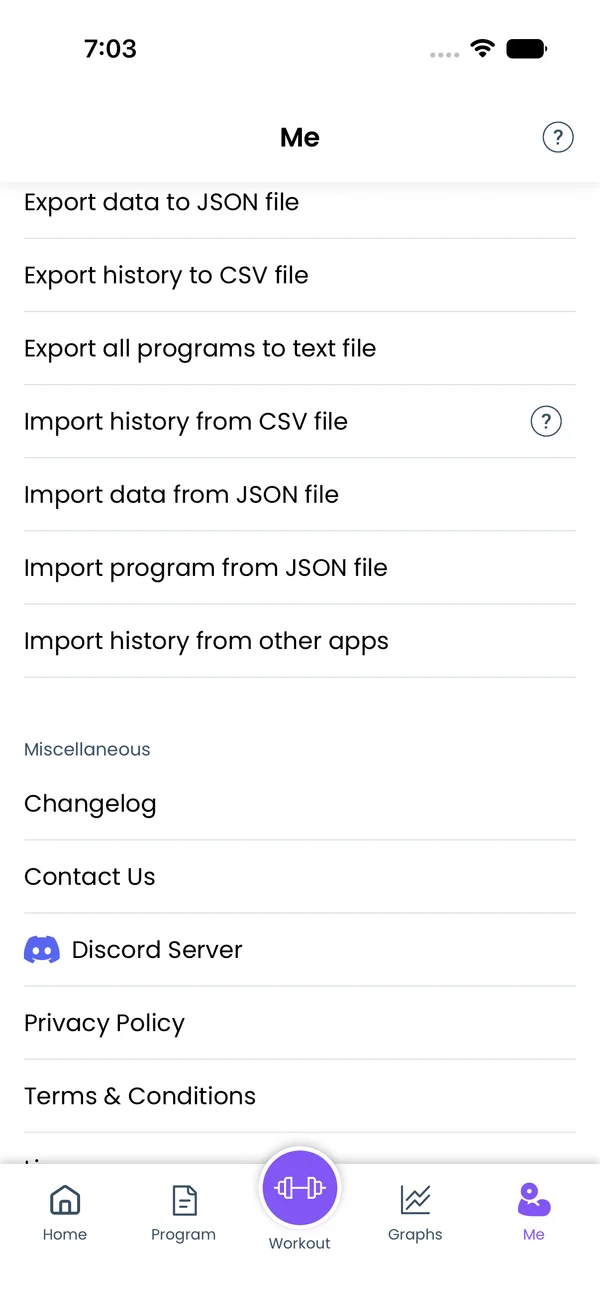\n\nTap **Import history from CSV file** and pick the file. The file must use the same columns as **Export history to CSV file**. The app checks the header row for **Workout DateTime**, **Exercise** and **Is Warmup Set?**. Tap the help icon next to the row for a link to an example file and formatting instructions.\n\nRows the app cannot read are skipped and listed on the preview. If more than half the rows fail, the import stops with an error instead.\n\n## Check the preview before you import\n\nBoth CSV imports open an **Import Preview** screen. Nothing is saved yet. The screen shows:\n\n- How many workouts will be imported and their date range.\n- Every workout, drawn the way it will look on the Home screen.\n- Which exercises will be created as custom. Tap **Show** to see the names.\n- Rows skipped because they could not be parsed, with the row number and the reason.\n- Values that look suspicious: a weight over 3000 lb, more than 1000 reps, a date before 2000 or more than a day in the future.\n- Workouts that look like duplicates of your existing history. A workout is a duplicate when it starts within one minute of one you already have. Duplicates are skipped by default. Tap **Skipped - Include?** to import them anyway.\n\nTap **Import** in the top right to save. The app returns to Home and shows \"Successfully imported N workouts\".\n\n## Undo an import\n\nAfter your first import, a **Recent imports** row appears in the **Import / Export** section. It lists your last 5 imports, each with the source, the date, and the number of workouts and new exercises.\n\nTap **Undo** next to an import. The app asks to confirm, and warns you if you edited some of those workouts after the import. Undo removes the workouts from that import. It also removes the custom exercises that import created, unless a program or another workout uses them.\n\n## Restore from a JSON backup\n\nTap **Import data from JSON file** and pick a file made by **Export data to JSON file**. The app warns you first: \"Importing new data will wipe out your current data.\" Tap OK to replace everything in the app with the contents of the file.\n\nOld backups work too. The app runs its data migrations on the file before loading it.\n\n## Import a program from a JSON file\n\nTap **Import program from JSON file** to load a single program from a program JSON file. If a program with the same id already exists, the app overwrites it. Otherwise it creates a new one. The app asks you to confirm first.","sizes":{"account/account-email-form":{"width":600,"height":1304},"account/account-forgot-password":{"width":600,"height":1304},"account/account-screen":{"width":600,"height":1304},"account/account-sign-in":{"width":600,"height":1304},"chatgpt-claude-and-ai/chatgpt-claude-and-ai-autofill":{"width":600,"height":1304},"api/api-key-created":{"width":600,"height":1304},"api/api-keys-empty":{"width":600,"height":1304},"api/api-me-row":{"width":600,"height":1304},"apple-watch/apple-watch-health-settings":{"width":600,"height":1304},"apple-watch/watch-apple-watch-amrap":{"width":416,"height":496},"apple-watch/watch-apple-watch-crown":{"width":416,"height":496},"apple-watch/watch-apple-watch-exercise":{"width":416,"height":496},"apple-watch/watch-apple-watch-get-ready":{"width":416,"height":496},"apple-watch/watch-apple-watch-home":{"width":416,"height":496},"apple-watch/watch-apple-watch-set-clock":{"width":416,"height":496},"apple-watch/watch-apple-watch-workout":{"width":416,"height":496},"built-in-programs/built-in-programs-import":{"width":600,"height":1304},"built-in-programs/built-in-programs-info":{"width":600,"height":1304},"built-in-programs/built-in-programs-library":{"width":600,"height":1304},"built-in-programs/built-in-programs-preview":{"width":600,"height":1304},"built-in-programs/built-in-programs-started":{"width":600,"height":1304},"changing-a-workout/changing-a-workout-adhoc":{"width":600,"height":1304},"changing-a-workout/changing-a-workout-adhoc-picker":{"width":600,"height":1304},"changing-a-workout/changing-a-workout-create-program-day":{"width":600,"height":1304},"changing-a-workout/changing-a-workout-edit-day":{"width":600,"height":1304},"changing-a-workout/changing-a-workout-edit-exercise":{"width":600,"height":1304},"changing-a-workout/changing-a-workout-next-workout":{"width":600,"height":1304},"changing-a-workout/changing-a-workout-pick-day":{"width":600,"height":1304},"changing-a-workout/changing-a-workout-program-day":{"width":600,"height":1304},"changing-a-workout/changing-a-workout-swap-adhoc":{"width":600,"height":1304},"changing-a-workout/changing-a-workout-swap-from-program":{"width":600,"height":1304},"changing-a-workout/changing-a-workout-swap-recent":{"width":600,"height":1304},"custom-exercises/custom-exercises-autofill":{"width":600,"height":1304},"custom-exercises/custom-exercises-clone-library":{"width":600,"height":1304},"custom-exercises/custom-exercises-cloned":{"width":600,"height":1304},"custom-exercises/custom-exercises-form":{"width":600,"height":1304},"custom-exercises/custom-exercises-hidden-group":{"width":600,"height":1304},"custom-exercises/custom-exercises-image-library":{"width":600,"height":1304},"custom-exercises/custom-exercises-image-source":{"width":600,"height":1304},"custom-exercises/custom-exercises-in-workout":{"width":600,"height":1304},"custom-exercises/custom-exercises-muscle-groups":{"width":600,"height":1304},"custom-exercises/custom-exercises-picker":{"width":600,"height":1304},"custom-exercises/custom-exercises-target-muscles":{"width":600,"height":1304},"equipment-and-gyms/equipment-and-gyms-barbell":{"width":600,"height":1304},"equipment-and-gyms/equipment-and-gyms-custom":{"width":600,"height":1304},"equipment-and-gyms/equipment-and-gyms-exercise":{"width":600,"height":1304},"equipment-and-gyms/equipment-and-gyms-fixed":{"width":600,"height":1304},"equipment-and-gyms/equipment-and-gyms-gyms":{"width":600,"height":1304},"equipment-and-gyms/equipment-and-gyms-hidden":{"width":600,"height":1304},"equipment-and-gyms/equipment-and-gyms-list":{"width":600,"height":1304},"exercise-library/exercise-library-calculator":{"width":600,"height":1304},"exercise-library/exercise-library-from-program":{"width":600,"height":1304},"exercise-library/exercise-library-list":{"width":600,"height":1304},"exercise-library/exercise-library-multi-add":{"width":600,"height":1304},"exercise-library/exercise-library-override-muscles":{"width":600,"height":1304},"exercise-library/exercise-library-picker":{"width":600,"height":1304},"exercise-library/exercise-library-prs":{"width":600,"height":1304},"exercise-library/exercise-library-search":{"width":600,"height":1304},"exercise-library/exercise-library-stats":{"width":600,"height":1304},"exercise-library/exercise-library-swap":{"width":600,"height":1304},"graphs/graphs-bodyweight":{"width":600,"height":1304},"graphs/graphs-choose":{"width":600,"height":1304},"graphs/graphs-exercise":{"width":600,"height":1304},"graphs/graphs-legend":{"width":600,"height":1304},"graphs/graphs-muscle-group":{"width":600,"height":1304},"graphs/graphs-personal-records":{"width":600,"height":1304},"graphs/graphs-settings":{"width":600,"height":1304},"health-sync/android-health-sync-measurements":{"width":600,"height":1339},"health-sync/android-health-sync-settings":{"width":600,"height":1339},"health-sync/android-health-sync-share":{"width":600,"height":1339},"health-sync/android-health-sync-sleep-nutrition":{"width":600,"height":1339},"health-sync/health-sync-measurements":{"width":600,"height":1304},"health-sync/health-sync-settings":{"width":600,"height":1304},"health-sync/health-sync-share":{"width":600,"height":1304},"health-sync/health-sync-sleep-nutrition":{"width":600,"height":1304},"import-export/import-export-export":{"width":600,"height":1304},"import-export/import-export-hevy":{"width":600,"height":1304},"import-export/import-export-import":{"width":600,"height":1304},"liftoscript/liftoscript-exercise-sheet":{"width":600,"height":1304},"liftoscript/liftoscript-full-program":{"width":600,"height":1304},"liftoscript/liftoscript-per-day":{"width":600,"height":1304},"liftoscript/liftoscript-playground":{"width":600,"height":1304},"lock-screen-and-notifications/android-lock-screen-and-notifications-live-update":{"width":600,"height":1339},"lock-screen-and-notifications/android-lock-screen-and-notifications-reminder":{"width":600,"height":1339},"lock-screen-and-notifications/android-lock-screen-and-notifications-sound":{"width":600,"height":1339},"lock-screen-and-notifications/lock-screen-and-notifications-dynamic-island":{"width":600,"height":1304},"lock-screen-and-notifications/lock-screen-and-notifications-live-activity":{"width":600,"height":1304},"lock-screen-and-notifications/lock-screen-and-notifications-reminder":{"width":600,"height":1304},"lock-screen-and-notifications/lock-screen-and-notifications-sound":{"width":600,"height":1304},"measurements/measurements-add":{"width":600,"height":1304},"measurements/measurements-bodyweight":{"width":600,"height":1304},"measurements/measurements-moving-average":{"width":600,"height":1304},"measurements/measurements-sleep-nutrition":{"width":600,"height":1304},"measurements/measurements-types":{"width":600,"height":1304},"first-run-and-settings/first-run-and-settings-appearance":{"width":600,"height":1304},"first-run-and-settings/first-run-and-settings-dark-mode":{"width":600,"height":1304},"first-run-and-settings/first-run-and-settings-equipment":{"width":600,"height":1304},"first-run-and-settings/first-run-and-settings-me":{"width":600,"height":1304},"first-run-and-settings/first-run-and-settings-units":{"width":600,"height":1304},"first-run-and-settings/first-run-and-settings-welcome":{"width":600,"height":1304},"playground/playground-completed":{"width":600,"height":1304},"playground/playground-day":{"width":600,"height":1304},"playground/playground-finished":{"width":600,"height":1304},"playground/playground-variables":{"width":600,"height":1304},"premium/premium-account":{"width":600,"height":1304},"premium/premium-feature-info":{"width":600,"height":1304},"premium/premium-plans":{"width":600,"height":1304},"program-editor/program-editor-create":{"width":600,"height":1304},"program-editor/program-editor-day-details":{"width":600,"height":1304},"program-editor/program-editor-exercise-sheet":{"width":600,"height":1304},"program-editor/program-editor-full-text":{"width":600,"height":1304},"program-editor/program-editor-grid":{"width":600,"height":1304},"program-editor/program-editor-perday-text":{"width":600,"height":1304},"program-editor/program-editor-ui-mode":{"width":600,"height":1304},"program-editor/program-editor-week-stats":{"width":600,"height":1304},"progressions/progressions-linear-settings":{"width":600,"height":1304},"progressions/progressions-preview":{"width":600,"height":1304},"progressions/progressions-state-variables":{"width":600,"height":1304},"progressions/progressions-suppressed":{"width":600,"height":1304},"rest-timer/rest-timer-collapsed":{"width":600,"height":1304},"rest-timer/rest-timer-dynamic-island":{"width":600,"height":1304},"rest-timer/rest-timer-expanded":{"width":600,"height":1304},"rest-timer/rest-timer-get-ready":{"width":600,"height":1304},"rest-timer/rest-timer-lock-screen":{"width":600,"height":1304},"rest-timer/rest-timer-settings":{"width":600,"height":1304},"rest-timer/rest-timer-sound":{"width":600,"height":1304},"rest-timer/watch-rest-timer":{"width":416,"height":496},"rest-timer/watch-rest-timer-exercise":{"width":416,"height":496},"set-types/set-types-amrap-popup":{"width":600,"height":1304},"set-types/set-types-per-side":{"width":600,"height":1304},"set-types/set-types-rpe-logged":{"width":600,"height":1304},"set-types/set-types-rpe-popup":{"width":600,"height":1304},"sharing-programs/sharing-programs-export-text":{"width":600,"height":1304},"sharing-programs/sharing-programs-image-preview":{"width":600,"height":1304},"sharing-programs/sharing-programs-image-settings":{"width":600,"height":1304},"sharing-programs/sharing-programs-import":{"width":600,"height":1304},"sharing-programs/sharing-programs-menu":{"width":600,"height":1304},"sharing-programs/sharing-programs-private-link":{"width":600,"height":1304},"sharing-programs/sharing-programs-public-link":{"width":600,"height":1304},"sharing-workouts/sharing-workouts-copied-text":{"width":600,"height":1304},"sharing-workouts/sharing-workouts-finish-screen":{"width":600,"height":1304},"sharing-workouts/sharing-workouts-profile-settings":{"width":600,"height":1304},"sharing-workouts/sharing-workouts-share-sheet":{"width":600,"height":1304},"sharing-workouts/sharing-workouts-story-preview":{"width":600,"height":1304},"supersets/supersets-liftoscript":{"width":600,"height":1304},"supersets/supersets-next-exercise":{"width":600,"height":1304},"supersets/supersets-picker":{"width":600,"height":1304},"supersets/supersets-program-editor":{"width":600,"height":1304},"supersets/supersets-timer":{"width":600,"height":1304},"supersets/supersets-workout":{"width":600,"height":1304},"sync-and-offline/sync-and-offline-account":{"width":600,"height":1304},"sync-and-offline/sync-and-offline-me-account":{"width":600,"height":1304},"sync-and-offline/sync-and-offline-sign-in":{"width":600,"height":1304},"timed-sets/timed-sets-count-up":{"width":600,"height":1304},"timed-sets/timed-sets-edit-time":{"width":600,"height":1304},"timed-sets/timed-sets-get-ready":{"width":600,"height":1304},"timed-sets/timed-sets-recorded":{"width":600,"height":1304},"timed-sets/timed-sets-running":{"width":600,"height":1304},"timed-sets/timed-sets-set-row":{"width":600,"height":1304},"timed-sets/timed-sets-timers":{"width":600,"height":1304},"week-insights/week-insights-details":{"width":600,"height":1304},"week-insights/week-insights-edit-muscle-groups":{"width":600,"height":1304},"week-insights/week-insights-exercises":{"width":600,"height":1304},"week-insights/week-insights-home":{"width":600,"height":1304},"week-insights/week-insights-muscle-groups":{"width":600,"height":1304},"week-insights/week-insights-settings":{"width":600,"height":1304},"workout-history/workout-history-change-date":{"width":600,"height":1304},"workout-history/workout-history-delete":{"width":600,"height":1304},"workout-history/workout-history-feed":{"width":600,"height":1304},"workout-history/workout-history-menu":{"width":600,"height":1304},"workout-history/workout-history-month-calendar":{"width":600,"height":1304},"workout-history/workout-history-note-on-card":{"width":600,"height":1304},"workout-history/workout-history-notes":{"width":600,"height":1304},"workout-history/workout-history-past-card":{"width":600,"height":1304},"workout-history/workout-history-past-workout":{"width":600,"height":1304},"workout-history/workout-history-week-insights":{"width":600,"height":1304},"workout-screen/workout-screen-e1rm":{"width":600,"height":1304},"workout-screen/workout-screen-edit-target":{"width":600,"height":1304},"workout-screen/workout-screen-exercise-menu":{"width":600,"height":1304},"workout-screen/workout-screen-exercise-notes":{"width":600,"height":1304},"workout-screen/workout-screen-history":{"width":600,"height":1304},"workout-screen/workout-screen-keypad":{"width":600,"height":1304},"workout-screen/workout-screen-next-set":{"width":600,"height":1304},"workout-screen/workout-screen-overview":{"width":600,"height":1304},"workout-screen/workout-screen-rounding":{"width":600,"height":1304},"workout-screen/workout-screen-summary":{"width":600,"height":1304}}}


