Starts on its own after every set, using the rest time from your program. Adjust it with one tap, on the lock screen, through headphones or on Apple Watch.
How it works
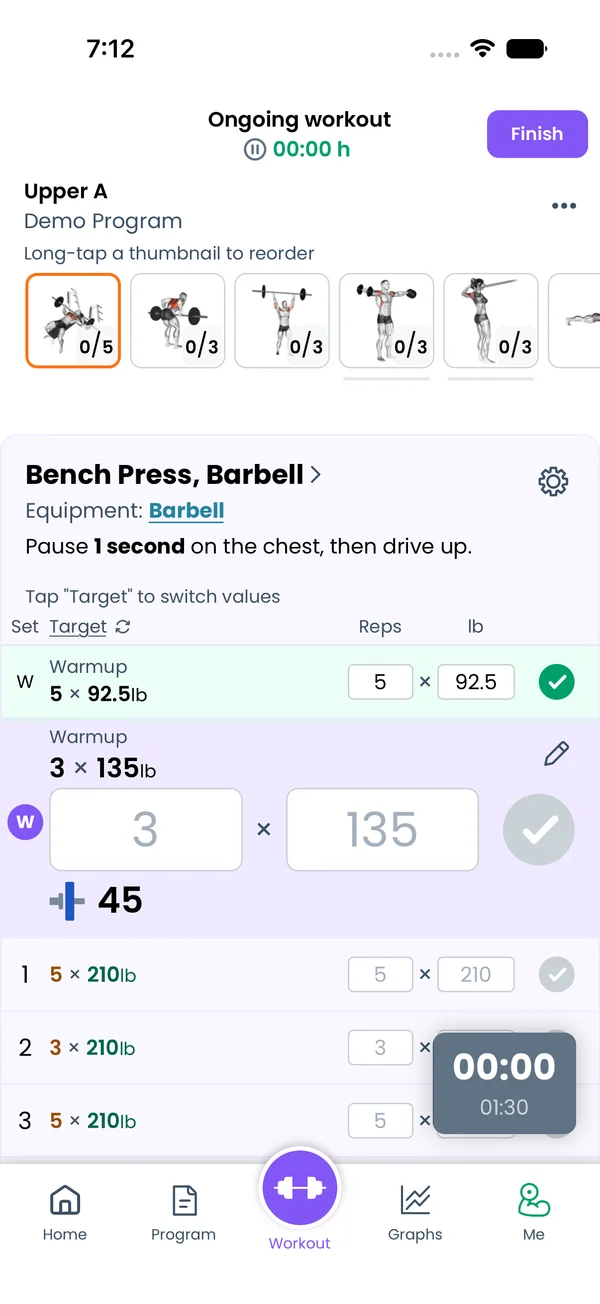
Complete a set, and the rest timer starts. No extra tap. A small pill appears in the bottom right corner of the workout screen. The big number is how long you have rested so far. The small number is your target rest.
A progress bar fills the pill as you rest. When you reach the target, the pill turns red, and the timer keeps counting so you can see how far past your rest you are.
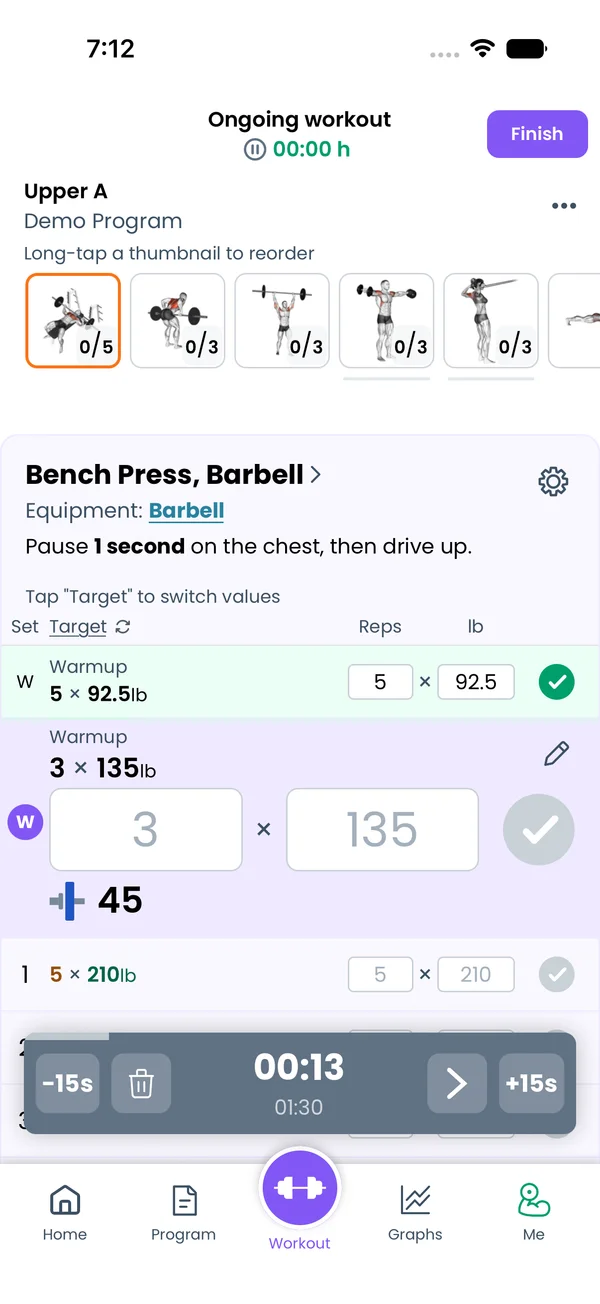
Tap the pill to expand it. The expanded bar has:
-15s and +15s to adjust the target.
Trash to cancel the timer.
The elapsed and target times. Tap them to collapse the bar again.
If you complete an AMRAP set, or a set that asks for your RPE or weight, the timer starts when you submit that popup, not when you tap the set.
Where the rest time comes from
Liftosaur picks the rest time for each set in this order. The first match wins.
A per-set rest time in your program, like Bench Press / 5x5 / 90s.
The Superset timer, if the exercise is in a superset and you set one.
The Warmup timer for warmup sets, or the Workout timer for working sets.
If the value that wins is empty or 0, no timer runs for that set.
Changing the defaults
Go to Me → Timers. You can set, in seconds:
Warmup rest between warmup sets. Default 90.
Workout rest between working sets. Default 180.
Superset rest between exercises in a superset. Empty by default, so supersets use the Workout timer.
Get ready countdown before a timed set. Default 5.
Rest times in your program
You can write rest times right in the program text, per exercise or per set:
Timed sets use two values, the set duration and the rest after it:
Plank / 3x1 60s|30s
60s|? keeps your default rest. 30s+|60s counts the set up past the target instead of down. Add auto to move to the next set on its own when the rest ends, for EMOM or Tabata style work. See Liftoscript for the full syntax.
Sounds and vibration
When the rest ends, the app plays a chime and vibrates. Both are in Me → Settings, under Sound: a Vibration toggle and a Volume slider. Set volume to 0 for silence. Adding time with +15s arms the chime again for the new target.
Lock screen, notifications, and headphones
With Premium, the timer follows you out of the app:
A notification arrives when the rest is over, with the next set and the plates to load: "It's time for the next set! Next set: Bench Press, 5 × 100lb".
On iOS, the rest timer runs in the Live Activity on the lock screen and in the Dynamic Island, with -15s and +15s buttons.
On Android, the rest timer shows in the Live Update chip next to the clock.
If you wear an Apple Watch and have headphones in, the phone plays the chime through the headphones even while the phone is locked, so you don't need to look at the screen.
Apple Watch
With Premium, the watch app has its own Rest Timer screen: -15s, elapsed and target, +15s, and a delete button. When the rest ends, the watch taps your wrist and chirps, unless volume is 0.
Timed sets and the countdown
For a timed set, the first tap starts a Get ready countdown, then the set clock. The rest starts when the set clock ends. For auto sets, the countdown comes out of the rest time: with 30s|60s and a 5 second countdown, you rest 55 seconds, then the 5 second countdown starts. Write 30s|0s to skip the countdown.
{"feature":{"id":"rest-timer","title":"Rest Timer","shortDescription":"Starts on its own after every set, using the rest time from your program. Adjust it with one tap, on the lock screen, through headphones or on Apple Watch.","order":10,"category":"Workout","datePublished":"2026-09-27","dateModified":"2026-09-28","screenshots":["rest-timer-collapsed","rest-timer-expanded"]},"content":"## How it works\n\nComplete a set, and the rest timer starts. No extra tap. A small pill appears in the bottom right corner of the workout screen. The big number is how long you have rested so far. The small number is your target rest.\n\nA progress bar fills the pill as you rest. When you reach the target, the pill turns red, and the timer keeps counting so you can see how far past your rest you are.\n\nTap the pill to expand it. The expanded bar has:\n\n- **-15s** and **+15s** to adjust the target.\n- **Trash** to cancel the timer.\n- The elapsed and target times. Tap them to collapse the bar again.\n\nIf you complete an AMRAP set, or a set that asks for your RPE or weight, the timer starts when you submit that popup, not when you tap the set.\n\n## Where the rest time comes from\n\nLiftosaur picks the rest time for each set in this order. The first match wins.\n\n1. A per-set rest time in your program, like `Bench Press / 5x5 / 90s`.\n2. The **Superset** timer, if the exercise is in a superset and you set one.\n3. The **Warmup** timer for warmup sets, or the **Workout** timer for working sets.\n\nIf the value that wins is empty or 0, no timer runs for that set.\n\n## Changing the defaults\n\n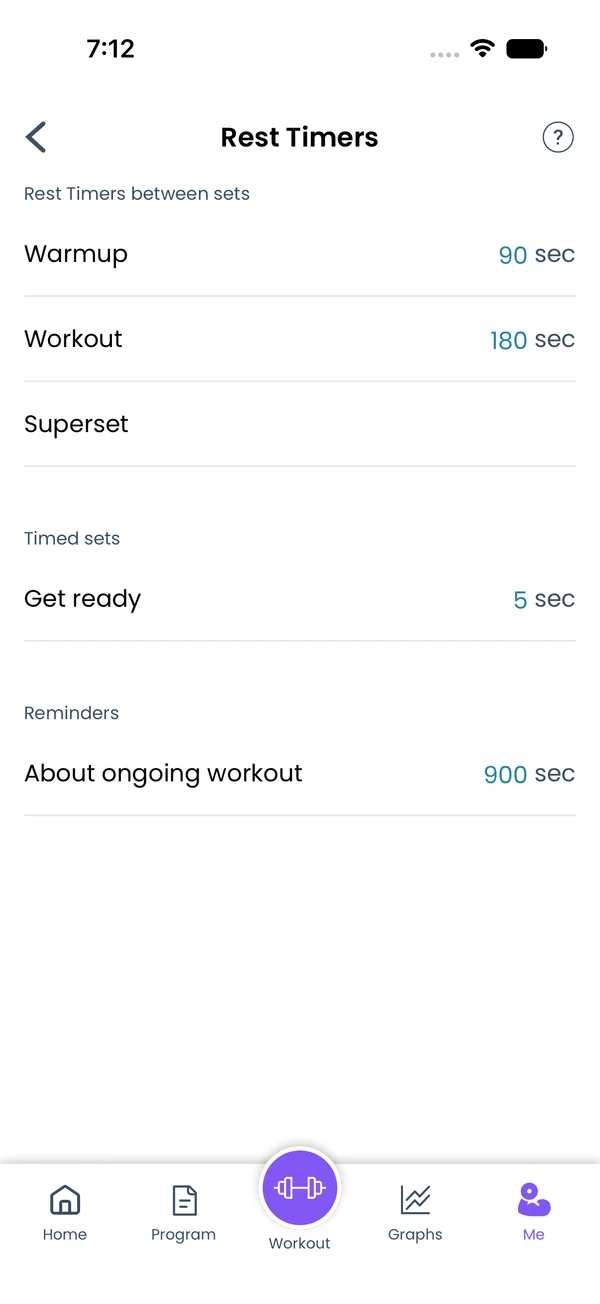\n\nGo to **Me → Timers**. You can set, in seconds:\n\n- **Warmup** rest between warmup sets. Default 90.\n- **Workout** rest between working sets. Default 180.\n- **Superset** rest between exercises in a superset. Empty by default, so supersets use the Workout timer.\n- **Get ready** countdown before a timed set. Default 5.\n\n## Rest times in your program\n\nYou can write rest times right in the program text, per exercise or per set:\n\n```liftoscript\nBench Press / 5x5 / 90s\nSquat / 1x12 60s, 5x5 120s\n```\n\nTimed sets use two values, the set duration and the rest after it:\n\n```liftoscript\nPlank / 3x1 60s|30s\n```\n\n`60s|?` keeps your default rest. `30s+|60s` counts the set up past the target instead of down. Add `auto` to move to the next set on its own when the rest ends, for EMOM or Tabata style work. See [Liftoscript](/doc/liftoscript) for the full syntax.\n\n## Sounds and vibration\n\n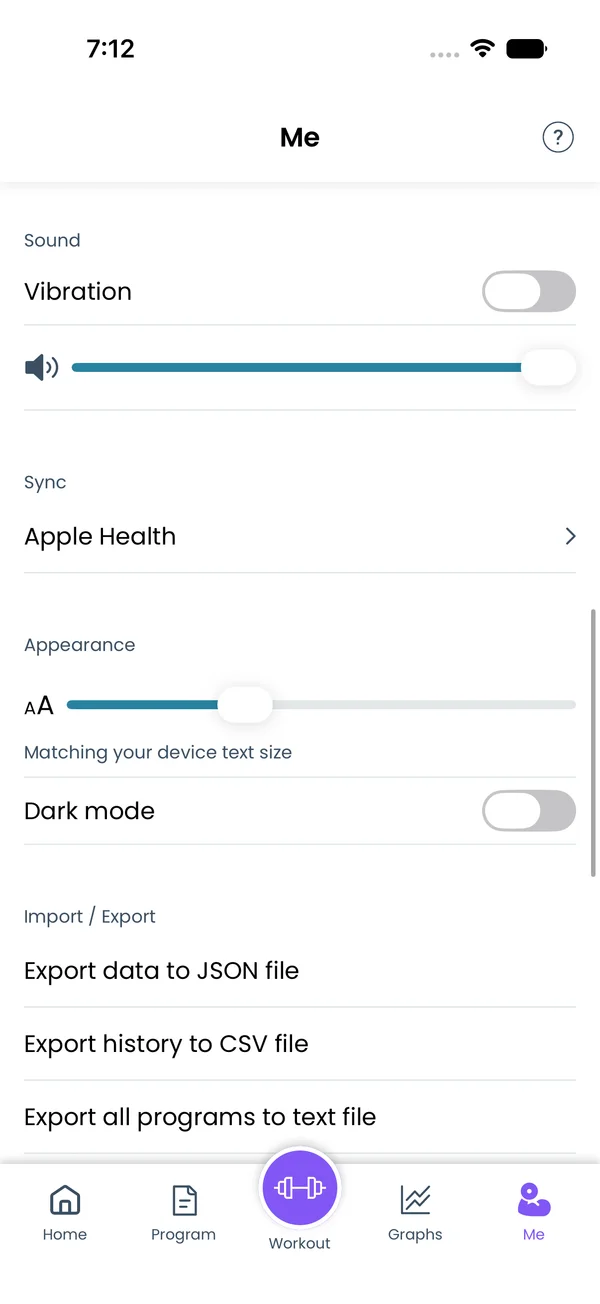\n\nWhen the rest ends, the app plays a chime and vibrates. Both are in **Me → Settings**, under **Sound**: a **Vibration** toggle and a **Volume** slider. Set volume to 0 for silence. Adding time with +15s arms the chime again for the new target.\n\n## Lock screen, notifications, and headphones\n\n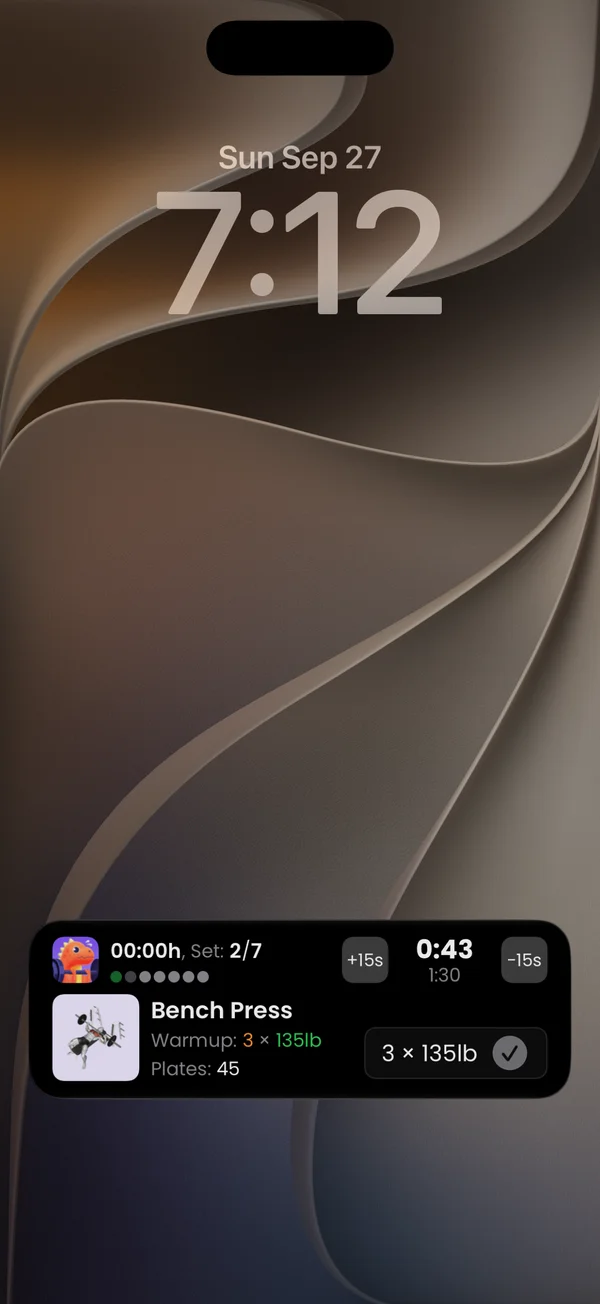 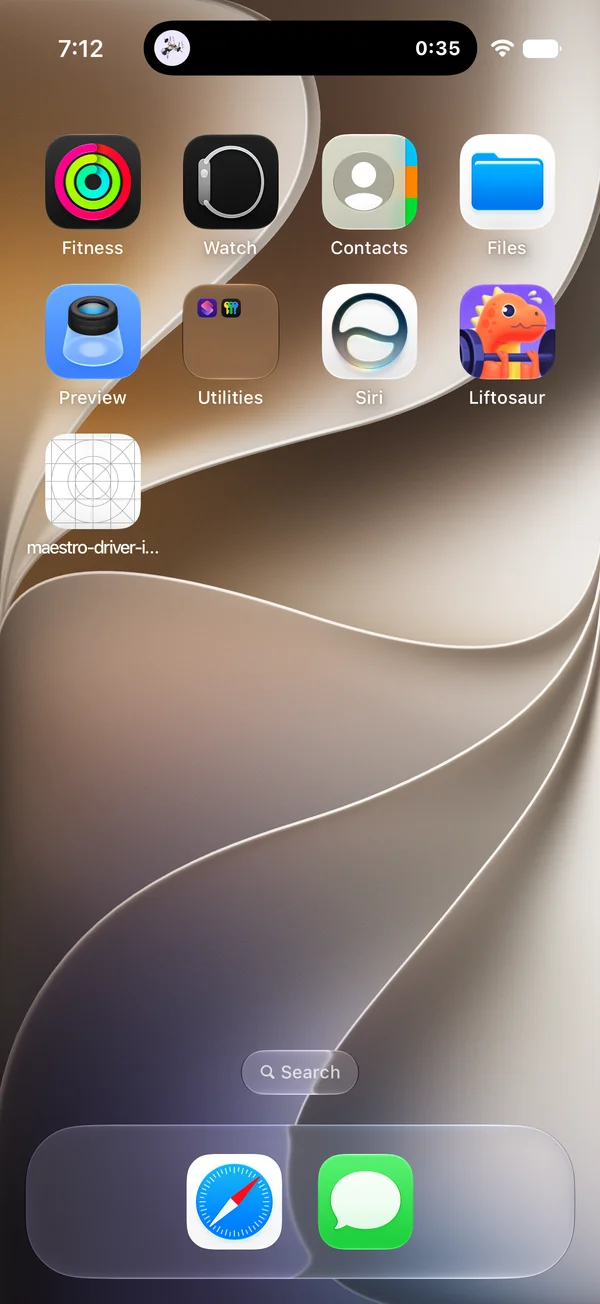 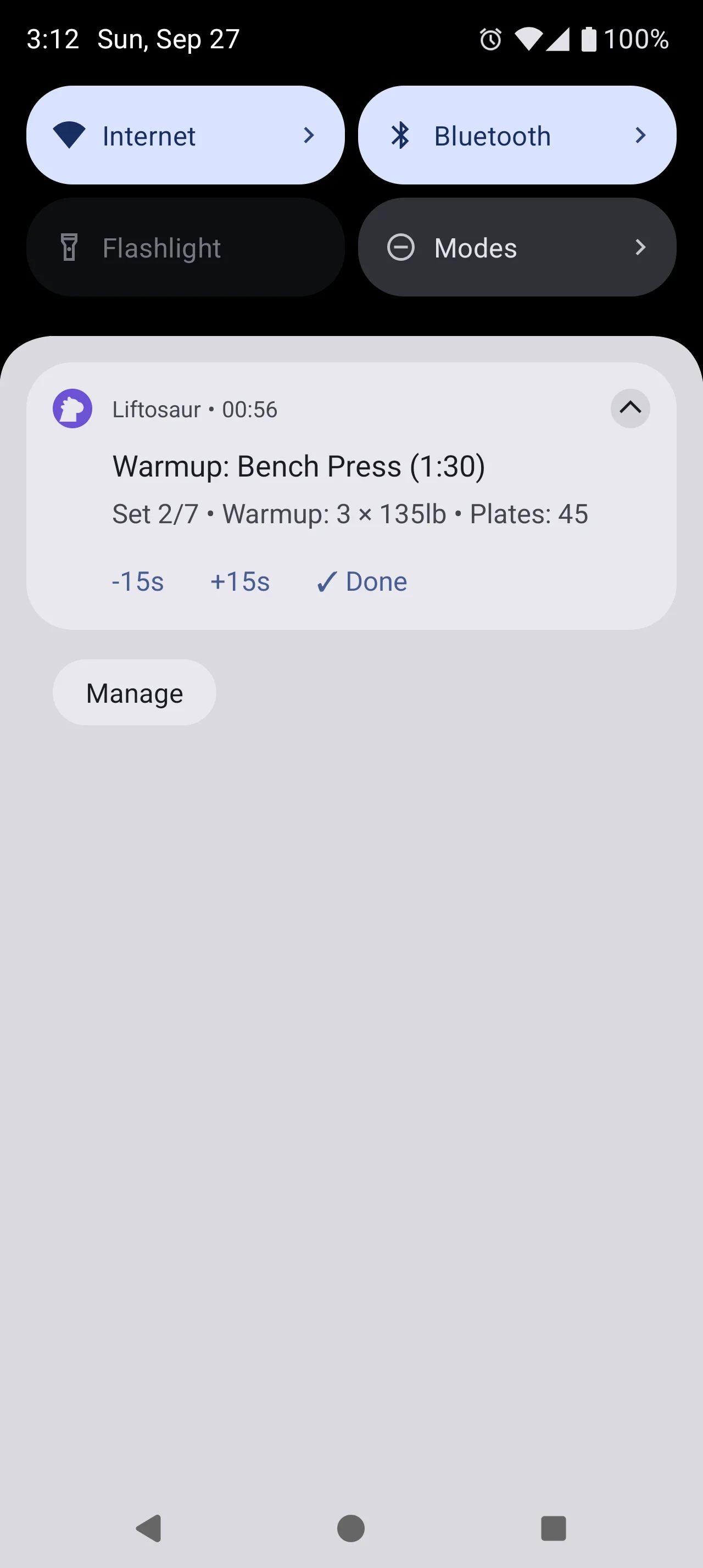\n\nWith Premium, the timer follows you out of the app:\n\n- A notification arrives when the rest is over, with the next set and the plates to load: \"It's time for the next set! Next set: Bench Press, 5 × 100lb\".\n- On iOS, the rest timer runs in the **Live Activity** on the lock screen and in the **Dynamic Island**, with -15s and +15s buttons.\n- On Android, the rest timer shows in the **Live Update** chip next to the clock.\n- If you wear an Apple Watch and have headphones in, the phone plays the chime through the headphones even while the phone is locked, so you don't need to look at the screen.\n\n## Apple Watch\n\n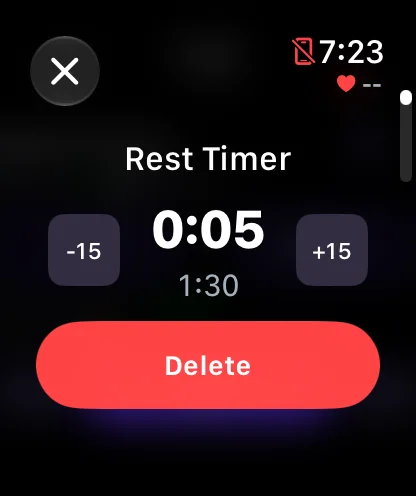\n\nWith Premium, the watch app has its own **Rest Timer** screen: -15s, elapsed and target, +15s, and a delete button. When the rest ends, the watch taps your wrist and chirps, unless volume is 0.\n\n## Timed sets and the countdown\n\n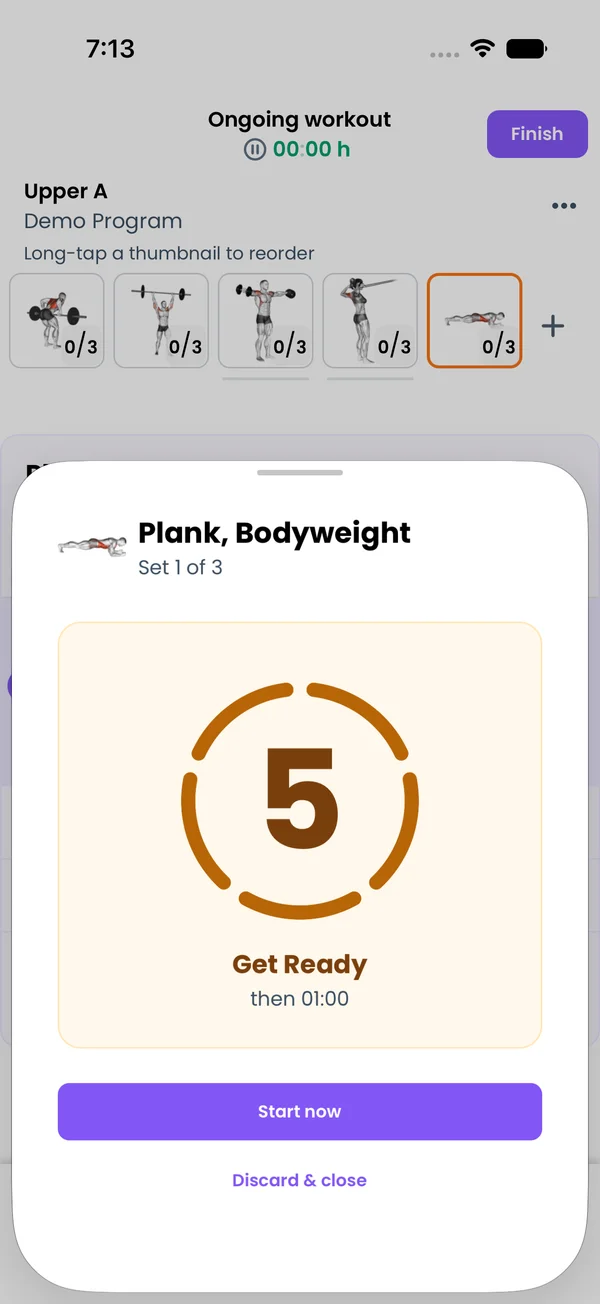\n\nFor a timed set, the first tap starts a **Get ready** countdown, then the set clock. The rest starts when the set clock ends. For `auto` sets, the countdown comes out of the rest time: with `30s|60s` and a 5 second countdown, you rest 55 seconds, then the 5 second countdown starts. Write `30s|0s` to skip the countdown.","sizes":{"account/account-email-form":{"width":600,"height":1304},"account/account-forgot-password":{"width":600,"height":1304},"account/account-screen":{"width":600,"height":1304},"account/account-sign-in":{"width":600,"height":1304},"chatgpt-claude-and-ai/chatgpt-claude-and-ai-autofill":{"width":600,"height":1304},"api/api-key-created":{"width":600,"height":1304},"api/api-keys-empty":{"width":600,"height":1304},"api/api-me-row":{"width":600,"height":1304},"apple-watch/apple-watch-health-settings":{"width":600,"height":1304},"apple-watch/watch-apple-watch-amrap":{"width":416,"height":496},"apple-watch/watch-apple-watch-crown":{"width":416,"height":496},"apple-watch/watch-apple-watch-exercise":{"width":416,"height":496},"apple-watch/watch-apple-watch-get-ready":{"width":416,"height":496},"apple-watch/watch-apple-watch-home":{"width":416,"height":496},"apple-watch/watch-apple-watch-set-clock":{"width":416,"height":496},"apple-watch/watch-apple-watch-workout":{"width":416,"height":496},"built-in-programs/built-in-programs-import":{"width":600,"height":1304},"built-in-programs/built-in-programs-info":{"width":600,"height":1304},"built-in-programs/built-in-programs-library":{"width":600,"height":1304},"built-in-programs/built-in-programs-preview":{"width":600,"height":1304},"built-in-programs/built-in-programs-started":{"width":600,"height":1304},"changing-a-workout/changing-a-workout-adhoc":{"width":600,"height":1304},"changing-a-workout/changing-a-workout-adhoc-picker":{"width":600,"height":1304},"changing-a-workout/changing-a-workout-create-program-day":{"width":600,"height":1304},"changing-a-workout/changing-a-workout-edit-day":{"width":600,"height":1304},"changing-a-workout/changing-a-workout-edit-exercise":{"width":600,"height":1304},"changing-a-workout/changing-a-workout-next-workout":{"width":600,"height":1304},"changing-a-workout/changing-a-workout-pick-day":{"width":600,"height":1304},"changing-a-workout/changing-a-workout-program-day":{"width":600,"height":1304},"changing-a-workout/changing-a-workout-swap-adhoc":{"width":600,"height":1304},"changing-a-workout/changing-a-workout-swap-from-program":{"width":600,"height":1304},"changing-a-workout/changing-a-workout-swap-recent":{"width":600,"height":1304},"custom-exercises/custom-exercises-autofill":{"width":600,"height":1304},"custom-exercises/custom-exercises-clone-library":{"width":600,"height":1304},"custom-exercises/custom-exercises-cloned":{"width":600,"height":1304},"custom-exercises/custom-exercises-form":{"width":600,"height":1304},"custom-exercises/custom-exercises-hidden-group":{"width":600,"height":1304},"custom-exercises/custom-exercises-image-library":{"width":600,"height":1304},"custom-exercises/custom-exercises-image-source":{"width":600,"height":1304},"custom-exercises/custom-exercises-in-workout":{"width":600,"height":1304},"custom-exercises/custom-exercises-muscle-groups":{"width":600,"height":1304},"custom-exercises/custom-exercises-picker":{"width":600,"height":1304},"custom-exercises/custom-exercises-target-muscles":{"width":600,"height":1304},"equipment-and-gyms/equipment-and-gyms-barbell":{"width":600,"height":1304},"equipment-and-gyms/equipment-and-gyms-custom":{"width":600,"height":1304},"equipment-and-gyms/equipment-and-gyms-exercise":{"width":600,"height":1304},"equipment-and-gyms/equipment-and-gyms-fixed":{"width":600,"height":1304},"equipment-and-gyms/equipment-and-gyms-gyms":{"width":600,"height":1304},"equipment-and-gyms/equipment-and-gyms-hidden":{"width":600,"height":1304},"equipment-and-gyms/equipment-and-gyms-list":{"width":600,"height":1304},"exercise-library/exercise-library-calculator":{"width":600,"height":1304},"exercise-library/exercise-library-from-program":{"width":600,"height":1304},"exercise-library/exercise-library-list":{"width":600,"height":1304},"exercise-library/exercise-library-multi-add":{"width":600,"height":1304},"exercise-library/exercise-library-override-muscles":{"width":600,"height":1304},"exercise-library/exercise-library-picker":{"width":600,"height":1304},"exercise-library/exercise-library-prs":{"width":600,"height":1304},"exercise-library/exercise-library-search":{"width":600,"height":1304},"exercise-library/exercise-library-stats":{"width":600,"height":1304},"exercise-library/exercise-library-swap":{"width":600,"height":1304},"graphs/graphs-bodyweight":{"width":600,"height":1304},"graphs/graphs-choose":{"width":600,"height":1304},"graphs/graphs-exercise":{"width":600,"height":1304},"graphs/graphs-legend":{"width":600,"height":1304},"graphs/graphs-muscle-group":{"width":600,"height":1304},"graphs/graphs-personal-records":{"width":600,"height":1304},"graphs/graphs-settings":{"width":600,"height":1304},"health-sync/android-health-sync-measurements":{"width":600,"height":1339},"health-sync/android-health-sync-settings":{"width":600,"height":1339},"health-sync/android-health-sync-share":{"width":600,"height":1339},"health-sync/android-health-sync-sleep-nutrition":{"width":600,"height":1339},"health-sync/health-sync-measurements":{"width":600,"height":1304},"health-sync/health-sync-settings":{"width":600,"height":1304},"health-sync/health-sync-share":{"width":600,"height":1304},"health-sync/health-sync-sleep-nutrition":{"width":600,"height":1304},"import-export/import-export-export":{"width":600,"height":1304},"import-export/import-export-hevy":{"width":600,"height":1304},"import-export/import-export-import":{"width":600,"height":1304},"liftoscript/liftoscript-exercise-sheet":{"width":600,"height":1304},"liftoscript/liftoscript-full-program":{"width":600,"height":1304},"liftoscript/liftoscript-per-day":{"width":600,"height":1304},"liftoscript/liftoscript-playground":{"width":600,"height":1304},"lock-screen-and-notifications/android-lock-screen-and-notifications-live-update":{"width":600,"height":1339},"lock-screen-and-notifications/android-lock-screen-and-notifications-reminder":{"width":600,"height":1339},"lock-screen-and-notifications/android-lock-screen-and-notifications-sound":{"width":600,"height":1339},"lock-screen-and-notifications/lock-screen-and-notifications-dynamic-island":{"width":600,"height":1304},"lock-screen-and-notifications/lock-screen-and-notifications-live-activity":{"width":600,"height":1304},"lock-screen-and-notifications/lock-screen-and-notifications-reminder":{"width":600,"height":1304},"lock-screen-and-notifications/lock-screen-and-notifications-sound":{"width":600,"height":1304},"measurements/measurements-add":{"width":600,"height":1304},"measurements/measurements-bodyweight":{"width":600,"height":1304},"measurements/measurements-moving-average":{"width":600,"height":1304},"measurements/measurements-sleep-nutrition":{"width":600,"height":1304},"measurements/measurements-types":{"width":600,"height":1304},"first-run-and-settings/first-run-and-settings-appearance":{"width":600,"height":1304},"first-run-and-settings/first-run-and-settings-dark-mode":{"width":600,"height":1304},"first-run-and-settings/first-run-and-settings-equipment":{"width":600,"height":1304},"first-run-and-settings/first-run-and-settings-me":{"width":600,"height":1304},"first-run-and-settings/first-run-and-settings-units":{"width":600,"height":1304},"first-run-and-settings/first-run-and-settings-welcome":{"width":600,"height":1304},"playground/playground-completed":{"width":600,"height":1304},"playground/playground-day":{"width":600,"height":1304},"playground/playground-finished":{"width":600,"height":1304},"playground/playground-variables":{"width":600,"height":1304},"premium/premium-account":{"width":600,"height":1304},"premium/premium-feature-info":{"width":600,"height":1304},"premium/premium-plans":{"width":600,"height":1304},"program-editor/program-editor-create":{"width":600,"height":1304},"program-editor/program-editor-day-details":{"width":600,"height":1304},"program-editor/program-editor-exercise-sheet":{"width":600,"height":1304},"program-editor/program-editor-full-text":{"width":600,"height":1304},"program-editor/program-editor-grid":{"width":600,"height":1304},"program-editor/program-editor-perday-text":{"width":600,"height":1304},"program-editor/program-editor-ui-mode":{"width":600,"height":1304},"program-editor/program-editor-week-stats":{"width":600,"height":1304},"progressions/progressions-linear-settings":{"width":600,"height":1304},"progressions/progressions-preview":{"width":600,"height":1304},"progressions/progressions-state-variables":{"width":600,"height":1304},"progressions/progressions-suppressed":{"width":600,"height":1304},"rest-timer/rest-timer-collapsed":{"width":600,"height":1304},"rest-timer/rest-timer-dynamic-island":{"width":600,"height":1304},"rest-timer/rest-timer-expanded":{"width":600,"height":1304},"rest-timer/rest-timer-get-ready":{"width":600,"height":1304},"rest-timer/rest-timer-lock-screen":{"width":600,"height":1304},"rest-timer/rest-timer-settings":{"width":600,"height":1304},"rest-timer/rest-timer-sound":{"width":600,"height":1304},"rest-timer/watch-rest-timer":{"width":416,"height":496},"rest-timer/watch-rest-timer-exercise":{"width":416,"height":496},"set-types/set-types-amrap-popup":{"width":600,"height":1304},"set-types/set-types-per-side":{"width":600,"height":1304},"set-types/set-types-rpe-logged":{"width":600,"height":1304},"set-types/set-types-rpe-popup":{"width":600,"height":1304},"sharing-programs/sharing-programs-export-text":{"width":600,"height":1304},"sharing-programs/sharing-programs-image-preview":{"width":600,"height":1304},"sharing-programs/sharing-programs-image-settings":{"width":600,"height":1304},"sharing-programs/sharing-programs-import":{"width":600,"height":1304},"sharing-programs/sharing-programs-menu":{"width":600,"height":1304},"sharing-programs/sharing-programs-private-link":{"width":600,"height":1304},"sharing-programs/sharing-programs-public-link":{"width":600,"height":1304},"sharing-workouts/sharing-workouts-copied-text":{"width":600,"height":1304},"sharing-workouts/sharing-workouts-finish-screen":{"width":600,"height":1304},"sharing-workouts/sharing-workouts-profile-settings":{"width":600,"height":1304},"sharing-workouts/sharing-workouts-share-sheet":{"width":600,"height":1304},"sharing-workouts/sharing-workouts-story-preview":{"width":600,"height":1304},"supersets/supersets-liftoscript":{"width":600,"height":1304},"supersets/supersets-next-exercise":{"width":600,"height":1304},"supersets/supersets-picker":{"width":600,"height":1304},"supersets/supersets-program-editor":{"width":600,"height":1304},"supersets/supersets-timer":{"width":600,"height":1304},"supersets/supersets-workout":{"width":600,"height":1304},"sync-and-offline/sync-and-offline-account":{"width":600,"height":1304},"sync-and-offline/sync-and-offline-me-account":{"width":600,"height":1304},"sync-and-offline/sync-and-offline-sign-in":{"width":600,"height":1304},"timed-sets/timed-sets-count-up":{"width":600,"height":1304},"timed-sets/timed-sets-edit-time":{"width":600,"height":1304},"timed-sets/timed-sets-get-ready":{"width":600,"height":1304},"timed-sets/timed-sets-recorded":{"width":600,"height":1304},"timed-sets/timed-sets-running":{"width":600,"height":1304},"timed-sets/timed-sets-set-row":{"width":600,"height":1304},"timed-sets/timed-sets-timers":{"width":600,"height":1304},"week-insights/week-insights-details":{"width":600,"height":1304},"week-insights/week-insights-edit-muscle-groups":{"width":600,"height":1304},"week-insights/week-insights-exercises":{"width":600,"height":1304},"week-insights/week-insights-home":{"width":600,"height":1304},"week-insights/week-insights-muscle-groups":{"width":600,"height":1304},"week-insights/week-insights-settings":{"width":600,"height":1304},"workout-history/workout-history-change-date":{"width":600,"height":1304},"workout-history/workout-history-delete":{"width":600,"height":1304},"workout-history/workout-history-feed":{"width":600,"height":1304},"workout-history/workout-history-menu":{"width":600,"height":1304},"workout-history/workout-history-month-calendar":{"width":600,"height":1304},"workout-history/workout-history-note-on-card":{"width":600,"height":1304},"workout-history/workout-history-notes":{"width":600,"height":1304},"workout-history/workout-history-past-card":{"width":600,"height":1304},"workout-history/workout-history-past-workout":{"width":600,"height":1304},"workout-history/workout-history-week-insights":{"width":600,"height":1304},"workout-screen/workout-screen-e1rm":{"width":600,"height":1304},"workout-screen/workout-screen-edit-target":{"width":600,"height":1304},"workout-screen/workout-screen-exercise-menu":{"width":600,"height":1304},"workout-screen/workout-screen-exercise-notes":{"width":600,"height":1304},"workout-screen/workout-screen-history":{"width":600,"height":1304},"workout-screen/workout-screen-keypad":{"width":600,"height":1304},"workout-screen/workout-screen-next-set":{"width":600,"height":1304},"workout-screen/workout-screen-overview":{"width":600,"height":1304},"workout-screen/workout-screen-rounding":{"width":600,"height":1304},"workout-screen/workout-screen-summary":{"width":600,"height":1304}}}