Post a finished workout to Instagram Story, Feed or TikTok as an image, share it anywhere, copy it as text or a link, or show it on a public profile page.
Share right after the workout
Tap Finish on a workout. The summary screen shows your time, volume, sets, reps and sets per muscle group. Under Share it! you get five buttons:
IG Story posts the workout image to an Instagram Story.
IG Feed posts it to your Instagram Feed.
Tiktok opens TikTok with the image.
Text copies the workout as text.
More renders the image and opens the system share sheet.
Below the row, or just copy a link copies a web link to this workout. Tap Continue when you are done.
Share a past workout
Open any past workout from the Home tab. Tap the three-dot menu in the top right and pick Share. A sheet opens with:
Share to Instagram Story
Share to Instagram Feed
Share to Tiktok
Sync to Apple Health or Sync to Google Health, when the app can write to it.
Copy link to workout
Share Image...
Copy as Text
The Instagram and TikTok items are only in the iOS and Android apps. The web app offers Image, Text and Copy Link.
What the image shows
Every share option builds the same workout card:
The Liftosaur logo, and a trophy with the number of personal records you set in this workout.
The program name and the day name.
Time, Volume, Sets and Reps totals.
One row per exercise, with its picture, its name, a trophy if it was a PR, and the sets you did.
Pick Share to Instagram Story, Share to Instagram Feed or Share to Tiktok and the app shows a preview before it hands off. The first frame is Default Background. The Feed image is square, the Story and TikTok images are tall. Tap Share to send it. Instagram or TikTok opens with the image already attached, and you finish the post there.
Use your own photo as the background
Swipe the preview to the left. The second frame has a camera icon and the link Your photo as background. Tap either one and choose From Camera or From Photo Library. The workout card is drawn over your photo. The preview scales the card so it fits the bottom of the photo. Tap Share to send this frame instead of the default one.
Share the image anywhere else
More on the finish screen and Share Image... in the share sheet render the same card to a PNG named workout.png and open the system share sheet. Pick any app or save it to your photos. In the web app the file downloads instead.
Copy the workout as text
Text on the finish screen and Copy as Text in the share sheet put the workout on the clipboard in a compact text form. The app shows Copied!. The text starts with the date, the program and day, and the duration in seconds. Then one line per exercise with completed sets, warmups and targets:
Sets with the same reps and weight are grouped, like 3x5 135lb. Different sets are listed one by one, like 1x8 95lb, 1x6 95lb. Workout notes and exercise notes go in as // lines. Exercises where you completed no set are left out.
Copy a link to the workout
or just copy a link on the finish screen and Copy link to workout in the share sheet copy a web link like https://www.liftosaur.com/record?id=<workout id>&user=<your user id>. You must be signed in, otherwise the app says "You should be logged in to copy link to a workout". The page shows the program and day, the date, a New Personal Records block when you set any, your max weights, and every exercise with its sets. Anyone with the link can open it.
Your public profile page
Go to Me. Under Account:
Nickname is the name shown on your profile page. The app says "Used for profile page if you have an account".
Is Profile Page Public? appears when you are signed in. Turn it on, and two links appear under it: Copy Link To Clipboard and Open Public Profile Page.
The link is https://www.liftosaur.com/profile/<your user id>. The page title is your nickname and "Profile Page". It shows your current program, then Main Lifts Progress for Bench Press, Overhead Press, Squat and Deadlift, then Rest Lifts Progress for every other exercise. Each exercise has "Max lifted reps x weight" and a Progress Graph with your program lines and estimated 1RM. Turn the toggle off, and the link answers "The user's profile is not public".
{"feature":{"id":"sharing-workouts","title":"Sharing Workouts","shortDescription":"Post a finished workout to Instagram Story, Feed or TikTok as an image, share it anywhere, copy it as text or a link, or show it on a public profile page.","order":10,"category":"Sharing and data","datePublished":"2026-09-27","dateModified":"2026-09-29","screenshots":["sharing-workouts-finish-screen","sharing-workouts-share-sheet"]},"content":"## Share right after the workout\n\n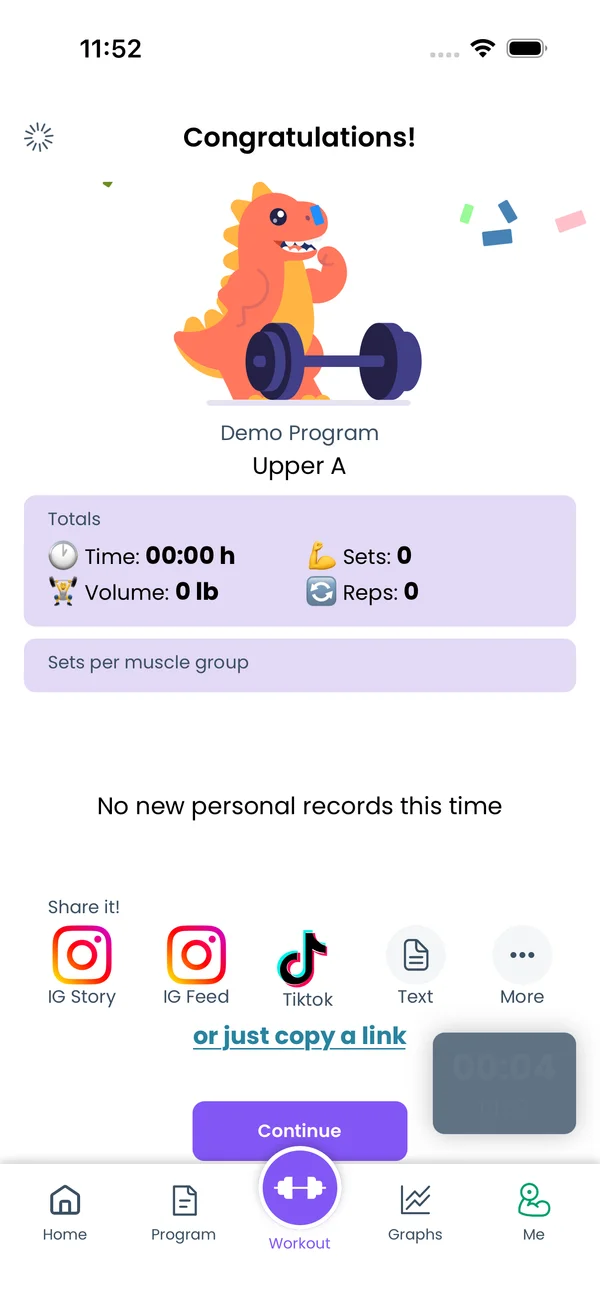\n\nTap **Finish** on a workout. The summary screen shows your time, volume, sets, reps and sets per muscle group. Under **Share it!** you get five buttons:\n\n- **IG Story** posts the workout image to an Instagram Story.\n- **IG Feed** posts it to your Instagram Feed.\n- **Tiktok** opens TikTok with the image.\n- **Text** copies the workout as text.\n- **More** renders the image and opens the system share sheet.\n\nBelow the row, **or just copy a link** copies a web link to this workout. Tap **Continue** when you are done.\n\n## Share a past workout\n\n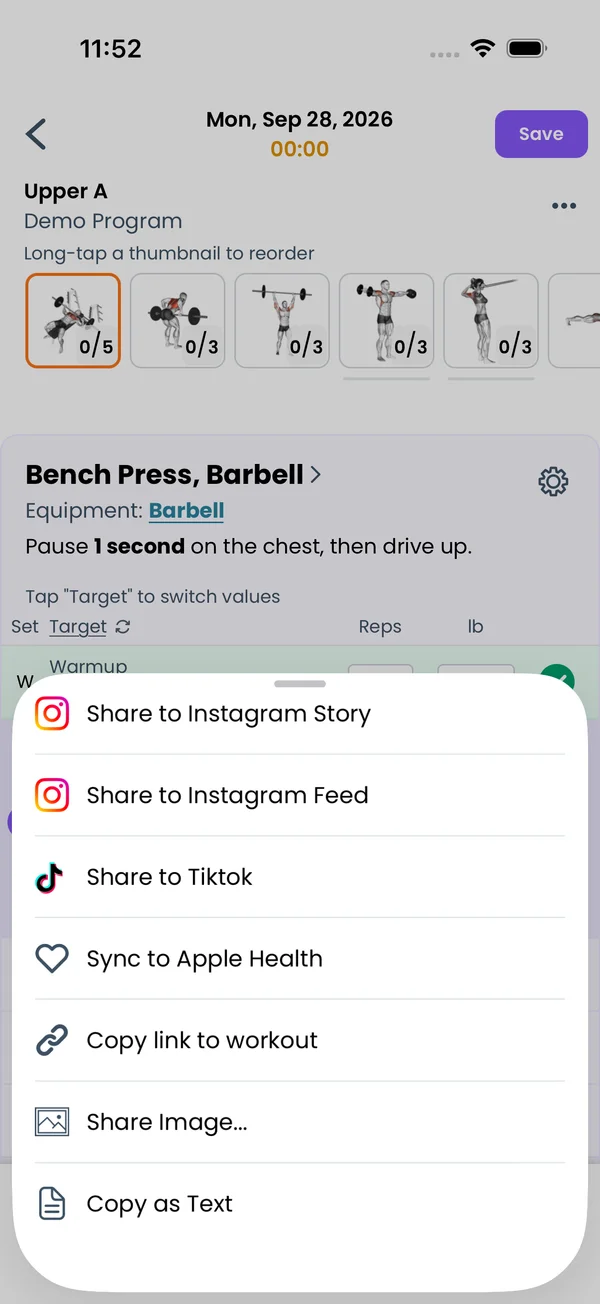\n\nOpen any past workout from the **Home** tab. Tap the three-dot menu in the top right and pick **Share**. A sheet opens with:\n\n- **Share to Instagram Story**\n- **Share to Instagram Feed**\n- **Share to Tiktok**\n- **Sync to Apple Health** or **Sync to Google Health**, when the app can write to it.\n- **Copy link to workout**\n- **Share Image...**\n- **Copy as Text**\n\nThe Instagram and TikTok items are only in the iOS and Android apps. The web app offers **Image**, **Text** and **Copy Link**.\n\n## What the image shows\n\n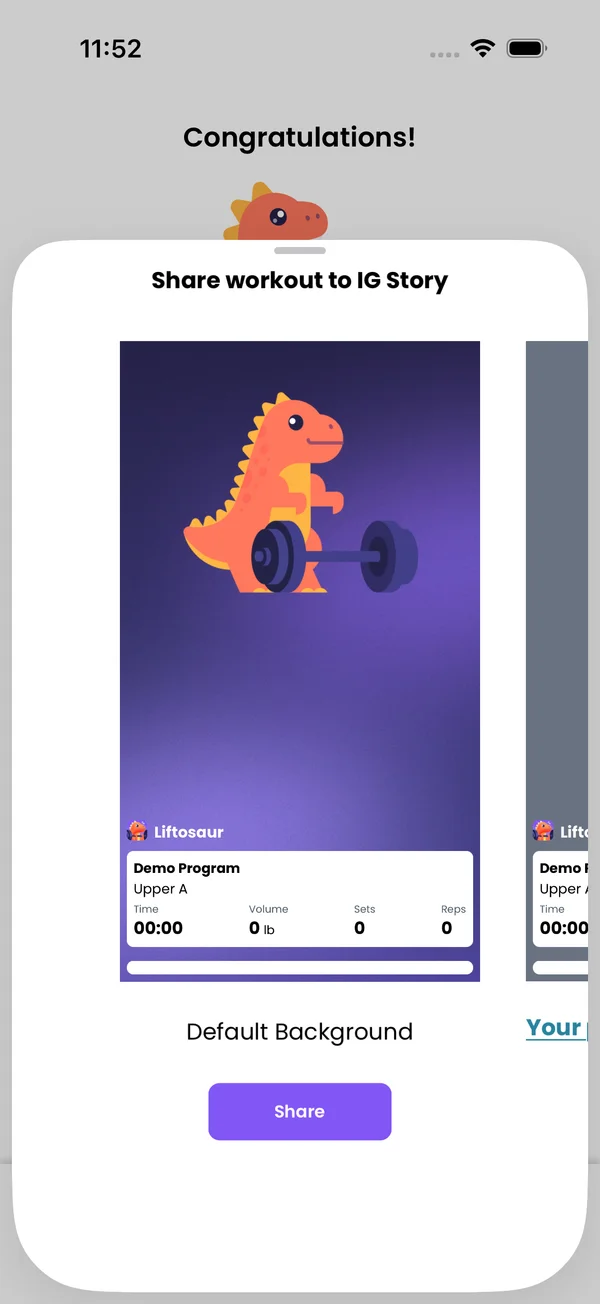\n\nEvery share option builds the same workout card:\n\n- The Liftosaur logo, and a trophy with the number of personal records you set in this workout.\n- The program name and the day name.\n- **Time**, **Volume**, **Sets** and **Reps** totals.\n- One row per exercise, with its picture, its name, a trophy if it was a PR, and the sets you did.\n\nPick **Share to Instagram Story**, **Share to Instagram Feed** or **Share to Tiktok** and the app shows a preview before it hands off. The first frame is **Default Background**. The Feed image is square, the Story and TikTok images are tall. Tap **Share** to send it. Instagram or TikTok opens with the image already attached, and you finish the post there.\n\n## Use your own photo as the background\n\nSwipe the preview to the left. The second frame has a camera icon and the link **Your photo as background**. Tap either one and choose **From Camera** or **From Photo Library**. The workout card is drawn over your photo. The preview scales the card so it fits the bottom of the photo. Tap **Share** to send this frame instead of the default one.\n\n## Share the image anywhere else\n\n**More** on the finish screen and **Share Image...** in the share sheet render the same card to a PNG named `workout.png` and open the system share sheet. Pick any app or save it to your photos. In the web app the file downloads instead.\n\n## Copy the workout as text\n\n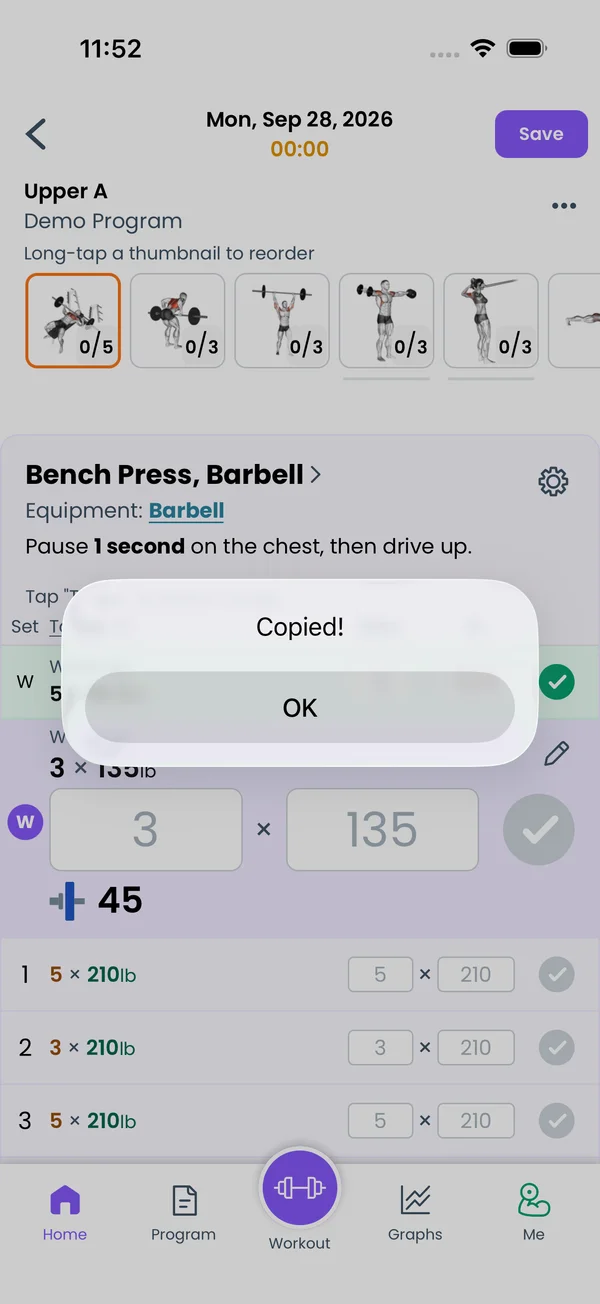\n\n**Text** on the finish screen and **Copy as Text** in the share sheet put the workout on the clipboard in a compact text form. The app shows **Copied!**. The text starts with the date, the program and day, and the duration in seconds. Then one line per exercise with completed sets, warmups and targets:\n\n```\n2026-09-27 10:15:00 +02:00 / program: \"Demo Program\" / dayName: \"Upper A\" / week: 1 / dayInWeek: 1 / duration: 3120s / exercises: {\n Bench Press / 3x5 135lb / warmup: 1x10 45lb, 1x5 95lb\n Bent Over Row / 1x8 95lb, 1x6 95lb\n}\n```\n\nSets with the same reps and weight are grouped, like `3x5 135lb`. Different sets are listed one by one, like `1x8 95lb, 1x6 95lb`. Workout notes and exercise notes go in as `//` lines. Exercises where you completed no set are left out.\n\n## Copy a link to the workout\n\n**or just copy a link** on the finish screen and **Copy link to workout** in the share sheet copy a web link like `https://www.liftosaur.com/record?id=<workout id>&user=<your user id>`. You must be signed in, otherwise the app says \"You should be logged in to copy link to a workout\". The page shows the program and day, the date, a **New Personal Records** block when you set any, your max weights, and every exercise with its sets. Anyone with the link can open it.\n\n## Your public profile page\n\n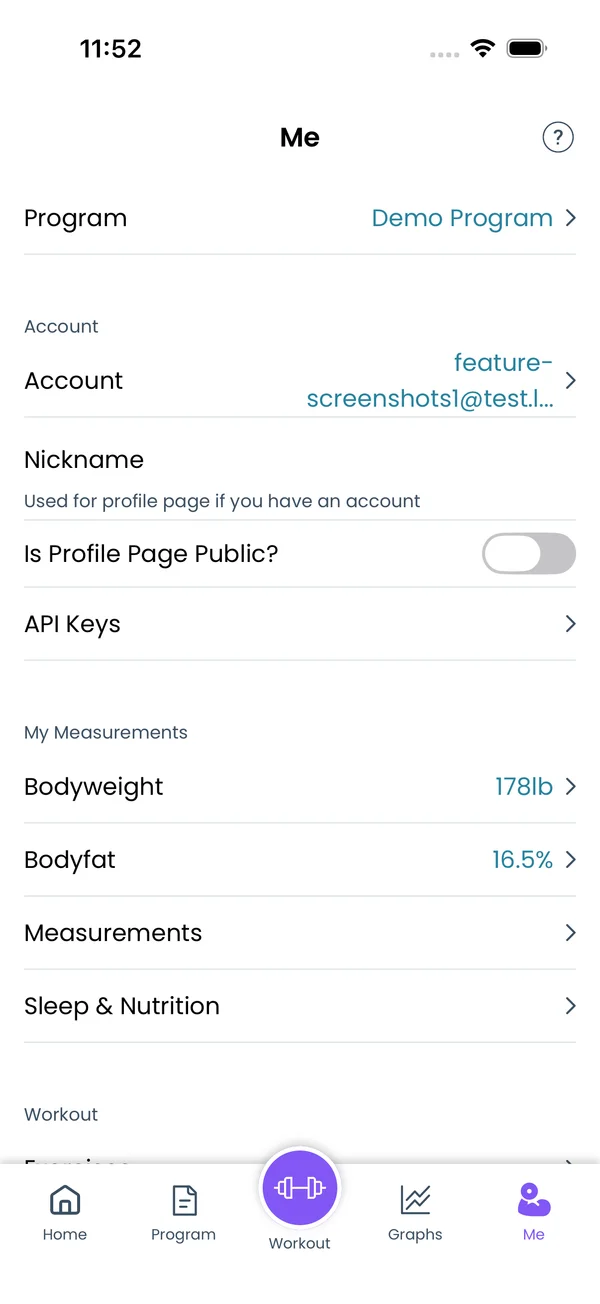\n\nGo to **Me**. Under **Account**:\n\n- **Nickname** is the name shown on your profile page. The app says \"Used for profile page if you have an account\".\n- **Is Profile Page Public?** appears when you are signed in. Turn it on, and two links appear under it: **Copy Link To Clipboard** and **Open Public Profile Page**.\n\nThe link is `https://www.liftosaur.com/profile/<your user id>`. The page title is your nickname and \"Profile Page\". It shows your current program, then **Main Lifts Progress** for Bench Press, Overhead Press, Squat and Deadlift, then **Rest Lifts Progress** for every other exercise. Each exercise has \"Max lifted reps x weight\" and a **Progress Graph** with your program lines and estimated 1RM. Turn the toggle off, and the link answers \"The user's profile is not public\".","sizes":{"account/account-email-form":{"width":600,"height":1304},"account/account-forgot-password":{"width":600,"height":1304},"account/account-screen":{"width":600,"height":1304},"account/account-sign-in":{"width":600,"height":1304},"chatgpt-claude-and-ai/chatgpt-claude-and-ai-autofill":{"width":600,"height":1304},"api/api-key-created":{"width":600,"height":1304},"api/api-keys-empty":{"width":600,"height":1304},"api/api-me-row":{"width":600,"height":1304},"apple-watch/apple-watch-health-settings":{"width":600,"height":1304},"apple-watch/watch-apple-watch-amrap":{"width":416,"height":496},"apple-watch/watch-apple-watch-crown":{"width":416,"height":496},"apple-watch/watch-apple-watch-exercise":{"width":416,"height":496},"apple-watch/watch-apple-watch-get-ready":{"width":416,"height":496},"apple-watch/watch-apple-watch-home":{"width":416,"height":496},"apple-watch/watch-apple-watch-set-clock":{"width":416,"height":496},"apple-watch/watch-apple-watch-workout":{"width":416,"height":496},"built-in-programs/built-in-programs-import":{"width":600,"height":1304},"built-in-programs/built-in-programs-info":{"width":600,"height":1304},"built-in-programs/built-in-programs-library":{"width":600,"height":1304},"built-in-programs/built-in-programs-preview":{"width":600,"height":1304},"built-in-programs/built-in-programs-started":{"width":600,"height":1304},"changing-a-workout/changing-a-workout-adhoc":{"width":600,"height":1304},"changing-a-workout/changing-a-workout-adhoc-picker":{"width":600,"height":1304},"changing-a-workout/changing-a-workout-create-program-day":{"width":600,"height":1304},"changing-a-workout/changing-a-workout-edit-day":{"width":600,"height":1304},"changing-a-workout/changing-a-workout-edit-exercise":{"width":600,"height":1304},"changing-a-workout/changing-a-workout-next-workout":{"width":600,"height":1304},"changing-a-workout/changing-a-workout-pick-day":{"width":600,"height":1304},"changing-a-workout/changing-a-workout-program-day":{"width":600,"height":1304},"changing-a-workout/changing-a-workout-swap-adhoc":{"width":600,"height":1304},"changing-a-workout/changing-a-workout-swap-from-program":{"width":600,"height":1304},"changing-a-workout/changing-a-workout-swap-recent":{"width":600,"height":1304},"custom-exercises/custom-exercises-autofill":{"width":600,"height":1304},"custom-exercises/custom-exercises-clone-library":{"width":600,"height":1304},"custom-exercises/custom-exercises-cloned":{"width":600,"height":1304},"custom-exercises/custom-exercises-form":{"width":600,"height":1304},"custom-exercises/custom-exercises-hidden-group":{"width":600,"height":1304},"custom-exercises/custom-exercises-image-library":{"width":600,"height":1304},"custom-exercises/custom-exercises-image-source":{"width":600,"height":1304},"custom-exercises/custom-exercises-in-workout":{"width":600,"height":1304},"custom-exercises/custom-exercises-muscle-groups":{"width":600,"height":1304},"custom-exercises/custom-exercises-picker":{"width":600,"height":1304},"custom-exercises/custom-exercises-target-muscles":{"width":600,"height":1304},"equipment-and-gyms/equipment-and-gyms-barbell":{"width":600,"height":1304},"equipment-and-gyms/equipment-and-gyms-custom":{"width":600,"height":1304},"equipment-and-gyms/equipment-and-gyms-exercise":{"width":600,"height":1304},"equipment-and-gyms/equipment-and-gyms-fixed":{"width":600,"height":1304},"equipment-and-gyms/equipment-and-gyms-gyms":{"width":600,"height":1304},"equipment-and-gyms/equipment-and-gyms-hidden":{"width":600,"height":1304},"equipment-and-gyms/equipment-and-gyms-list":{"width":600,"height":1304},"exercise-library/exercise-library-calculator":{"width":600,"height":1304},"exercise-library/exercise-library-from-program":{"width":600,"height":1304},"exercise-library/exercise-library-list":{"width":600,"height":1304},"exercise-library/exercise-library-multi-add":{"width":600,"height":1304},"exercise-library/exercise-library-override-muscles":{"width":600,"height":1304},"exercise-library/exercise-library-picker":{"width":600,"height":1304},"exercise-library/exercise-library-prs":{"width":600,"height":1304},"exercise-library/exercise-library-search":{"width":600,"height":1304},"exercise-library/exercise-library-stats":{"width":600,"height":1304},"exercise-library/exercise-library-swap":{"width":600,"height":1304},"graphs/graphs-bodyweight":{"width":600,"height":1304},"graphs/graphs-choose":{"width":600,"height":1304},"graphs/graphs-exercise":{"width":600,"height":1304},"graphs/graphs-legend":{"width":600,"height":1304},"graphs/graphs-muscle-group":{"width":600,"height":1304},"graphs/graphs-personal-records":{"width":600,"height":1304},"graphs/graphs-settings":{"width":600,"height":1304},"health-sync/android-health-sync-measurements":{"width":600,"height":1339},"health-sync/android-health-sync-settings":{"width":600,"height":1339},"health-sync/android-health-sync-share":{"width":600,"height":1339},"health-sync/android-health-sync-sleep-nutrition":{"width":600,"height":1339},"health-sync/health-sync-measurements":{"width":600,"height":1304},"health-sync/health-sync-settings":{"width":600,"height":1304},"health-sync/health-sync-share":{"width":600,"height":1304},"health-sync/health-sync-sleep-nutrition":{"width":600,"height":1304},"import-export/import-export-export":{"width":600,"height":1304},"import-export/import-export-hevy":{"width":600,"height":1304},"import-export/import-export-import":{"width":600,"height":1304},"liftoscript/liftoscript-exercise-sheet":{"width":600,"height":1304},"liftoscript/liftoscript-full-program":{"width":600,"height":1304},"liftoscript/liftoscript-per-day":{"width":600,"height":1304},"liftoscript/liftoscript-playground":{"width":600,"height":1304},"lock-screen-and-notifications/android-lock-screen-and-notifications-live-update":{"width":600,"height":1339},"lock-screen-and-notifications/android-lock-screen-and-notifications-reminder":{"width":600,"height":1339},"lock-screen-and-notifications/android-lock-screen-and-notifications-sound":{"width":600,"height":1339},"lock-screen-and-notifications/lock-screen-and-notifications-dynamic-island":{"width":600,"height":1304},"lock-screen-and-notifications/lock-screen-and-notifications-live-activity":{"width":600,"height":1304},"lock-screen-and-notifications/lock-screen-and-notifications-reminder":{"width":600,"height":1304},"lock-screen-and-notifications/lock-screen-and-notifications-sound":{"width":600,"height":1304},"measurements/measurements-add":{"width":600,"height":1304},"measurements/measurements-bodyweight":{"width":600,"height":1304},"measurements/measurements-moving-average":{"width":600,"height":1304},"measurements/measurements-sleep-nutrition":{"width":600,"height":1304},"measurements/measurements-types":{"width":600,"height":1304},"first-run-and-settings/first-run-and-settings-appearance":{"width":600,"height":1304},"first-run-and-settings/first-run-and-settings-dark-mode":{"width":600,"height":1304},"first-run-and-settings/first-run-and-settings-equipment":{"width":600,"height":1304},"first-run-and-settings/first-run-and-settings-me":{"width":600,"height":1304},"first-run-and-settings/first-run-and-settings-units":{"width":600,"height":1304},"first-run-and-settings/first-run-and-settings-welcome":{"width":600,"height":1304},"playground/playground-completed":{"width":600,"height":1304},"playground/playground-day":{"width":600,"height":1304},"playground/playground-finished":{"width":600,"height":1304},"playground/playground-variables":{"width":600,"height":1304},"premium/premium-account":{"width":600,"height":1304},"premium/premium-feature-info":{"width":600,"height":1304},"premium/premium-plans":{"width":600,"height":1304},"program-editor/program-editor-create":{"width":600,"height":1304},"program-editor/program-editor-day-details":{"width":600,"height":1304},"program-editor/program-editor-exercise-sheet":{"width":600,"height":1304},"program-editor/program-editor-full-text":{"width":600,"height":1304},"program-editor/program-editor-grid":{"width":600,"height":1304},"program-editor/program-editor-perday-text":{"width":600,"height":1304},"program-editor/program-editor-ui-mode":{"width":600,"height":1304},"program-editor/program-editor-week-stats":{"width":600,"height":1304},"progressions/progressions-linear-settings":{"width":600,"height":1304},"progressions/progressions-preview":{"width":600,"height":1304},"progressions/progressions-state-variables":{"width":600,"height":1304},"progressions/progressions-suppressed":{"width":600,"height":1304},"rest-timer/rest-timer-collapsed":{"width":600,"height":1304},"rest-timer/rest-timer-dynamic-island":{"width":600,"height":1304},"rest-timer/rest-timer-expanded":{"width":600,"height":1304},"rest-timer/rest-timer-get-ready":{"width":600,"height":1304},"rest-timer/rest-timer-lock-screen":{"width":600,"height":1304},"rest-timer/rest-timer-settings":{"width":600,"height":1304},"rest-timer/rest-timer-sound":{"width":600,"height":1304},"rest-timer/watch-rest-timer":{"width":416,"height":496},"rest-timer/watch-rest-timer-exercise":{"width":416,"height":496},"set-types/set-types-amrap-popup":{"width":600,"height":1304},"set-types/set-types-per-side":{"width":600,"height":1304},"set-types/set-types-rpe-logged":{"width":600,"height":1304},"set-types/set-types-rpe-popup":{"width":600,"height":1304},"sharing-programs/sharing-programs-export-text":{"width":600,"height":1304},"sharing-programs/sharing-programs-image-preview":{"width":600,"height":1304},"sharing-programs/sharing-programs-image-settings":{"width":600,"height":1304},"sharing-programs/sharing-programs-import":{"width":600,"height":1304},"sharing-programs/sharing-programs-menu":{"width":600,"height":1304},"sharing-programs/sharing-programs-private-link":{"width":600,"height":1304},"sharing-programs/sharing-programs-public-link":{"width":600,"height":1304},"sharing-workouts/sharing-workouts-copied-text":{"width":600,"height":1304},"sharing-workouts/sharing-workouts-finish-screen":{"width":600,"height":1304},"sharing-workouts/sharing-workouts-profile-settings":{"width":600,"height":1304},"sharing-workouts/sharing-workouts-share-sheet":{"width":600,"height":1304},"sharing-workouts/sharing-workouts-story-preview":{"width":600,"height":1304},"supersets/supersets-liftoscript":{"width":600,"height":1304},"supersets/supersets-next-exercise":{"width":600,"height":1304},"supersets/supersets-picker":{"width":600,"height":1304},"supersets/supersets-program-editor":{"width":600,"height":1304},"supersets/supersets-timer":{"width":600,"height":1304},"supersets/supersets-workout":{"width":600,"height":1304},"sync-and-offline/sync-and-offline-account":{"width":600,"height":1304},"sync-and-offline/sync-and-offline-me-account":{"width":600,"height":1304},"sync-and-offline/sync-and-offline-sign-in":{"width":600,"height":1304},"timed-sets/timed-sets-count-up":{"width":600,"height":1304},"timed-sets/timed-sets-edit-time":{"width":600,"height":1304},"timed-sets/timed-sets-get-ready":{"width":600,"height":1304},"timed-sets/timed-sets-recorded":{"width":600,"height":1304},"timed-sets/timed-sets-running":{"width":600,"height":1304},"timed-sets/timed-sets-set-row":{"width":600,"height":1304},"timed-sets/timed-sets-timers":{"width":600,"height":1304},"week-insights/week-insights-details":{"width":600,"height":1304},"week-insights/week-insights-edit-muscle-groups":{"width":600,"height":1304},"week-insights/week-insights-exercises":{"width":600,"height":1304},"week-insights/week-insights-home":{"width":600,"height":1304},"week-insights/week-insights-muscle-groups":{"width":600,"height":1304},"week-insights/week-insights-settings":{"width":600,"height":1304},"workout-history/workout-history-change-date":{"width":600,"height":1304},"workout-history/workout-history-delete":{"width":600,"height":1304},"workout-history/workout-history-feed":{"width":600,"height":1304},"workout-history/workout-history-menu":{"width":600,"height":1304},"workout-history/workout-history-month-calendar":{"width":600,"height":1304},"workout-history/workout-history-note-on-card":{"width":600,"height":1304},"workout-history/workout-history-notes":{"width":600,"height":1304},"workout-history/workout-history-past-card":{"width":600,"height":1304},"workout-history/workout-history-past-workout":{"width":600,"height":1304},"workout-history/workout-history-week-insights":{"width":600,"height":1304},"workout-screen/workout-screen-e1rm":{"width":600,"height":1304},"workout-screen/workout-screen-edit-target":{"width":600,"height":1304},"workout-screen/workout-screen-exercise-menu":{"width":600,"height":1304},"workout-screen/workout-screen-exercise-notes":{"width":600,"height":1304},"workout-screen/workout-screen-history":{"width":600,"height":1304},"workout-screen/workout-screen-keypad":{"width":600,"height":1304},"workout-screen/workout-screen-next-set":{"width":600,"height":1304},"workout-screen/workout-screen-overview":{"width":600,"height":1304},"workout-screen/workout-screen-rounding":{"width":600,"height":1304},"workout-screen/workout-screen-summary":{"width":600,"height":1304}}}




