See this week's total sets, volume, PRs, strength and hypertrophy split, and sets per muscle group against your target range. Tap a number for details.
Read the week card
Open the Home tab. Under the week calendar there is a card with a fire icon and the date range of the week. It shows three numbers for that week:
Total volume, in your units.
The number of sets you completed.
The number of new personal records, with a trophy.
Only sets with at least one completed rep count. A skipped set adds nothing.
For a past week, a green or red number next to volume and sets shows the change against the week before. +12 next to sets means twelve more sets than last week. The current week has no comparison yet.
The card follows the week you are looking at. Scroll the workout list, and the calendar and the card move to the week of the top workout. Tap the week calendar to open the month view and jump to any workout.
Open the details
Tap Show More on the card. A sheet opens with the full breakdown for that week.
If you set a personal record that week, the sheet starts with Personal Records: the exercise, the new max weight or estimated 1RM, and the previous best.
Below that is the total number of sets, and the split:
Strength: sets with fewer than 8 completed reps, and their share in percent.
Hypertrophy: sets with 8 or more completed reps, and their share.
The percent is green when it reaches your target share, yellow when it is within 10 points below it, red otherwise. The default target is 30% strength and 70% hypertrophy.
Next come six exercise types: Upper, Lower, Core, Push, Pull and Legs. Each line reads like 24 (8s, 16h), 3d: 24 sets in total, of which 8 counted as strength (s, under 8 reps) and 16 as hypertrophy (h, 8 reps or more), spread over 3 days (d). Types have no target range, so these lines have no color and no arrow.
Sets per muscle group against your target range
The last block lists every muscle group you trained that week: Shoulders, Triceps, Back, Abs, Glutes, Hamstrings, Quadriceps, Chest, Biceps, Calves, Forearms, and any custom groups. A body drawing next to the list shades the muscles by how much work they got.
Each line uses the same form as the type lines, plus an arrow. Hamstrings: 3↑ (2s, 2h), 1d means 3 sets in total, of which 2 counted as strength (s, under 8 reps) and 2 as hypertrophy (h, 8 reps or more), spread over 1 day (d). The parts may not add up to the total, because synergist sets count as a fraction and each number is rounded to a whole set on its own. 1.5 strength and 1.5 hypertrophy sets show as 3 (2s, 2h).
Every muscle group has a weekly set range, 10 to 12 sets unless you change it. The total is colored against that range:
Green: inside the range.
Yellow: between 70% of the minimum and 130% of the maximum.
Red: further off than that.
The arrow after the total tells you which way to go. ↑ means you are below the minimum and should add sets. ↓ means you are above the maximum. No arrow means you are inside the range. In the example, 3 sets of hamstrings against a 10 to 12 range gives a red 3↑.
Every group also has a frequency target, 2 days unless you change it. The day count is green when you reach it, yellow at half of it, red below.
To change the range or the frequency for one group or for all of them, tap Change Set Range Settings at the bottom of the sheet. The Muscle Settings sheet on the right has a Min, Max and Freq, days row per group. The section on target ranges below walks through it.
An exercise counts one set for each of its target muscle groups. For a synergist muscle group it counts a fraction of a set, 0.5 by default. You can change the target and synergist muscles of one exercise with Override Muscles at the top of its Exercise Stats screen, under Me → Exercises.
See which exercises count
Tap any number in the sheet, a type like Push or a group like Chest. A sheet lists the exercises that made it up, one per line: Bench Press: 12 (4s, 8h). Synergist exercises show in grey.
Change the target ranges
Tap Change Set Range Settings at the bottom of the Week Insights sheet. The Muscle Settings sheet opens. These settings apply to your whole account, and the Week Stats on the Program screen use the same values.
At the top:
Synergist multiplier: how much of a set a synergist muscle group gets. Default 0.5.
Sets split preset: Strength sets the targets to 70% strength and 30% hypertrophy, Hypertrophy sets 30% and 70%.
Strength sets % and Hypertrophy sets %: type your own targets.
Under Weekly Sets Per Muscle Group:
Muscle Groups sets preset: Novice is 10 to 12 sets, 2 days. Intermediate is 13 to 15 sets, 3 days. Advanced is 16 to 20 sets, 4 days.
Change All: one Min, Max and Freq, days for every group at once.
One row per muscle group with its own Min, Max and Freq, days.
Changes save on their own. Close the sheet and the colors in Week Insights update.
Customize the muscle groups
Tap Edit Muscle Groups in Muscle Settings, or go to Me → Muscle Groups. Each group shows its image and the muscles in it. You can:
Hide a built-in group with the eye icon. It comes back from Unhide muscle groups at the bottom.
Tap the pencil to change which muscles belong to a group.
Tap Add custom muscle group to make a new one, for example Rear Delts.
Custom groups get their own row in the weekly ranges and their own line in Week Insights.
Premium
Week Insights is a Premium feature. Without Premium, the card on the Home tab shows See Week Insights. Tap it to open the subscription screen.
{"feature":{"id":"week-insights","title":"Week Insights","shortDescription":"See this week's total sets, volume, PRs, strength and hypertrophy split, and sets per muscle group against your target range. Tap a number for details.","order":20,"category":"Progress","datePublished":"2026-09-27","dateModified":"2026-09-29","screenshots":["week-insights-home","week-insights-muscle-groups"]},"content":"## Read the week card\n\n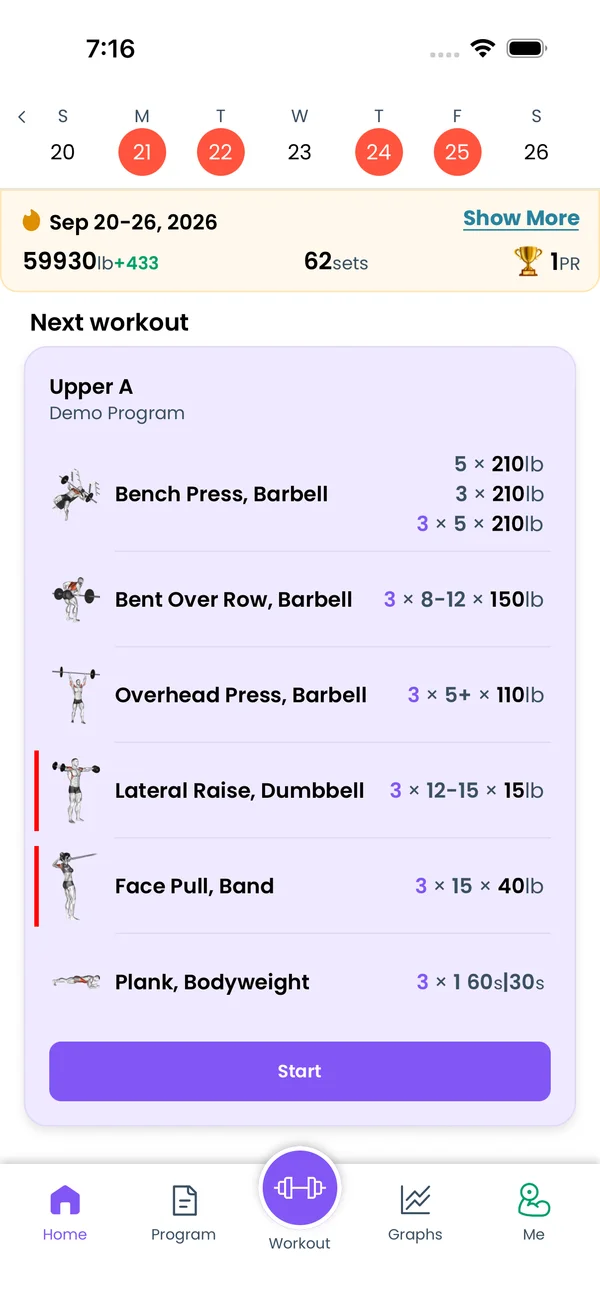\n\nOpen the **Home** tab. Under the week calendar there is a card with a fire icon and the date range of the week. It shows three numbers for that week:\n\n- Total volume, in your units.\n- The number of sets you completed.\n- The number of new personal records, with a trophy.\n\nOnly sets with at least one completed rep count. A skipped set adds nothing.\n\nFor a past week, a green or red number next to volume and sets shows the change against the week before. **+12** next to sets means twelve more sets than last week. The current week has no comparison yet.\n\nThe card follows the week you are looking at. Scroll the workout list, and the calendar and the card move to the week of the top workout. Tap the week calendar to open the month view and jump to any workout.\n\n## Open the details\n\n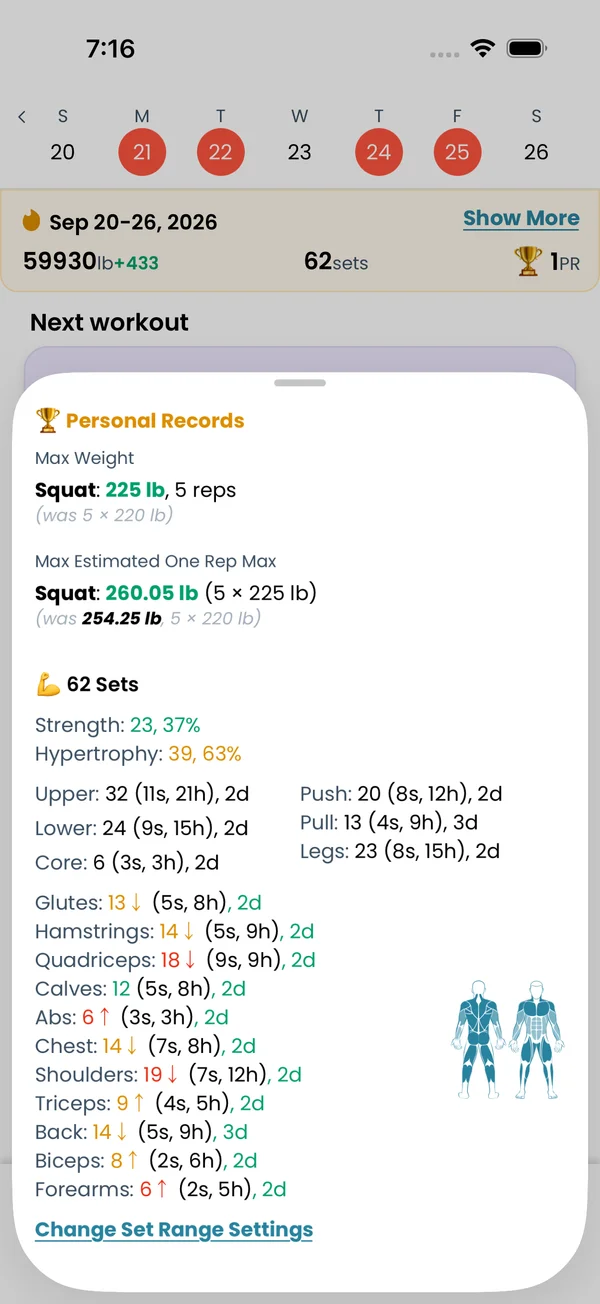\n\nTap **Show More** on the card. A sheet opens with the full breakdown for that week.\n\nIf you set a personal record that week, the sheet starts with **Personal Records**: the exercise, the new max weight or estimated 1RM, and the previous best.\n\nBelow that is the total number of sets, and the split:\n\n- **Strength**: sets with fewer than 8 completed reps, and their share in percent.\n- **Hypertrophy**: sets with 8 or more completed reps, and their share.\n\nThe percent is green when it reaches your target share, yellow when it is within 10 points below it, red otherwise. The default target is 30% strength and 70% hypertrophy.\n\nNext come six exercise types: **Upper**, **Lower**, **Core**, **Push**, **Pull** and **Legs**. Each line reads like `24 (8s, 16h), 3d`: 24 sets in total, of which 8 counted as strength (`s`, under 8 reps) and 16 as hypertrophy (`h`, 8 reps or more), spread over 3 days (`d`). Types have no target range, so these lines have no color and no arrow.\n\n## Sets per muscle group against your target range\n\n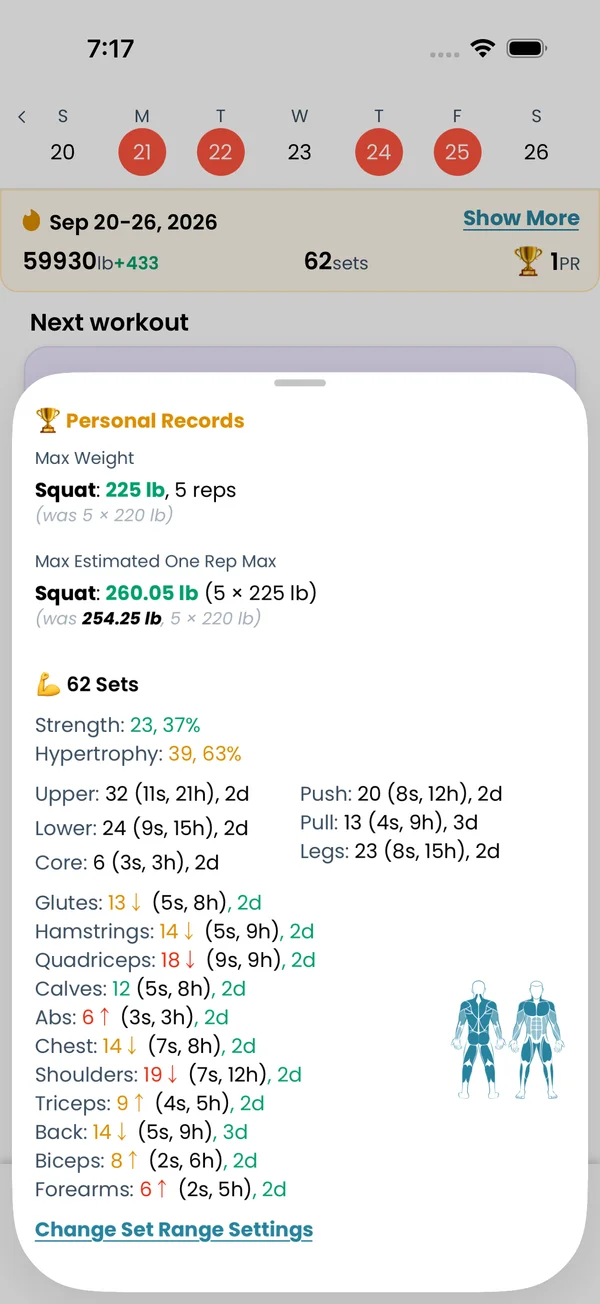 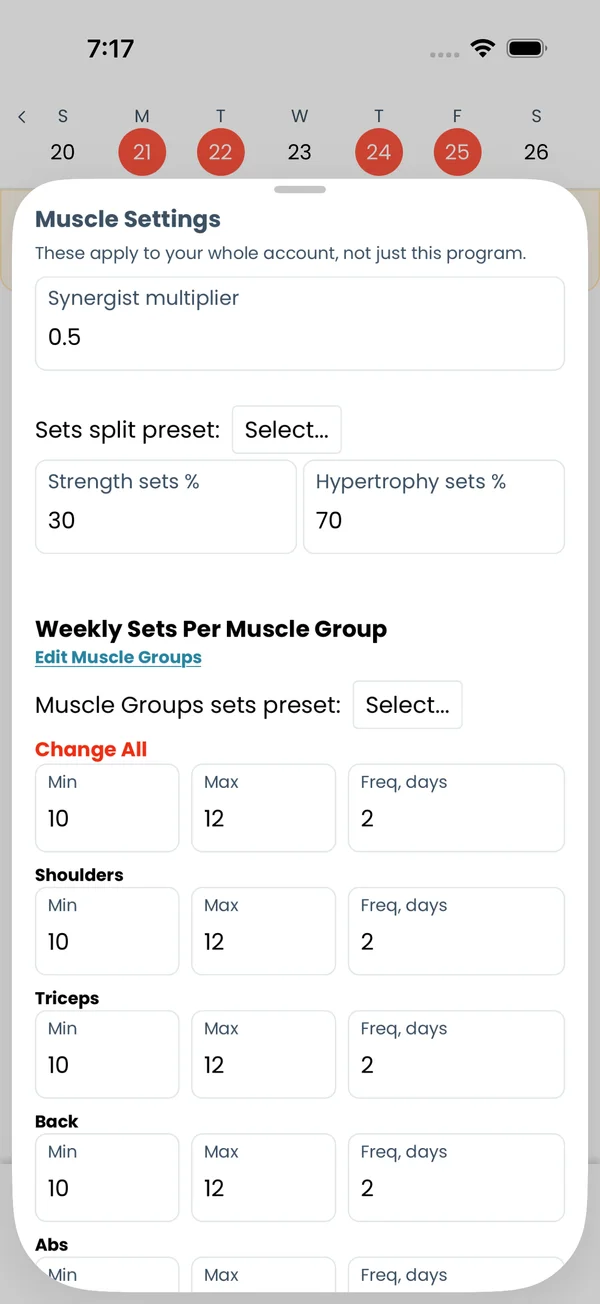\n\nThe last block lists every muscle group you trained that week: **Shoulders**, **Triceps**, **Back**, **Abs**, **Glutes**, **Hamstrings**, **Quadriceps**, **Chest**, **Biceps**, **Calves**, **Forearms**, and any custom groups. A body drawing next to the list shades the muscles by how much work they got.\n\nEach line uses the same form as the type lines, plus an arrow. `Hamstrings: 3↑ (2s, 2h), 1d` means 3 sets in total, of which 2 counted as strength (`s`, under 8 reps) and 2 as hypertrophy (`h`, 8 reps or more), spread over 1 day (`d`). The parts may not add up to the total, because synergist sets count as a fraction and each number is rounded to a whole set on its own. 1.5 strength and 1.5 hypertrophy sets show as `3 (2s, 2h)`.\n\nEvery muscle group has a weekly set range, 10 to 12 sets unless you change it. The total is colored against that range:\n\n- Green: inside the range.\n- Yellow: between 70% of the minimum and 130% of the maximum.\n- Red: further off than that.\n\nThe arrow after the total tells you which way to go. **↑** means you are below the minimum and should add sets. **↓** means you are above the maximum. No arrow means you are inside the range. In the example, 3 sets of hamstrings against a 10 to 12 range gives a red `3↑`.\n\nEvery group also has a frequency target, 2 days unless you change it. The day count is green when you reach it, yellow at half of it, red below.\n\nTo change the range or the frequency for one group or for all of them, tap **Change Set Range Settings** at the bottom of the sheet. The **Muscle Settings** sheet on the right has a **Min**, **Max** and **Freq, days** row per group. The section on target ranges below walks through it.\n\nAn exercise counts one set for each of its target muscle groups. For a synergist muscle group it counts a fraction of a set, 0.5 by default. You can change the target and synergist muscles of one exercise with **Override Muscles** at the top of its Exercise Stats screen, under **Me → Exercises**.\n\n## See which exercises count\n\n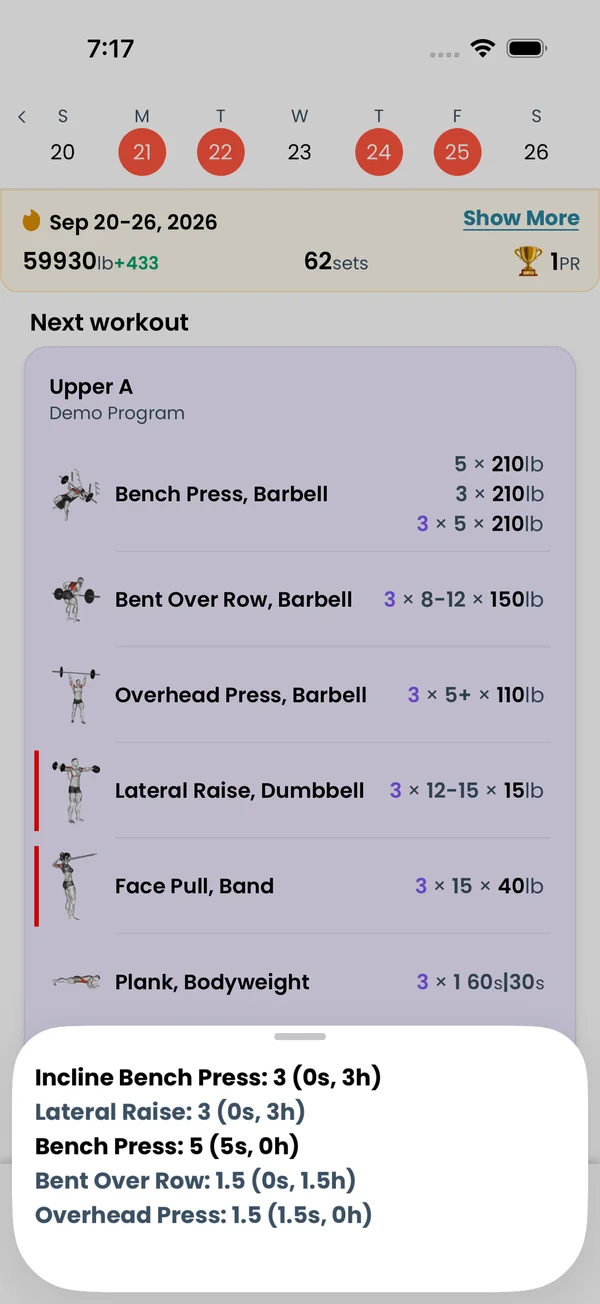\n\nTap any number in the sheet, a type like **Push** or a group like **Chest**. A sheet lists the exercises that made it up, one per line: `Bench Press: 12 (4s, 8h)`. Synergist exercises show in grey.\n\n## Change the target ranges\n\n\n\nTap **Change Set Range Settings** at the bottom of the Week Insights sheet. The **Muscle Settings** sheet opens. These settings apply to your whole account, and the Week Stats on the Program screen use the same values.\n\nAt the top:\n\n- **Synergist multiplier**: how much of a set a synergist muscle group gets. Default 0.5.\n- **Sets split preset**: **Strength** sets the targets to 70% strength and 30% hypertrophy, **Hypertrophy** sets 30% and 70%.\n- **Strength sets %** and **Hypertrophy sets %**: type your own targets.\n\nUnder **Weekly Sets Per Muscle Group**:\n\n- **Muscle Groups sets preset**: **Novice** is 10 to 12 sets, 2 days. **Intermediate** is 13 to 15 sets, 3 days. **Advanced** is 16 to 20 sets, 4 days.\n- **Change All**: one **Min**, **Max** and **Freq, days** for every group at once.\n- One row per muscle group with its own **Min**, **Max** and **Freq, days**.\n\nChanges save on their own. Close the sheet and the colors in Week Insights update.\n\n## Customize the muscle groups\n\n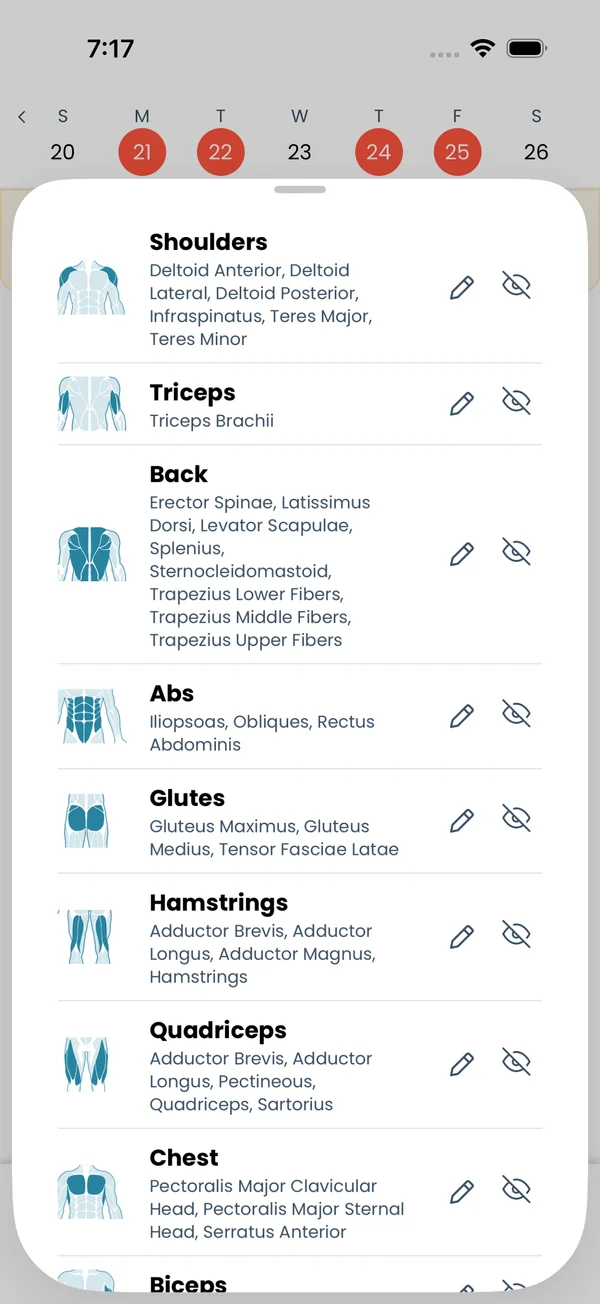\n\nTap **Edit Muscle Groups** in Muscle Settings, or go to **Me → Muscle Groups**. Each group shows its image and the muscles in it. You can:\n\n- Hide a built-in group with the eye icon. It comes back from **Unhide muscle groups** at the bottom.\n- Tap the pencil to change which muscles belong to a group.\n- Tap **Add custom muscle group** to make a new one, for example Rear Delts.\n\nCustom groups get their own row in the weekly ranges and their own line in Week Insights.\n\n## Premium\n\nWeek Insights is a Premium feature. Without Premium, the card on the Home tab shows **See Week Insights**. Tap it to open the subscription screen.","sizes":{"account/account-email-form":{"width":600,"height":1304},"account/account-forgot-password":{"width":600,"height":1304},"account/account-screen":{"width":600,"height":1304},"account/account-sign-in":{"width":600,"height":1304},"chatgpt-claude-and-ai/chatgpt-claude-and-ai-autofill":{"width":600,"height":1304},"api/api-key-created":{"width":600,"height":1304},"api/api-keys-empty":{"width":600,"height":1304},"api/api-me-row":{"width":600,"height":1304},"apple-watch/apple-watch-health-settings":{"width":600,"height":1304},"apple-watch/watch-apple-watch-amrap":{"width":416,"height":496},"apple-watch/watch-apple-watch-crown":{"width":416,"height":496},"apple-watch/watch-apple-watch-exercise":{"width":416,"height":496},"apple-watch/watch-apple-watch-get-ready":{"width":416,"height":496},"apple-watch/watch-apple-watch-home":{"width":416,"height":496},"apple-watch/watch-apple-watch-set-clock":{"width":416,"height":496},"apple-watch/watch-apple-watch-workout":{"width":416,"height":496},"built-in-programs/built-in-programs-import":{"width":600,"height":1304},"built-in-programs/built-in-programs-info":{"width":600,"height":1304},"built-in-programs/built-in-programs-library":{"width":600,"height":1304},"built-in-programs/built-in-programs-preview":{"width":600,"height":1304},"built-in-programs/built-in-programs-started":{"width":600,"height":1304},"changing-a-workout/changing-a-workout-adhoc":{"width":600,"height":1304},"changing-a-workout/changing-a-workout-adhoc-picker":{"width":600,"height":1304},"changing-a-workout/changing-a-workout-create-program-day":{"width":600,"height":1304},"changing-a-workout/changing-a-workout-edit-day":{"width":600,"height":1304},"changing-a-workout/changing-a-workout-edit-exercise":{"width":600,"height":1304},"changing-a-workout/changing-a-workout-next-workout":{"width":600,"height":1304},"changing-a-workout/changing-a-workout-pick-day":{"width":600,"height":1304},"changing-a-workout/changing-a-workout-program-day":{"width":600,"height":1304},"changing-a-workout/changing-a-workout-swap-adhoc":{"width":600,"height":1304},"changing-a-workout/changing-a-workout-swap-from-program":{"width":600,"height":1304},"changing-a-workout/changing-a-workout-swap-recent":{"width":600,"height":1304},"custom-exercises/custom-exercises-autofill":{"width":600,"height":1304},"custom-exercises/custom-exercises-clone-library":{"width":600,"height":1304},"custom-exercises/custom-exercises-cloned":{"width":600,"height":1304},"custom-exercises/custom-exercises-form":{"width":600,"height":1304},"custom-exercises/custom-exercises-hidden-group":{"width":600,"height":1304},"custom-exercises/custom-exercises-image-library":{"width":600,"height":1304},"custom-exercises/custom-exercises-image-source":{"width":600,"height":1304},"custom-exercises/custom-exercises-in-workout":{"width":600,"height":1304},"custom-exercises/custom-exercises-muscle-groups":{"width":600,"height":1304},"custom-exercises/custom-exercises-picker":{"width":600,"height":1304},"custom-exercises/custom-exercises-target-muscles":{"width":600,"height":1304},"equipment-and-gyms/equipment-and-gyms-barbell":{"width":600,"height":1304},"equipment-and-gyms/equipment-and-gyms-custom":{"width":600,"height":1304},"equipment-and-gyms/equipment-and-gyms-exercise":{"width":600,"height":1304},"equipment-and-gyms/equipment-and-gyms-fixed":{"width":600,"height":1304},"equipment-and-gyms/equipment-and-gyms-gyms":{"width":600,"height":1304},"equipment-and-gyms/equipment-and-gyms-hidden":{"width":600,"height":1304},"equipment-and-gyms/equipment-and-gyms-list":{"width":600,"height":1304},"exercise-library/exercise-library-calculator":{"width":600,"height":1304},"exercise-library/exercise-library-from-program":{"width":600,"height":1304},"exercise-library/exercise-library-list":{"width":600,"height":1304},"exercise-library/exercise-library-multi-add":{"width":600,"height":1304},"exercise-library/exercise-library-override-muscles":{"width":600,"height":1304},"exercise-library/exercise-library-picker":{"width":600,"height":1304},"exercise-library/exercise-library-prs":{"width":600,"height":1304},"exercise-library/exercise-library-search":{"width":600,"height":1304},"exercise-library/exercise-library-stats":{"width":600,"height":1304},"exercise-library/exercise-library-swap":{"width":600,"height":1304},"graphs/graphs-bodyweight":{"width":600,"height":1304},"graphs/graphs-choose":{"width":600,"height":1304},"graphs/graphs-exercise":{"width":600,"height":1304},"graphs/graphs-legend":{"width":600,"height":1304},"graphs/graphs-muscle-group":{"width":600,"height":1304},"graphs/graphs-personal-records":{"width":600,"height":1304},"graphs/graphs-settings":{"width":600,"height":1304},"health-sync/android-health-sync-measurements":{"width":600,"height":1339},"health-sync/android-health-sync-settings":{"width":600,"height":1339},"health-sync/android-health-sync-share":{"width":600,"height":1339},"health-sync/android-health-sync-sleep-nutrition":{"width":600,"height":1339},"health-sync/health-sync-measurements":{"width":600,"height":1304},"health-sync/health-sync-settings":{"width":600,"height":1304},"health-sync/health-sync-share":{"width":600,"height":1304},"health-sync/health-sync-sleep-nutrition":{"width":600,"height":1304},"import-export/import-export-export":{"width":600,"height":1304},"import-export/import-export-hevy":{"width":600,"height":1304},"import-export/import-export-import":{"width":600,"height":1304},"liftoscript/liftoscript-exercise-sheet":{"width":600,"height":1304},"liftoscript/liftoscript-full-program":{"width":600,"height":1304},"liftoscript/liftoscript-per-day":{"width":600,"height":1304},"liftoscript/liftoscript-playground":{"width":600,"height":1304},"lock-screen-and-notifications/android-lock-screen-and-notifications-live-update":{"width":600,"height":1339},"lock-screen-and-notifications/android-lock-screen-and-notifications-reminder":{"width":600,"height":1339},"lock-screen-and-notifications/android-lock-screen-and-notifications-sound":{"width":600,"height":1339},"lock-screen-and-notifications/lock-screen-and-notifications-dynamic-island":{"width":600,"height":1304},"lock-screen-and-notifications/lock-screen-and-notifications-live-activity":{"width":600,"height":1304},"lock-screen-and-notifications/lock-screen-and-notifications-reminder":{"width":600,"height":1304},"lock-screen-and-notifications/lock-screen-and-notifications-sound":{"width":600,"height":1304},"measurements/measurements-add":{"width":600,"height":1304},"measurements/measurements-bodyweight":{"width":600,"height":1304},"measurements/measurements-moving-average":{"width":600,"height":1304},"measurements/measurements-sleep-nutrition":{"width":600,"height":1304},"measurements/measurements-types":{"width":600,"height":1304},"first-run-and-settings/first-run-and-settings-appearance":{"width":600,"height":1304},"first-run-and-settings/first-run-and-settings-dark-mode":{"width":600,"height":1304},"first-run-and-settings/first-run-and-settings-equipment":{"width":600,"height":1304},"first-run-and-settings/first-run-and-settings-me":{"width":600,"height":1304},"first-run-and-settings/first-run-and-settings-units":{"width":600,"height":1304},"first-run-and-settings/first-run-and-settings-welcome":{"width":600,"height":1304},"playground/playground-completed":{"width":600,"height":1304},"playground/playground-day":{"width":600,"height":1304},"playground/playground-finished":{"width":600,"height":1304},"playground/playground-variables":{"width":600,"height":1304},"premium/premium-account":{"width":600,"height":1304},"premium/premium-feature-info":{"width":600,"height":1304},"premium/premium-plans":{"width":600,"height":1304},"program-editor/program-editor-create":{"width":600,"height":1304},"program-editor/program-editor-day-details":{"width":600,"height":1304},"program-editor/program-editor-exercise-sheet":{"width":600,"height":1304},"program-editor/program-editor-full-text":{"width":600,"height":1304},"program-editor/program-editor-grid":{"width":600,"height":1304},"program-editor/program-editor-perday-text":{"width":600,"height":1304},"program-editor/program-editor-ui-mode":{"width":600,"height":1304},"program-editor/program-editor-week-stats":{"width":600,"height":1304},"progressions/progressions-linear-settings":{"width":600,"height":1304},"progressions/progressions-preview":{"width":600,"height":1304},"progressions/progressions-state-variables":{"width":600,"height":1304},"progressions/progressions-suppressed":{"width":600,"height":1304},"rest-timer/rest-timer-collapsed":{"width":600,"height":1304},"rest-timer/rest-timer-dynamic-island":{"width":600,"height":1304},"rest-timer/rest-timer-expanded":{"width":600,"height":1304},"rest-timer/rest-timer-get-ready":{"width":600,"height":1304},"rest-timer/rest-timer-lock-screen":{"width":600,"height":1304},"rest-timer/rest-timer-settings":{"width":600,"height":1304},"rest-timer/rest-timer-sound":{"width":600,"height":1304},"rest-timer/watch-rest-timer":{"width":416,"height":496},"rest-timer/watch-rest-timer-exercise":{"width":416,"height":496},"set-types/set-types-amrap-popup":{"width":600,"height":1304},"set-types/set-types-per-side":{"width":600,"height":1304},"set-types/set-types-rpe-logged":{"width":600,"height":1304},"set-types/set-types-rpe-popup":{"width":600,"height":1304},"sharing-programs/sharing-programs-export-text":{"width":600,"height":1304},"sharing-programs/sharing-programs-image-preview":{"width":600,"height":1304},"sharing-programs/sharing-programs-image-settings":{"width":600,"height":1304},"sharing-programs/sharing-programs-import":{"width":600,"height":1304},"sharing-programs/sharing-programs-menu":{"width":600,"height":1304},"sharing-programs/sharing-programs-private-link":{"width":600,"height":1304},"sharing-programs/sharing-programs-public-link":{"width":600,"height":1304},"sharing-workouts/sharing-workouts-copied-text":{"width":600,"height":1304},"sharing-workouts/sharing-workouts-finish-screen":{"width":600,"height":1304},"sharing-workouts/sharing-workouts-profile-settings":{"width":600,"height":1304},"sharing-workouts/sharing-workouts-share-sheet":{"width":600,"height":1304},"sharing-workouts/sharing-workouts-story-preview":{"width":600,"height":1304},"supersets/supersets-liftoscript":{"width":600,"height":1304},"supersets/supersets-next-exercise":{"width":600,"height":1304},"supersets/supersets-picker":{"width":600,"height":1304},"supersets/supersets-program-editor":{"width":600,"height":1304},"supersets/supersets-timer":{"width":600,"height":1304},"supersets/supersets-workout":{"width":600,"height":1304},"sync-and-offline/sync-and-offline-account":{"width":600,"height":1304},"sync-and-offline/sync-and-offline-me-account":{"width":600,"height":1304},"sync-and-offline/sync-and-offline-sign-in":{"width":600,"height":1304},"timed-sets/timed-sets-count-up":{"width":600,"height":1304},"timed-sets/timed-sets-edit-time":{"width":600,"height":1304},"timed-sets/timed-sets-get-ready":{"width":600,"height":1304},"timed-sets/timed-sets-recorded":{"width":600,"height":1304},"timed-sets/timed-sets-running":{"width":600,"height":1304},"timed-sets/timed-sets-set-row":{"width":600,"height":1304},"timed-sets/timed-sets-timers":{"width":600,"height":1304},"week-insights/week-insights-details":{"width":600,"height":1304},"week-insights/week-insights-edit-muscle-groups":{"width":600,"height":1304},"week-insights/week-insights-exercises":{"width":600,"height":1304},"week-insights/week-insights-home":{"width":600,"height":1304},"week-insights/week-insights-muscle-groups":{"width":600,"height":1304},"week-insights/week-insights-settings":{"width":600,"height":1304},"workout-history/workout-history-change-date":{"width":600,"height":1304},"workout-history/workout-history-delete":{"width":600,"height":1304},"workout-history/workout-history-feed":{"width":600,"height":1304},"workout-history/workout-history-menu":{"width":600,"height":1304},"workout-history/workout-history-month-calendar":{"width":600,"height":1304},"workout-history/workout-history-note-on-card":{"width":600,"height":1304},"workout-history/workout-history-notes":{"width":600,"height":1304},"workout-history/workout-history-past-card":{"width":600,"height":1304},"workout-history/workout-history-past-workout":{"width":600,"height":1304},"workout-history/workout-history-week-insights":{"width":600,"height":1304},"workout-screen/workout-screen-e1rm":{"width":600,"height":1304},"workout-screen/workout-screen-edit-target":{"width":600,"height":1304},"workout-screen/workout-screen-exercise-menu":{"width":600,"height":1304},"workout-screen/workout-screen-exercise-notes":{"width":600,"height":1304},"workout-screen/workout-screen-history":{"width":600,"height":1304},"workout-screen/workout-screen-keypad":{"width":600,"height":1304},"workout-screen/workout-screen-next-set":{"width":600,"height":1304},"workout-screen/workout-screen-overview":{"width":600,"height":1304},"workout-screen/workout-screen-rounding":{"width":600,"height":1304},"workout-screen/workout-screen-summary":{"width":600,"height":1304}}}





