Follow your friends' training. Invite with a link or QR code, choose what each follower sees, react to workouts, and let a coach edit your program.
Open Friends
Go to Me → Friends. The row is in the Account group. It needs a signed-in account. Without one, the screen says "Log in to follow friends and see their workouts." and shows a Log in button.
With no friends yet, the screen says Train together and shows an Invite a friend button.
Your friends see your nickname. Until you set one, they see "A friend". The app asks for a nickname when you invite someone or ask to follow them. It also shows the Pick a nickname your friends will see card on the Friends screen. A nickname has up to 30 characters.
The list has four sections, each with a count:
Incoming requests: people who want to follow you.
Following: people you follow, with the time of their last workout.
Followers: people who follow you, and what they can see.
Sent: your requests that wait for approval, marked Pending. Tap the X to cancel one.
Following is one-way. When you follow someone, you see their training. They see yours only if they follow you too.
Invite a friend
Tap Invite a friend. The screen shows a QR code with your nickname. Your friend scans it with the phone camera. Or tap Share invite link to send the link in a message.
Anyone with the link can ask to follow you for 7 days. After that, the link stops working and the app says "This invite expired. Ask for a new one.". Each visit to the invite screen makes a new link.
Your friend opens the link and taps Follow with your name. The request goes to you. Nobody follows you until you approve.
Approve a request
Tap Approve next to the request. The Follow request screen has the card Choose what they can see:
Workouts: exercises, sets, reps and weights. Always on.
Exercise & workout notes: the notes you write on exercises and workouts. Off by default.
See and edit my programs: they can open your programs and change them. Off by default.
Follow {name} back is on by default. It sends them a follow request too, and they choose what you can see.
Tap Approve or Decline. To change the permissions later, open Me → Friends, tap the person under Followers, and switch them. Remove follower on that screen stops them from following you.
These permissions also apply to apps your friend connects, like AI assistants.
See your friends' workouts
Your friends' workouts show up in the feed on the Home tab, next to your own. A card shows the friend's name, the program and day, each exercise with its sets, and the duration, volume, sets and reps. It shows notes only if the friend shares them with you.
Tap the friend's name to open their profile. It lists their workouts. Unfollow on the profile stops following them.
React to a workout
Tap + under a friend's workout and pick one of 9 dino reactions. You give one reaction per workout. Tap your reaction again to remove it. The line under the reactions says who reacted, like "You, Sam & 2 others".
Reactions on your own workouts show on your workout cards in the feed.
Choose whose workouts you see
Tap the filter icon next to the week calendar on Home. The icon shows when you follow at least one person. The Show in Feed screen lists You and everyone you follow. Tap a person to hide or show their workouts. The feed changes right away. Deselect all hides everyone.
Let a coach edit your program
When a follower has See and edit my programs, they can work on your programs as a coach. In their app, your profile gets a Programs row. It lists your programs, with Current on the one you run.
A program opens as a preview with an Edit on the web button. It opens the program in the web editor on liftosaur.com. Saving there changes the program on your phone right away. The editor warns your friend: "You're editing {name}'s program, not yours."
On your Program tab, a line says who changed the program and when, like "Sam edited this program · 2 hours ago". A red dot marks changes you have not seen. Tap the line to open Changes by friends. It shows each change as lines added and removed. Every change also shows in the program's history.
Friends on the website
Sign in on liftosaur.com and open Your Friends. The page lists the people you follow, with their last workout. Workouts shows a friend's feed, with reactions. If you can edit their programs, Programs lists them and opens each one in the web editor.
Invites and approvals happen only in the app.
Notifications
Go to Me → Notifications. Under Friends, three switches choose which pushes you get:
Reactions: when a friend reacts to your workout.
Friend requests: when someone wants to follow you, or accepts your request.
Program edits: when a friend you share programs with edits one of them.
All of them are on by default. If notifications are off for Liftosaur on the phone, the screen shows Open settings.
Friends through AI and the API
An AI assistant connected through MCP can list your friends, read their workouts, and read and edit the programs they let you edit. See Using AI with Liftosaur. The API has the same endpoints under /api/v1/friends.
{"feature":{"id":"friends","title":"Friends","shortDescription":"Follow your friends' training. Invite with a link or QR code, choose what each follower sees, react to workouts, and let a coach edit your program.","order":5,"category":"Sharing and data","datePublished":"2026-11-27","dateModified":"2026-11-27","screenshots":["friends-feed","friends-list"]},"content":"## Open Friends\n\n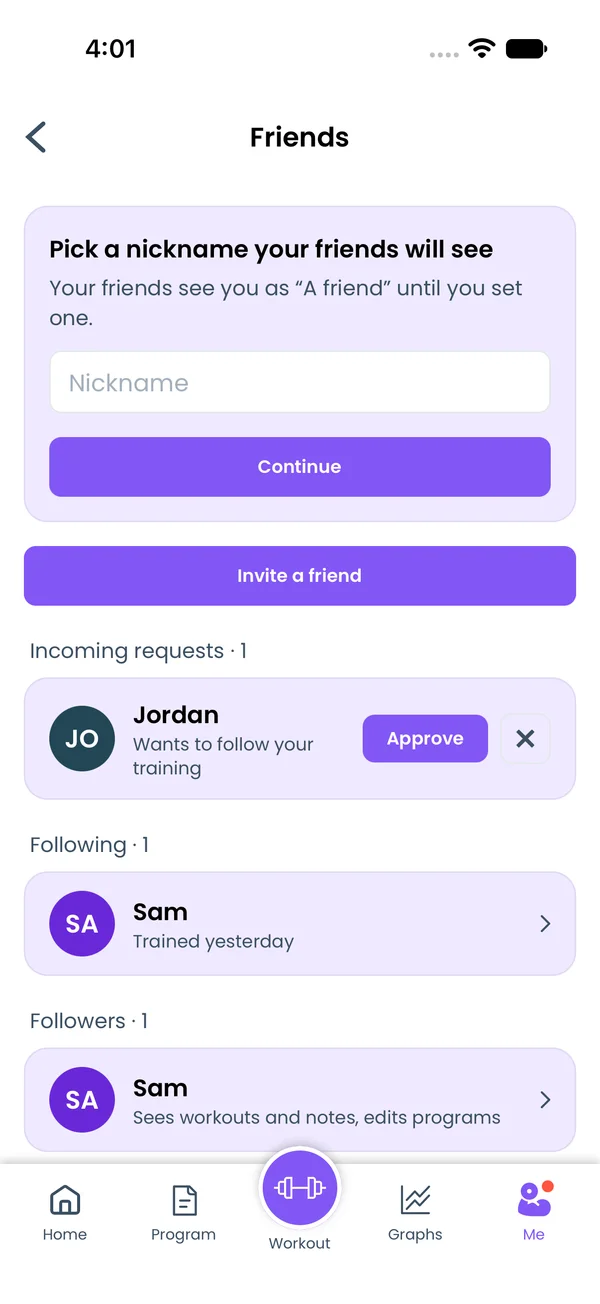 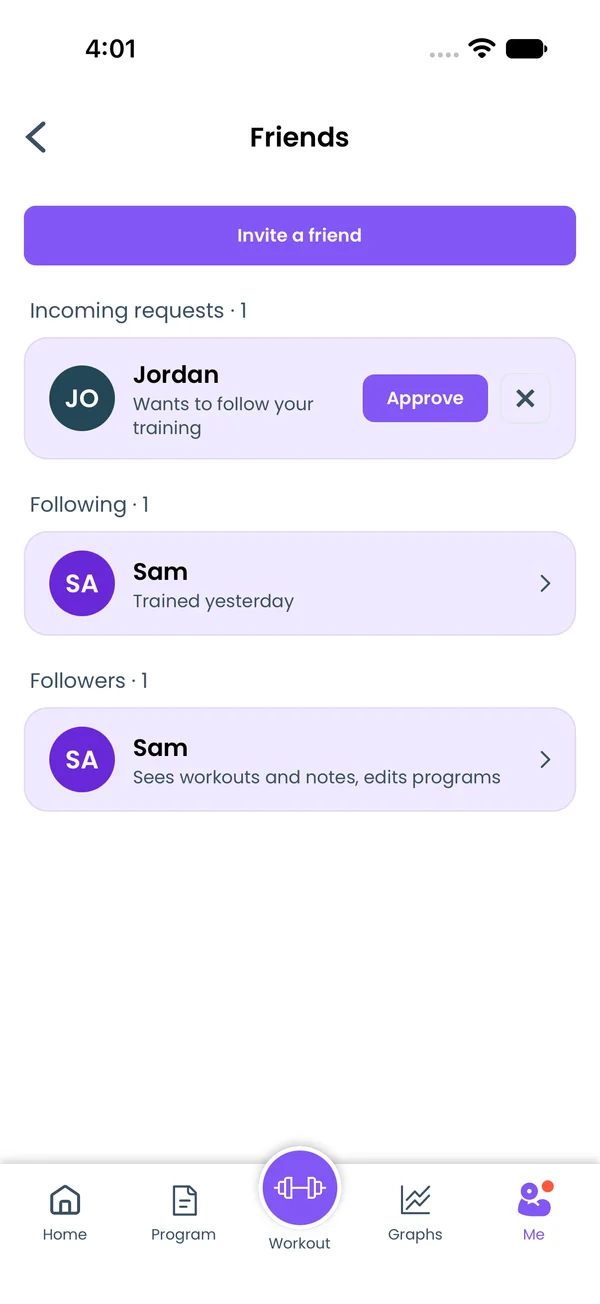\n\nGo to **Me → Friends**. The row is in the **Account** group. It needs a signed-in account. Without one, the screen says \"Log in to follow friends and see their workouts.\" and shows a **Log in** button.\n\nWith no friends yet, the screen says **Train together** and shows an **Invite a friend** button.\n\nYour friends see your nickname. Until you set one, they see \"A friend\". The app asks for a nickname when you invite someone or ask to follow them. It also shows the **Pick a nickname your friends will see** card on the Friends screen. A nickname has up to 30 characters.\n\nThe list has four sections, each with a count:\n\n- **Incoming requests**: people who want to follow you.\n- **Following**: people you follow, with the time of their last workout.\n- **Followers**: people who follow you, and what they can see.\n- **Sent**: your requests that wait for approval, marked **Pending**. Tap the X to cancel one.\n\nFollowing is one-way. When you follow someone, you see their training. They see yours only if they follow you too.\n\n## Invite a friend\n\n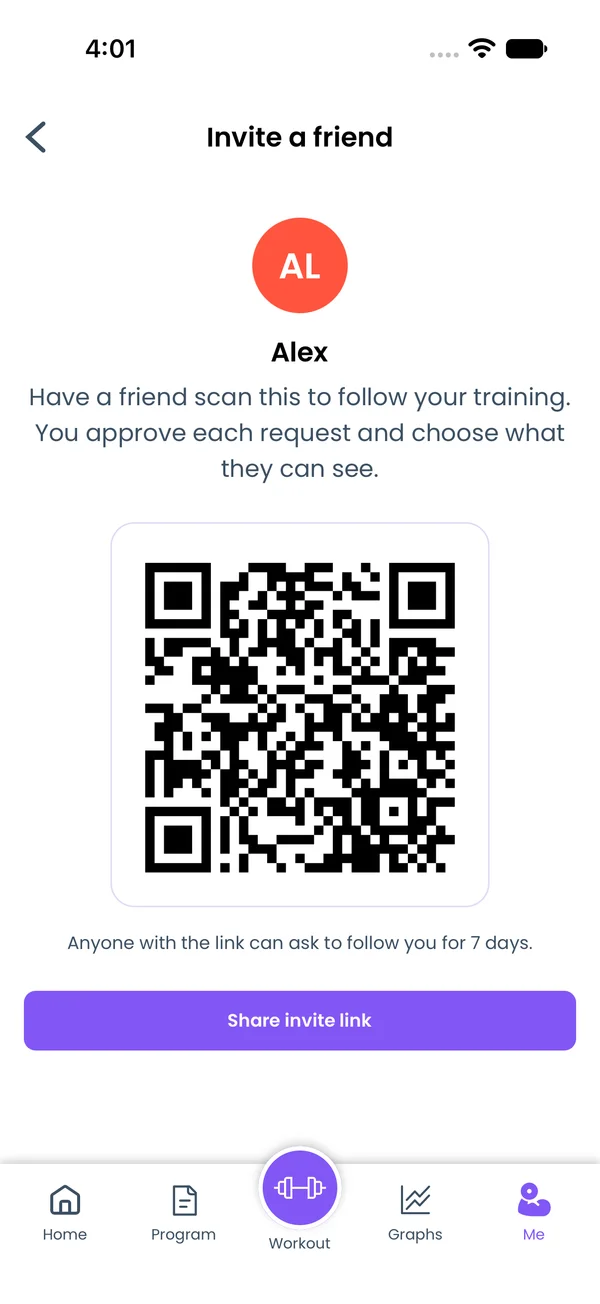\n\nTap **Invite a friend**. The screen shows a QR code with your nickname. Your friend scans it with the phone camera. Or tap **Share invite link** to send the link in a message.\n\nAnyone with the link can ask to follow you for 7 days. After that, the link stops working and the app says \"This invite expired. Ask for a new one.\". Each visit to the invite screen makes a new link.\n\nYour friend opens the link and taps **Follow** with your name. The request goes to you. Nobody follows you until you approve.\n\n## Approve a request\n\n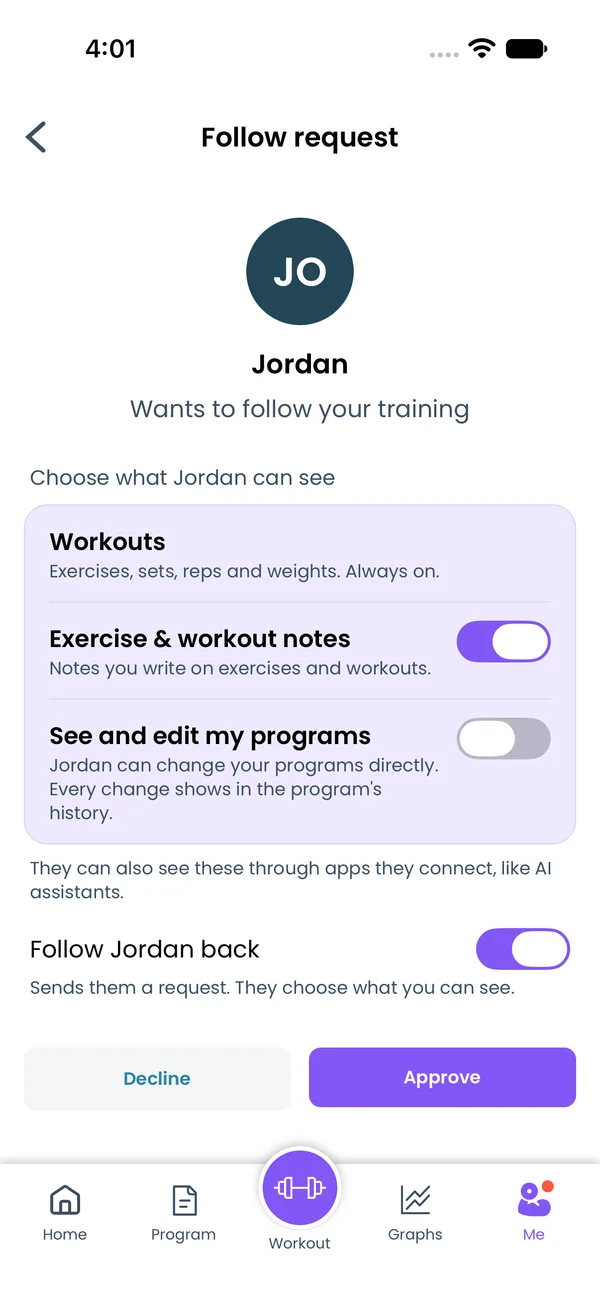\n\nTap **Approve** next to the request. The **Follow request** screen has the card **Choose what they can see**:\n\n- **Workouts**: exercises, sets, reps and weights. Always on.\n- **Exercise & workout notes**: the notes you write on exercises and workouts. Off by default.\n- **See and edit my programs**: they can open your programs and change them. Off by default.\n\n**Follow {name} back** is on by default. It sends them a follow request too, and they choose what you can see.\n\nTap **Approve** or **Decline**. To change the permissions later, open **Me → Friends**, tap the person under **Followers**, and switch them. **Remove follower** on that screen stops them from following you.\n\nThese permissions also apply to apps your friend connects, like AI assistants.\n\n## See your friends' workouts\n\n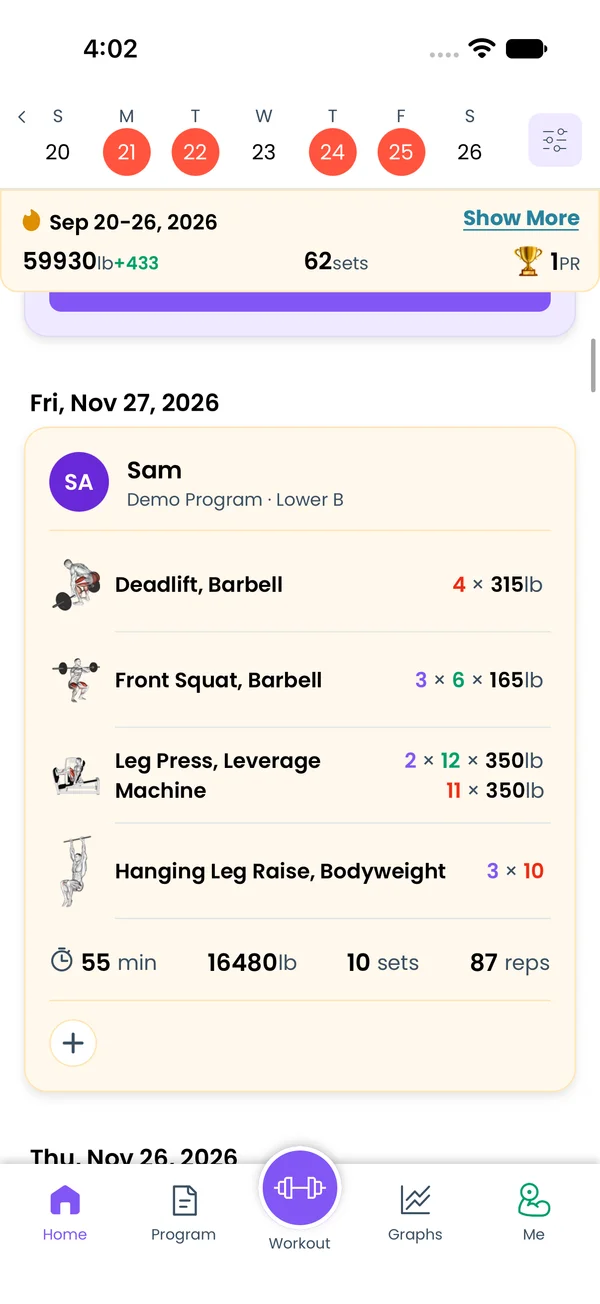\n\nYour friends' workouts show up in the feed on the **Home** tab, next to your own. A card shows the friend's name, the program and day, each exercise with its sets, and the duration, volume, sets and reps. It shows notes only if the friend shares them with you.\n\nTap the friend's name to open their profile. It lists their workouts. **Unfollow** on the profile stops following them.\n\n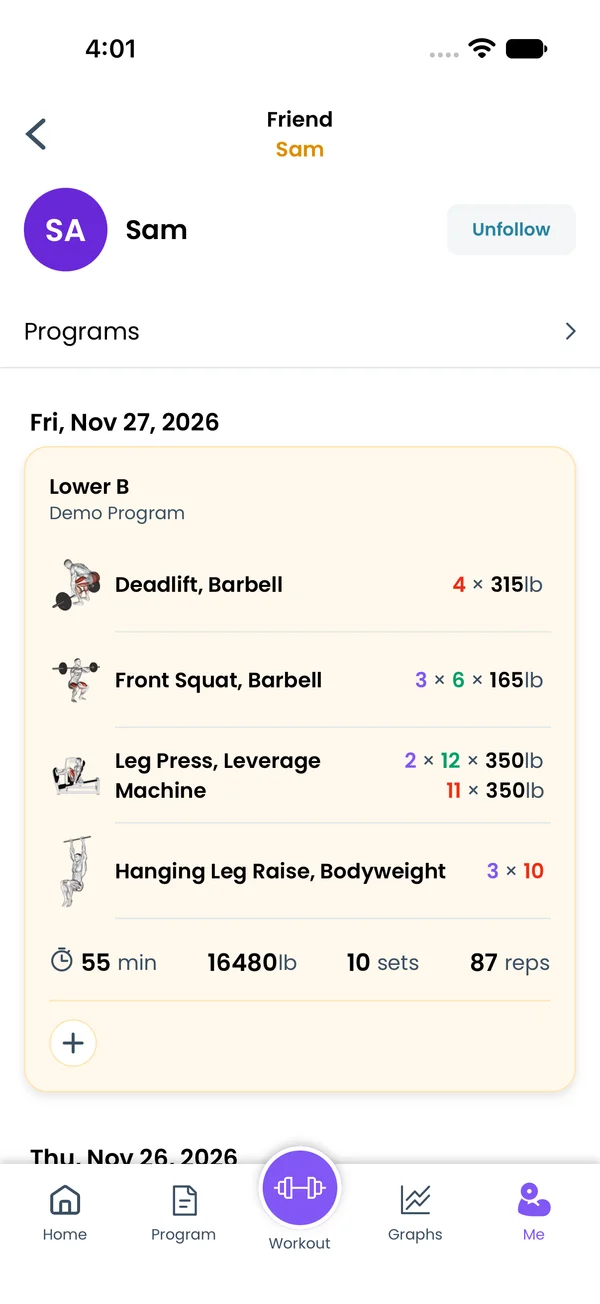\n\n## React to a workout\n\n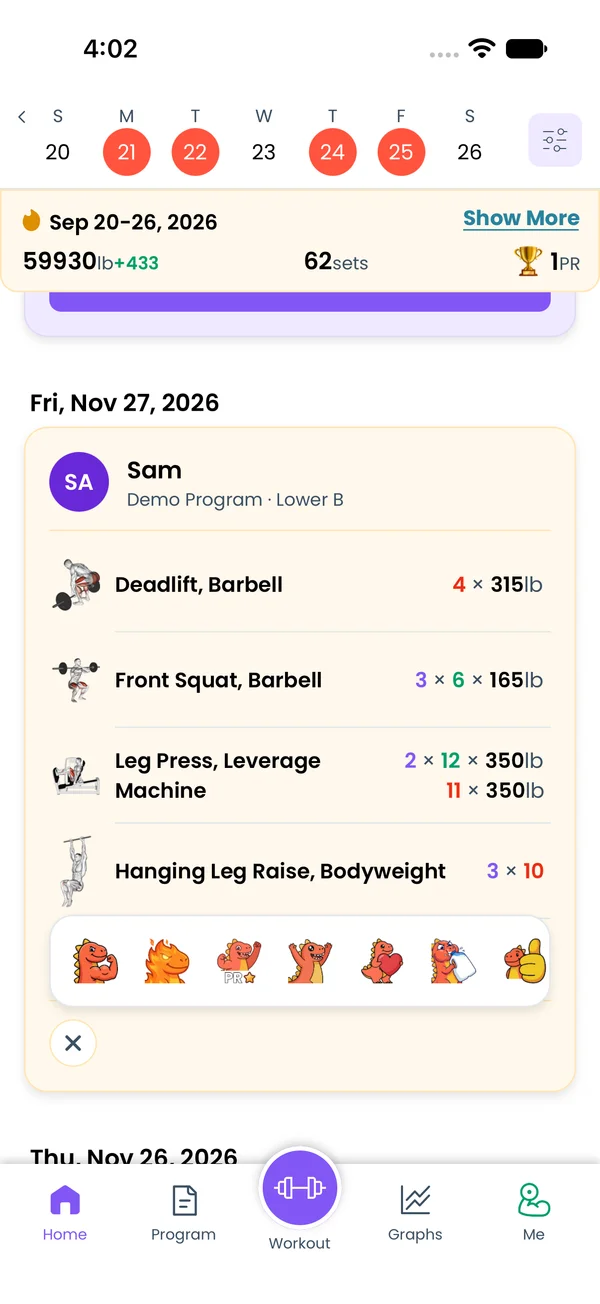\n\nTap **+** under a friend's workout and pick one of 9 dino reactions. You give one reaction per workout. Tap your reaction again to remove it. The line under the reactions says who reacted, like \"You, Sam & 2 others\".\n\nReactions on your own workouts show on your workout cards in the feed.\n\n## Choose whose workouts you see\n\n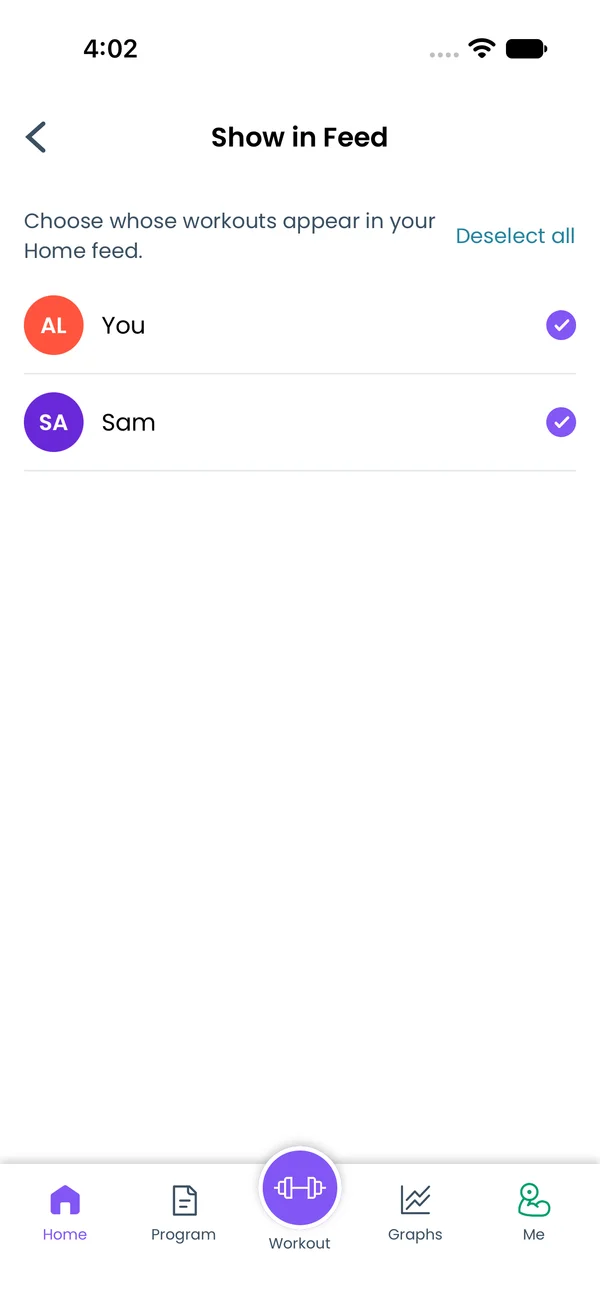\n\nTap the filter icon next to the week calendar on **Home**. The icon shows when you follow at least one person. The **Show in Feed** screen lists **You** and everyone you follow. Tap a person to hide or show their workouts. The feed changes right away. **Deselect all** hides everyone.\n\n## Let a coach edit your program\n\nWhen a follower has **See and edit my programs**, they can work on your programs as a coach. In their app, your profile gets a **Programs** row. It lists your programs, with **Current** on the one you run.\n\nA program opens as a preview with an **Edit on the web** button. It opens the program in the [web editor](/features/web-editor) on liftosaur.com. Saving there changes the program on your phone right away. The editor warns your friend: \"You're editing {name}'s program, not yours.\"\n\nOn your **Program** tab, a line says who changed the program and when, like \"Sam edited this program · 2 hours ago\". A red dot marks changes you have not seen. Tap the line to open **Changes by friends**. It shows each change as lines added and removed. Every change also shows in the program's history.\n\n## Friends on the website\n\nSign in on [liftosaur.com](/) and open [Your Friends](/user/friends). The page lists the people you follow, with their last workout. **Workouts** shows a friend's feed, with reactions. If you can edit their programs, **Programs** lists them and opens each one in the web editor.\n\nInvites and approvals happen only in the app.\n\n## Notifications\n\n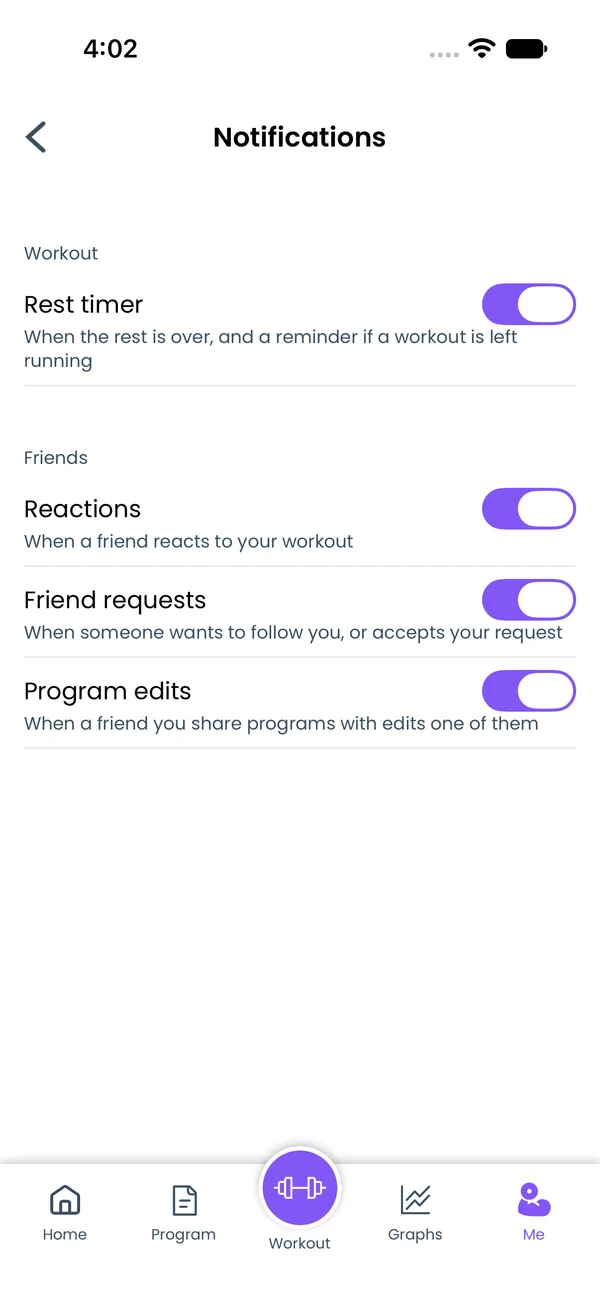\n\nGo to **Me → Notifications**. Under **Friends**, three switches choose which pushes you get:\n\n- **Reactions**: when a friend reacts to your workout.\n- **Friend requests**: when someone wants to follow you, or accepts your request.\n- **Program edits**: when a friend you share programs with edits one of them.\n\nAll of them are on by default. If notifications are off for Liftosaur on the phone, the screen shows **Open settings**.\n\n## Friends through AI and the API\n\nAn AI assistant connected through MCP can list your friends, read their workouts, and read and edit the programs they let you edit. See [Using AI with Liftosaur](/features/chatgpt-claude-and-ai). The [API](/features/api) has the same endpoints under `/api/v1/friends`.","sizes":{"account/account-email-form":{"width":600,"height":1304},"account/account-forgot-password":{"width":600,"height":1304},"account/account-screen":{"width":600,"height":1304},"account/account-sign-in":{"width":600,"height":1304},"api/api-key-created":{"width":600,"height":1304},"api/api-keys-empty":{"width":600,"height":1304},"api/api-me-row":{"width":600,"height":1304},"apple-watch/apple-watch-health-settings":{"width":600,"height":1304},"apple-watch/watch-apple-watch-amrap":{"width":416,"height":496},"apple-watch/watch-apple-watch-crown":{"width":416,"height":496},"apple-watch/watch-apple-watch-exercise":{"width":416,"height":496},"apple-watch/watch-apple-watch-get-ready":{"width":416,"height":496},"apple-watch/watch-apple-watch-home":{"width":416,"height":496},"apple-watch/watch-apple-watch-set-clock":{"width":416,"height":496},"apple-watch/watch-apple-watch-workout":{"width":416,"height":496},"built-in-programs/built-in-programs-import":{"width":600,"height":1304},"built-in-programs/built-in-programs-info":{"width":600,"height":1304},"built-in-programs/built-in-programs-library":{"width":600,"height":1304},"built-in-programs/built-in-programs-preview":{"width":600,"height":1304},"built-in-programs/built-in-programs-started":{"width":600,"height":1304},"changing-a-workout/changing-a-workout-adhoc":{"width":600,"height":1304},"changing-a-workout/changing-a-workout-adhoc-picker":{"width":600,"height":1304},"changing-a-workout/changing-a-workout-create-program-day":{"width":600,"height":1304},"changing-a-workout/changing-a-workout-edit-day":{"width":600,"height":1304},"changing-a-workout/changing-a-workout-edit-exercise":{"width":600,"height":1304},"changing-a-workout/changing-a-workout-next-workout":{"width":600,"height":1304},"changing-a-workout/changing-a-workout-pick-day":{"width":600,"height":1304},"changing-a-workout/changing-a-workout-program-day":{"width":600,"height":1304},"changing-a-workout/changing-a-workout-swap-adhoc":{"width":600,"height":1304},"changing-a-workout/changing-a-workout-swap-from-program":{"width":600,"height":1304},"changing-a-workout/changing-a-workout-swap-recent":{"width":600,"height":1304},"chatgpt-claude-and-ai/chatgpt-claude-and-ai-autofill":{"width":600,"height":1304},"custom-exercises/custom-exercises-autofill":{"width":600,"height":1304},"custom-exercises/custom-exercises-clone-library":{"width":600,"height":1304},"custom-exercises/custom-exercises-cloned":{"width":600,"height":1304},"custom-exercises/custom-exercises-form":{"width":600,"height":1304},"custom-exercises/custom-exercises-hidden-group":{"width":600,"height":1304},"custom-exercises/custom-exercises-image-library":{"width":600,"height":1304},"custom-exercises/custom-exercises-image-source":{"width":600,"height":1304},"custom-exercises/custom-exercises-in-workout":{"width":600,"height":1304},"custom-exercises/custom-exercises-muscle-groups":{"width":600,"height":1304},"custom-exercises/custom-exercises-picker":{"width":600,"height":1304},"custom-exercises/custom-exercises-target-muscles":{"width":600,"height":1304},"equipment-and-gyms/equipment-and-gyms-barbell":{"width":600,"height":1304},"equipment-and-gyms/equipment-and-gyms-custom":{"width":600,"height":1304},"equipment-and-gyms/equipment-and-gyms-custom-detail":{"width":600,"height":1304},"equipment-and-gyms/equipment-and-gyms-exercise":{"width":600,"height":1304},"equipment-and-gyms/equipment-and-gyms-fixed":{"width":600,"height":1304},"equipment-and-gyms/equipment-and-gyms-gyms":{"width":600,"height":1304},"equipment-and-gyms/equipment-and-gyms-hidden":{"width":600,"height":1304},"equipment-and-gyms/equipment-and-gyms-list":{"width":600,"height":1304},"exercise-library/exercise-library-calculator":{"width":600,"height":1304},"exercise-library/exercise-library-from-program":{"width":600,"height":1304},"exercise-library/exercise-library-list":{"width":600,"height":1304},"exercise-library/exercise-library-multi-add":{"width":600,"height":1304},"exercise-library/exercise-library-override-muscles":{"width":600,"height":1304},"exercise-library/exercise-library-picker":{"width":600,"height":1304},"exercise-library/exercise-library-prs":{"width":600,"height":1304},"exercise-library/exercise-library-search":{"width":600,"height":1304},"exercise-library/exercise-library-stats":{"width":600,"height":1304},"exercise-library/exercise-library-swap":{"width":600,"height":1304},"first-run-and-settings/first-run-and-settings-appearance":{"width":600,"height":1304},"first-run-and-settings/first-run-and-settings-dark-mode":{"width":600,"height":1304},"first-run-and-settings/first-run-and-settings-equipment":{"width":600,"height":1304},"first-run-and-settings/first-run-and-settings-me":{"width":600,"height":1304},"first-run-and-settings/first-run-and-settings-units":{"width":600,"height":1304},"first-run-and-settings/first-run-and-settings-welcome":{"width":600,"height":1304},"friends/friends-feed":{"width":600,"height":1304},"friends/friends-feed-filter":{"width":600,"height":1304},"friends/friends-invite":{"width":600,"height":1304},"friends/friends-list":{"width":600,"height":1304},"friends/friends-nickname":{"width":600,"height":1304},"friends/friends-notifications":{"width":600,"height":1304},"friends/friends-profile":{"width":600,"height":1304},"friends/friends-reactions":{"width":600,"height":1304},"friends/friends-request":{"width":600,"height":1304},"graphs/graphs-cursor":{"width":600,"height":1299},"graphs/graphs-dashboard":{"width":600,"height":1299},"graphs/graphs-dashboards":{"width":600,"height":1299},"graphs/graphs-edit":{"width":600,"height":1299},"graphs/graphs-personal-records":{"width":600,"height":1299},"graphs/graphs-series":{"width":600,"height":1299},"graphs/graphs-text":{"width":600,"height":1299},"graphs/graphs-tile-menu":{"width":600,"height":1299},"graphs/graphs-widget":{"width":600,"height":1299},"health-sync/android-health-sync-measurements":{"width":600,"height":1339},"health-sync/android-health-sync-settings":{"width":600,"height":1339},"health-sync/android-health-sync-share":{"width":600,"height":1339},"health-sync/android-health-sync-sleep-nutrition":{"width":600,"height":1339},"health-sync/health-sync-measurements":{"width":600,"height":1304},"health-sync/health-sync-settings":{"width":600,"height":1304},"health-sync/health-sync-share":{"width":600,"height":1304},"health-sync/health-sync-sleep-nutrition":{"width":600,"height":1304},"import-export/import-export-export":{"width":600,"height":1304},"import-export/import-export-hevy":{"width":600,"height":1304},"import-export/import-export-import":{"width":600,"height":1304},"liftoscript/liftoscript-exercise-sheet":{"width":600,"height":1304},"liftoscript/liftoscript-full-program":{"width":600,"height":1304},"liftoscript/liftoscript-per-day":{"width":600,"height":1304},"liftoscript/liftoscript-playground":{"width":600,"height":1304},"lock-screen-and-notifications/android-lock-screen-and-notifications-live-update":{"width":600,"height":1339},"lock-screen-and-notifications/android-lock-screen-and-notifications-reminder":{"width":600,"height":1339},"lock-screen-and-notifications/android-lock-screen-and-notifications-sound":{"width":600,"height":1339},"lock-screen-and-notifications/lock-screen-and-notifications-dynamic-island":{"width":600,"height":1304},"lock-screen-and-notifications/lock-screen-and-notifications-live-activity":{"width":600,"height":1304},"lock-screen-and-notifications/lock-screen-and-notifications-reminder":{"width":600,"height":1304},"lock-screen-and-notifications/lock-screen-and-notifications-sound":{"width":600,"height":1304},"measurements/measurements-add":{"width":600,"height":1304},"measurements/measurements-bodyweight":{"width":600,"height":1304},"measurements/measurements-moving-average":{"width":600,"height":1304},"measurements/measurements-sleep-nutrition":{"width":600,"height":1304},"measurements/measurements-types":{"width":600,"height":1304},"playground/playground-completed":{"width":600,"height":1304},"playground/playground-day":{"width":600,"height":1304},"playground/playground-finished":{"width":600,"height":1304},"playground/playground-variables":{"width":600,"height":1304},"premium/premium-account":{"width":600,"height":1304},"premium/premium-feature-info":{"width":600,"height":1304},"premium/premium-plans":{"width":600,"height":1304},"program-editor/program-editor-create":{"width":600,"height":1304},"program-editor/program-editor-day-details":{"width":600,"height":1304},"program-editor/program-editor-exercise-sheet":{"width":600,"height":1304},"program-editor/program-editor-full-text":{"width":600,"height":1304},"program-editor/program-editor-grid":{"width":600,"height":1304},"program-editor/program-editor-perday-text":{"width":600,"height":1304},"program-editor/program-editor-ui-mode":{"width":600,"height":1304},"program-editor/program-editor-week-stats":{"width":600,"height":1304},"progressions/progressions-linear-settings":{"width":600,"height":1304},"progressions/progressions-preview":{"width":600,"height":1304},"progressions/progressions-state-variables":{"width":600,"height":1304},"progressions/progressions-suppressed":{"width":600,"height":1304},"rest-timer/rest-timer-collapsed":{"width":600,"height":1304},"rest-timer/rest-timer-dynamic-island":{"width":600,"height":1304},"rest-timer/rest-timer-expanded":{"width":600,"height":1304},"rest-timer/rest-timer-get-ready":{"width":600,"height":1304},"rest-timer/rest-timer-lock-screen":{"width":600,"height":1304},"rest-timer/rest-timer-settings":{"width":600,"height":1304},"rest-timer/rest-timer-sound":{"width":600,"height":1304},"rest-timer/watch-rest-timer":{"width":416,"height":496},"rest-timer/watch-rest-timer-exercise":{"width":416,"height":496},"set-types/set-types-amrap-popup":{"width":600,"height":1304},"set-types/set-types-per-side":{"width":600,"height":1304},"set-types/set-types-rpe-logged":{"width":600,"height":1304},"set-types/set-types-rpe-popup":{"width":600,"height":1304},"sharing-programs/sharing-programs-export-text":{"width":600,"height":1304},"sharing-programs/sharing-programs-image-preview":{"width":600,"height":1304},"sharing-programs/sharing-programs-image-settings":{"width":600,"height":1304},"sharing-programs/sharing-programs-import":{"width":600,"height":1304},"sharing-programs/sharing-programs-menu":{"width":600,"height":1304},"sharing-programs/sharing-programs-private-link":{"width":600,"height":1304},"sharing-programs/sharing-programs-public-link":{"width":600,"height":1304},"sharing-workouts/sharing-workouts-copied-text":{"width":600,"height":1304},"sharing-workouts/sharing-workouts-finish-screen":{"width":600,"height":1304},"sharing-workouts/sharing-workouts-profile-settings":{"width":600,"height":1304},"sharing-workouts/sharing-workouts-share-sheet":{"width":600,"height":1304},"sharing-workouts/sharing-workouts-story-preview":{"width":600,"height":1304},"supersets/supersets-liftoscript":{"width":600,"height":1304},"supersets/supersets-next-exercise":{"width":600,"height":1304},"supersets/supersets-picker":{"width":600,"height":1304},"supersets/supersets-program-editor":{"width":600,"height":1304},"supersets/supersets-timer":{"width":600,"height":1304},"supersets/supersets-workout":{"width":600,"height":1304},"sync-and-offline/sync-and-offline-account":{"width":600,"height":1304},"sync-and-offline/sync-and-offline-me-account":{"width":600,"height":1304},"sync-and-offline/sync-and-offline-sign-in":{"width":600,"height":1304},"timed-sets/timed-sets-count-up":{"width":600,"height":1304},"timed-sets/timed-sets-edit-time":{"width":600,"height":1304},"timed-sets/timed-sets-get-ready":{"width":600,"height":1304},"timed-sets/timed-sets-recorded":{"width":600,"height":1304},"timed-sets/timed-sets-running":{"width":600,"height":1304},"timed-sets/timed-sets-set-row":{"width":600,"height":1304},"timed-sets/timed-sets-timers":{"width":600,"height":1304},"warmups/warmups-custom":{"width":600,"height":1304},"warmups/warmups-defaults":{"width":600,"height":1304},"warmups/warmups-workout":{"width":600,"height":1304},"week-insights/week-insights-details":{"width":600,"height":1304},"week-insights/week-insights-edit-muscle-groups":{"width":600,"height":1304},"week-insights/week-insights-exercises":{"width":600,"height":1304},"week-insights/week-insights-home":{"width":600,"height":1304},"week-insights/week-insights-muscle-groups":{"width":600,"height":1304},"week-insights/week-insights-settings":{"width":600,"height":1304},"workout-history/workout-history-change-date":{"width":600,"height":1304},"workout-history/workout-history-delete":{"width":600,"height":1304},"workout-history/workout-history-feed":{"width":600,"height":1304},"workout-history/workout-history-menu":{"width":600,"height":1304},"workout-history/workout-history-month-calendar":{"width":600,"height":1304},"workout-history/workout-history-note-on-card":{"width":600,"height":1304},"workout-history/workout-history-notes":{"width":600,"height":1304},"workout-history/workout-history-past-card":{"width":600,"height":1304},"workout-history/workout-history-past-workout":{"width":600,"height":1304},"workout-history/workout-history-week-insights":{"width":600,"height":1304},"workout-screen/workout-screen-e1rm":{"width":600,"height":1304},"workout-screen/workout-screen-edit-target":{"width":600,"height":1304},"workout-screen/workout-screen-exercise-menu":{"width":600,"height":1304},"workout-screen/workout-screen-exercise-notes":{"width":600,"height":1304},"workout-screen/workout-screen-history":{"width":600,"height":1304},"workout-screen/workout-screen-keypad":{"width":600,"height":1304},"workout-screen/workout-screen-next-set":{"width":600,"height":1304},"workout-screen/workout-screen-overview":{"width":600,"height":1304},"workout-screen/workout-screen-rounding":{"width":600,"height":1304},"workout-screen/workout-screen-summary":{"width":600,"height":1304},"workout-screen/workout-screen-update-program":{"width":600,"height":1304}}}








