Log bodyweight, body fat and 13 body sites, with a moving average graph, and see sleep, calories and protein from Apple Health or Health Connect.
What you can track
Liftosaur keeps three kinds of body measurements:
Bodyweight, in your weight unit, kg or lb.
Bodyfat, in percent.
13 body sites, in your length unit, in or cm: Neck, Shoulders, Bicep Left, Bicep Right, Forearm Left, Forearm Right, Chest, Waist, Hips, Thigh Left, Thigh Right, Calf Left, Calf Right.
Each measurement is a value with a date. You can log as often as you like, and you can backfill old dates.
See your history
Go to Me → Measurements. The My Measurements group on the Me screen also shows your latest Bodyweight and Bodyfat. Tap either row to open that type.
At the top, Type picks the measurement to show. Only types with at least one value are listed. With three or more values, a graph appears above the list. Tap the graph to see the value on a given date. The graph needs Premium. Without it, the graph is blurred.
Below the graph is the List of measurements. Each row has the date, the value and a trash icon. Tap the date to change it. Tap the value to edit it. The trash icon deletes the row after an Are you sure? confirmation.
Smooth the graph with a moving average
Bodyweight and body fat jump from day to day. Moving Average Window Size adds a second, blue line to the graph. It averages the last 2, 3, 4 or 5 values. Pick Off to hide it. The setting is per type, so bodyweight and waist can use different windows. This option needs Premium.
The moving average also feeds your programs. The bodyweight variable in Liftoscript returns the latest moving average when a window is set for Bodyweight, and the latest raw value otherwise. This helps for weighted or assisted pull ups and dips:
Pull Up / 3x8 0lb / update: custom() {~
  if (setIndex == 0) {
    weights = bodyweight
  }
~}
Tap Type and pick a site, such as Waist. The graph and the list switch to that site, in your length unit. A site you never logged does not appear in the list.
Add a measurement
Tap Add measurements at the top of the Measurements screen. Every enabled type gets a field with its unit. Each field starts with your last value, so you only change what moved. Clear All Fields empties them. All fields are optional. An empty field adds nothing.
Pick the Date if you are logging for another day. Today is the default.
On iOS, a Sync to Apple Health toggle sends bodyweight, body fat and waist to Apple Health. On Android, Sync to Google Health Connect sends bodyweight and body fat to Health Connect. See Health sync for the settings behind those toggles.
Tap Done to save.
Choose which measurements to track
On the Add Measurements screen, tap the filter icon in the top right. The Enabled measurement types sheet lists Weight, Bodyfat and the 13 sites, each with a switch. Only the enabled types get a field on the Add Measurements screen. Turning a type off keeps the values you already logged.
Sleep, calories and protein
Go to Me → Sleep & Nutrition. The screen has three tabs: Sleep, Calories and Protein. Each tab has a graph, with three or more days, and a list of days below it. Sleep shows as hours and minutes, calories in kcal, protein in g.
The app does not let you type these values. They come from Apple Health on iOS or Health Connect on Android. Turn on Sync Sleep & Nutrition in Me → Apple Health or Me → Google Health Connect. See Health sync for the permissions.
The app reads the data when it opens. It stores one total per day. On iOS it reads the last 90 days, on Android the last 30, because Health Connect does not return older records. If a day's total changes in the source, the next read replaces it in the app.
You cannot delete an imported day, because the next read would bring it back. Tap the trash icon to hide it instead. Hidden days move under a Show N hidden records link. Tap the undo icon there to bring one back. Days that disappear from the source stay in the app until you hide them.
The data syncs to your account with the rest of your measurements. It is available through the REST API and the MCP server as the health category, so an AI assistant can compare your sleep or protein with your training.
Measurements next to your lifts
On the Graphs screen, the graph picker has an Available Stats Graphs group. Add a measurement graph there to see it under your exercise graphs. The Add bodyweight to all graphs option in the same picker draws your bodyweight on every graph.
{"feature":{"id":"measurements","title":"Measurements, Sleep and Nutrition","shortDescription":"Log bodyweight, body fat and 13 body sites, with a moving average graph, and see sleep, calories and protein from Apple Health or Health Connect.","order":30,"category":"Progress","datePublished":"2026-09-27","dateModified":"2026-09-28","screenshots":["measurements-bodyweight","measurements-moving-average"]},"content":"## What you can track\n\nLiftosaur keeps three kinds of body measurements:\n\n- **Bodyweight**, in your weight unit, kg or lb.\n- **Bodyfat**, in percent.\n- 13 body sites, in your length unit, in or cm: Neck, Shoulders, Bicep Left, Bicep Right, Forearm Left, Forearm Right, Chest, Waist, Hips, Thigh Left, Thigh Right, Calf Left, Calf Right.\n\nEach measurement is a value with a date. You can log as often as you like, and you can backfill old dates.\n\n## See your history\n\n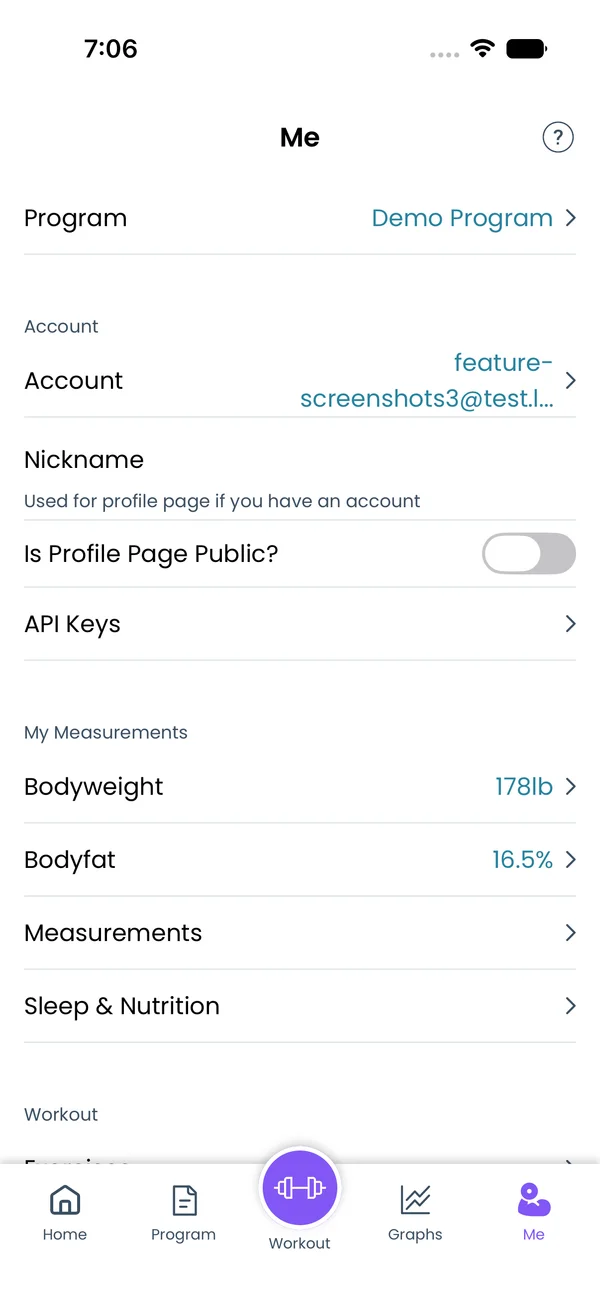\n\nGo to **Me → Measurements**. The **My Measurements** group on the Me screen also shows your latest **Bodyweight** and **Bodyfat**. Tap either row to open that type.\n\nAt the top, **Type** picks the measurement to show. Only types with at least one value are listed. With three or more values, a graph appears above the list. Tap the graph to see the value on a given date. The graph needs Premium. Without it, the graph is blurred.\n\nBelow the graph is the **List of measurements**. Each row has the date, the value and a trash icon. Tap the date to change it. Tap the value to edit it. The trash icon deletes the row after an **Are you sure?** confirmation.\n\n## Smooth the graph with a moving average\n\n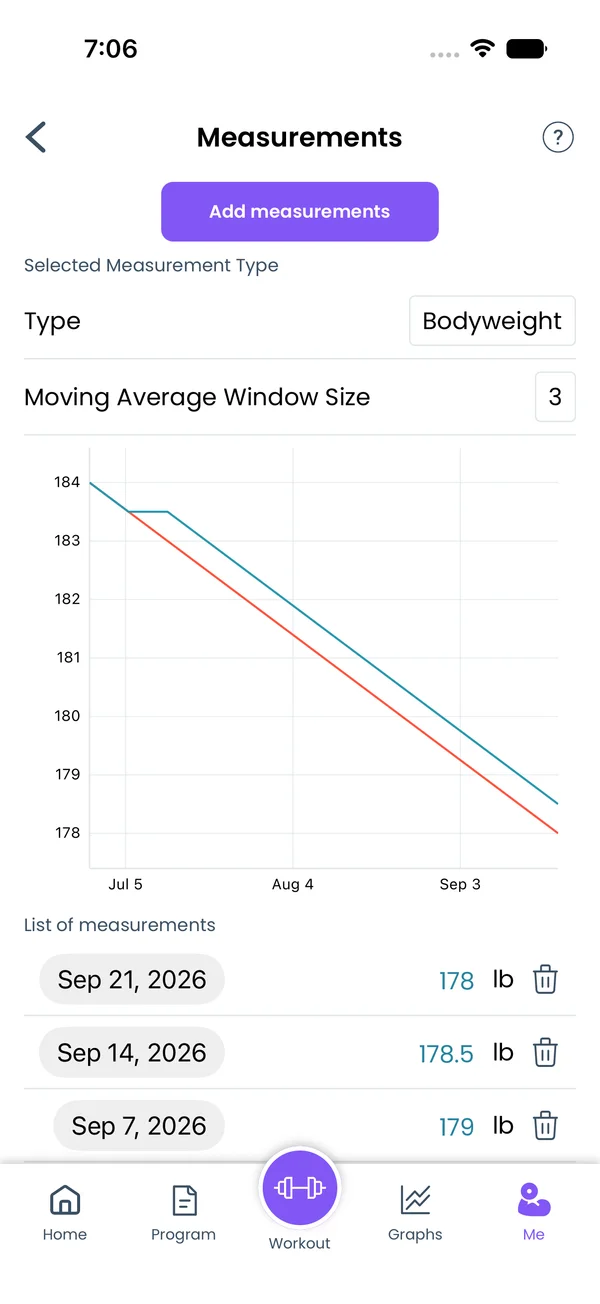\n\nBodyweight and body fat jump from day to day. **Moving Average Window Size** adds a second, blue line to the graph. It averages the last 2, 3, 4 or 5 values. Pick **Off** to hide it. The setting is per type, so bodyweight and waist can use different windows. This option needs Premium.\n\nThe moving average also feeds your programs. The `bodyweight` variable in Liftoscript returns the latest moving average when a window is set for Bodyweight, and the latest raw value otherwise. This helps for weighted or assisted pull ups and dips:\n\n```liftoscript\nPull Up / 3x8 0lb / update: custom() {~\n if (setIndex == 0) {\n weights = bodyweight\n }\n~}\n```\n\nSee [Liftoscript](/doc/liftoscript) for the full syntax.\n\n## Look at one body site\n\nTap **Type** and pick a site, such as **Waist**. The graph and the list switch to that site, in your length unit. A site you never logged does not appear in the list.\n\n## Add a measurement\n\n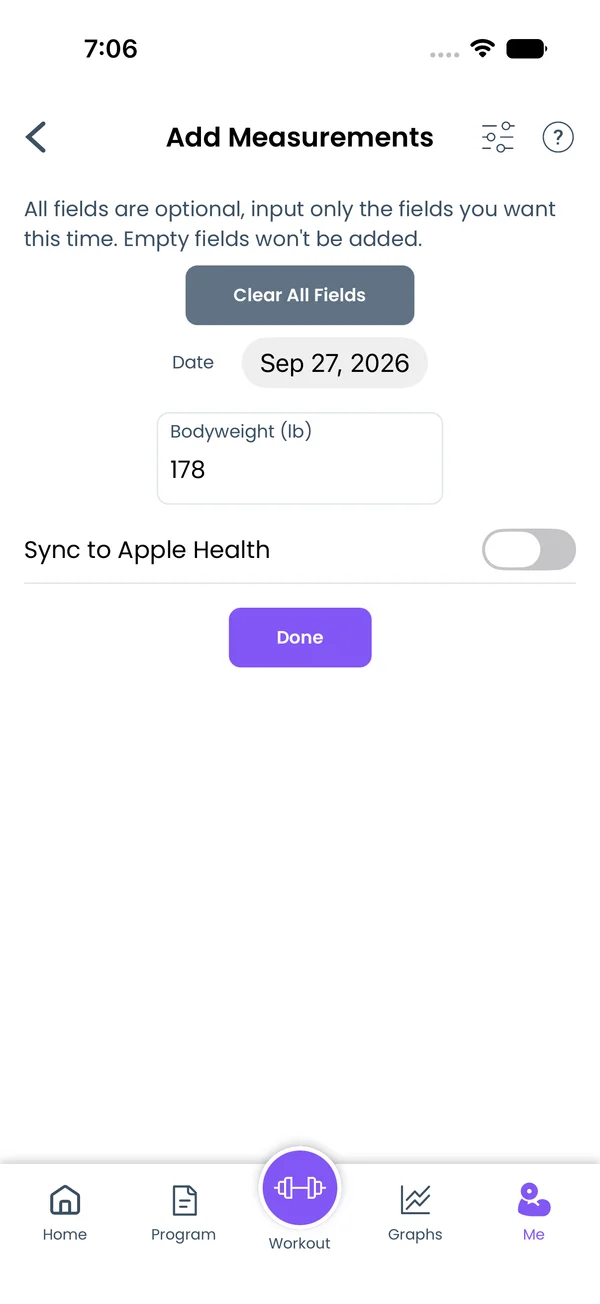\n\nTap **Add measurements** at the top of the Measurements screen. Every enabled type gets a field with its unit. Each field starts with your last value, so you only change what moved. **Clear All Fields** empties them. All fields are optional. An empty field adds nothing.\n\nPick the **Date** if you are logging for another day. Today is the default.\n\nOn iOS, a **Sync to Apple Health** toggle sends bodyweight, body fat and waist to Apple Health. On Android, **Sync to Google Health Connect** sends bodyweight and body fat to Health Connect. See [Health sync](/features/health-sync) for the settings behind those toggles.\n\nTap **Done** to save.\n\n## Choose which measurements to track\n\n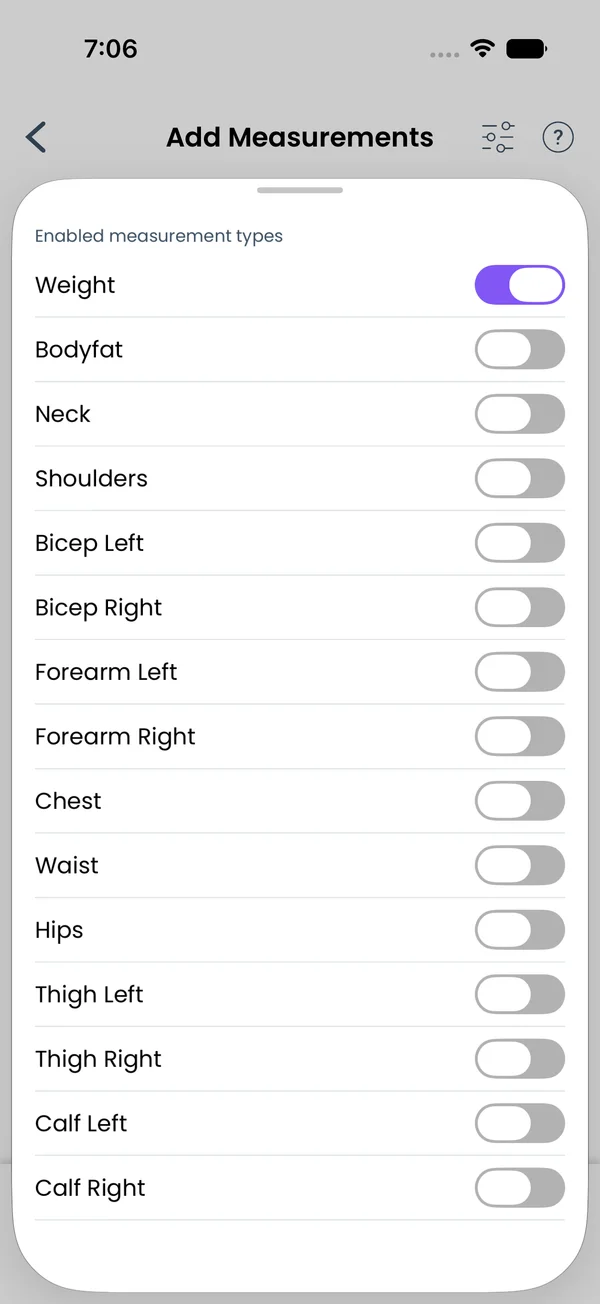\n\nOn the Add Measurements screen, tap the filter icon in the top right. The **Enabled measurement types** sheet lists Weight, Bodyfat and the 13 sites, each with a switch. Only the enabled types get a field on the Add Measurements screen. Turning a type off keeps the values you already logged.\n\n## Sleep, calories and protein\n\n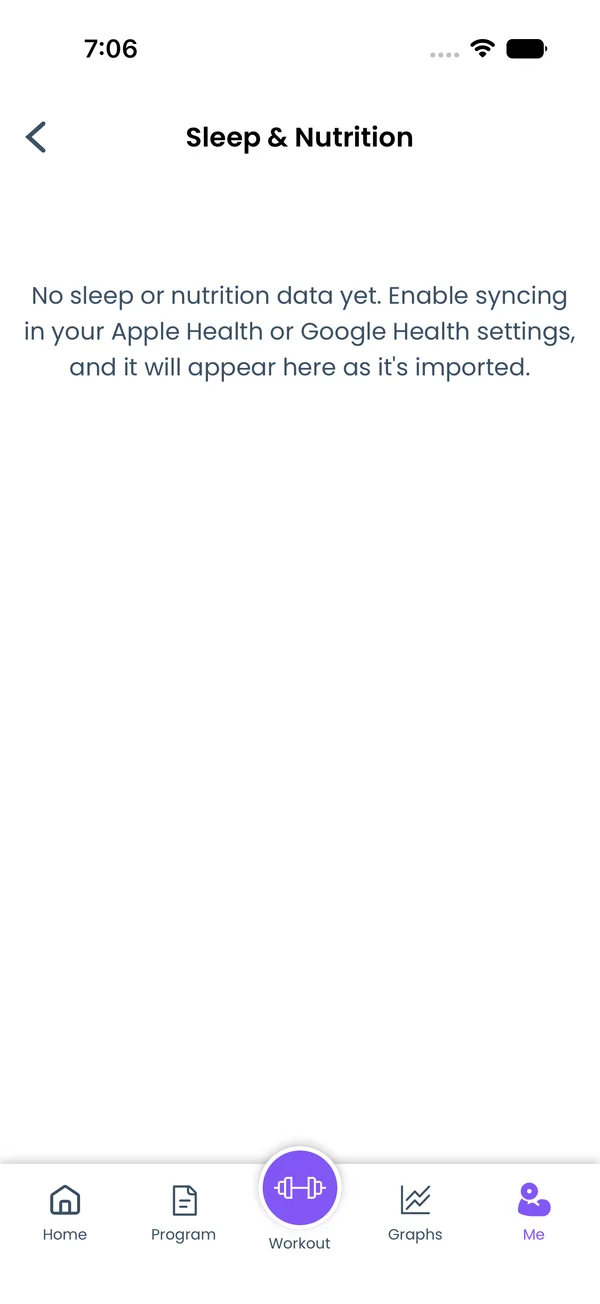\n\nGo to **Me → Sleep & Nutrition**. The screen has three tabs: **Sleep**, **Calories** and **Protein**. Each tab has a graph, with three or more days, and a list of days below it. Sleep shows as hours and minutes, calories in kcal, protein in g.\n\nThe app does not let you type these values. They come from Apple Health on iOS or Health Connect on Android. Turn on **Sync Sleep & Nutrition** in **Me → Apple Health** or **Me → Google Health Connect**. See [Health sync](/features/health-sync) for the permissions.\n\nThe app reads the data when it opens. It stores one total per day. On iOS it reads the last 90 days, on Android the last 30, because Health Connect does not return older records. If a day's total changes in the source, the next read replaces it in the app.\n\nYou cannot delete an imported day, because the next read would bring it back. Tap the trash icon to hide it instead. Hidden days move under a **Show N hidden records** link. Tap the undo icon there to bring one back. Days that disappear from the source stay in the app until you hide them.\n\nThe data syncs to your account with the rest of your measurements. It is available through the REST API and the MCP server as the `health` category, so an AI assistant can compare your sleep or protein with your training.\n\n## Measurements next to your lifts\n\nOn the **Graphs** screen, the graph picker has an **Available Stats Graphs** group. Add a measurement graph there to see it under your exercise graphs. The **Add bodyweight to all graphs** option in the same picker draws your bodyweight on every graph.","sizes":{"account/account-email-form":{"width":600,"height":1304},"account/account-forgot-password":{"width":600,"height":1304},"account/account-screen":{"width":600,"height":1304},"account/account-sign-in":{"width":600,"height":1304},"chatgpt-claude-and-ai/chatgpt-claude-and-ai-autofill":{"width":600,"height":1304},"api/api-key-created":{"width":600,"height":1304},"api/api-keys-empty":{"width":600,"height":1304},"api/api-me-row":{"width":600,"height":1304},"apple-watch/apple-watch-health-settings":{"width":600,"height":1304},"apple-watch/watch-apple-watch-amrap":{"width":416,"height":496},"apple-watch/watch-apple-watch-crown":{"width":416,"height":496},"apple-watch/watch-apple-watch-exercise":{"width":416,"height":496},"apple-watch/watch-apple-watch-get-ready":{"width":416,"height":496},"apple-watch/watch-apple-watch-home":{"width":416,"height":496},"apple-watch/watch-apple-watch-set-clock":{"width":416,"height":496},"apple-watch/watch-apple-watch-workout":{"width":416,"height":496},"built-in-programs/built-in-programs-import":{"width":600,"height":1304},"built-in-programs/built-in-programs-info":{"width":600,"height":1304},"built-in-programs/built-in-programs-library":{"width":600,"height":1304},"built-in-programs/built-in-programs-preview":{"width":600,"height":1304},"built-in-programs/built-in-programs-started":{"width":600,"height":1304},"changing-a-workout/changing-a-workout-adhoc":{"width":600,"height":1304},"changing-a-workout/changing-a-workout-adhoc-picker":{"width":600,"height":1304},"changing-a-workout/changing-a-workout-create-program-day":{"width":600,"height":1304},"changing-a-workout/changing-a-workout-edit-day":{"width":600,"height":1304},"changing-a-workout/changing-a-workout-edit-exercise":{"width":600,"height":1304},"changing-a-workout/changing-a-workout-next-workout":{"width":600,"height":1304},"changing-a-workout/changing-a-workout-pick-day":{"width":600,"height":1304},"changing-a-workout/changing-a-workout-program-day":{"width":600,"height":1304},"changing-a-workout/changing-a-workout-swap-adhoc":{"width":600,"height":1304},"changing-a-workout/changing-a-workout-swap-from-program":{"width":600,"height":1304},"changing-a-workout/changing-a-workout-swap-recent":{"width":600,"height":1304},"custom-exercises/custom-exercises-autofill":{"width":600,"height":1304},"custom-exercises/custom-exercises-clone-library":{"width":600,"height":1304},"custom-exercises/custom-exercises-cloned":{"width":600,"height":1304},"custom-exercises/custom-exercises-form":{"width":600,"height":1304},"custom-exercises/custom-exercises-hidden-group":{"width":600,"height":1304},"custom-exercises/custom-exercises-image-library":{"width":600,"height":1304},"custom-exercises/custom-exercises-image-source":{"width":600,"height":1304},"custom-exercises/custom-exercises-in-workout":{"width":600,"height":1304},"custom-exercises/custom-exercises-muscle-groups":{"width":600,"height":1304},"custom-exercises/custom-exercises-picker":{"width":600,"height":1304},"custom-exercises/custom-exercises-target-muscles":{"width":600,"height":1304},"equipment-and-gyms/equipment-and-gyms-barbell":{"width":600,"height":1304},"equipment-and-gyms/equipment-and-gyms-custom":{"width":600,"height":1304},"equipment-and-gyms/equipment-and-gyms-exercise":{"width":600,"height":1304},"equipment-and-gyms/equipment-and-gyms-fixed":{"width":600,"height":1304},"equipment-and-gyms/equipment-and-gyms-gyms":{"width":600,"height":1304},"equipment-and-gyms/equipment-and-gyms-hidden":{"width":600,"height":1304},"equipment-and-gyms/equipment-and-gyms-list":{"width":600,"height":1304},"exercise-library/exercise-library-calculator":{"width":600,"height":1304},"exercise-library/exercise-library-from-program":{"width":600,"height":1304},"exercise-library/exercise-library-list":{"width":600,"height":1304},"exercise-library/exercise-library-multi-add":{"width":600,"height":1304},"exercise-library/exercise-library-override-muscles":{"width":600,"height":1304},"exercise-library/exercise-library-picker":{"width":600,"height":1304},"exercise-library/exercise-library-prs":{"width":600,"height":1304},"exercise-library/exercise-library-search":{"width":600,"height":1304},"exercise-library/exercise-library-stats":{"width":600,"height":1304},"exercise-library/exercise-library-swap":{"width":600,"height":1304},"graphs/graphs-bodyweight":{"width":600,"height":1304},"graphs/graphs-choose":{"width":600,"height":1304},"graphs/graphs-exercise":{"width":600,"height":1304},"graphs/graphs-legend":{"width":600,"height":1304},"graphs/graphs-muscle-group":{"width":600,"height":1304},"graphs/graphs-personal-records":{"width":600,"height":1304},"graphs/graphs-settings":{"width":600,"height":1304},"health-sync/android-health-sync-measurements":{"width":600,"height":1339},"health-sync/android-health-sync-settings":{"width":600,"height":1339},"health-sync/android-health-sync-share":{"width":600,"height":1339},"health-sync/android-health-sync-sleep-nutrition":{"width":600,"height":1339},"health-sync/health-sync-measurements":{"width":600,"height":1304},"health-sync/health-sync-settings":{"width":600,"height":1304},"health-sync/health-sync-share":{"width":600,"height":1304},"health-sync/health-sync-sleep-nutrition":{"width":600,"height":1304},"import-export/import-export-export":{"width":600,"height":1304},"import-export/import-export-hevy":{"width":600,"height":1304},"import-export/import-export-import":{"width":600,"height":1304},"liftoscript/liftoscript-exercise-sheet":{"width":600,"height":1304},"liftoscript/liftoscript-full-program":{"width":600,"height":1304},"liftoscript/liftoscript-per-day":{"width":600,"height":1304},"liftoscript/liftoscript-playground":{"width":600,"height":1304},"lock-screen-and-notifications/android-lock-screen-and-notifications-live-update":{"width":600,"height":1339},"lock-screen-and-notifications/android-lock-screen-and-notifications-reminder":{"width":600,"height":1339},"lock-screen-and-notifications/android-lock-screen-and-notifications-sound":{"width":600,"height":1339},"lock-screen-and-notifications/lock-screen-and-notifications-dynamic-island":{"width":600,"height":1304},"lock-screen-and-notifications/lock-screen-and-notifications-live-activity":{"width":600,"height":1304},"lock-screen-and-notifications/lock-screen-and-notifications-reminder":{"width":600,"height":1304},"lock-screen-and-notifications/lock-screen-and-notifications-sound":{"width":600,"height":1304},"measurements/measurements-add":{"width":600,"height":1304},"measurements/measurements-bodyweight":{"width":600,"height":1304},"measurements/measurements-moving-average":{"width":600,"height":1304},"measurements/measurements-sleep-nutrition":{"width":600,"height":1304},"measurements/measurements-types":{"width":600,"height":1304},"first-run-and-settings/first-run-and-settings-appearance":{"width":600,"height":1304},"first-run-and-settings/first-run-and-settings-dark-mode":{"width":600,"height":1304},"first-run-and-settings/first-run-and-settings-equipment":{"width":600,"height":1304},"first-run-and-settings/first-run-and-settings-me":{"width":600,"height":1304},"first-run-and-settings/first-run-and-settings-units":{"width":600,"height":1304},"first-run-and-settings/first-run-and-settings-welcome":{"width":600,"height":1304},"playground/playground-completed":{"width":600,"height":1304},"playground/playground-day":{"width":600,"height":1304},"playground/playground-finished":{"width":600,"height":1304},"playground/playground-variables":{"width":600,"height":1304},"premium/premium-account":{"width":600,"height":1304},"premium/premium-feature-info":{"width":600,"height":1304},"premium/premium-plans":{"width":600,"height":1304},"program-editor/program-editor-create":{"width":600,"height":1304},"program-editor/program-editor-day-details":{"width":600,"height":1304},"program-editor/program-editor-exercise-sheet":{"width":600,"height":1304},"program-editor/program-editor-full-text":{"width":600,"height":1304},"program-editor/program-editor-grid":{"width":600,"height":1304},"program-editor/program-editor-perday-text":{"width":600,"height":1304},"program-editor/program-editor-ui-mode":{"width":600,"height":1304},"program-editor/program-editor-week-stats":{"width":600,"height":1304},"progressions/progressions-linear-settings":{"width":600,"height":1304},"progressions/progressions-preview":{"width":600,"height":1304},"progressions/progressions-state-variables":{"width":600,"height":1304},"progressions/progressions-suppressed":{"width":600,"height":1304},"rest-timer/rest-timer-collapsed":{"width":600,"height":1304},"rest-timer/rest-timer-dynamic-island":{"width":600,"height":1304},"rest-timer/rest-timer-expanded":{"width":600,"height":1304},"rest-timer/rest-timer-get-ready":{"width":600,"height":1304},"rest-timer/rest-timer-lock-screen":{"width":600,"height":1304},"rest-timer/rest-timer-settings":{"width":600,"height":1304},"rest-timer/rest-timer-sound":{"width":600,"height":1304},"rest-timer/watch-rest-timer":{"width":416,"height":496},"rest-timer/watch-rest-timer-exercise":{"width":416,"height":496},"set-types/set-types-amrap-popup":{"width":600,"height":1304},"set-types/set-types-per-side":{"width":600,"height":1304},"set-types/set-types-rpe-logged":{"width":600,"height":1304},"set-types/set-types-rpe-popup":{"width":600,"height":1304},"sharing-programs/sharing-programs-export-text":{"width":600,"height":1304},"sharing-programs/sharing-programs-image-preview":{"width":600,"height":1304},"sharing-programs/sharing-programs-image-settings":{"width":600,"height":1304},"sharing-programs/sharing-programs-import":{"width":600,"height":1304},"sharing-programs/sharing-programs-menu":{"width":600,"height":1304},"sharing-programs/sharing-programs-private-link":{"width":600,"height":1304},"sharing-programs/sharing-programs-public-link":{"width":600,"height":1304},"sharing-workouts/sharing-workouts-copied-text":{"width":600,"height":1304},"sharing-workouts/sharing-workouts-finish-screen":{"width":600,"height":1304},"sharing-workouts/sharing-workouts-profile-settings":{"width":600,"height":1304},"sharing-workouts/sharing-workouts-share-sheet":{"width":600,"height":1304},"sharing-workouts/sharing-workouts-story-preview":{"width":600,"height":1304},"supersets/supersets-liftoscript":{"width":600,"height":1304},"supersets/supersets-next-exercise":{"width":600,"height":1304},"supersets/supersets-picker":{"width":600,"height":1304},"supersets/supersets-program-editor":{"width":600,"height":1304},"supersets/supersets-timer":{"width":600,"height":1304},"supersets/supersets-workout":{"width":600,"height":1304},"sync-and-offline/sync-and-offline-account":{"width":600,"height":1304},"sync-and-offline/sync-and-offline-me-account":{"width":600,"height":1304},"sync-and-offline/sync-and-offline-sign-in":{"width":600,"height":1304},"timed-sets/timed-sets-count-up":{"width":600,"height":1304},"timed-sets/timed-sets-edit-time":{"width":600,"height":1304},"timed-sets/timed-sets-get-ready":{"width":600,"height":1304},"timed-sets/timed-sets-recorded":{"width":600,"height":1304},"timed-sets/timed-sets-running":{"width":600,"height":1304},"timed-sets/timed-sets-set-row":{"width":600,"height":1304},"timed-sets/timed-sets-timers":{"width":600,"height":1304},"week-insights/week-insights-details":{"width":600,"height":1304},"week-insights/week-insights-edit-muscle-groups":{"width":600,"height":1304},"week-insights/week-insights-exercises":{"width":600,"height":1304},"week-insights/week-insights-home":{"width":600,"height":1304},"week-insights/week-insights-muscle-groups":{"width":600,"height":1304},"week-insights/week-insights-settings":{"width":600,"height":1304},"workout-history/workout-history-change-date":{"width":600,"height":1304},"workout-history/workout-history-delete":{"width":600,"height":1304},"workout-history/workout-history-feed":{"width":600,"height":1304},"workout-history/workout-history-menu":{"width":600,"height":1304},"workout-history/workout-history-month-calendar":{"width":600,"height":1304},"workout-history/workout-history-note-on-card":{"width":600,"height":1304},"workout-history/workout-history-notes":{"width":600,"height":1304},"workout-history/workout-history-past-card":{"width":600,"height":1304},"workout-history/workout-history-past-workout":{"width":600,"height":1304},"workout-history/workout-history-week-insights":{"width":600,"height":1304},"workout-screen/workout-screen-e1rm":{"width":600,"height":1304},"workout-screen/workout-screen-edit-target":{"width":600,"height":1304},"workout-screen/workout-screen-exercise-menu":{"width":600,"height":1304},"workout-screen/workout-screen-exercise-notes":{"width":600,"height":1304},"workout-screen/workout-screen-history":{"width":600,"height":1304},"workout-screen/workout-screen-keypad":{"width":600,"height":1304},"workout-screen/workout-screen-next-set":{"width":600,"height":1304},"workout-screen/workout-screen-overview":{"width":600,"height":1304},"workout-screen/workout-screen-rounding":{"width":600,"height":1304},"workout-screen/workout-screen-summary":{"width":600,"height":1304}}}




