Simulate workouts to see how weights, reps and state variables change from week to week. Nothing you do there touches your history, settings or program.
Test a program before you train
Open the Program tab and tap Playground. It sits next to Preview and Edit.
The Playground shows every day of the current week, one after another. Each day looks like a workout: a row of exercise thumbnails, and the sets of the selected exercise below. Tap a thumbnail to switch to another exercise.
Everything you do here is ephemeral. It does not change your settings, your workouts or your program. Leave the tab and come back, and the Playground starts from the program as it is now.
Complete sets and change reps
Sets work the same way as on the workout screen:
Tap the check on a set to complete it.
Type a different number in the reps or weight field to log a set that did not go to plan.
Long press a set to open the set editor and change its target.
Tap Add Warmup Set or Add Set to add sets.
An AMRAP set asks for the reps in a popup, like in a real workout.
The check icon at the top right of the exercise card completes every set of that exercise, warmups included, in one tap.
No rest timer runs in the Playground. A timed set has no get-ready countdown and does not advance on its own. Tap the next set to continue.
Under the sets, the app lists what the progression will do when you finish the day. For a lp(5lb) exercise with every set completed, you see Exercise Changes with the weight going from 155lb to 160lb. A custom progress script that calls print() shows its output there as Progress Prints.
Finish the day and see the next week
Tap Finish this day at the bottom of a day. The app runs the finish day scripts of that day, applies the result to the Playground's copy of the program, and rebuilds every day from it. Bench Press now shows 160lb on Upper A.
Repeat this to walk through weeks of training in a minute. Finish the days in order and watch a linear progression climb, or a double progression move from 8 to 12 reps before the weight goes up. See Progressions for how each kind works.
In a program with more than one week, a week bar appears above the days. Tap a week name to move between weeks.
Change weights and state variables
Tap the edit icon at the top right of an exercise card. A sheet opens with:
1 Rep Max for the exercise, used by percentage-based sets like 1x5 60%.
Edit state variables with every state. variable of the exercise, like increment for lp(5lb). A variable marked User Prompted is one the program asks you for during a workout.
Change a value and tap Done. The Playground re-evaluates the program with the new values. Only the Playground sees the change. To change 1RM or state variables for real, use the Preview tab, which saves them.
Start over
There is no reset button. Switch to Preview or Edit and back to Playground, and every day is rebuilt from the saved program. Editing the program in the Edit tab also rebuilds the Playground the next time you open it, so you can fix a progress script and try it again right away.
Playground on a program preview
The program preview screen, which opens when you look at a program before choosing it, has an Enable Playground switch. Turn it on to try the program's logic the same way before you start it. See Built-in programs for how to preview a program.
{"feature":{"id":"playground","title":"Playground","shortDescription":"Simulate workouts to see how weights, reps and state variables change from week to week. Nothing you do there touches your history, settings or program.","order":50,"category":"Programs","datePublished":"2026-09-27","dateModified":"2026-09-28","screenshots":["playground-day","playground-finished"]},"content":"## Test a program before you train\n\n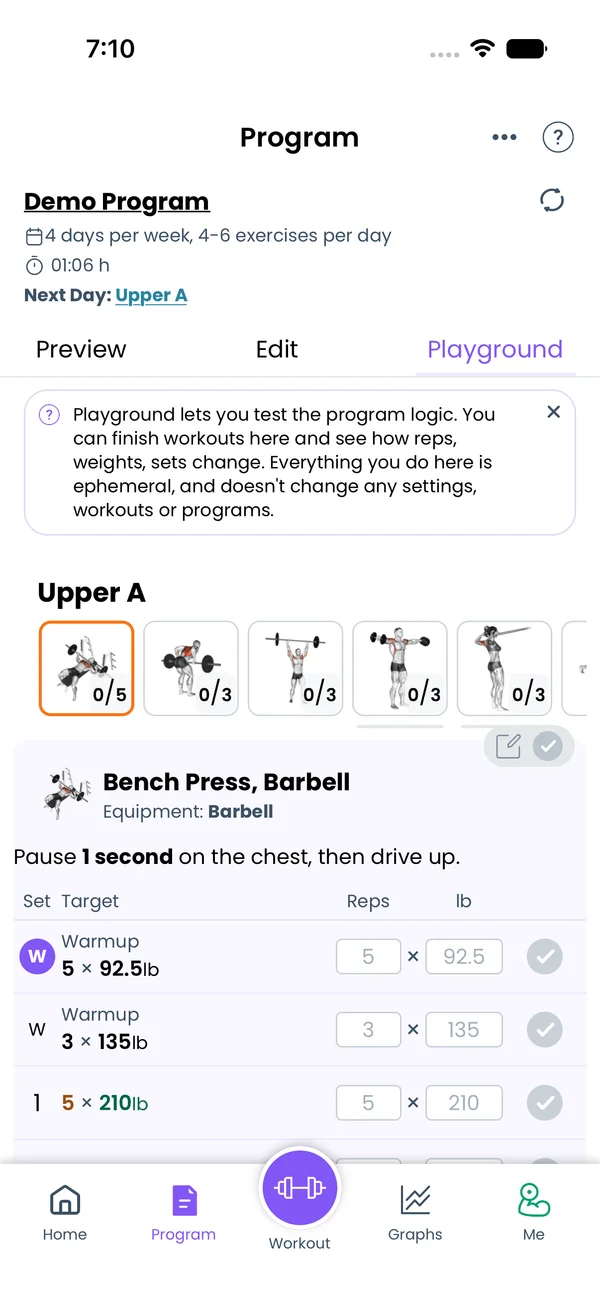\n\nOpen the **Program** tab and tap **Playground**. It sits next to **Preview** and **Edit**.\n\nThe Playground shows every day of the current week, one after another. Each day looks like a workout: a row of exercise thumbnails, and the sets of the selected exercise below. Tap a thumbnail to switch to another exercise.\n\nEverything you do here is ephemeral. It does not change your settings, your workouts or your program. Leave the tab and come back, and the Playground starts from the program as it is now.\n\n## Complete sets and change reps\n\n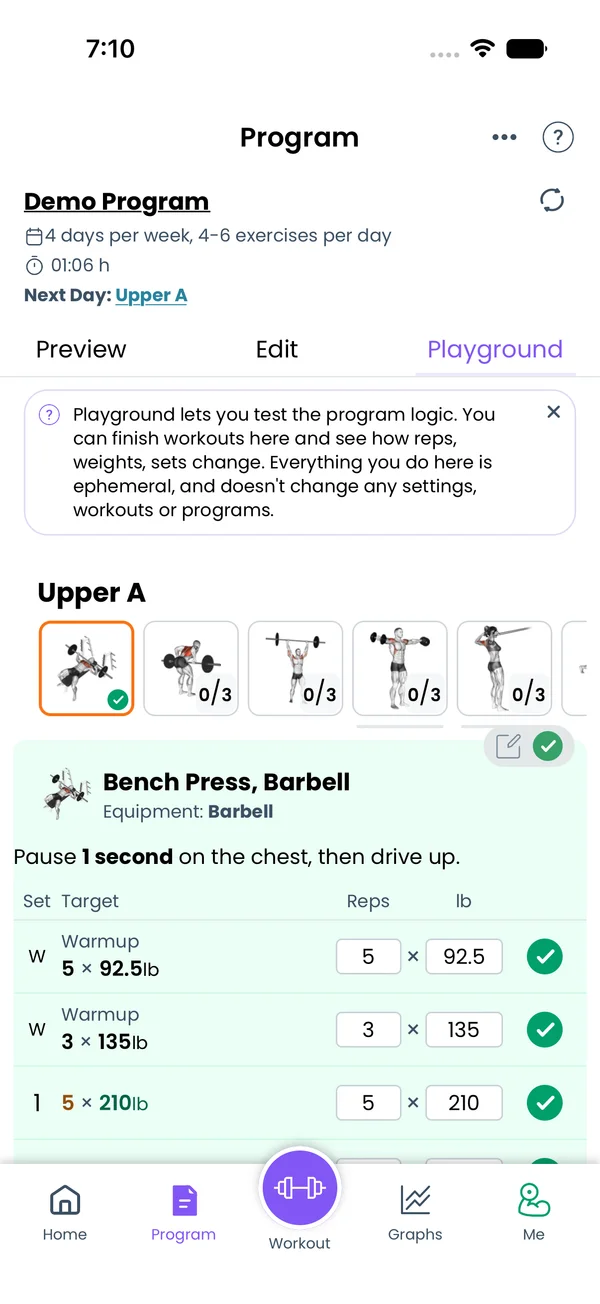\n\nSets work the same way as on the workout screen:\n\n- Tap the check on a set to complete it.\n- Type a different number in the reps or weight field to log a set that did not go to plan.\n- Long press a set to open the set editor and change its target.\n- Tap **Add Warmup Set** or **Add Set** to add sets.\n- An AMRAP set asks for the reps in a popup, like in a real workout.\n\nThe check icon at the top right of the exercise card completes every set of that exercise, warmups included, in one tap.\n\nNo rest timer runs in the Playground. A timed set has no get-ready countdown and does not advance on its own. Tap the next set to continue.\n\nUnder the sets, the app lists what the progression will do when you finish the day. For a `lp(5lb)` exercise with every set completed, you see **Exercise Changes** with the weight going from 155lb to 160lb. A custom progress script that calls `print()` shows its output there as **Progress Prints**.\n\n## Finish the day and see the next week\n\n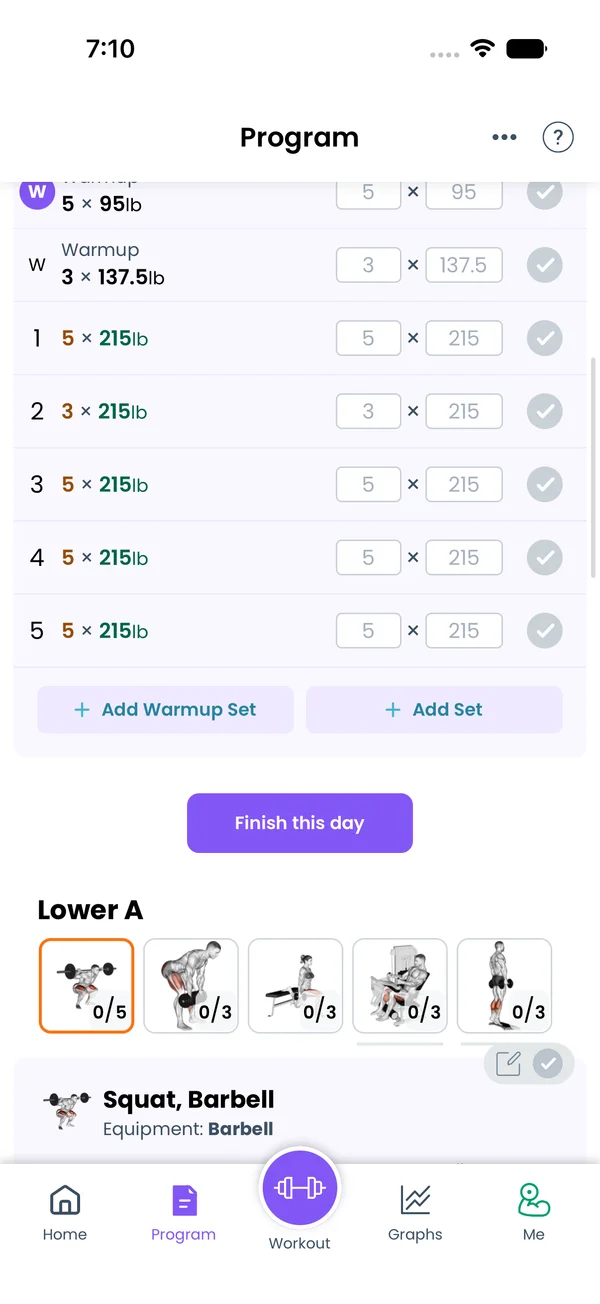\n\nTap **Finish this day** at the bottom of a day. The app runs the finish day scripts of that day, applies the result to the Playground's copy of the program, and rebuilds every day from it. Bench Press now shows 160lb on Upper A.\n\nRepeat this to walk through weeks of training in a minute. Finish the days in order and watch a linear progression climb, or a double progression move from 8 to 12 reps before the weight goes up. See [Progressions](/features/progressions) for how each kind works.\n\nIn a program with more than one week, a week bar appears above the days. Tap a week name to move between weeks.\n\n## Change weights and state variables\n\n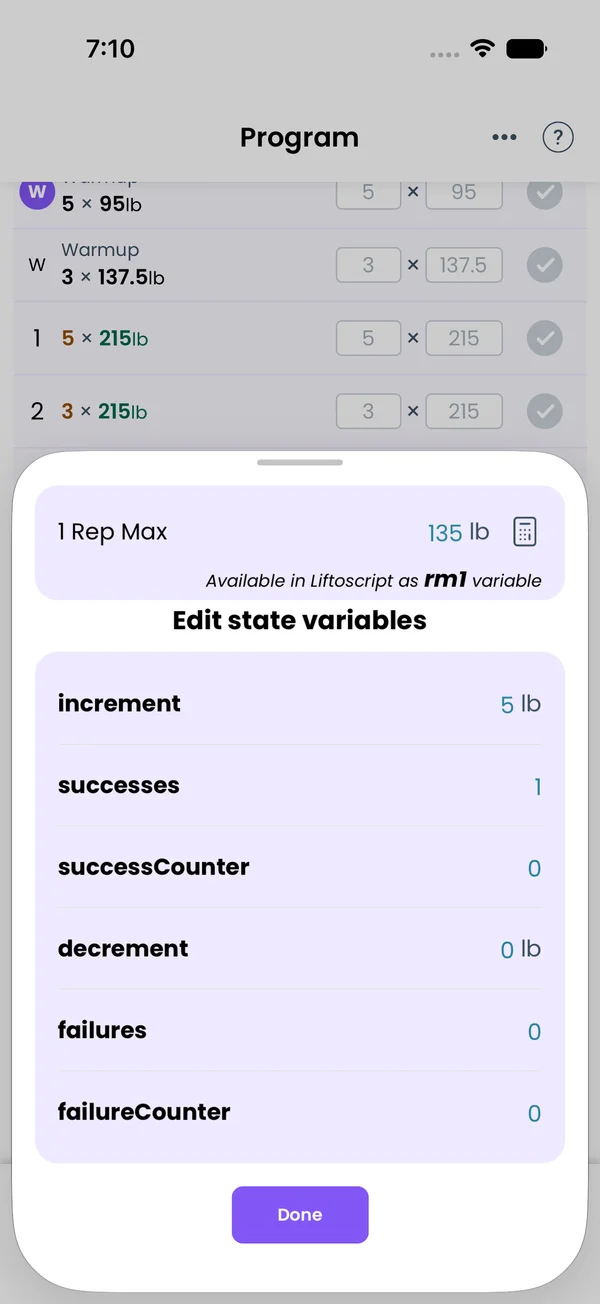\n\nTap the edit icon at the top right of an exercise card. A sheet opens with:\n\n- **1 Rep Max** for the exercise, used by percentage-based sets like `1x5 60%`.\n- **Edit state variables** with every `state.` variable of the exercise, like `increment` for `lp(5lb)`. A variable marked **User Prompted** is one the program asks you for during a workout.\n\nChange a value and tap **Done**. The Playground re-evaluates the program with the new values. Only the Playground sees the change. To change 1RM or state variables for real, use the **Preview** tab, which saves them.\n\n## Start over\n\nThere is no reset button. Switch to **Preview** or **Edit** and back to **Playground**, and every day is rebuilt from the saved program. Editing the program in the **Edit** tab also rebuilds the Playground the next time you open it, so you can fix a progress script and try it again right away.\n\n## Playground on a program preview\n\nThe program preview screen, which opens when you look at a program before choosing it, has an **Enable Playground** switch. Turn it on to try the program's logic the same way before you start it. See [Built-in programs](/features/built-in-programs) for how to preview a program.","sizes":{"account/account-email-form":{"width":600,"height":1304},"account/account-forgot-password":{"width":600,"height":1304},"account/account-screen":{"width":600,"height":1304},"account/account-sign-in":{"width":600,"height":1304},"chatgpt-claude-and-ai/chatgpt-claude-and-ai-autofill":{"width":600,"height":1304},"api/api-key-created":{"width":600,"height":1304},"api/api-keys-empty":{"width":600,"height":1304},"api/api-me-row":{"width":600,"height":1304},"apple-watch/apple-watch-health-settings":{"width":600,"height":1304},"apple-watch/watch-apple-watch-amrap":{"width":416,"height":496},"apple-watch/watch-apple-watch-crown":{"width":416,"height":496},"apple-watch/watch-apple-watch-exercise":{"width":416,"height":496},"apple-watch/watch-apple-watch-get-ready":{"width":416,"height":496},"apple-watch/watch-apple-watch-home":{"width":416,"height":496},"apple-watch/watch-apple-watch-set-clock":{"width":416,"height":496},"apple-watch/watch-apple-watch-workout":{"width":416,"height":496},"built-in-programs/built-in-programs-import":{"width":600,"height":1304},"built-in-programs/built-in-programs-info":{"width":600,"height":1304},"built-in-programs/built-in-programs-library":{"width":600,"height":1304},"built-in-programs/built-in-programs-preview":{"width":600,"height":1304},"built-in-programs/built-in-programs-started":{"width":600,"height":1304},"changing-a-workout/changing-a-workout-adhoc":{"width":600,"height":1304},"changing-a-workout/changing-a-workout-adhoc-picker":{"width":600,"height":1304},"changing-a-workout/changing-a-workout-create-program-day":{"width":600,"height":1304},"changing-a-workout/changing-a-workout-edit-day":{"width":600,"height":1304},"changing-a-workout/changing-a-workout-edit-exercise":{"width":600,"height":1304},"changing-a-workout/changing-a-workout-next-workout":{"width":600,"height":1304},"changing-a-workout/changing-a-workout-pick-day":{"width":600,"height":1304},"changing-a-workout/changing-a-workout-program-day":{"width":600,"height":1304},"changing-a-workout/changing-a-workout-swap-adhoc":{"width":600,"height":1304},"changing-a-workout/changing-a-workout-swap-from-program":{"width":600,"height":1304},"changing-a-workout/changing-a-workout-swap-recent":{"width":600,"height":1304},"custom-exercises/custom-exercises-autofill":{"width":600,"height":1304},"custom-exercises/custom-exercises-clone-library":{"width":600,"height":1304},"custom-exercises/custom-exercises-cloned":{"width":600,"height":1304},"custom-exercises/custom-exercises-form":{"width":600,"height":1304},"custom-exercises/custom-exercises-hidden-group":{"width":600,"height":1304},"custom-exercises/custom-exercises-image-library":{"width":600,"height":1304},"custom-exercises/custom-exercises-image-source":{"width":600,"height":1304},"custom-exercises/custom-exercises-in-workout":{"width":600,"height":1304},"custom-exercises/custom-exercises-muscle-groups":{"width":600,"height":1304},"custom-exercises/custom-exercises-picker":{"width":600,"height":1304},"custom-exercises/custom-exercises-target-muscles":{"width":600,"height":1304},"equipment-and-gyms/equipment-and-gyms-barbell":{"width":600,"height":1304},"equipment-and-gyms/equipment-and-gyms-custom":{"width":600,"height":1304},"equipment-and-gyms/equipment-and-gyms-exercise":{"width":600,"height":1304},"equipment-and-gyms/equipment-and-gyms-fixed":{"width":600,"height":1304},"equipment-and-gyms/equipment-and-gyms-gyms":{"width":600,"height":1304},"equipment-and-gyms/equipment-and-gyms-hidden":{"width":600,"height":1304},"equipment-and-gyms/equipment-and-gyms-list":{"width":600,"height":1304},"exercise-library/exercise-library-calculator":{"width":600,"height":1304},"exercise-library/exercise-library-from-program":{"width":600,"height":1304},"exercise-library/exercise-library-list":{"width":600,"height":1304},"exercise-library/exercise-library-multi-add":{"width":600,"height":1304},"exercise-library/exercise-library-override-muscles":{"width":600,"height":1304},"exercise-library/exercise-library-picker":{"width":600,"height":1304},"exercise-library/exercise-library-prs":{"width":600,"height":1304},"exercise-library/exercise-library-search":{"width":600,"height":1304},"exercise-library/exercise-library-stats":{"width":600,"height":1304},"exercise-library/exercise-library-swap":{"width":600,"height":1304},"graphs/graphs-bodyweight":{"width":600,"height":1304},"graphs/graphs-choose":{"width":600,"height":1304},"graphs/graphs-exercise":{"width":600,"height":1304},"graphs/graphs-legend":{"width":600,"height":1304},"graphs/graphs-muscle-group":{"width":600,"height":1304},"graphs/graphs-personal-records":{"width":600,"height":1304},"graphs/graphs-settings":{"width":600,"height":1304},"health-sync/android-health-sync-measurements":{"width":600,"height":1339},"health-sync/android-health-sync-settings":{"width":600,"height":1339},"health-sync/android-health-sync-share":{"width":600,"height":1339},"health-sync/android-health-sync-sleep-nutrition":{"width":600,"height":1339},"health-sync/health-sync-measurements":{"width":600,"height":1304},"health-sync/health-sync-settings":{"width":600,"height":1304},"health-sync/health-sync-share":{"width":600,"height":1304},"health-sync/health-sync-sleep-nutrition":{"width":600,"height":1304},"import-export/import-export-export":{"width":600,"height":1304},"import-export/import-export-hevy":{"width":600,"height":1304},"import-export/import-export-import":{"width":600,"height":1304},"liftoscript/liftoscript-exercise-sheet":{"width":600,"height":1304},"liftoscript/liftoscript-full-program":{"width":600,"height":1304},"liftoscript/liftoscript-per-day":{"width":600,"height":1304},"liftoscript/liftoscript-playground":{"width":600,"height":1304},"lock-screen-and-notifications/android-lock-screen-and-notifications-live-update":{"width":600,"height":1339},"lock-screen-and-notifications/android-lock-screen-and-notifications-reminder":{"width":600,"height":1339},"lock-screen-and-notifications/android-lock-screen-and-notifications-sound":{"width":600,"height":1339},"lock-screen-and-notifications/lock-screen-and-notifications-dynamic-island":{"width":600,"height":1304},"lock-screen-and-notifications/lock-screen-and-notifications-live-activity":{"width":600,"height":1304},"lock-screen-and-notifications/lock-screen-and-notifications-reminder":{"width":600,"height":1304},"lock-screen-and-notifications/lock-screen-and-notifications-sound":{"width":600,"height":1304},"measurements/measurements-add":{"width":600,"height":1304},"measurements/measurements-bodyweight":{"width":600,"height":1304},"measurements/measurements-moving-average":{"width":600,"height":1304},"measurements/measurements-sleep-nutrition":{"width":600,"height":1304},"measurements/measurements-types":{"width":600,"height":1304},"first-run-and-settings/first-run-and-settings-appearance":{"width":600,"height":1304},"first-run-and-settings/first-run-and-settings-dark-mode":{"width":600,"height":1304},"first-run-and-settings/first-run-and-settings-equipment":{"width":600,"height":1304},"first-run-and-settings/first-run-and-settings-me":{"width":600,"height":1304},"first-run-and-settings/first-run-and-settings-units":{"width":600,"height":1304},"first-run-and-settings/first-run-and-settings-welcome":{"width":600,"height":1304},"playground/playground-completed":{"width":600,"height":1304},"playground/playground-day":{"width":600,"height":1304},"playground/playground-finished":{"width":600,"height":1304},"playground/playground-variables":{"width":600,"height":1304},"premium/premium-account":{"width":600,"height":1304},"premium/premium-feature-info":{"width":600,"height":1304},"premium/premium-plans":{"width":600,"height":1304},"program-editor/program-editor-create":{"width":600,"height":1304},"program-editor/program-editor-day-details":{"width":600,"height":1304},"program-editor/program-editor-exercise-sheet":{"width":600,"height":1304},"program-editor/program-editor-full-text":{"width":600,"height":1304},"program-editor/program-editor-grid":{"width":600,"height":1304},"program-editor/program-editor-perday-text":{"width":600,"height":1304},"program-editor/program-editor-ui-mode":{"width":600,"height":1304},"program-editor/program-editor-week-stats":{"width":600,"height":1304},"progressions/progressions-linear-settings":{"width":600,"height":1304},"progressions/progressions-preview":{"width":600,"height":1304},"progressions/progressions-state-variables":{"width":600,"height":1304},"progressions/progressions-suppressed":{"width":600,"height":1304},"rest-timer/rest-timer-collapsed":{"width":600,"height":1304},"rest-timer/rest-timer-dynamic-island":{"width":600,"height":1304},"rest-timer/rest-timer-expanded":{"width":600,"height":1304},"rest-timer/rest-timer-get-ready":{"width":600,"height":1304},"rest-timer/rest-timer-lock-screen":{"width":600,"height":1304},"rest-timer/rest-timer-settings":{"width":600,"height":1304},"rest-timer/rest-timer-sound":{"width":600,"height":1304},"rest-timer/watch-rest-timer":{"width":416,"height":496},"rest-timer/watch-rest-timer-exercise":{"width":416,"height":496},"set-types/set-types-amrap-popup":{"width":600,"height":1304},"set-types/set-types-per-side":{"width":600,"height":1304},"set-types/set-types-rpe-logged":{"width":600,"height":1304},"set-types/set-types-rpe-popup":{"width":600,"height":1304},"sharing-programs/sharing-programs-export-text":{"width":600,"height":1304},"sharing-programs/sharing-programs-image-preview":{"width":600,"height":1304},"sharing-programs/sharing-programs-image-settings":{"width":600,"height":1304},"sharing-programs/sharing-programs-import":{"width":600,"height":1304},"sharing-programs/sharing-programs-menu":{"width":600,"height":1304},"sharing-programs/sharing-programs-private-link":{"width":600,"height":1304},"sharing-programs/sharing-programs-public-link":{"width":600,"height":1304},"sharing-workouts/sharing-workouts-copied-text":{"width":600,"height":1304},"sharing-workouts/sharing-workouts-finish-screen":{"width":600,"height":1304},"sharing-workouts/sharing-workouts-profile-settings":{"width":600,"height":1304},"sharing-workouts/sharing-workouts-share-sheet":{"width":600,"height":1304},"sharing-workouts/sharing-workouts-story-preview":{"width":600,"height":1304},"supersets/supersets-liftoscript":{"width":600,"height":1304},"supersets/supersets-next-exercise":{"width":600,"height":1304},"supersets/supersets-picker":{"width":600,"height":1304},"supersets/supersets-program-editor":{"width":600,"height":1304},"supersets/supersets-timer":{"width":600,"height":1304},"supersets/supersets-workout":{"width":600,"height":1304},"sync-and-offline/sync-and-offline-account":{"width":600,"height":1304},"sync-and-offline/sync-and-offline-me-account":{"width":600,"height":1304},"sync-and-offline/sync-and-offline-sign-in":{"width":600,"height":1304},"timed-sets/timed-sets-count-up":{"width":600,"height":1304},"timed-sets/timed-sets-edit-time":{"width":600,"height":1304},"timed-sets/timed-sets-get-ready":{"width":600,"height":1304},"timed-sets/timed-sets-recorded":{"width":600,"height":1304},"timed-sets/timed-sets-running":{"width":600,"height":1304},"timed-sets/timed-sets-set-row":{"width":600,"height":1304},"timed-sets/timed-sets-timers":{"width":600,"height":1304},"week-insights/week-insights-details":{"width":600,"height":1304},"week-insights/week-insights-edit-muscle-groups":{"width":600,"height":1304},"week-insights/week-insights-exercises":{"width":600,"height":1304},"week-insights/week-insights-home":{"width":600,"height":1304},"week-insights/week-insights-muscle-groups":{"width":600,"height":1304},"week-insights/week-insights-settings":{"width":600,"height":1304},"workout-history/workout-history-change-date":{"width":600,"height":1304},"workout-history/workout-history-delete":{"width":600,"height":1304},"workout-history/workout-history-feed":{"width":600,"height":1304},"workout-history/workout-history-menu":{"width":600,"height":1304},"workout-history/workout-history-month-calendar":{"width":600,"height":1304},"workout-history/workout-history-note-on-card":{"width":600,"height":1304},"workout-history/workout-history-notes":{"width":600,"height":1304},"workout-history/workout-history-past-card":{"width":600,"height":1304},"workout-history/workout-history-past-workout":{"width":600,"height":1304},"workout-history/workout-history-week-insights":{"width":600,"height":1304},"workout-screen/workout-screen-e1rm":{"width":600,"height":1304},"workout-screen/workout-screen-edit-target":{"width":600,"height":1304},"workout-screen/workout-screen-exercise-menu":{"width":600,"height":1304},"workout-screen/workout-screen-exercise-notes":{"width":600,"height":1304},"workout-screen/workout-screen-history":{"width":600,"height":1304},"workout-screen/workout-screen-keypad":{"width":600,"height":1304},"workout-screen/workout-screen-next-set":{"width":600,"height":1304},"workout-screen/workout-screen-overview":{"width":600,"height":1304},"workout-screen/workout-screen-rounding":{"width":600,"height":1304},"workout-screen/workout-screen-summary":{"width":600,"height":1304}}}



