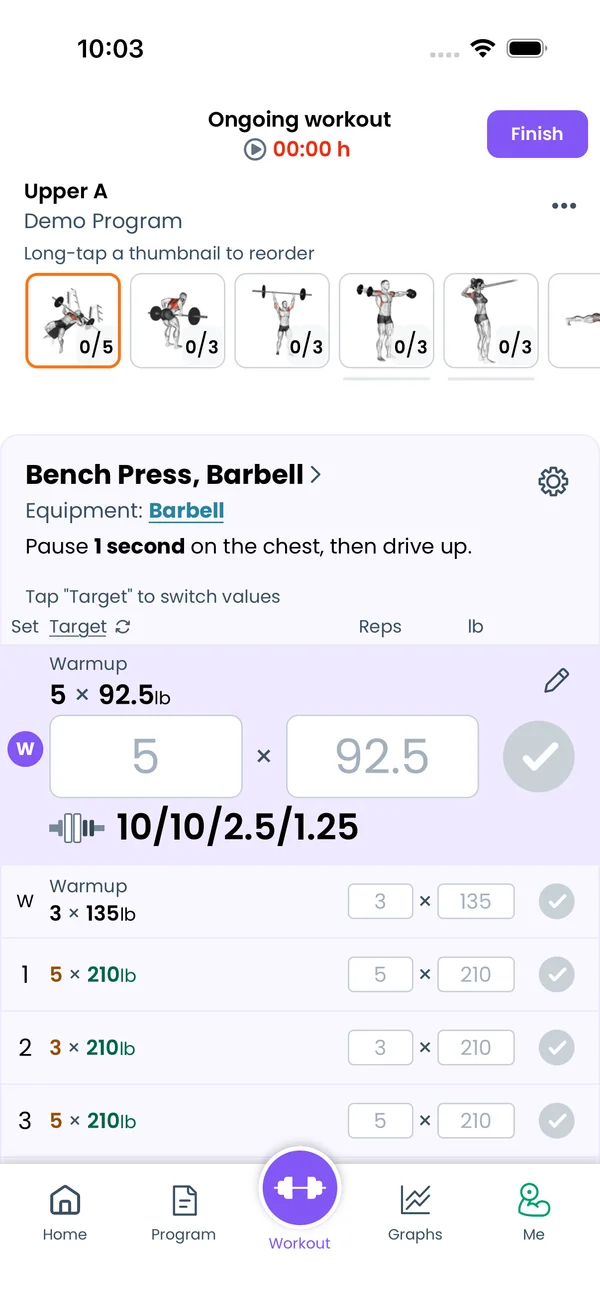
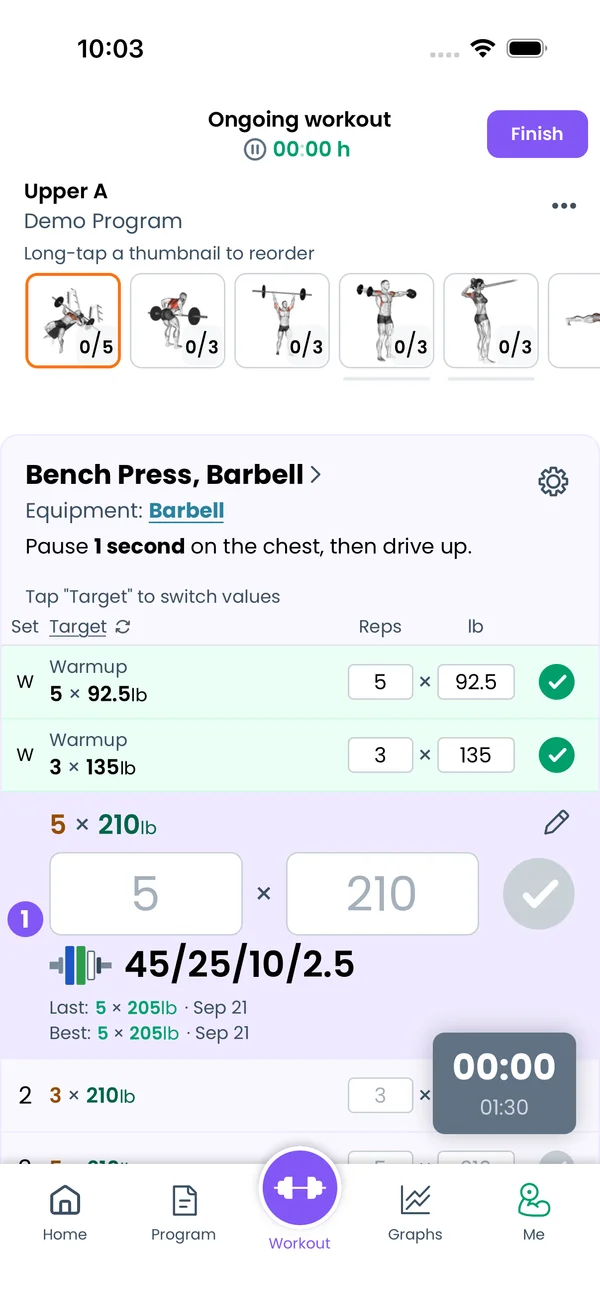
Tap the checkmark to complete a set. See big reps and weight fields, plates per side, and your last and best results. Swipe between exercises, then finish.
Complete a set
Go to Workout and tap the next day of your program.
The next set is expanded. It has big Reps and Weight fields and a big checkmark. Tap the checkmark to complete the set. The phone vibrates once, and the rest timer starts.
Under the fields, the expanded set shows:
The plates to load per side, as a bar and a list. Free accounts see a See plates for each side link instead.
Last, Best and Same day results for this set, each with its date. An AMRAP set shows Best AMRAP. Same day appears only in multi-week programs.
Sets that end in + ask a question after the tap. 5+ asks for reps, ?+ asks for weight, @8+ asks for RPE.
Change reps, weight and RPE
Tap a Reps or Weight field. A keypad opens with digits, +, -, backspace and a close button. On the weight field, + and - step by the smallest weight your equipment can load. On reps they step by 1.
The RPE column shows the RPE you logged after a @8+ set, as @8.
Change what a set asks for
Tap the pencil icon on the expanded set and pick Edit Target. The Edit Set Target sheet has Min and Max reps, an AMRAP? switch, the target Weight with an Ask? switch, and switches for Enable RPE?, Enable Set Timer? and Enable Custom Rest Timer?. The change applies to this workout only. Delete Set in the same menu removes the set.
Add sets, expand and collapse
Tap a set row to expand it. Tap it again to collapse it. After you complete the expanded set, the next unfinished set expands. If you collapsed a set yourself, the sets stay collapsed after that.
Add Warmup Set and Add Set under the sets add one row each. Add Set copies the last set of the exercise, or the last set from your previous workout when there are none.
See plates, the rounded weight, and estimated 1RM
The second column header is Target. Tap it to cycle: Target, Previous Set, Plates, e1RM. Plates needs Premium and equipment set for the exercise. e1RM is the estimated one rep max for each set: the set's weight divided by the share of 1RM that the RPE chart gives for its reps at its RPE, with RPE 10 assumed when none is logged.
When the program's weight does not match your plates, the target shows the exact weight crossed out like 212lb and the rounded weight underlined, 210lb. Tap the underlined weight. A sheet titled Why is the weight adjusted? explains the percentage of your 1RM, the kg to lb conversion, the bar weight, the plates per side, or the closest fixed dumbbell.
Move between exercises
Swipe left or right to move between exercises, or tap a thumbnail in the strip at the top. Each thumbnail shows completed sets over total, like 2/5, and a check when the exercise is done. Exercises in a superset share a colored line under their thumbnails. Long-tap a thumbnail and drag it to reorder.
The cog on the exercise card opens a menu letting you to edit program exercise, swap exercise for this workout only, etc.
The card header has Equipment and, when the program uses percentages, 1RM. Tap either value to change it.
Notes and descriptions
Tap the cog, then Show Exercise Notes. A text field appears: "Add workout notes for this exercise here...". Next time, the card shows it as Previous Note with its date, for two months. The card also shows the exercise description from the program and the notes from its stats screen.
For notes on the whole workout, tap the kebab at the top and pick Show Workout Notes.
Past history, graphs and PRs
Scroll below the sets. The graph shows your weights over time for this exercise, after two or more past workouts. It needs Premium. Hide Graphs and PRs hides this block.
Personal Records lists Max Weight and Max 1RM with their dates. Max 1RM is an estimate (e1RM), not a lift you did. The app takes the weight of a set and divides it by the share of your 1RM that the RPE chart gives for that many reps at that RPE. A set without a logged RPE counts as RPE 10, so 5 reps at 200 lb become 200 lb ÷ 0.865 ≈ 231 lb. The chart follows the OpenPowerlifting RPE calculator. Under the records is every past workout of this exercise.
Muscles worked today
Tap the kebab at the top and pick Day Muscles. The Muscles Map screen opens for the program day: Strength and Hypertrophy tabs, a front and back body drawing, and Muscles used, relatively to each other with percentages.
Pause and keep the screen on
The header shows the workout time with a blinking colon. Tap the pause icon next to it to pause, and the play icon to resume.
To stop the phone from locking, go to Me → Settings and turn on Always On Display. The screen stays on while the app is open.
Finish the workout
Tap Finish in the top right. If some sets are not completed, the app asks "Are you sure you want to FINISH this workout? Some sets are not marked as completed." Then the progress scripts run and update the program. If you enabled it in the Health settings, the workout goes to Apple Health or Google Health.
The Congratulations! screen shows Totals: time, volume, sets and reps. Below are Exercises with their sets, Sets per muscle group, new personal records, and share buttons. Continue takes you back to Home.
{"feature":{"id":"workout-screen","title":"Logging a Workout","shortDescription":"Tap the checkmark to complete a set. See big reps and weight fields, plates per side, and your last and best results. Swipe between exercises, then finish.","order":5,"category":"Workout","datePublished":"2026-09-27","dateModified":"2026-09-28","screenshots":["workout-screen-overview","workout-screen-next-set"]},"content":"## Complete a set\n\nGo to **Workout** and tap the next day of your program.\n\nThe next set is expanded. It has big **Reps** and **Weight** fields and a big checkmark. Tap the checkmark to complete the set. The phone vibrates once, and the [rest timer](/features/rest-timer) starts.\n\nUnder the fields, the expanded set shows:\n\n- The plates to load per side, as a bar and a list. Free accounts see a **See plates for each side** link instead.\n- **Last**, **Best** and **Same day** results for this set, each with its date. An AMRAP set shows **Best AMRAP**. **Same day** appears only in multi-week programs.\n\nSets that end in `+` ask a question after the tap. `5+` asks for reps, `?+` asks for weight, `@8+` asks for RPE.\n\n## Change reps, weight and RPE\n\n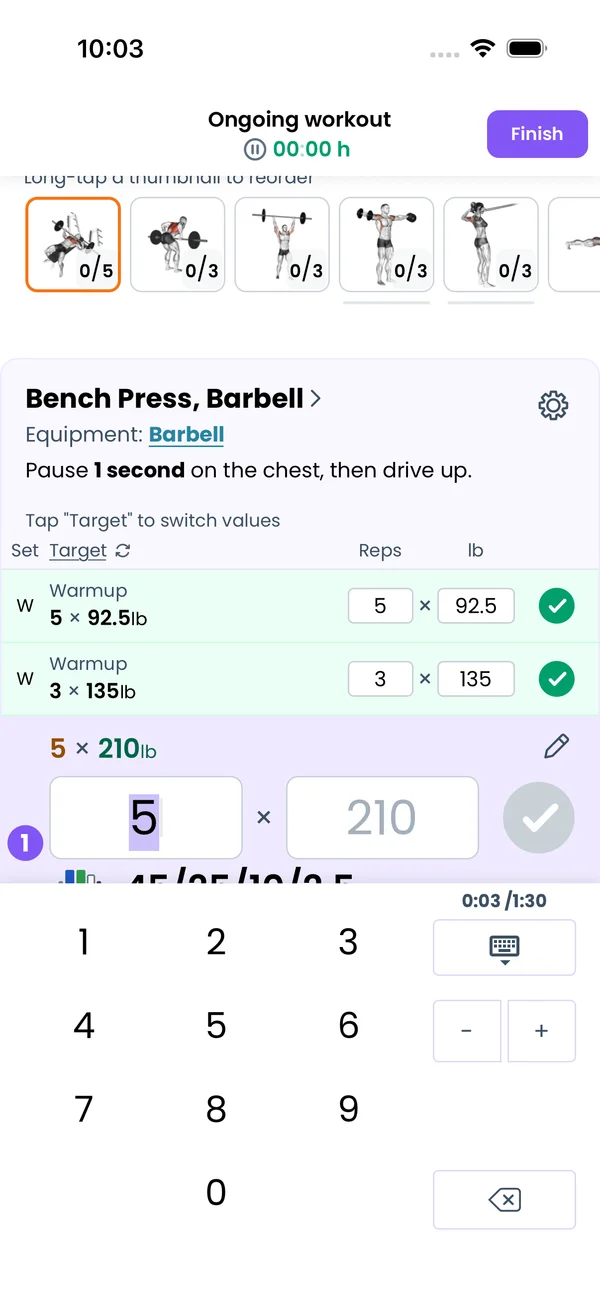\n\nTap a **Reps** or **Weight** field. A keypad opens with digits, **+**, **-**, backspace and a close button. On the weight field, **+** and **-** step by the smallest weight your equipment can load. On reps they step by 1.\n\nThe RPE column shows the RPE you logged after a `@8+` set, as `@8`.\n\n## Change what a set asks for\n\n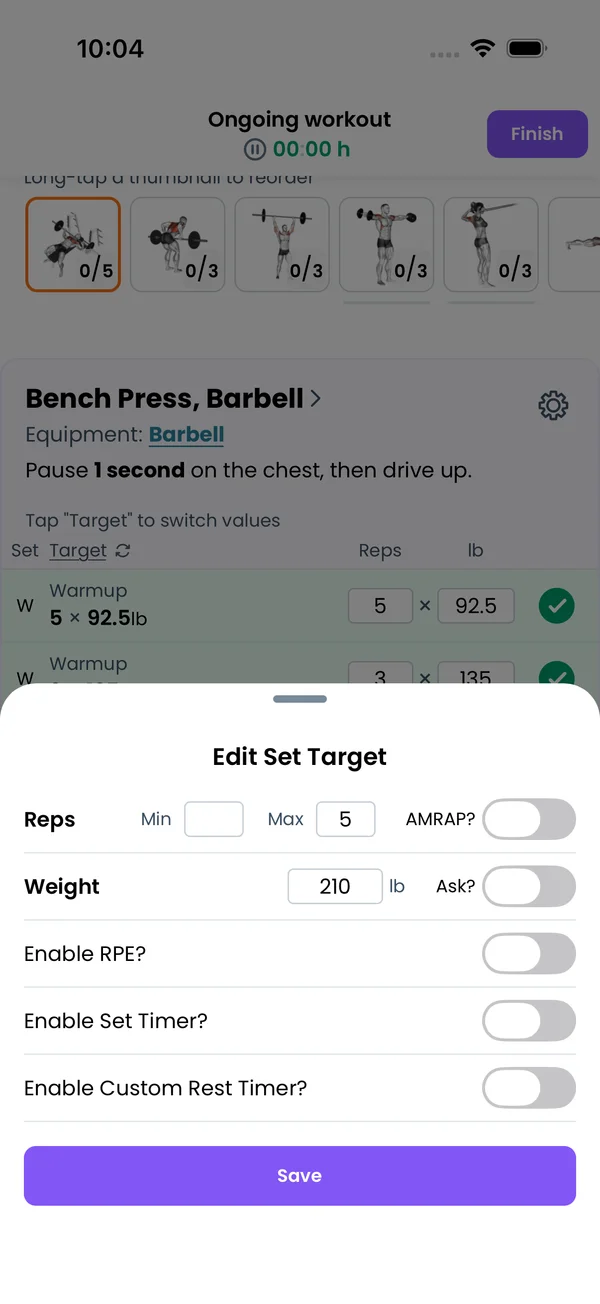\n\nTap the pencil icon on the expanded set and pick **Edit Target**. The **Edit Set Target** sheet has **Min** and **Max** reps, an **AMRAP?** switch, the target **Weight** with an **Ask?** switch, and switches for **Enable RPE?**, **Enable Set Timer?** and **Enable Custom Rest Timer?**. The change applies to this workout only. **Delete Set** in the same menu removes the set.\n\n## Add sets, expand and collapse\n\nTap a set row to expand it. Tap it again to collapse it. After you complete the expanded set, the next unfinished set expands. If you collapsed a set yourself, the sets stay collapsed after that.\n\n**Add Warmup Set** and **Add Set** under the sets add one row each. **Add Set** copies the last set of the exercise, or the last set from your previous workout when there are none.\n\n## See plates, the rounded weight, and estimated 1RM\n\n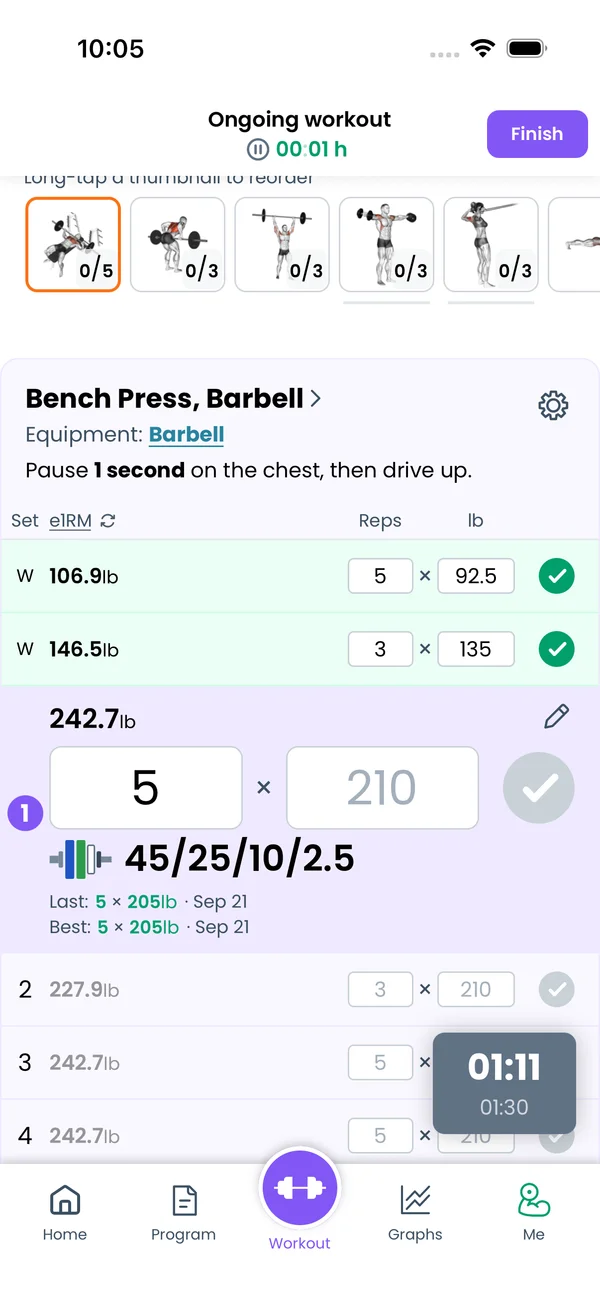 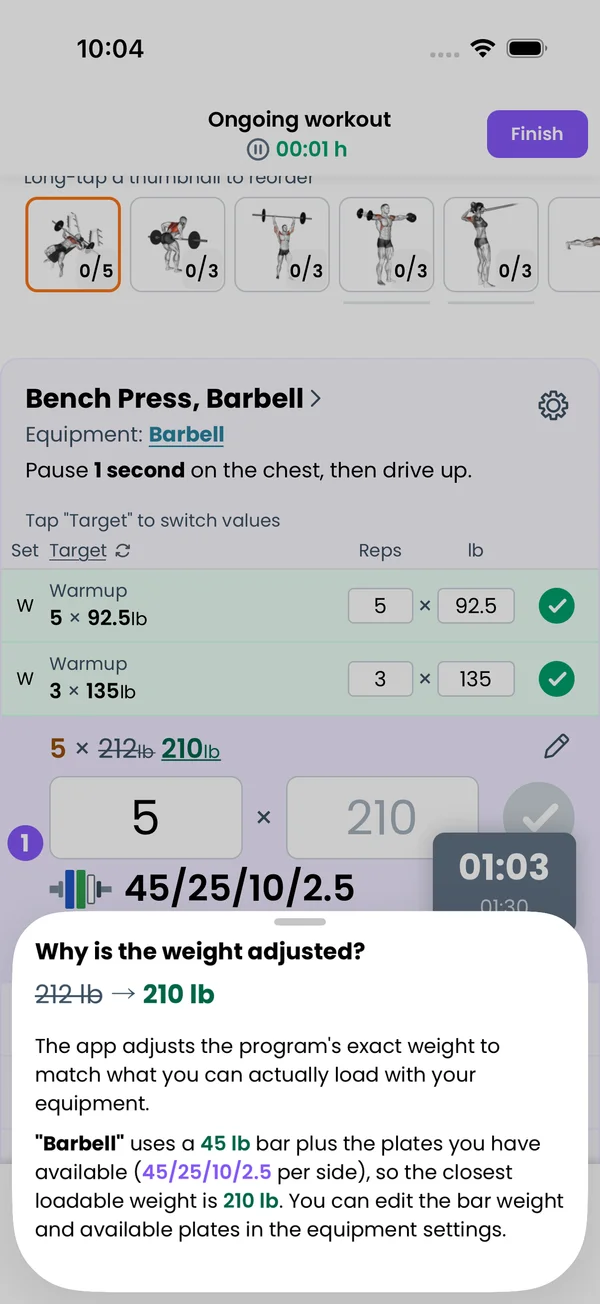\n\nThe second column header is **Target**. Tap it to cycle: **Target**, **Previous Set**, **Plates**, **e1RM**. **Plates** needs Premium and equipment set for the exercise. **e1RM** is the estimated one rep max for each set: the set's weight divided by the share of 1RM that the RPE chart gives for its reps at its RPE, with RPE 10 assumed when none is logged.\n\nWhen the program's weight does not match your plates, the target shows the exact weight crossed out like ~~212lb~~ and the rounded weight underlined, 210lb. Tap the underlined weight. A sheet titled **Why is the weight adjusted?** explains the percentage of your 1RM, the kg to lb conversion, the bar weight, the plates per side, or the closest fixed dumbbell.\n\n## Move between exercises\n\nSwipe left or right to move between exercises, or tap a thumbnail in the strip at the top. Each thumbnail shows completed sets over total, like `2/5`, and a check when the exercise is done. Exercises in a superset share a colored line under their thumbnails. Long-tap a thumbnail and drag it to reorder.\n\n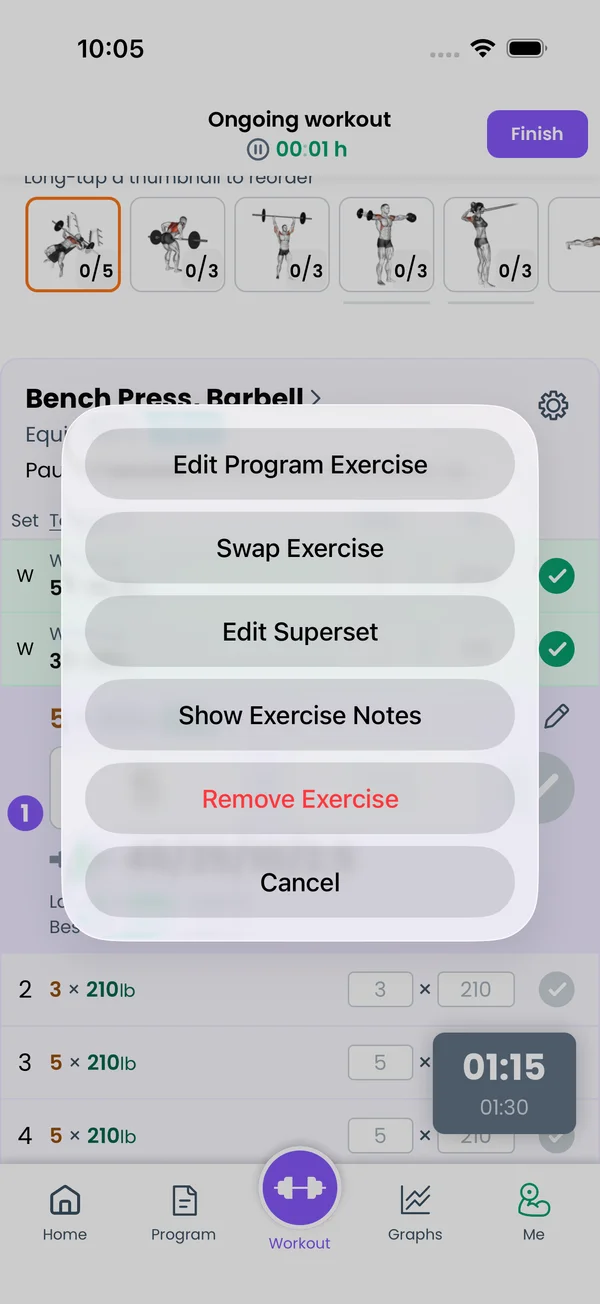\n\nThe cog on the exercise card opens a menu letting you to edit program exercise, swap exercise for this workout only, etc.\n\nThe card header has **Equipment** and, when the program uses percentages, **1RM**. Tap either value to change it.\n\n## Notes and descriptions\n\n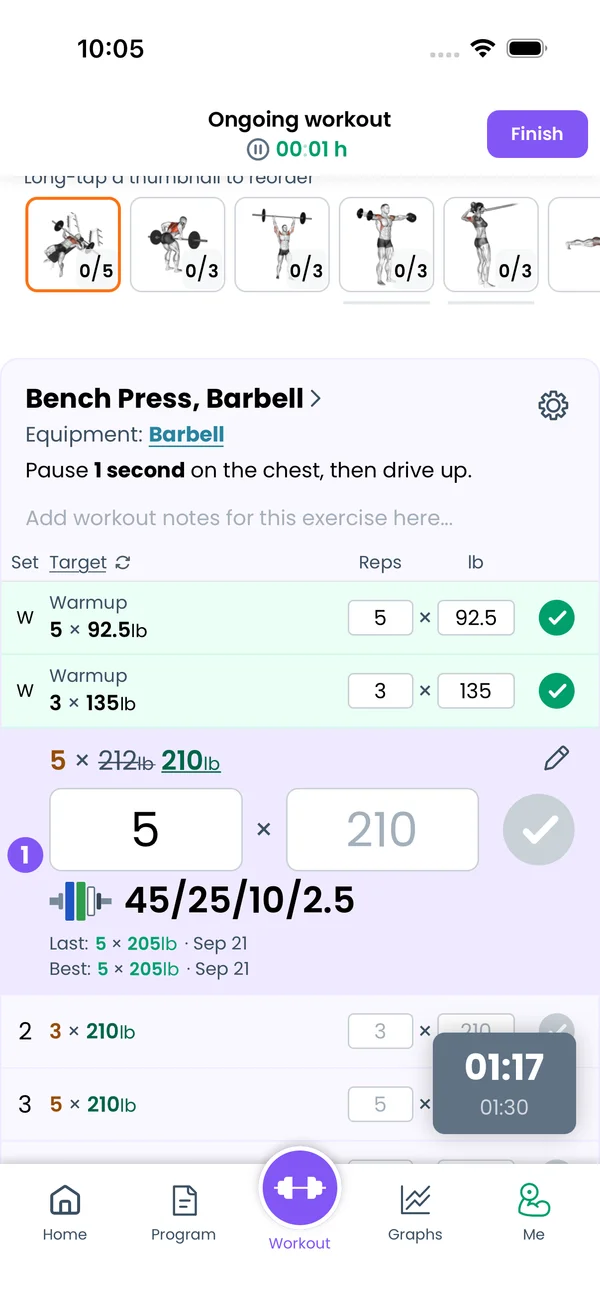\n\nTap the cog, then **Show Exercise Notes**. A text field appears: \"Add workout notes for this exercise here...\". Next time, the card shows it as **Previous Note** with its date, for two months. The card also shows the exercise description from the program and the notes from its stats screen.\n\nFor notes on the whole workout, tap the kebab at the top and pick **Show Workout Notes**.\n\n## Past history, graphs and PRs\n\n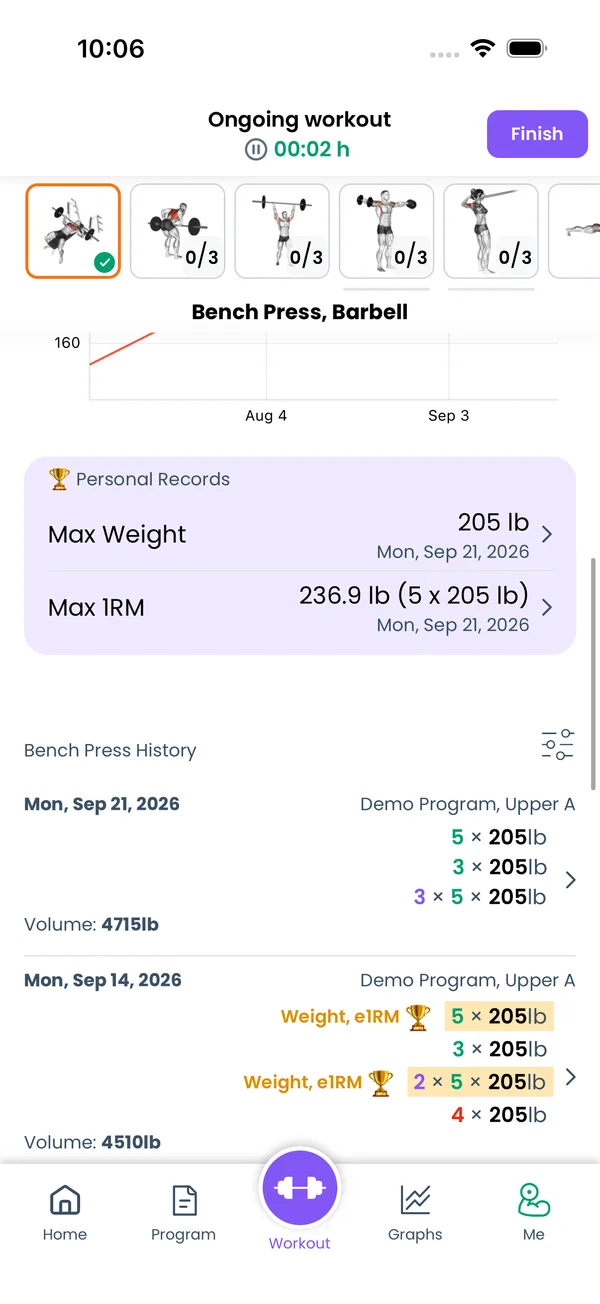\n\nScroll below the sets. The graph shows your weights over time for this exercise, after two or more past workouts. It needs Premium. **Hide Graphs and PRs** hides this block.\n\n**Personal Records** lists **Max Weight** and **Max 1RM** with their dates. **Max 1RM** is an estimate (e1RM), not a lift you did. The app takes the weight of a set and divides it by the share of your 1RM that the RPE chart gives for that many reps at that RPE. A set without a logged RPE counts as RPE 10, so 5 reps at 200 lb become 200 lb ÷ 0.865 ≈ 231 lb. The chart follows the OpenPowerlifting RPE calculator. Under the records is every past workout of this exercise.\n\n## Muscles worked today\n\nTap the kebab at the top and pick **Day Muscles**. The **Muscles Map** screen opens for the program day: **Strength** and **Hypertrophy** tabs, a front and back body drawing, and **Muscles used, relatively to each other** with percentages.\n\n## Pause and keep the screen on\n\nThe header shows the workout time with a blinking colon. Tap the pause icon next to it to pause, and the play icon to resume.\n\nTo stop the phone from locking, go to **Me → Settings** and turn on **Always On Display**. The screen stays on while the app is open.\n\n## Finish the workout\n\n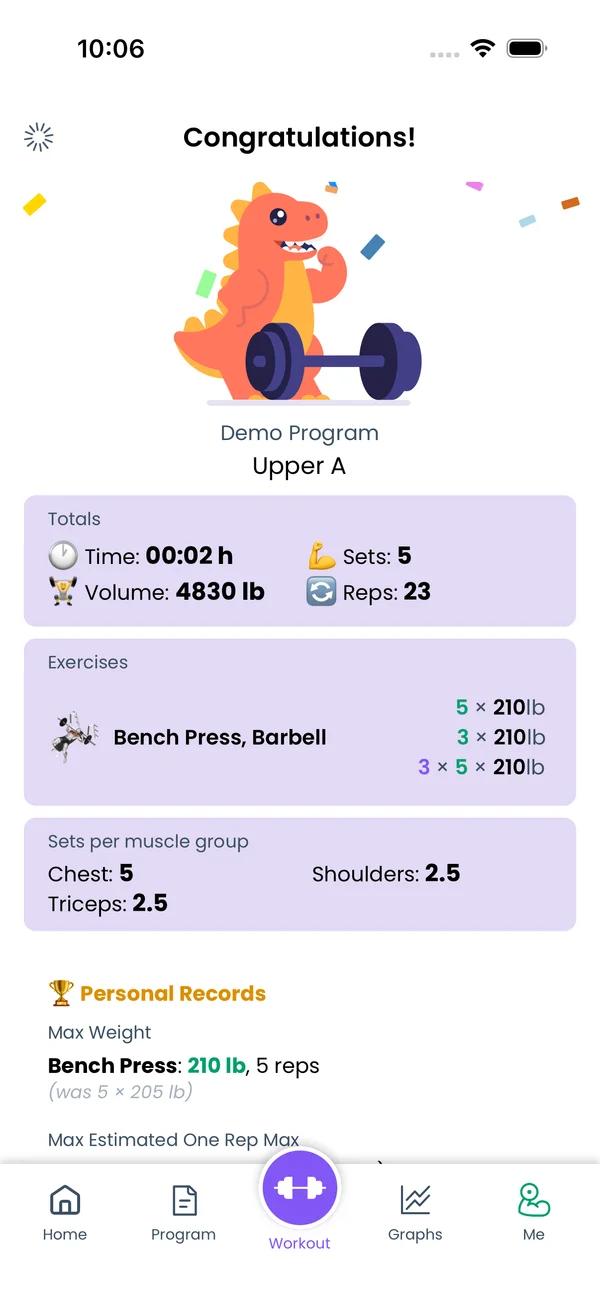\n\nTap **Finish** in the top right. If some sets are not completed, the app asks \"Are you sure you want to FINISH this workout? Some sets are not marked as completed.\" Then the progress scripts run and update the program. If you enabled it in the Health settings, the workout goes to Apple Health or Google Health.\n\nThe **Congratulations!** screen shows **Totals**: time, volume, sets and reps. Below are **Exercises** with their sets, **Sets per muscle group**, new personal records, and share buttons. **Continue** takes you back to Home.","sizes":{"account/account-email-form":{"width":600,"height":1304},"account/account-forgot-password":{"width":600,"height":1304},"account/account-screen":{"width":600,"height":1304},"account/account-sign-in":{"width":600,"height":1304},"chatgpt-claude-and-ai/chatgpt-claude-and-ai-autofill":{"width":600,"height":1304},"api/api-key-created":{"width":600,"height":1304},"api/api-keys-empty":{"width":600,"height":1304},"api/api-me-row":{"width":600,"height":1304},"apple-watch/apple-watch-health-settings":{"width":600,"height":1304},"apple-watch/watch-apple-watch-amrap":{"width":416,"height":496},"apple-watch/watch-apple-watch-crown":{"width":416,"height":496},"apple-watch/watch-apple-watch-exercise":{"width":416,"height":496},"apple-watch/watch-apple-watch-get-ready":{"width":416,"height":496},"apple-watch/watch-apple-watch-home":{"width":416,"height":496},"apple-watch/watch-apple-watch-set-clock":{"width":416,"height":496},"apple-watch/watch-apple-watch-workout":{"width":416,"height":496},"built-in-programs/built-in-programs-import":{"width":600,"height":1304},"built-in-programs/built-in-programs-info":{"width":600,"height":1304},"built-in-programs/built-in-programs-library":{"width":600,"height":1304},"built-in-programs/built-in-programs-preview":{"width":600,"height":1304},"built-in-programs/built-in-programs-started":{"width":600,"height":1304},"changing-a-workout/changing-a-workout-adhoc":{"width":600,"height":1304},"changing-a-workout/changing-a-workout-adhoc-picker":{"width":600,"height":1304},"changing-a-workout/changing-a-workout-create-program-day":{"width":600,"height":1304},"changing-a-workout/changing-a-workout-edit-day":{"width":600,"height":1304},"changing-a-workout/changing-a-workout-edit-exercise":{"width":600,"height":1304},"changing-a-workout/changing-a-workout-next-workout":{"width":600,"height":1304},"changing-a-workout/changing-a-workout-pick-day":{"width":600,"height":1304},"changing-a-workout/changing-a-workout-program-day":{"width":600,"height":1304},"changing-a-workout/changing-a-workout-swap-adhoc":{"width":600,"height":1304},"changing-a-workout/changing-a-workout-swap-from-program":{"width":600,"height":1304},"changing-a-workout/changing-a-workout-swap-recent":{"width":600,"height":1304},"custom-exercises/custom-exercises-autofill":{"width":600,"height":1304},"custom-exercises/custom-exercises-clone-library":{"width":600,"height":1304},"custom-exercises/custom-exercises-cloned":{"width":600,"height":1304},"custom-exercises/custom-exercises-form":{"width":600,"height":1304},"custom-exercises/custom-exercises-hidden-group":{"width":600,"height":1304},"custom-exercises/custom-exercises-image-library":{"width":600,"height":1304},"custom-exercises/custom-exercises-image-source":{"width":600,"height":1304},"custom-exercises/custom-exercises-in-workout":{"width":600,"height":1304},"custom-exercises/custom-exercises-muscle-groups":{"width":600,"height":1304},"custom-exercises/custom-exercises-picker":{"width":600,"height":1304},"custom-exercises/custom-exercises-target-muscles":{"width":600,"height":1304},"equipment-and-gyms/equipment-and-gyms-barbell":{"width":600,"height":1304},"equipment-and-gyms/equipment-and-gyms-custom":{"width":600,"height":1304},"equipment-and-gyms/equipment-and-gyms-exercise":{"width":600,"height":1304},"equipment-and-gyms/equipment-and-gyms-fixed":{"width":600,"height":1304},"equipment-and-gyms/equipment-and-gyms-gyms":{"width":600,"height":1304},"equipment-and-gyms/equipment-and-gyms-hidden":{"width":600,"height":1304},"equipment-and-gyms/equipment-and-gyms-list":{"width":600,"height":1304},"exercise-library/exercise-library-calculator":{"width":600,"height":1304},"exercise-library/exercise-library-from-program":{"width":600,"height":1304},"exercise-library/exercise-library-list":{"width":600,"height":1304},"exercise-library/exercise-library-multi-add":{"width":600,"height":1304},"exercise-library/exercise-library-override-muscles":{"width":600,"height":1304},"exercise-library/exercise-library-picker":{"width":600,"height":1304},"exercise-library/exercise-library-prs":{"width":600,"height":1304},"exercise-library/exercise-library-search":{"width":600,"height":1304},"exercise-library/exercise-library-stats":{"width":600,"height":1304},"exercise-library/exercise-library-swap":{"width":600,"height":1304},"graphs/graphs-bodyweight":{"width":600,"height":1304},"graphs/graphs-choose":{"width":600,"height":1304},"graphs/graphs-exercise":{"width":600,"height":1304},"graphs/graphs-legend":{"width":600,"height":1304},"graphs/graphs-muscle-group":{"width":600,"height":1304},"graphs/graphs-personal-records":{"width":600,"height":1304},"graphs/graphs-settings":{"width":600,"height":1304},"health-sync/android-health-sync-measurements":{"width":600,"height":1339},"health-sync/android-health-sync-settings":{"width":600,"height":1339},"health-sync/android-health-sync-share":{"width":600,"height":1339},"health-sync/android-health-sync-sleep-nutrition":{"width":600,"height":1339},"health-sync/health-sync-measurements":{"width":600,"height":1304},"health-sync/health-sync-settings":{"width":600,"height":1304},"health-sync/health-sync-share":{"width":600,"height":1304},"health-sync/health-sync-sleep-nutrition":{"width":600,"height":1304},"import-export/import-export-export":{"width":600,"height":1304},"import-export/import-export-hevy":{"width":600,"height":1304},"import-export/import-export-import":{"width":600,"height":1304},"liftoscript/liftoscript-exercise-sheet":{"width":600,"height":1304},"liftoscript/liftoscript-full-program":{"width":600,"height":1304},"liftoscript/liftoscript-per-day":{"width":600,"height":1304},"liftoscript/liftoscript-playground":{"width":600,"height":1304},"lock-screen-and-notifications/android-lock-screen-and-notifications-live-update":{"width":600,"height":1339},"lock-screen-and-notifications/android-lock-screen-and-notifications-reminder":{"width":600,"height":1339},"lock-screen-and-notifications/android-lock-screen-and-notifications-sound":{"width":600,"height":1339},"lock-screen-and-notifications/lock-screen-and-notifications-dynamic-island":{"width":600,"height":1304},"lock-screen-and-notifications/lock-screen-and-notifications-live-activity":{"width":600,"height":1304},"lock-screen-and-notifications/lock-screen-and-notifications-reminder":{"width":600,"height":1304},"lock-screen-and-notifications/lock-screen-and-notifications-sound":{"width":600,"height":1304},"measurements/measurements-add":{"width":600,"height":1304},"measurements/measurements-bodyweight":{"width":600,"height":1304},"measurements/measurements-moving-average":{"width":600,"height":1304},"measurements/measurements-sleep-nutrition":{"width":600,"height":1304},"measurements/measurements-types":{"width":600,"height":1304},"first-run-and-settings/first-run-and-settings-appearance":{"width":600,"height":1304},"first-run-and-settings/first-run-and-settings-dark-mode":{"width":600,"height":1304},"first-run-and-settings/first-run-and-settings-equipment":{"width":600,"height":1304},"first-run-and-settings/first-run-and-settings-me":{"width":600,"height":1304},"first-run-and-settings/first-run-and-settings-units":{"width":600,"height":1304},"first-run-and-settings/first-run-and-settings-welcome":{"width":600,"height":1304},"playground/playground-completed":{"width":600,"height":1304},"playground/playground-day":{"width":600,"height":1304},"playground/playground-finished":{"width":600,"height":1304},"playground/playground-variables":{"width":600,"height":1304},"premium/premium-account":{"width":600,"height":1304},"premium/premium-feature-info":{"width":600,"height":1304},"premium/premium-plans":{"width":600,"height":1304},"program-editor/program-editor-create":{"width":600,"height":1304},"program-editor/program-editor-day-details":{"width":600,"height":1304},"program-editor/program-editor-exercise-sheet":{"width":600,"height":1304},"program-editor/program-editor-full-text":{"width":600,"height":1304},"program-editor/program-editor-grid":{"width":600,"height":1304},"program-editor/program-editor-perday-text":{"width":600,"height":1304},"program-editor/program-editor-ui-mode":{"width":600,"height":1304},"program-editor/program-editor-week-stats":{"width":600,"height":1304},"progressions/progressions-linear-settings":{"width":600,"height":1304},"progressions/progressions-preview":{"width":600,"height":1304},"progressions/progressions-state-variables":{"width":600,"height":1304},"progressions/progressions-suppressed":{"width":600,"height":1304},"rest-timer/rest-timer-collapsed":{"width":600,"height":1304},"rest-timer/rest-timer-dynamic-island":{"width":600,"height":1304},"rest-timer/rest-timer-expanded":{"width":600,"height":1304},"rest-timer/rest-timer-get-ready":{"width":600,"height":1304},"rest-timer/rest-timer-lock-screen":{"width":600,"height":1304},"rest-timer/rest-timer-settings":{"width":600,"height":1304},"rest-timer/rest-timer-sound":{"width":600,"height":1304},"rest-timer/watch-rest-timer":{"width":416,"height":496},"rest-timer/watch-rest-timer-exercise":{"width":416,"height":496},"set-types/set-types-amrap-popup":{"width":600,"height":1304},"set-types/set-types-per-side":{"width":600,"height":1304},"set-types/set-types-rpe-logged":{"width":600,"height":1304},"set-types/set-types-rpe-popup":{"width":600,"height":1304},"sharing-programs/sharing-programs-export-text":{"width":600,"height":1304},"sharing-programs/sharing-programs-image-preview":{"width":600,"height":1304},"sharing-programs/sharing-programs-image-settings":{"width":600,"height":1304},"sharing-programs/sharing-programs-import":{"width":600,"height":1304},"sharing-programs/sharing-programs-menu":{"width":600,"height":1304},"sharing-programs/sharing-programs-private-link":{"width":600,"height":1304},"sharing-programs/sharing-programs-public-link":{"width":600,"height":1304},"sharing-workouts/sharing-workouts-copied-text":{"width":600,"height":1304},"sharing-workouts/sharing-workouts-finish-screen":{"width":600,"height":1304},"sharing-workouts/sharing-workouts-profile-settings":{"width":600,"height":1304},"sharing-workouts/sharing-workouts-share-sheet":{"width":600,"height":1304},"sharing-workouts/sharing-workouts-story-preview":{"width":600,"height":1304},"supersets/supersets-liftoscript":{"width":600,"height":1304},"supersets/supersets-next-exercise":{"width":600,"height":1304},"supersets/supersets-picker":{"width":600,"height":1304},"supersets/supersets-program-editor":{"width":600,"height":1304},"supersets/supersets-timer":{"width":600,"height":1304},"supersets/supersets-workout":{"width":600,"height":1304},"sync-and-offline/sync-and-offline-account":{"width":600,"height":1304},"sync-and-offline/sync-and-offline-me-account":{"width":600,"height":1304},"sync-and-offline/sync-and-offline-sign-in":{"width":600,"height":1304},"timed-sets/timed-sets-count-up":{"width":600,"height":1304},"timed-sets/timed-sets-edit-time":{"width":600,"height":1304},"timed-sets/timed-sets-get-ready":{"width":600,"height":1304},"timed-sets/timed-sets-recorded":{"width":600,"height":1304},"timed-sets/timed-sets-running":{"width":600,"height":1304},"timed-sets/timed-sets-set-row":{"width":600,"height":1304},"timed-sets/timed-sets-timers":{"width":600,"height":1304},"week-insights/week-insights-details":{"width":600,"height":1304},"week-insights/week-insights-edit-muscle-groups":{"width":600,"height":1304},"week-insights/week-insights-exercises":{"width":600,"height":1304},"week-insights/week-insights-home":{"width":600,"height":1304},"week-insights/week-insights-muscle-groups":{"width":600,"height":1304},"week-insights/week-insights-settings":{"width":600,"height":1304},"workout-history/workout-history-change-date":{"width":600,"height":1304},"workout-history/workout-history-delete":{"width":600,"height":1304},"workout-history/workout-history-feed":{"width":600,"height":1304},"workout-history/workout-history-menu":{"width":600,"height":1304},"workout-history/workout-history-month-calendar":{"width":600,"height":1304},"workout-history/workout-history-note-on-card":{"width":600,"height":1304},"workout-history/workout-history-notes":{"width":600,"height":1304},"workout-history/workout-history-past-card":{"width":600,"height":1304},"workout-history/workout-history-past-workout":{"width":600,"height":1304},"workout-history/workout-history-week-insights":{"width":600,"height":1304},"workout-screen/workout-screen-e1rm":{"width":600,"height":1304},"workout-screen/workout-screen-edit-target":{"width":600,"height":1304},"workout-screen/workout-screen-exercise-menu":{"width":600,"height":1304},"workout-screen/workout-screen-exercise-notes":{"width":600,"height":1304},"workout-screen/workout-screen-history":{"width":600,"height":1304},"workout-screen/workout-screen-keypad":{"width":600,"height":1304},"workout-screen/workout-screen-next-set":{"width":600,"height":1304},"workout-screen/workout-screen-overview":{"width":600,"height":1304},"workout-screen/workout-screen-rounding":{"width":600,"height":1304},"workout-screen/workout-screen-summary":{"width":600,"height":1304}}}