Complete sets and adjust rest from the iOS Live Activity, Dynamic Island or Android Live Update, and get a notification with the next set and plates.
Run the workout from the iOS lock screen
With Premium, an ongoing workout shows as a Live Activity on the lock screen.
The top row has the workout time, Set: 2/5, and one dot per set. Green is done, orange partial, red failed, gray still to do. Warmup dots are dimmer.
Below it is the next set: the exercise image, the name, Target: 5 × 100lb, and Plates: 45, 2.5 with the plates for one side of the bar.
On the right is the set card, like 5 × 100lb with a checkmark. Tap it to complete that set without unlocking the phone. The rest timer starts, and the card moves to the next set.
Some sets need an answer from you: AMRAP reps, an RPE, or a weight. For those, the tap opens the app at that set instead.
While you rest, the top right corner has +15s, the elapsed time, the target, and -15s. The elapsed time turns red past the target. The timer itself is on the Rest Timer page.
When every set is done, the Live Activity says All exercises completed!. It closes when you finish or discard the workout. Timed sets get their own layout, see Timed Sets.
Use the Dynamic Island
In another app, the Dynamic Island shows the exercise image and the rest timer. The timer turns red when the rest is over.
Long press the island to expand it. The expanded view adds the exercise name, Set: 2/5, the target and the plates.
Run the workout from the Android notification
With Premium, Android shows an ongoing notification for the workout. Its title is the exercise and the rest target, like Bench Press (1:30). The text is Set 2/5 • Target: 5 × 100lb • Plates: 45, 2.5.
A clock in the notification counts the rest. The notification turns red when the rest is over.
It has three buttons: -15s, +15s, and ✓ Done. ✓ Done completes the set and starts the next rest. For a timed set the button is ▶ Start. A set that needs an answer opens the app instead.
In another app, the rest timer shows as a small chip next to the clock.
Get a notification when the rest is over
If the app is in the background when the rest ends, a notification arrives:
Title: It's time for the next set!
Subtitle: Next Set: Bench Press, 5 reps, 100lb
Body: Plates per side: 45, 2.5
If the next set has no weight, the body is The rest is over: Time to lift!.
The notification plays the chime. With volume 0 it arrives silent. On Android it also wakes the screen, and vibrates three times if Vibration is on.
The app asks for notification permission the first time it schedules a rest timer. Android also asks for the alarm permission.
Get a reminder about an unfinished workout
Leave the app with a workout still running, and a notification comes after a delay. It says Workout reminder, "You have an ongoing workout, make sure to finish it if you're done".
Coming back to the app cancels it. Finishing or discarding the workout cancels it too.
Set the delay in Me → Timers, under Reminders, in About ongoing workout. It is in seconds. The default is 900, which is 15 minutes. Set it to 0 to turn the reminder off.
Set the chime, volume and vibration
When the rest ends, the app plays a chime and vibrates. Both are on the Me screen, under Sound: a Vibration toggle and a Volume slider.
Volume 0 with vibration on gives a vibration without sound.
The chime plays over other audio, so you hear it over a podcast on your AirPods. The podcast gets quieter for a moment.
Timed sets have their own sounds for the end of Get Ready and the end of the set.
Hear the chime through headphones while locked
On iOS, when the phone is locked, the rest-over notification is what plays the chime.
With an Apple Watch paired and headphones connected, the phone plays the chime through the headphones instead. Bluetooth, wired, USB and AirPlay all count. The phone keeps a silent audio session open in the background for that. It removes the notification, so you do not hear the chime twice.
Take the headphones out during the rest, and the notification plays instead. See Apple Watch for the chirp on the watch itself.
Play the chime in Silent or Do Not Disturb mode
On Android with Premium, the Me screen has an Ignore Do Not Disturb toggle under Sound. With it on, the rest-over notification makes a sound even in Silent or Do Not Disturb mode. The app switches the ringer to normal for about four seconds, then restores it.
Android needs the Do Not Disturb access permission for this. The first time, the app opens the system settings page for it.
Turn notifications off
Set Warmup and Workout to 0 in Me → Timers. No timer runs, so no rest-over notification comes.
Set About ongoing workout to 0 in Me → Timers to turn off the reminder.
Set Volume to 0 on the Me screen to keep the notifications silent.
{"feature":{"id":"lock-screen-and-notifications","title":"Lock Screen, Notifications and Audio","shortDescription":"Complete sets and adjust rest from the iOS Live Activity, Dynamic Island or Android Live Update, and get a notification with the next set and plates.","order":70,"category":"Workout","datePublished":"2026-09-27","dateModified":"2026-09-28","screenshots":["lock-screen-and-notifications-live-activity","lock-screen-and-notifications-sound"]},"content":"## Run the workout from the iOS lock screen\n\n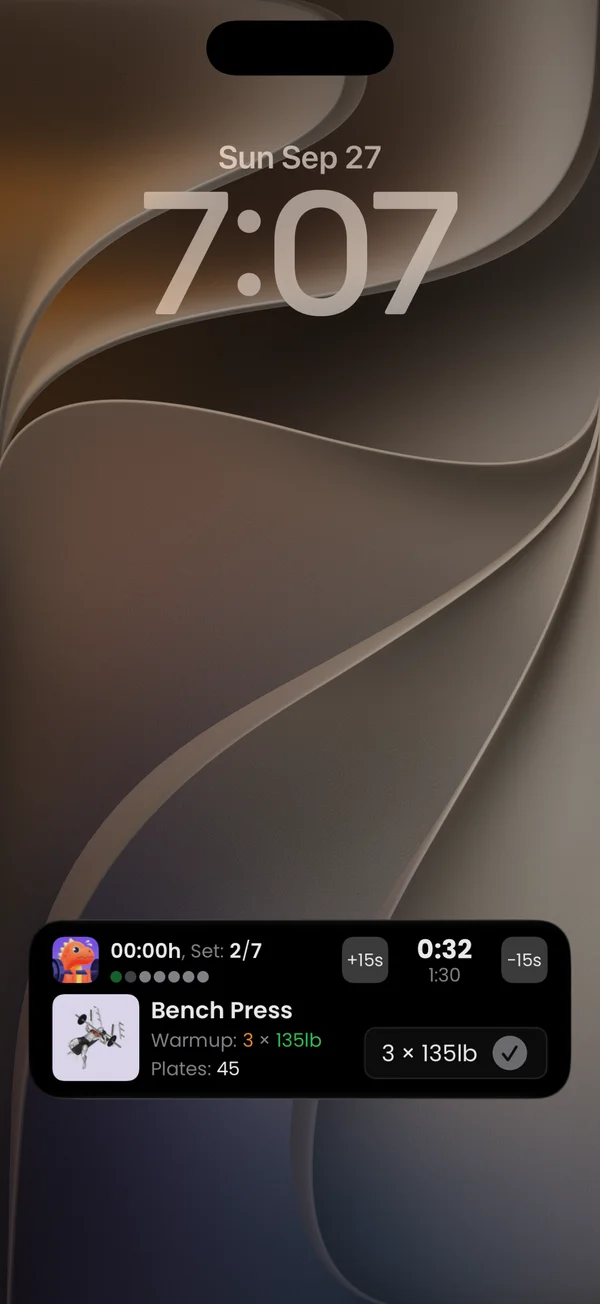\n\nWith Premium, an ongoing workout shows as a **Live Activity** on the lock screen.\n\nThe top row has the workout time, **Set: 2/5**, and one dot per set. Green is done, orange partial, red failed, gray still to do. Warmup dots are dimmer.\n\nBelow it is the next set: the exercise image, the name, **Target: 5 × 100lb**, and **Plates: 45, 2.5** with the plates for one side of the bar.\n\nOn the right is the set card, like **5 × 100lb** with a checkmark. Tap it to complete that set without unlocking the phone. The rest timer starts, and the card moves to the next set.\n\nSome sets need an answer from you: AMRAP reps, an RPE, or a weight. For those, the tap opens the app at that set instead.\n\nWhile you rest, the top right corner has **+15s**, the elapsed time, the target, and **-15s**. The elapsed time turns red past the target. The timer itself is on the [Rest Timer](/features/rest-timer) page.\n\nWhen every set is done, the Live Activity says **All exercises completed!**. It closes when you finish or discard the workout. Timed sets get their own layout, see [Timed Sets](/features/timed-sets).\n\n## Use the Dynamic Island\n\n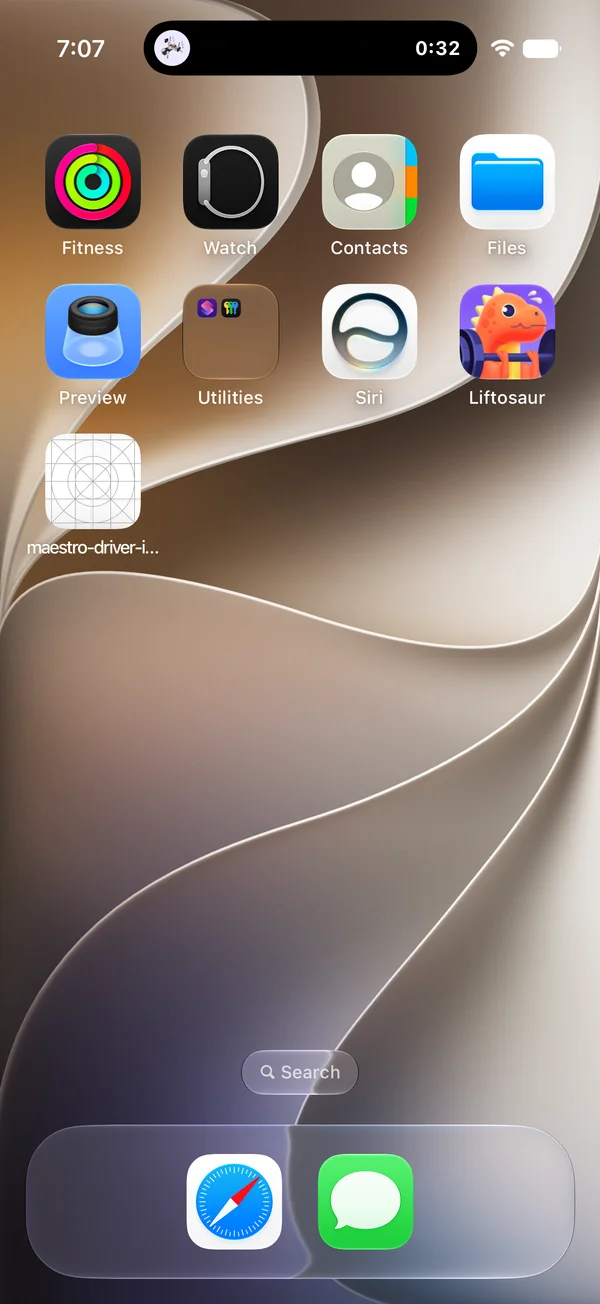\n\nIn another app, the Dynamic Island shows the exercise image and the rest timer. The timer turns red when the rest is over.\n\nLong press the island to expand it. The expanded view adds the exercise name, **Set: 2/5**, the target and the plates.\n\n## Run the workout from the Android notification\n\n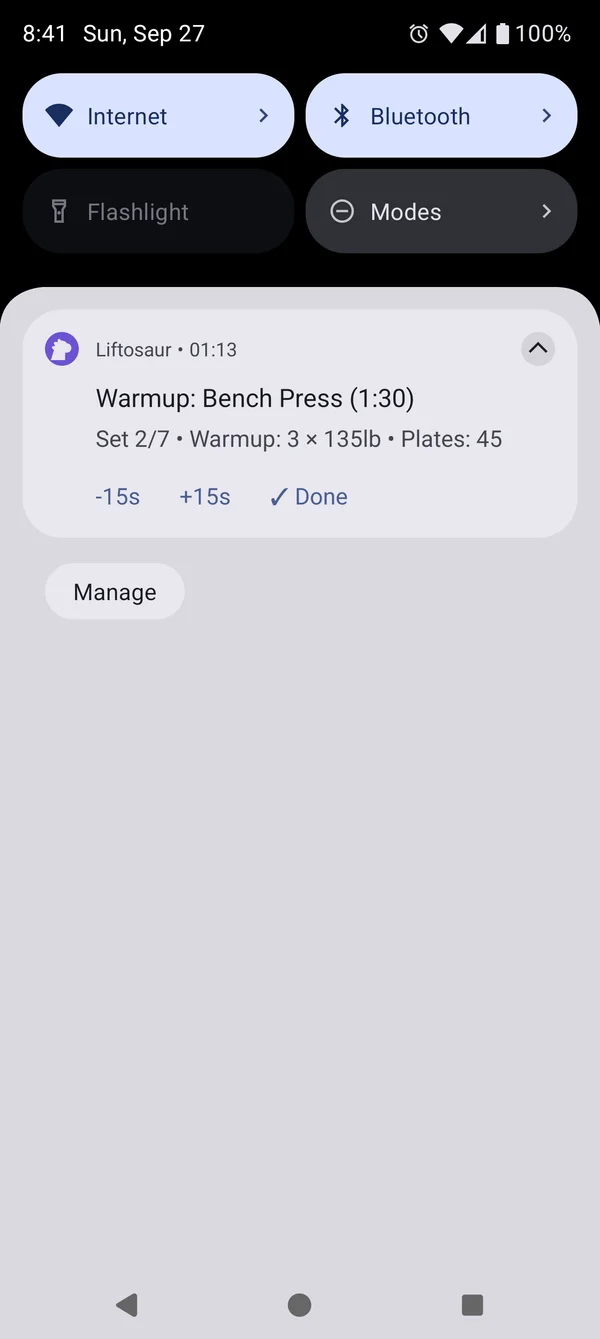\n\nWith Premium, Android shows an ongoing notification for the workout. Its title is the exercise and the rest target, like **Bench Press (1:30)**. The text is **Set 2/5 • Target: 5 × 100lb • Plates: 45, 2.5**.\n\nA clock in the notification counts the rest. The notification turns red when the rest is over.\n\nIt has three buttons: **-15s**, **+15s**, and **✓ Done**. **✓ Done** completes the set and starts the next rest. For a timed set the button is **▶ Start**. A set that needs an answer opens the app instead.\n\nIn another app, the rest timer shows as a small chip next to the clock.\n\n## Get a notification when the rest is over\n\nIf the app is in the background when the rest ends, a notification arrives:\n\n- Title: **It's time for the next set!**\n- Subtitle: **Next Set: Bench Press, 5 reps, 100lb**\n- Body: **Plates per side: 45, 2.5**\n\nIf the next set has no weight, the body is **The rest is over: Time to lift!**.\n\nThe notification plays the chime. With volume 0 it arrives silent. On Android it also wakes the screen, and vibrates three times if **Vibration** is on.\n\nThe app asks for notification permission the first time it schedules a rest timer. Android also asks for the alarm permission.\n\n## Get a reminder about an unfinished workout\n\n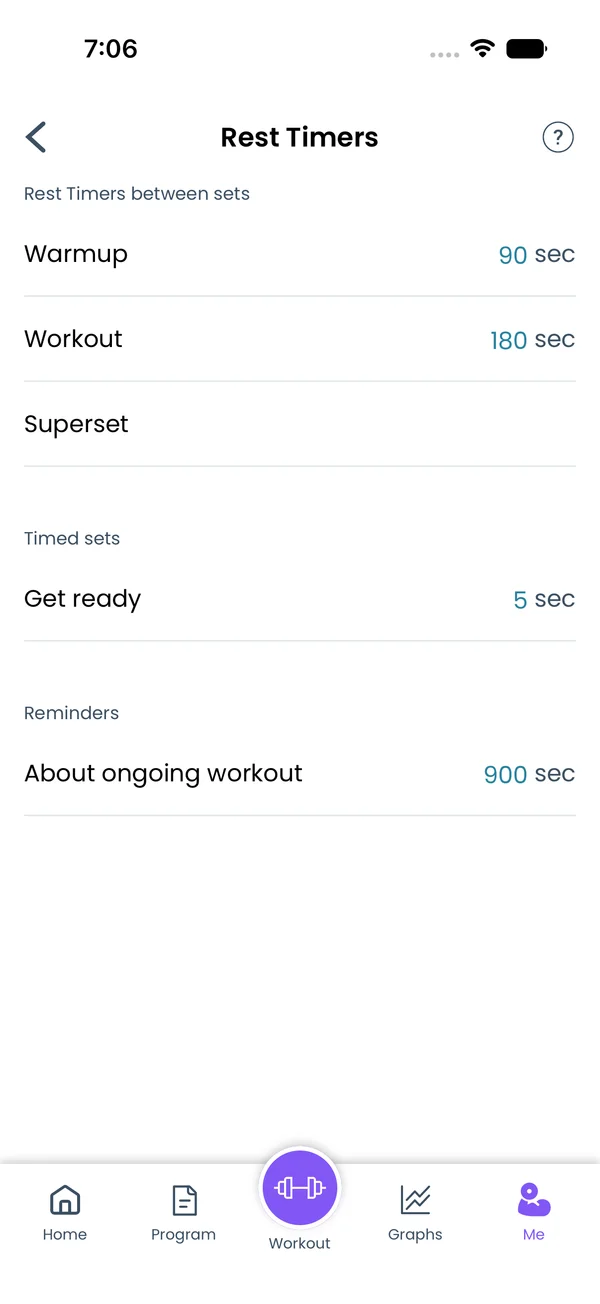\n\nLeave the app with a workout still running, and a notification comes after a delay. It says **Workout reminder**, \"You have an ongoing workout, make sure to finish it if you're done\".\n\nComing back to the app cancels it. Finishing or discarding the workout cancels it too.\n\nSet the delay in **Me → Timers**, under **Reminders**, in **About ongoing workout**. It is in seconds. The default is 900, which is 15 minutes. Set it to 0 to turn the reminder off.\n\n## Set the chime, volume and vibration\n\n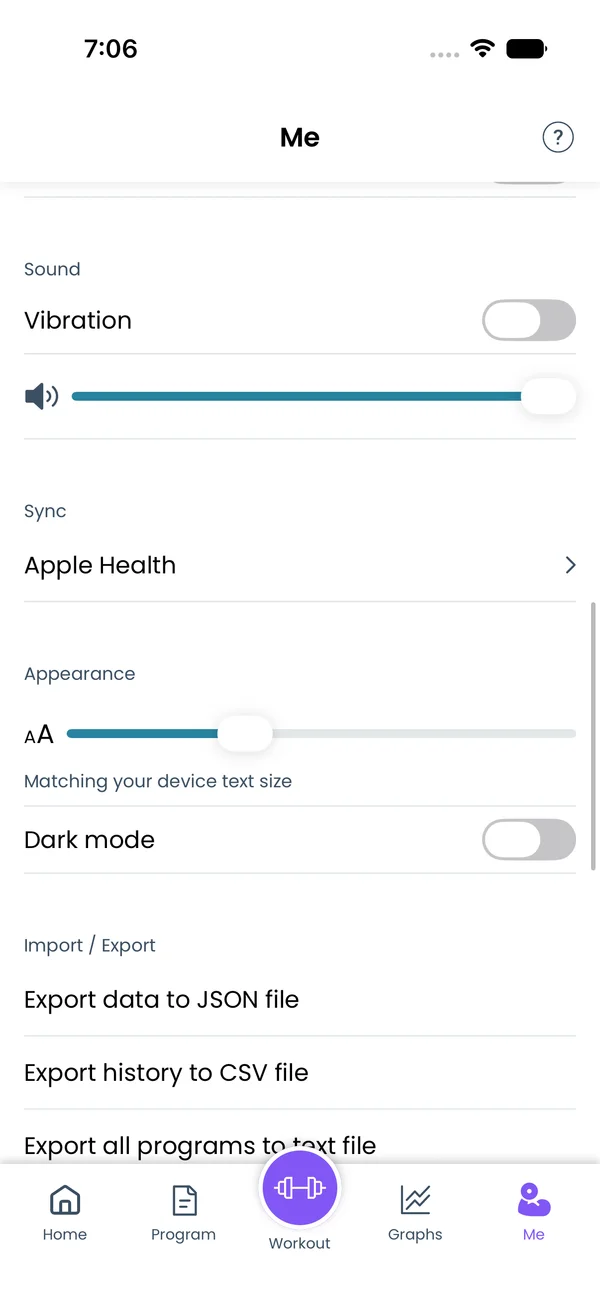\n\nWhen the rest ends, the app plays a chime and vibrates. Both are on the **Me** screen, under **Sound**: a **Vibration** toggle and a **Volume** slider.\n\nVolume 0 with vibration on gives a vibration without sound.\n\nThe chime plays over other audio, so you hear it over a podcast on your AirPods. The podcast gets quieter for a moment.\n\nTimed sets have their own sounds for the end of **Get Ready** and the end of the set.\n\n## Hear the chime through headphones while locked\n\nOn iOS, when the phone is locked, the rest-over notification is what plays the chime.\n\nWith an Apple Watch paired and headphones connected, the phone plays the chime through the headphones instead. Bluetooth, wired, USB and AirPlay all count. The phone keeps a silent audio session open in the background for that. It removes the notification, so you do not hear the chime twice.\n\nTake the headphones out during the rest, and the notification plays instead. See [Apple Watch](/features/apple-watch) for the chirp on the watch itself.\n\n## Play the chime in Silent or Do Not Disturb mode\n\nOn Android with Premium, the **Me** screen has an **Ignore Do Not Disturb** toggle under **Sound**. With it on, the rest-over notification makes a sound even in Silent or Do Not Disturb mode. The app switches the ringer to normal for about four seconds, then restores it.\n\nAndroid needs the Do Not Disturb access permission for this. The first time, the app opens the system settings page for it.\n\n## Turn notifications off\n\n- Set **Warmup** and **Workout** to 0 in **Me → Timers**. No timer runs, so no rest-over notification comes.\n- Set **About ongoing workout** to 0 in **Me → Timers** to turn off the reminder.\n- Set **Volume** to 0 on the **Me** screen to keep the notifications silent.","sizes":{"account/account-email-form":{"width":600,"height":1304},"account/account-forgot-password":{"width":600,"height":1304},"account/account-screen":{"width":600,"height":1304},"account/account-sign-in":{"width":600,"height":1304},"chatgpt-claude-and-ai/chatgpt-claude-and-ai-autofill":{"width":600,"height":1304},"api/api-key-created":{"width":600,"height":1304},"api/api-keys-empty":{"width":600,"height":1304},"api/api-me-row":{"width":600,"height":1304},"apple-watch/apple-watch-health-settings":{"width":600,"height":1304},"apple-watch/watch-apple-watch-amrap":{"width":416,"height":496},"apple-watch/watch-apple-watch-crown":{"width":416,"height":496},"apple-watch/watch-apple-watch-exercise":{"width":416,"height":496},"apple-watch/watch-apple-watch-get-ready":{"width":416,"height":496},"apple-watch/watch-apple-watch-home":{"width":416,"height":496},"apple-watch/watch-apple-watch-set-clock":{"width":416,"height":496},"apple-watch/watch-apple-watch-workout":{"width":416,"height":496},"built-in-programs/built-in-programs-import":{"width":600,"height":1304},"built-in-programs/built-in-programs-info":{"width":600,"height":1304},"built-in-programs/built-in-programs-library":{"width":600,"height":1304},"built-in-programs/built-in-programs-preview":{"width":600,"height":1304},"built-in-programs/built-in-programs-started":{"width":600,"height":1304},"changing-a-workout/changing-a-workout-adhoc":{"width":600,"height":1304},"changing-a-workout/changing-a-workout-adhoc-picker":{"width":600,"height":1304},"changing-a-workout/changing-a-workout-create-program-day":{"width":600,"height":1304},"changing-a-workout/changing-a-workout-edit-day":{"width":600,"height":1304},"changing-a-workout/changing-a-workout-edit-exercise":{"width":600,"height":1304},"changing-a-workout/changing-a-workout-next-workout":{"width":600,"height":1304},"changing-a-workout/changing-a-workout-pick-day":{"width":600,"height":1304},"changing-a-workout/changing-a-workout-program-day":{"width":600,"height":1304},"changing-a-workout/changing-a-workout-swap-adhoc":{"width":600,"height":1304},"changing-a-workout/changing-a-workout-swap-from-program":{"width":600,"height":1304},"changing-a-workout/changing-a-workout-swap-recent":{"width":600,"height":1304},"custom-exercises/custom-exercises-autofill":{"width":600,"height":1304},"custom-exercises/custom-exercises-clone-library":{"width":600,"height":1304},"custom-exercises/custom-exercises-cloned":{"width":600,"height":1304},"custom-exercises/custom-exercises-form":{"width":600,"height":1304},"custom-exercises/custom-exercises-hidden-group":{"width":600,"height":1304},"custom-exercises/custom-exercises-image-library":{"width":600,"height":1304},"custom-exercises/custom-exercises-image-source":{"width":600,"height":1304},"custom-exercises/custom-exercises-in-workout":{"width":600,"height":1304},"custom-exercises/custom-exercises-muscle-groups":{"width":600,"height":1304},"custom-exercises/custom-exercises-picker":{"width":600,"height":1304},"custom-exercises/custom-exercises-target-muscles":{"width":600,"height":1304},"equipment-and-gyms/equipment-and-gyms-barbell":{"width":600,"height":1304},"equipment-and-gyms/equipment-and-gyms-custom":{"width":600,"height":1304},"equipment-and-gyms/equipment-and-gyms-exercise":{"width":600,"height":1304},"equipment-and-gyms/equipment-and-gyms-fixed":{"width":600,"height":1304},"equipment-and-gyms/equipment-and-gyms-gyms":{"width":600,"height":1304},"equipment-and-gyms/equipment-and-gyms-hidden":{"width":600,"height":1304},"equipment-and-gyms/equipment-and-gyms-list":{"width":600,"height":1304},"exercise-library/exercise-library-calculator":{"width":600,"height":1304},"exercise-library/exercise-library-from-program":{"width":600,"height":1304},"exercise-library/exercise-library-list":{"width":600,"height":1304},"exercise-library/exercise-library-multi-add":{"width":600,"height":1304},"exercise-library/exercise-library-override-muscles":{"width":600,"height":1304},"exercise-library/exercise-library-picker":{"width":600,"height":1304},"exercise-library/exercise-library-prs":{"width":600,"height":1304},"exercise-library/exercise-library-search":{"width":600,"height":1304},"exercise-library/exercise-library-stats":{"width":600,"height":1304},"exercise-library/exercise-library-swap":{"width":600,"height":1304},"graphs/graphs-bodyweight":{"width":600,"height":1304},"graphs/graphs-choose":{"width":600,"height":1304},"graphs/graphs-exercise":{"width":600,"height":1304},"graphs/graphs-legend":{"width":600,"height":1304},"graphs/graphs-muscle-group":{"width":600,"height":1304},"graphs/graphs-personal-records":{"width":600,"height":1304},"graphs/graphs-settings":{"width":600,"height":1304},"health-sync/android-health-sync-measurements":{"width":600,"height":1339},"health-sync/android-health-sync-settings":{"width":600,"height":1339},"health-sync/android-health-sync-share":{"width":600,"height":1339},"health-sync/android-health-sync-sleep-nutrition":{"width":600,"height":1339},"health-sync/health-sync-measurements":{"width":600,"height":1304},"health-sync/health-sync-settings":{"width":600,"height":1304},"health-sync/health-sync-share":{"width":600,"height":1304},"health-sync/health-sync-sleep-nutrition":{"width":600,"height":1304},"import-export/import-export-export":{"width":600,"height":1304},"import-export/import-export-hevy":{"width":600,"height":1304},"import-export/import-export-import":{"width":600,"height":1304},"liftoscript/liftoscript-exercise-sheet":{"width":600,"height":1304},"liftoscript/liftoscript-full-program":{"width":600,"height":1304},"liftoscript/liftoscript-per-day":{"width":600,"height":1304},"liftoscript/liftoscript-playground":{"width":600,"height":1304},"lock-screen-and-notifications/android-lock-screen-and-notifications-live-update":{"width":600,"height":1339},"lock-screen-and-notifications/android-lock-screen-and-notifications-reminder":{"width":600,"height":1339},"lock-screen-and-notifications/android-lock-screen-and-notifications-sound":{"width":600,"height":1339},"lock-screen-and-notifications/lock-screen-and-notifications-dynamic-island":{"width":600,"height":1304},"lock-screen-and-notifications/lock-screen-and-notifications-live-activity":{"width":600,"height":1304},"lock-screen-and-notifications/lock-screen-and-notifications-reminder":{"width":600,"height":1304},"lock-screen-and-notifications/lock-screen-and-notifications-sound":{"width":600,"height":1304},"measurements/measurements-add":{"width":600,"height":1304},"measurements/measurements-bodyweight":{"width":600,"height":1304},"measurements/measurements-moving-average":{"width":600,"height":1304},"measurements/measurements-sleep-nutrition":{"width":600,"height":1304},"measurements/measurements-types":{"width":600,"height":1304},"first-run-and-settings/first-run-and-settings-appearance":{"width":600,"height":1304},"first-run-and-settings/first-run-and-settings-dark-mode":{"width":600,"height":1304},"first-run-and-settings/first-run-and-settings-equipment":{"width":600,"height":1304},"first-run-and-settings/first-run-and-settings-me":{"width":600,"height":1304},"first-run-and-settings/first-run-and-settings-units":{"width":600,"height":1304},"first-run-and-settings/first-run-and-settings-welcome":{"width":600,"height":1304},"playground/playground-completed":{"width":600,"height":1304},"playground/playground-day":{"width":600,"height":1304},"playground/playground-finished":{"width":600,"height":1304},"playground/playground-variables":{"width":600,"height":1304},"premium/premium-account":{"width":600,"height":1304},"premium/premium-feature-info":{"width":600,"height":1304},"premium/premium-plans":{"width":600,"height":1304},"program-editor/program-editor-create":{"width":600,"height":1304},"program-editor/program-editor-day-details":{"width":600,"height":1304},"program-editor/program-editor-exercise-sheet":{"width":600,"height":1304},"program-editor/program-editor-full-text":{"width":600,"height":1304},"program-editor/program-editor-grid":{"width":600,"height":1304},"program-editor/program-editor-perday-text":{"width":600,"height":1304},"program-editor/program-editor-ui-mode":{"width":600,"height":1304},"program-editor/program-editor-week-stats":{"width":600,"height":1304},"progressions/progressions-linear-settings":{"width":600,"height":1304},"progressions/progressions-preview":{"width":600,"height":1304},"progressions/progressions-state-variables":{"width":600,"height":1304},"progressions/progressions-suppressed":{"width":600,"height":1304},"rest-timer/rest-timer-collapsed":{"width":600,"height":1304},"rest-timer/rest-timer-dynamic-island":{"width":600,"height":1304},"rest-timer/rest-timer-expanded":{"width":600,"height":1304},"rest-timer/rest-timer-get-ready":{"width":600,"height":1304},"rest-timer/rest-timer-lock-screen":{"width":600,"height":1304},"rest-timer/rest-timer-settings":{"width":600,"height":1304},"rest-timer/rest-timer-sound":{"width":600,"height":1304},"rest-timer/watch-rest-timer":{"width":416,"height":496},"rest-timer/watch-rest-timer-exercise":{"width":416,"height":496},"set-types/set-types-amrap-popup":{"width":600,"height":1304},"set-types/set-types-per-side":{"width":600,"height":1304},"set-types/set-types-rpe-logged":{"width":600,"height":1304},"set-types/set-types-rpe-popup":{"width":600,"height":1304},"sharing-programs/sharing-programs-export-text":{"width":600,"height":1304},"sharing-programs/sharing-programs-image-preview":{"width":600,"height":1304},"sharing-programs/sharing-programs-image-settings":{"width":600,"height":1304},"sharing-programs/sharing-programs-import":{"width":600,"height":1304},"sharing-programs/sharing-programs-menu":{"width":600,"height":1304},"sharing-programs/sharing-programs-private-link":{"width":600,"height":1304},"sharing-programs/sharing-programs-public-link":{"width":600,"height":1304},"sharing-workouts/sharing-workouts-copied-text":{"width":600,"height":1304},"sharing-workouts/sharing-workouts-finish-screen":{"width":600,"height":1304},"sharing-workouts/sharing-workouts-profile-settings":{"width":600,"height":1304},"sharing-workouts/sharing-workouts-share-sheet":{"width":600,"height":1304},"sharing-workouts/sharing-workouts-story-preview":{"width":600,"height":1304},"supersets/supersets-liftoscript":{"width":600,"height":1304},"supersets/supersets-next-exercise":{"width":600,"height":1304},"supersets/supersets-picker":{"width":600,"height":1304},"supersets/supersets-program-editor":{"width":600,"height":1304},"supersets/supersets-timer":{"width":600,"height":1304},"supersets/supersets-workout":{"width":600,"height":1304},"sync-and-offline/sync-and-offline-account":{"width":600,"height":1304},"sync-and-offline/sync-and-offline-me-account":{"width":600,"height":1304},"sync-and-offline/sync-and-offline-sign-in":{"width":600,"height":1304},"timed-sets/timed-sets-count-up":{"width":600,"height":1304},"timed-sets/timed-sets-edit-time":{"width":600,"height":1304},"timed-sets/timed-sets-get-ready":{"width":600,"height":1304},"timed-sets/timed-sets-recorded":{"width":600,"height":1304},"timed-sets/timed-sets-running":{"width":600,"height":1304},"timed-sets/timed-sets-set-row":{"width":600,"height":1304},"timed-sets/timed-sets-timers":{"width":600,"height":1304},"week-insights/week-insights-details":{"width":600,"height":1304},"week-insights/week-insights-edit-muscle-groups":{"width":600,"height":1304},"week-insights/week-insights-exercises":{"width":600,"height":1304},"week-insights/week-insights-home":{"width":600,"height":1304},"week-insights/week-insights-muscle-groups":{"width":600,"height":1304},"week-insights/week-insights-settings":{"width":600,"height":1304},"workout-history/workout-history-change-date":{"width":600,"height":1304},"workout-history/workout-history-delete":{"width":600,"height":1304},"workout-history/workout-history-feed":{"width":600,"height":1304},"workout-history/workout-history-menu":{"width":600,"height":1304},"workout-history/workout-history-month-calendar":{"width":600,"height":1304},"workout-history/workout-history-note-on-card":{"width":600,"height":1304},"workout-history/workout-history-notes":{"width":600,"height":1304},"workout-history/workout-history-past-card":{"width":600,"height":1304},"workout-history/workout-history-past-workout":{"width":600,"height":1304},"workout-history/workout-history-week-insights":{"width":600,"height":1304},"workout-screen/workout-screen-e1rm":{"width":600,"height":1304},"workout-screen/workout-screen-edit-target":{"width":600,"height":1304},"workout-screen/workout-screen-exercise-menu":{"width":600,"height":1304},"workout-screen/workout-screen-exercise-notes":{"width":600,"height":1304},"workout-screen/workout-screen-history":{"width":600,"height":1304},"workout-screen/workout-screen-keypad":{"width":600,"height":1304},"workout-screen/workout-screen-next-set":{"width":600,"height":1304},"workout-screen/workout-screen-overview":{"width":600,"height":1304},"workout-screen/workout-screen-rounding":{"width":600,"height":1304},"workout-screen/workout-screen-summary":{"width":600,"height":1304}}}




