Hundreds of built-in exercises with muscle maps. Search, filter by equipment and muscle, swap mid-workout, and open each one's history, records and 1RM.
Add exercises to a workout
On the workout screen, tap the + at the end of the exercise thumbnails. The Add Exercises sheet opens with two groups, Custom Exercises and Built-in Exercises.
Each row shows the image, the name, the equipment, and the Type, Target and Synergist muscle groups. The muscles icon in the header switches those lines to single muscles. Tap the star on a row to mark a favorite, and the star in the header to show favorites only. Exercises already in this workout are greyed out.
Custom exercises are created from the same sheet. See Custom Exercises.
Search by name
Type in Search by name. Words match the name and the equipment, so incline dumbbell finds Incline Bench Press, Dumbbell. The default equipment version comes first.
Add several at once
Tap the circle on each exercise you want. The button counts them: Add to this workout (2), and the names of the selected exercises are listed under it, so you can check your picks after scrolling on. In the program editor it says Add Exercises (2). A swap picks one exercise only.
Filter by equipment and muscles
Tap the filter button next to the search field. The Filter and sort screen has:
Sort by: Name, A to Z or Similar Muscles. Similar Muscles works only when you swap or edit an exercise.
Show only available equipment, which hides exercises on equipment you hid in Equipment.
Equipment, and Type: Core, Pull, Push, Legs, Upper, Lower.
Muscles: whole Muscle Groups or single Muscles.
Back in the list, the filter button shows how many filters are on, and the line under the search says Sorted by and Filters.
Swap an exercise mid-workout
Tap the three dots on an exercise card, then Swap Exercise. The picker opens with a Current Exercise card on top. Sort by Similar Muscles to see the closest matches first. Muscles that match the current exercise are green, the rest red.
A Recent group lists the last 5 exercises you swapped this one to. It hides while a search or a filter is on.
The weights come along. The app takes the weight from your history for the new exercise at the closest reps, converted to your target reps and RPE, or from your 1RM when there is no history.
Pick from your program
The From Program tab lists your current program's exercises by week and day, and an exercise added from here keeps its progression. Ad-hoc Exercise adds a plain exercise.
A swap to an ad-hoc exercise drops the old exercise's progression. The settings icon at the top left of the sheet has one switch to keep it: Keep existing program exercise logic when pick adhoc exercise.
Keep your usual alternatives ready
If you often swap the same exercises in, say Incline Bench Press when the flat bench is taken, define them in the program once with used: none. Such a line is not part of any day, so it never shows up in a workout on its own, but it carries its own sets, weight and progression:
When you swap during a workout, pick it from the From Program tab. It comes in with these sets and this weight instead of a guess from history, and its progression runs when you finish, so the next swap starts from the updated weight. See Liftoscript for used: none and Changing Today's Workout for swapping.
Your exercises list
Go to Me → Exercises. The list has Custom Exercises, Current program exercises and Exercises from history. Each row shows the 1RM and the Equipment, or the Default rounding when no equipment is set. Filter by name and Filter by type narrow the list. Tap a row to open the exercise screen. The exercise name on the workout screen opens it too.
The exercise screen
Under the name, the screen says Built-in exercise or Custom exercise, then Type, Target and Synergist. Tap them to see single muscles.
Notes: notes in Markdown that stay with the exercise, not with one workout.
Default Rounding: 5 lb or 2.5 kg unless you change it. Used when Equipment is not set.
Is Unilateral: on by default for one-side exercises like Lunge, and for dumbbell curls. Reps count per side, and both sides add up for volume.
Two weights (count both): on by default for dumbbell exercises. Volume counts both dumbbells.
1 Rep Max: the rm1 variable in Liftoscript. Until you set it, the app uses the exercise's starting weight.
Records, graph and history
With more than one workout, the screen shows the exercise graph. Personal Records lists Max Weight and Max 1RM, with the reps and weight of the set behind it and the date. Tap a record to open that workout.
The history below shows each workout's sets, Volume, program state and notes. Tap an entry to edit that workout. The filter icon has Ascending sort by date, Hide entries without exercise notes and Hide entries without workout notes.
The rep max calculator
Tap the calculator icon next to 1 Rep Max. Enter the reps, RPE and weight you can do, then the reps and RPE you want. Use it! writes the result into the field. The weight keypad has the same calculator key. Reps go from 1 to 24, RPE from 1 to 10.
The same calculator is on the site at /rep-max-calculator, with a page per rep count like /five-rep-max-calculator. Other Rep Maxes and 1RM Percentages sit under the result.
Override muscles
Every built-in exercise comes with target and synergist muscles, and the app counts your sets per muscle group from them in the week insights, the volume on the Program screen, and the graphs. Those defaults do not fit everyone. A wide-grip pull-up may be mostly back for you, while the default also counts biceps. A Romanian deadlift you do for the glutes still counts as hamstrings. And a custom exercise may have no muscles at all. The override fixes the counts for you without changing the exercise for anyone else.
Tap Override Muscles at the top of the exercise screen. Pick the muscles and give each a multiplier from 0 to 1. At 1 it is a target muscle, and each set counts in full. Below 1 it is a synergist, and a set counts as that share, the same way the default synergist multiplier works in Week Insights. The override applies everywhere sets per muscle are counted.
The exercises directory on the site
/exercises lists every built-in exercise, with Filter by name and Filter by type like the app. Each exercise page is titled How to perform ... with proper form and lists its Muscle Groups and Muscles, target and synergist.
{"feature":{"id":"exercise-library","title":"Exercises","shortDescription":"Hundreds of built-in exercises with muscle maps. Search, filter by equipment and muscle, swap mid-workout, and open each one's history, records and 1RM.","order":10,"category":"Exercises and equipment","datePublished":"2026-09-27","dateModified":"2026-09-29","screenshots":["exercise-library-picker","exercise-library-stats"]},"content":"## Add exercises to a workout\n\n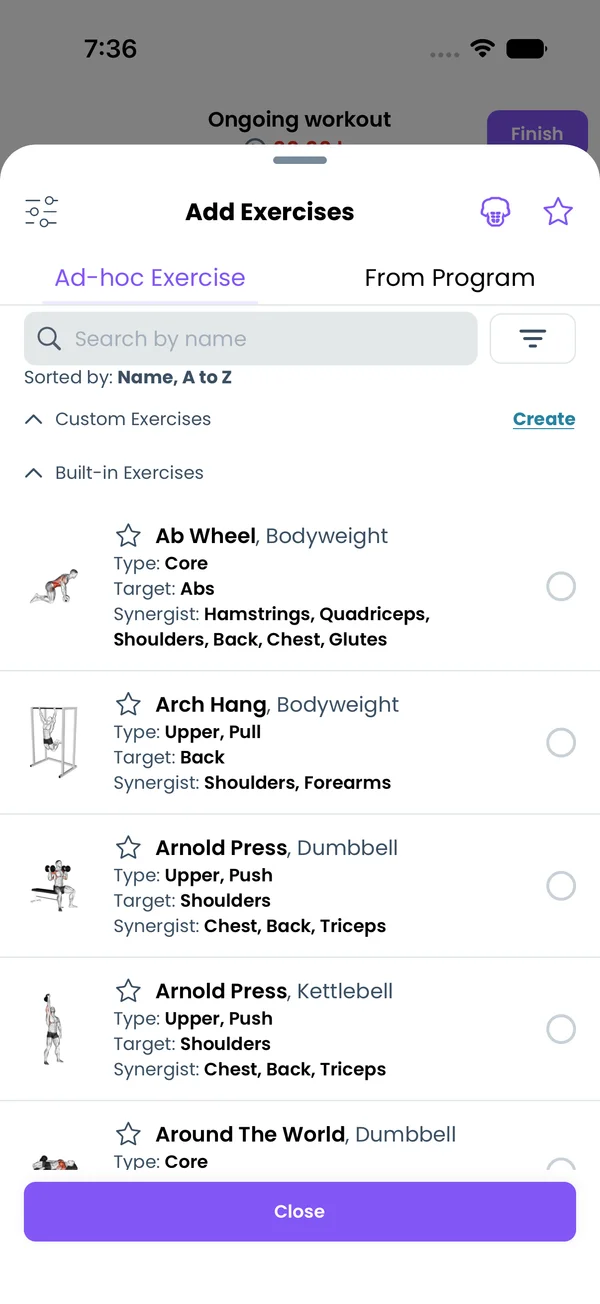\n\nOn the workout screen, tap the **+** at the end of the exercise thumbnails. The **Add Exercises** sheet opens with two groups, **Custom Exercises** and **Built-in Exercises**.\n\nEach row shows the image, the name, the equipment, and the **Type**, **Target** and **Synergist** muscle groups. The muscles icon in the header switches those lines to single muscles. Tap the star on a row to mark a favorite, and the star in the header to show favorites only. Exercises already in this workout are greyed out.\n\nCustom exercises are created from the same sheet. See [Custom Exercises](/features/custom-exercises).\n\n## Search by name\n\n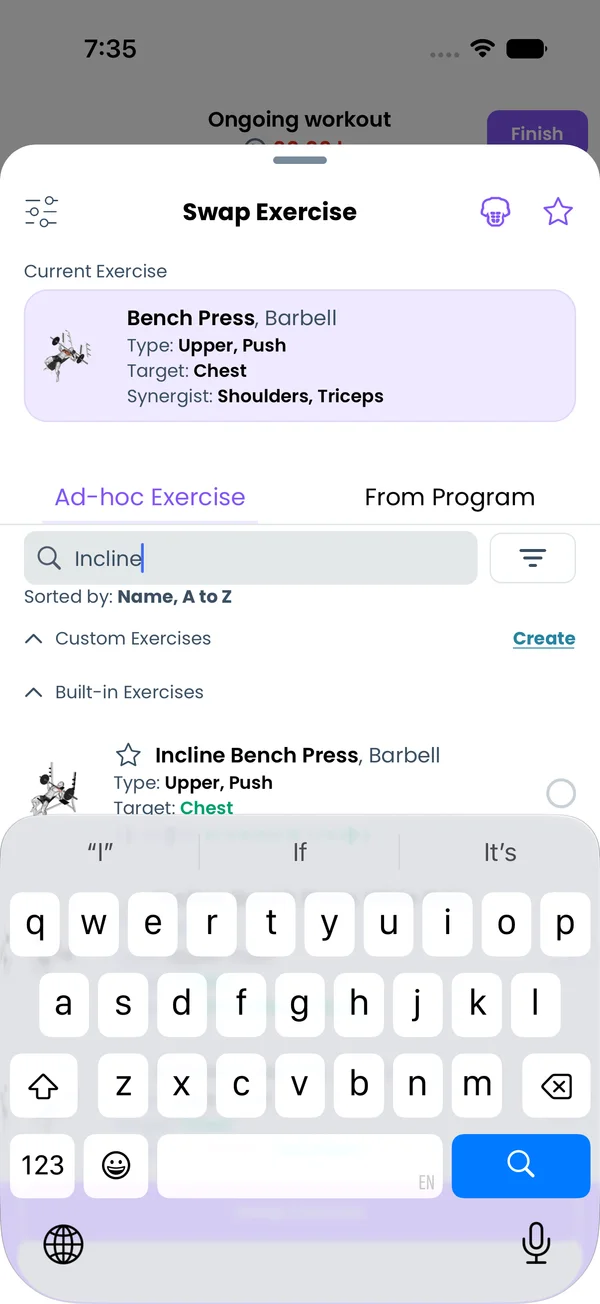\n\nType in **Search by name**. Words match the name and the equipment, so `incline dumbbell` finds Incline Bench Press, Dumbbell. The default equipment version comes first.\n\n## Add several at once\n\n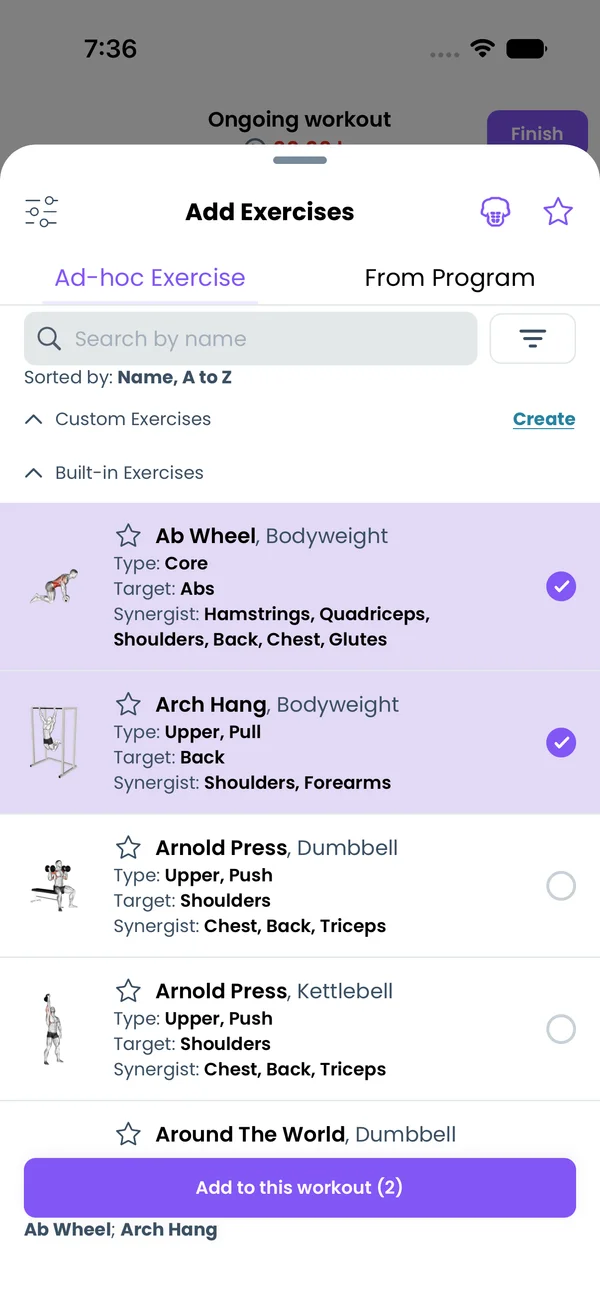\n\nTap the circle on each exercise you want. The button counts them: **Add to this workout (2)**, and the names of the selected exercises are listed under it, so you can check your picks after scrolling on. In the program editor it says **Add Exercises (2)**. A swap picks one exercise only.\n\n## Filter by equipment and muscles\n\nTap the filter button next to the search field. The **Filter and sort** screen has:\n\n- **Sort by**: **Name, A to Z** or **Similar Muscles**. Similar Muscles works only when you swap or edit an exercise.\n- **Show only available equipment**, which hides exercises on equipment you hid in [Equipment](/features/equipment-and-gyms).\n- **Equipment**, and **Type**: Core, Pull, Push, Legs, Upper, Lower.\n- **Muscles**: whole **Muscle Groups** or single **Muscles**.\n\nBack in the list, the filter button shows how many filters are on, and the line under the search says **Sorted by** and **Filters**.\n\n## Swap an exercise mid-workout\n\n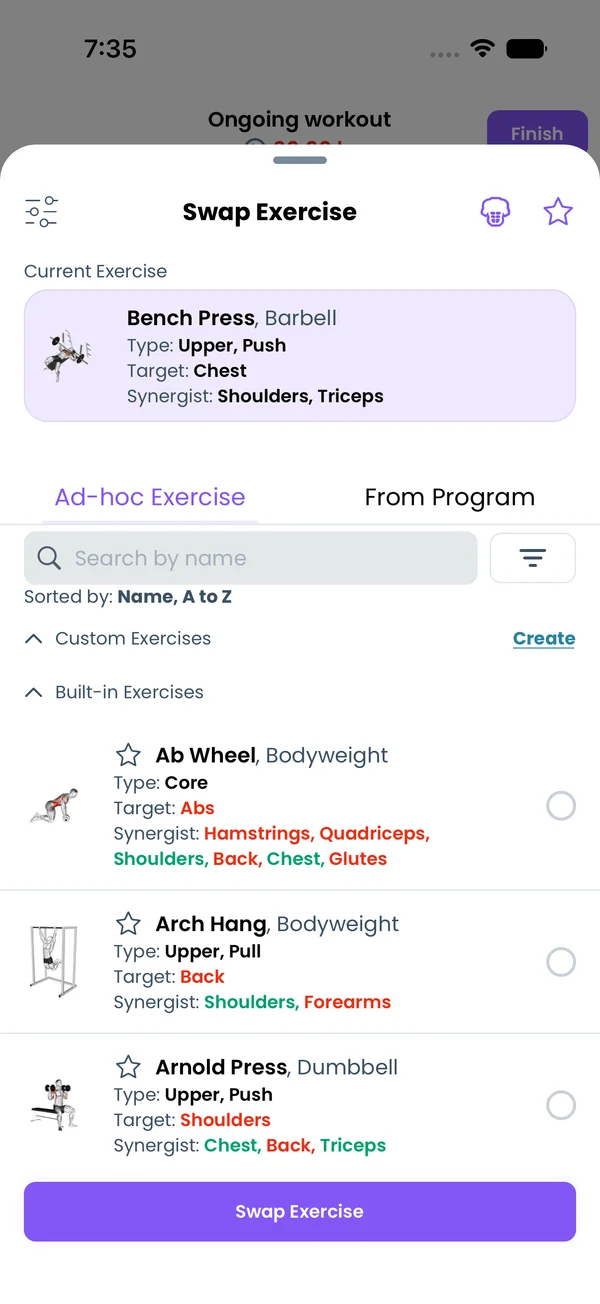\n\nTap the three dots on an exercise card, then **Swap Exercise**. The picker opens with a **Current Exercise** card on top. Sort by **Similar Muscles** to see the closest matches first. Muscles that match the current exercise are green, the rest red.\n\nA **Recent** group lists the last 5 exercises you swapped this one to. It hides while a search or a filter is on.\n\nThe weights come along. The app takes the weight from your history for the new exercise at the closest reps, converted to your target reps and RPE, or from your 1RM when there is no history.\n\n## Pick from your program\n\n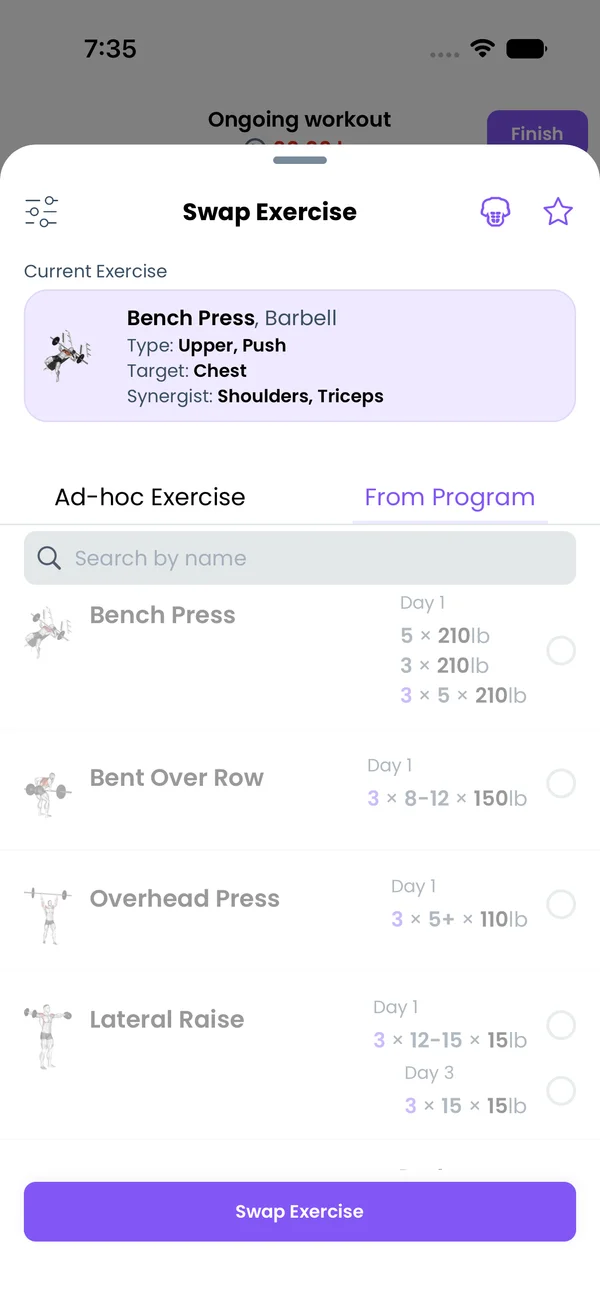\n\nThe **From Program** tab lists your current program's exercises by week and day, and an exercise added from here keeps its progression. **Ad-hoc Exercise** adds a plain exercise.\n\nA swap to an ad-hoc exercise drops the old exercise's progression. The settings icon at the top left of the sheet has one switch to keep it: **Keep existing program exercise logic when pick adhoc exercise**.\n\n## Keep your usual alternatives ready\n\nIf you often swap the same exercises in, say Incline Bench Press when the flat bench is taken, define them in the program once with `used: none`. Such a line is not part of any day, so it never shows up in a workout on its own, but it carries its own sets, weight and progression:\n\n```liftoscript\nIncline Bench Press / 3x8 / 115lb / used: none / progress: dp(5lb, 8, 10)\n```\n\nWhen you swap during a workout, pick it from the **From Program** tab. It comes in with these sets and this weight instead of a guess from history, and its progression runs when you finish, so the next swap starts from the updated weight. See [Liftoscript](/doc/liftoscript) for `used: none` and [Changing Today's Workout](/features/changing-a-workout) for swapping.\n\n## Your exercises list\n\n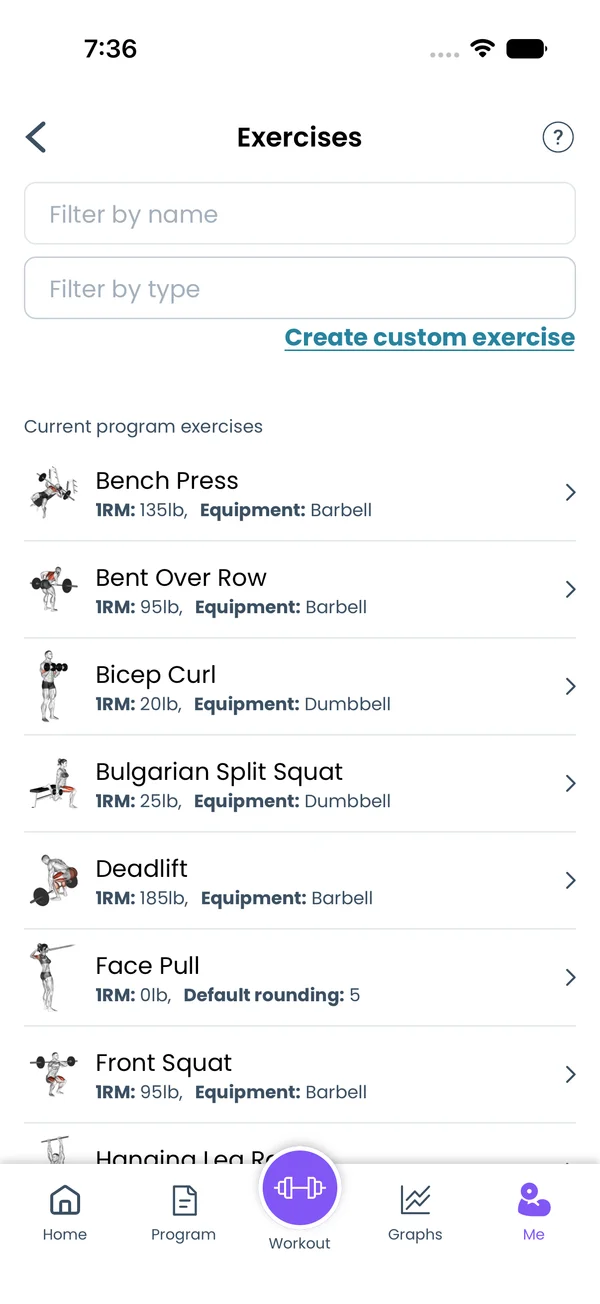\n\nGo to **Me → Exercises**. The list has **Custom Exercises**, **Current program exercises** and **Exercises from history**. Each row shows the **1RM** and the **Equipment**, or the **Default rounding** when no equipment is set. **Filter by name** and **Filter by type** narrow the list. Tap a row to open the exercise screen. The exercise name on the workout screen opens it too.\n\n## The exercise screen\n\n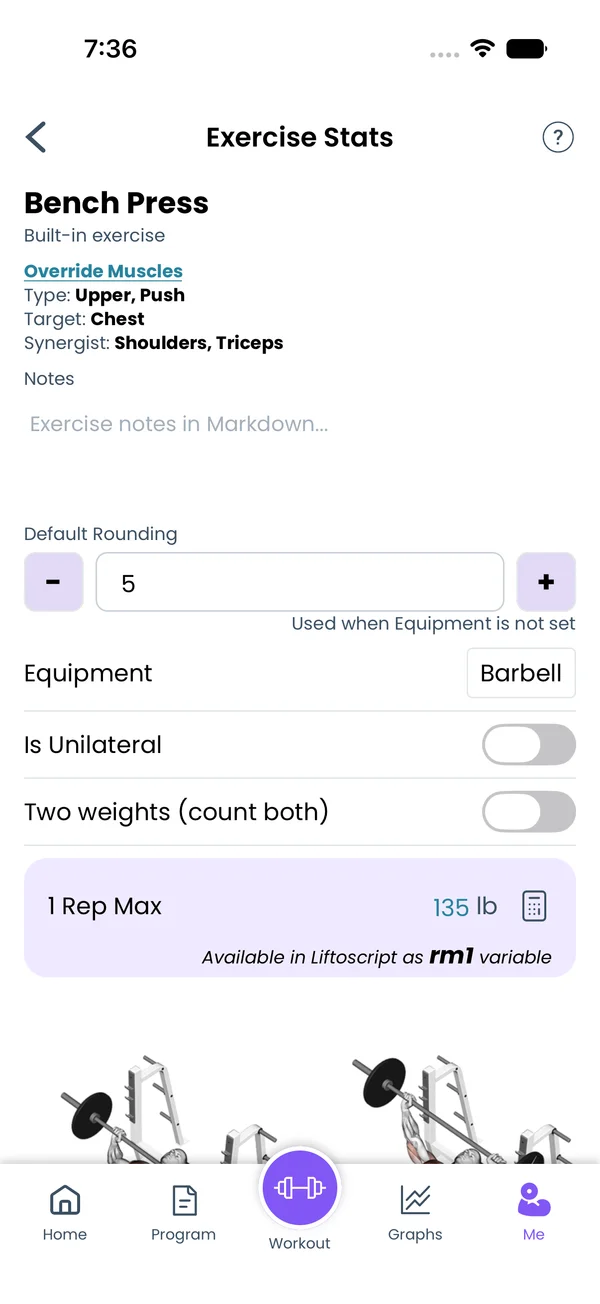\n\nUnder the name, the screen says **Built-in exercise** or **Custom exercise**, then **Type**, **Target** and **Synergist**. Tap them to see single muscles.\n\n- **Notes**: notes in Markdown that stay with the exercise, not with one workout.\n- **Default Rounding**: 5 lb or 2.5 kg unless you change it. Used when Equipment is not set.\n- **Equipment**: one setting per gym. See [Equipment](/features/equipment-and-gyms).\n- **Is Unilateral**: on by default for one-side exercises like Lunge, and for dumbbell curls. Reps count per side, and both sides add up for volume.\n- **Two weights (count both)**: on by default for dumbbell exercises. Volume counts both dumbbells.\n- **1 Rep Max**: the `rm1` variable in Liftoscript. Until you set it, the app uses the exercise's starting weight.\n\n## Records, graph and history\n\n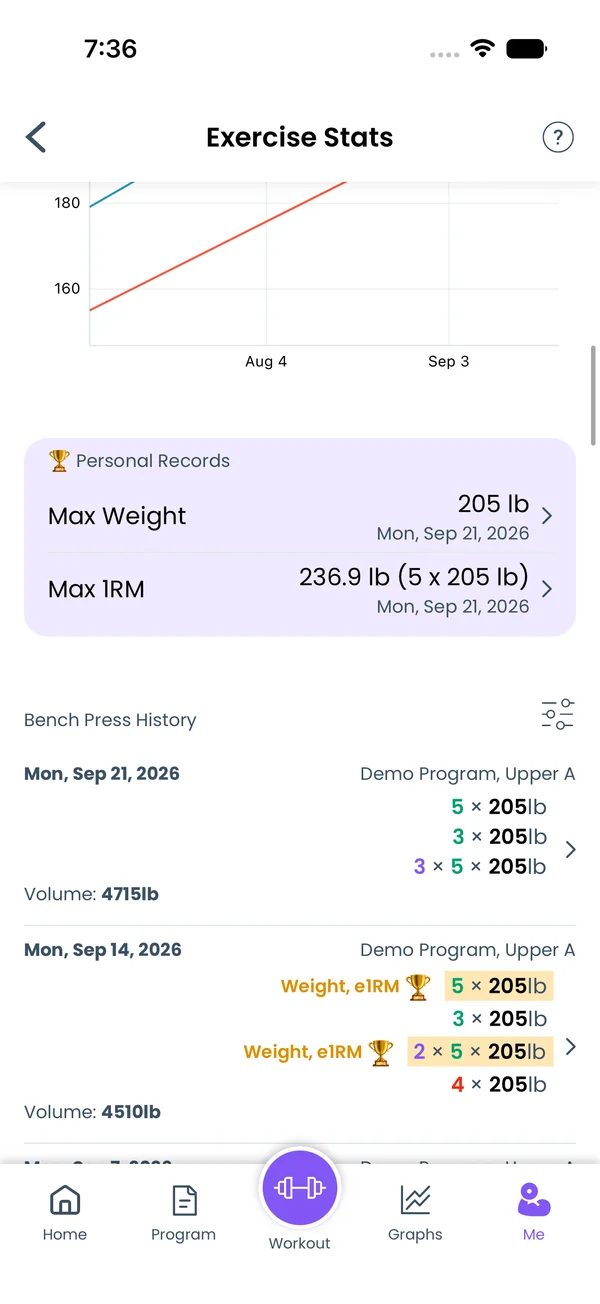\n\nWith more than one workout, the screen shows the exercise graph. **Personal Records** lists **Max Weight** and **Max 1RM**, with the reps and weight of the set behind it and the date. Tap a record to open that workout.\n\nThe history below shows each workout's sets, **Volume**, program state and notes. Tap an entry to edit that workout. The filter icon has **Ascending sort by date**, **Hide entries without exercise notes** and **Hide entries without workout notes**.\n\n## The rep max calculator\n\n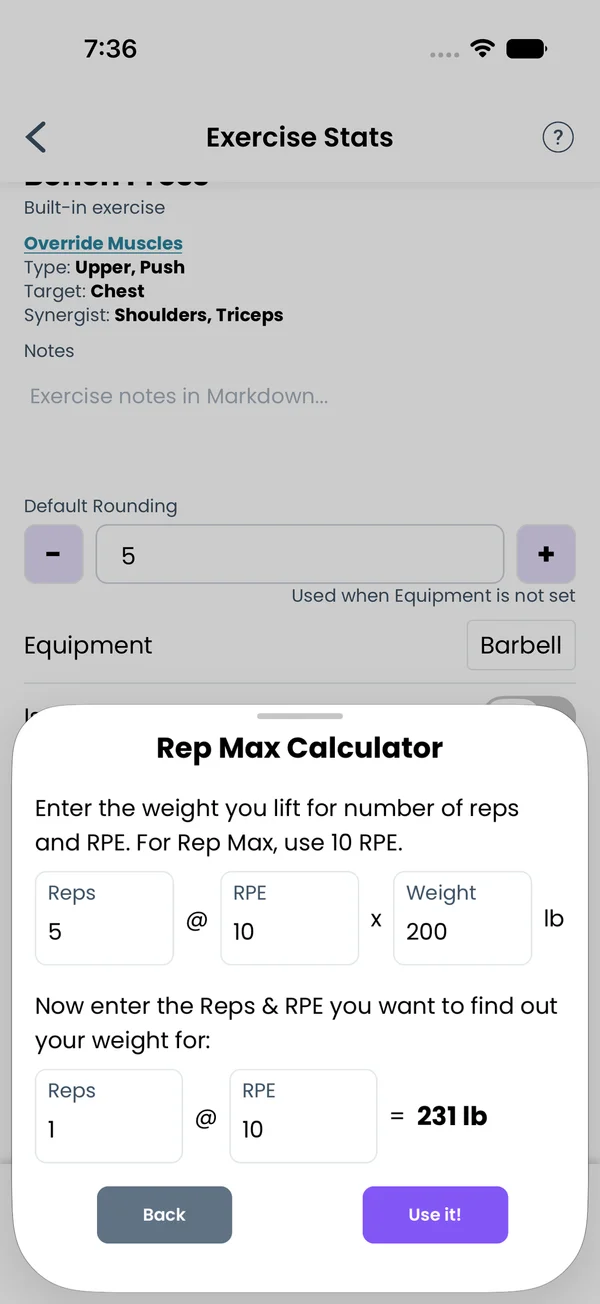\n\nTap the calculator icon next to **1 Rep Max**. Enter the reps, RPE and weight you can do, then the reps and RPE you want. **Use it!** writes the result into the field. The weight keypad has the same calculator key. Reps go from 1 to 24, RPE from 1 to 10.\n\nThe same calculator is on the site at [/rep-max-calculator](/rep-max-calculator), with a page per rep count like [/five-rep-max-calculator](/five-rep-max-calculator). **Other Rep Maxes** and **1RM Percentages** sit under the result.\n\n## Override muscles\n\n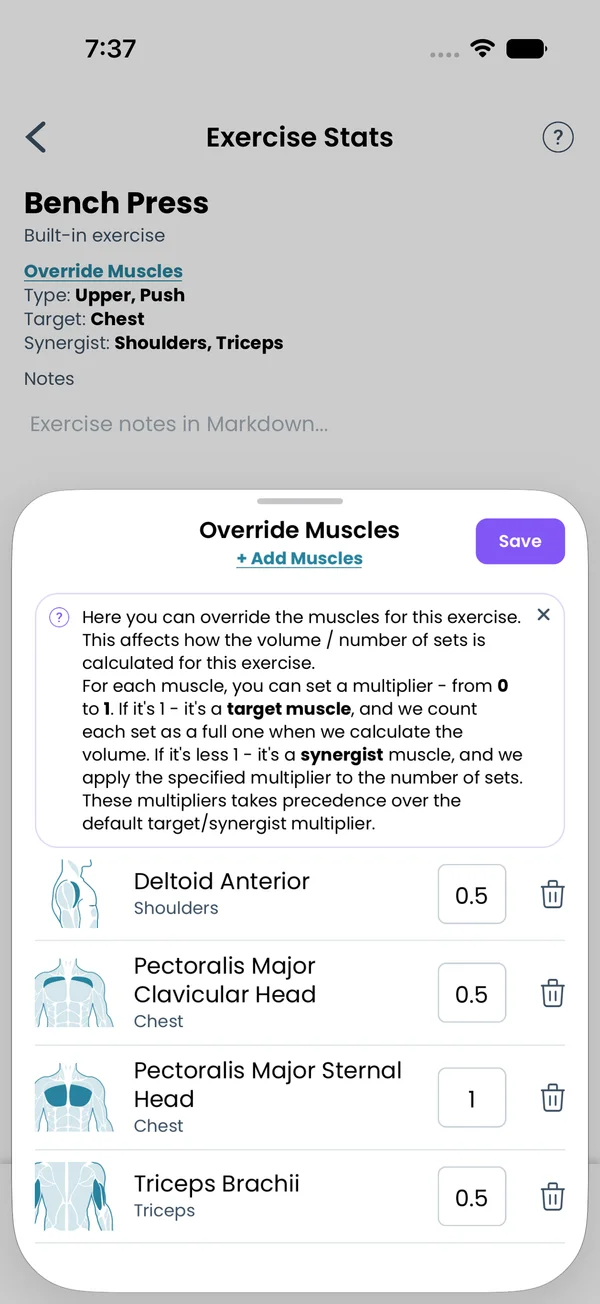\n\nEvery built-in exercise comes with target and synergist muscles, and the app counts your sets per muscle group from them in the week insights, the volume on the Program screen, and the graphs. Those defaults do not fit everyone. A wide-grip pull-up may be mostly back for you, while the default also counts biceps. A Romanian deadlift you do for the glutes still counts as hamstrings. And a custom exercise may have no muscles at all. The override fixes the counts for you without changing the exercise for anyone else.\n\nTap **Override Muscles** at the top of the exercise screen. Pick the muscles and give each a multiplier from 0 to 1. At 1 it is a target muscle, and each set counts in full. Below 1 it is a synergist, and a set counts as that share, the same way the default synergist multiplier works in [Week Insights](/features/week-insights). The override applies everywhere sets per muscle are counted.\n\n## The exercises directory on the site\n\n[/exercises](/exercises) lists every built-in exercise, with **Filter by name** and **Filter by type** like the app. Each exercise page is titled **How to perform ... with proper form** and lists its **Muscle Groups** and **Muscles**, target and synergist.","sizes":{"account/account-email-form":{"width":600,"height":1304},"account/account-forgot-password":{"width":600,"height":1304},"account/account-screen":{"width":600,"height":1304},"account/account-sign-in":{"width":600,"height":1304},"chatgpt-claude-and-ai/chatgpt-claude-and-ai-autofill":{"width":600,"height":1304},"api/api-key-created":{"width":600,"height":1304},"api/api-keys-empty":{"width":600,"height":1304},"api/api-me-row":{"width":600,"height":1304},"apple-watch/apple-watch-health-settings":{"width":600,"height":1304},"apple-watch/watch-apple-watch-amrap":{"width":416,"height":496},"apple-watch/watch-apple-watch-crown":{"width":416,"height":496},"apple-watch/watch-apple-watch-exercise":{"width":416,"height":496},"apple-watch/watch-apple-watch-get-ready":{"width":416,"height":496},"apple-watch/watch-apple-watch-home":{"width":416,"height":496},"apple-watch/watch-apple-watch-set-clock":{"width":416,"height":496},"apple-watch/watch-apple-watch-workout":{"width":416,"height":496},"built-in-programs/built-in-programs-import":{"width":600,"height":1304},"built-in-programs/built-in-programs-info":{"width":600,"height":1304},"built-in-programs/built-in-programs-library":{"width":600,"height":1304},"built-in-programs/built-in-programs-preview":{"width":600,"height":1304},"built-in-programs/built-in-programs-started":{"width":600,"height":1304},"changing-a-workout/changing-a-workout-adhoc":{"width":600,"height":1304},"changing-a-workout/changing-a-workout-adhoc-picker":{"width":600,"height":1304},"changing-a-workout/changing-a-workout-create-program-day":{"width":600,"height":1304},"changing-a-workout/changing-a-workout-edit-day":{"width":600,"height":1304},"changing-a-workout/changing-a-workout-edit-exercise":{"width":600,"height":1304},"changing-a-workout/changing-a-workout-next-workout":{"width":600,"height":1304},"changing-a-workout/changing-a-workout-pick-day":{"width":600,"height":1304},"changing-a-workout/changing-a-workout-program-day":{"width":600,"height":1304},"changing-a-workout/changing-a-workout-swap-adhoc":{"width":600,"height":1304},"changing-a-workout/changing-a-workout-swap-from-program":{"width":600,"height":1304},"changing-a-workout/changing-a-workout-swap-recent":{"width":600,"height":1304},"custom-exercises/custom-exercises-autofill":{"width":600,"height":1304},"custom-exercises/custom-exercises-clone-library":{"width":600,"height":1304},"custom-exercises/custom-exercises-cloned":{"width":600,"height":1304},"custom-exercises/custom-exercises-form":{"width":600,"height":1304},"custom-exercises/custom-exercises-hidden-group":{"width":600,"height":1304},"custom-exercises/custom-exercises-image-library":{"width":600,"height":1304},"custom-exercises/custom-exercises-image-source":{"width":600,"height":1304},"custom-exercises/custom-exercises-in-workout":{"width":600,"height":1304},"custom-exercises/custom-exercises-muscle-groups":{"width":600,"height":1304},"custom-exercises/custom-exercises-picker":{"width":600,"height":1304},"custom-exercises/custom-exercises-target-muscles":{"width":600,"height":1304},"equipment-and-gyms/equipment-and-gyms-barbell":{"width":600,"height":1304},"equipment-and-gyms/equipment-and-gyms-custom":{"width":600,"height":1304},"equipment-and-gyms/equipment-and-gyms-exercise":{"width":600,"height":1304},"equipment-and-gyms/equipment-and-gyms-fixed":{"width":600,"height":1304},"equipment-and-gyms/equipment-and-gyms-gyms":{"width":600,"height":1304},"equipment-and-gyms/equipment-and-gyms-hidden":{"width":600,"height":1304},"equipment-and-gyms/equipment-and-gyms-list":{"width":600,"height":1304},"exercise-library/exercise-library-calculator":{"width":600,"height":1304},"exercise-library/exercise-library-from-program":{"width":600,"height":1304},"exercise-library/exercise-library-list":{"width":600,"height":1304},"exercise-library/exercise-library-multi-add":{"width":600,"height":1304},"exercise-library/exercise-library-override-muscles":{"width":600,"height":1304},"exercise-library/exercise-library-picker":{"width":600,"height":1304},"exercise-library/exercise-library-prs":{"width":600,"height":1304},"exercise-library/exercise-library-search":{"width":600,"height":1304},"exercise-library/exercise-library-stats":{"width":600,"height":1304},"exercise-library/exercise-library-swap":{"width":600,"height":1304},"graphs/graphs-bodyweight":{"width":600,"height":1304},"graphs/graphs-choose":{"width":600,"height":1304},"graphs/graphs-exercise":{"width":600,"height":1304},"graphs/graphs-legend":{"width":600,"height":1304},"graphs/graphs-muscle-group":{"width":600,"height":1304},"graphs/graphs-personal-records":{"width":600,"height":1304},"graphs/graphs-settings":{"width":600,"height":1304},"health-sync/android-health-sync-measurements":{"width":600,"height":1339},"health-sync/android-health-sync-settings":{"width":600,"height":1339},"health-sync/android-health-sync-share":{"width":600,"height":1339},"health-sync/android-health-sync-sleep-nutrition":{"width":600,"height":1339},"health-sync/health-sync-measurements":{"width":600,"height":1304},"health-sync/health-sync-settings":{"width":600,"height":1304},"health-sync/health-sync-share":{"width":600,"height":1304},"health-sync/health-sync-sleep-nutrition":{"width":600,"height":1304},"import-export/import-export-export":{"width":600,"height":1304},"import-export/import-export-hevy":{"width":600,"height":1304},"import-export/import-export-import":{"width":600,"height":1304},"liftoscript/liftoscript-exercise-sheet":{"width":600,"height":1304},"liftoscript/liftoscript-full-program":{"width":600,"height":1304},"liftoscript/liftoscript-per-day":{"width":600,"height":1304},"liftoscript/liftoscript-playground":{"width":600,"height":1304},"lock-screen-and-notifications/android-lock-screen-and-notifications-live-update":{"width":600,"height":1339},"lock-screen-and-notifications/android-lock-screen-and-notifications-reminder":{"width":600,"height":1339},"lock-screen-and-notifications/android-lock-screen-and-notifications-sound":{"width":600,"height":1339},"lock-screen-and-notifications/lock-screen-and-notifications-dynamic-island":{"width":600,"height":1304},"lock-screen-and-notifications/lock-screen-and-notifications-live-activity":{"width":600,"height":1304},"lock-screen-and-notifications/lock-screen-and-notifications-reminder":{"width":600,"height":1304},"lock-screen-and-notifications/lock-screen-and-notifications-sound":{"width":600,"height":1304},"measurements/measurements-add":{"width":600,"height":1304},"measurements/measurements-bodyweight":{"width":600,"height":1304},"measurements/measurements-moving-average":{"width":600,"height":1304},"measurements/measurements-sleep-nutrition":{"width":600,"height":1304},"measurements/measurements-types":{"width":600,"height":1304},"first-run-and-settings/first-run-and-settings-appearance":{"width":600,"height":1304},"first-run-and-settings/first-run-and-settings-dark-mode":{"width":600,"height":1304},"first-run-and-settings/first-run-and-settings-equipment":{"width":600,"height":1304},"first-run-and-settings/first-run-and-settings-me":{"width":600,"height":1304},"first-run-and-settings/first-run-and-settings-units":{"width":600,"height":1304},"first-run-and-settings/first-run-and-settings-welcome":{"width":600,"height":1304},"playground/playground-completed":{"width":600,"height":1304},"playground/playground-day":{"width":600,"height":1304},"playground/playground-finished":{"width":600,"height":1304},"playground/playground-variables":{"width":600,"height":1304},"premium/premium-account":{"width":600,"height":1304},"premium/premium-feature-info":{"width":600,"height":1304},"premium/premium-plans":{"width":600,"height":1304},"program-editor/program-editor-create":{"width":600,"height":1304},"program-editor/program-editor-day-details":{"width":600,"height":1304},"program-editor/program-editor-exercise-sheet":{"width":600,"height":1304},"program-editor/program-editor-full-text":{"width":600,"height":1304},"program-editor/program-editor-grid":{"width":600,"height":1304},"program-editor/program-editor-perday-text":{"width":600,"height":1304},"program-editor/program-editor-ui-mode":{"width":600,"height":1304},"program-editor/program-editor-week-stats":{"width":600,"height":1304},"progressions/progressions-linear-settings":{"width":600,"height":1304},"progressions/progressions-preview":{"width":600,"height":1304},"progressions/progressions-state-variables":{"width":600,"height":1304},"progressions/progressions-suppressed":{"width":600,"height":1304},"rest-timer/rest-timer-collapsed":{"width":600,"height":1304},"rest-timer/rest-timer-dynamic-island":{"width":600,"height":1304},"rest-timer/rest-timer-expanded":{"width":600,"height":1304},"rest-timer/rest-timer-get-ready":{"width":600,"height":1304},"rest-timer/rest-timer-lock-screen":{"width":600,"height":1304},"rest-timer/rest-timer-settings":{"width":600,"height":1304},"rest-timer/rest-timer-sound":{"width":600,"height":1304},"rest-timer/watch-rest-timer":{"width":416,"height":496},"rest-timer/watch-rest-timer-exercise":{"width":416,"height":496},"set-types/set-types-amrap-popup":{"width":600,"height":1304},"set-types/set-types-per-side":{"width":600,"height":1304},"set-types/set-types-rpe-logged":{"width":600,"height":1304},"set-types/set-types-rpe-popup":{"width":600,"height":1304},"sharing-programs/sharing-programs-export-text":{"width":600,"height":1304},"sharing-programs/sharing-programs-image-preview":{"width":600,"height":1304},"sharing-programs/sharing-programs-image-settings":{"width":600,"height":1304},"sharing-programs/sharing-programs-import":{"width":600,"height":1304},"sharing-programs/sharing-programs-menu":{"width":600,"height":1304},"sharing-programs/sharing-programs-private-link":{"width":600,"height":1304},"sharing-programs/sharing-programs-public-link":{"width":600,"height":1304},"sharing-workouts/sharing-workouts-copied-text":{"width":600,"height":1304},"sharing-workouts/sharing-workouts-finish-screen":{"width":600,"height":1304},"sharing-workouts/sharing-workouts-profile-settings":{"width":600,"height":1304},"sharing-workouts/sharing-workouts-share-sheet":{"width":600,"height":1304},"sharing-workouts/sharing-workouts-story-preview":{"width":600,"height":1304},"supersets/supersets-liftoscript":{"width":600,"height":1304},"supersets/supersets-next-exercise":{"width":600,"height":1304},"supersets/supersets-picker":{"width":600,"height":1304},"supersets/supersets-program-editor":{"width":600,"height":1304},"supersets/supersets-timer":{"width":600,"height":1304},"supersets/supersets-workout":{"width":600,"height":1304},"sync-and-offline/sync-and-offline-account":{"width":600,"height":1304},"sync-and-offline/sync-and-offline-me-account":{"width":600,"height":1304},"sync-and-offline/sync-and-offline-sign-in":{"width":600,"height":1304},"timed-sets/timed-sets-count-up":{"width":600,"height":1304},"timed-sets/timed-sets-edit-time":{"width":600,"height":1304},"timed-sets/timed-sets-get-ready":{"width":600,"height":1304},"timed-sets/timed-sets-recorded":{"width":600,"height":1304},"timed-sets/timed-sets-running":{"width":600,"height":1304},"timed-sets/timed-sets-set-row":{"width":600,"height":1304},"timed-sets/timed-sets-timers":{"width":600,"height":1304},"week-insights/week-insights-details":{"width":600,"height":1304},"week-insights/week-insights-edit-muscle-groups":{"width":600,"height":1304},"week-insights/week-insights-exercises":{"width":600,"height":1304},"week-insights/week-insights-home":{"width":600,"height":1304},"week-insights/week-insights-muscle-groups":{"width":600,"height":1304},"week-insights/week-insights-settings":{"width":600,"height":1304},"workout-history/workout-history-change-date":{"width":600,"height":1304},"workout-history/workout-history-delete":{"width":600,"height":1304},"workout-history/workout-history-feed":{"width":600,"height":1304},"workout-history/workout-history-menu":{"width":600,"height":1304},"workout-history/workout-history-month-calendar":{"width":600,"height":1304},"workout-history/workout-history-note-on-card":{"width":600,"height":1304},"workout-history/workout-history-notes":{"width":600,"height":1304},"workout-history/workout-history-past-card":{"width":600,"height":1304},"workout-history/workout-history-past-workout":{"width":600,"height":1304},"workout-history/workout-history-week-insights":{"width":600,"height":1304},"workout-screen/workout-screen-e1rm":{"width":600,"height":1304},"workout-screen/workout-screen-edit-target":{"width":600,"height":1304},"workout-screen/workout-screen-exercise-menu":{"width":600,"height":1304},"workout-screen/workout-screen-exercise-notes":{"width":600,"height":1304},"workout-screen/workout-screen-history":{"width":600,"height":1304},"workout-screen/workout-screen-keypad":{"width":600,"height":1304},"workout-screen/workout-screen-next-set":{"width":600,"height":1304},"workout-screen/workout-screen-overview":{"width":600,"height":1304},"workout-screen/workout-screen-rounding":{"width":600,"height":1304},"workout-screen/workout-screen-summary":{"width":600,"height":1304}}}









